You press Win+G and nothing happens. Or the overlay opens, but the record button is grey, the performance widget is blank, or your clips save as empty files. Windows Game Bar failures look identical from the outside, but they come from four different layers: a toggle that got switched off, a damaged app package, a policy switch left behind by a debloat tool, or a game that refuses to share the screen. This guide walks the layers in order, from the thirty-second checks to the full re-register, and separates a broken Game Bar from one a game is simply blocking.
As an Amazon Associate, we earn from qualifying purchases.
Quick Answer
Start in Settings, Gaming, Game Bar, and confirm the toggle is on, then update Xbox Game Bar in the Microsoft Store. If Win+G still does nothing, repair and then reset the app under Settings, Apps, Xbox Game Bar, Advanced options. Check for Game DVR policy switches left by debloat tools, then re-register the app package in PowerShell.
Sort the Symptom Before You Fix Anything
The repair path depends on which failure you actually have, so spend one minute classifying it. Open a lightweight game or the Xbox app itself and press Win+G. If the overlay appears there, Game Bar is alive and your problem is specific to one title or one feature. If nothing appears anywhere, the app or its switches are at fault. Then test recording specifically: start a clip with Win+Alt+R. An overlay that opens but will not record is a capture problem, usually the missing Captures folder or a disabled background recording setting, not a dead overlay. Widgets that open empty, such as a performance panel with no numbers, point at the app package itself. Each maps to a different fix below.
Fix One: Toggles, Sign-In, and Store Updates
The most common cause is also the least dramatic: Game Bar was turned off, sometimes by a performance guide that treated it as bloat. Open Settings, Gaming, Game Bar, and switch on the option to open Game Bar with Win+G or the controller button. On the same screen, confirm the keyboard shortcut has not been remapped or cleared. Next, open the Xbox app and make sure you are signed in; several widgets, including party chat and the social panel, quietly fail when the Xbox identity layer is signed out. Then open the Microsoft Store, go to Library, and update everything, because Xbox Game Bar, the Xbox app, and the Xbox Identity Provider update independently, and a version mismatch between them produces exactly the half-working behavior described above. Restart once after the updates, because the overlay process only reloads cleanly on a fresh boot.
Fix Two: Repair, Reset, and Re-Register the App
If the toggles are right and the overlay still refuses to open, treat the app package as damaged. Go to Settings, Apps, Installed apps, find Xbox Game Bar, open Advanced options, and run Repair first; repair keeps your settings and clips. Test Win+G. If it still fails, return to the same screen and run Reset, which clears the app data and returns Game Bar to a first-run state. Your saved clips live in the Videos folder and are not touched. When repair and reset both fail, re-register the package: open PowerShell, paste the command Get-AppxPackage -AllUsers Microsoft.XboxGamingOverlay, confirm the package is listed, then re-register it with the Add-AppxPackage command against its AppXManifest.xml file, a standard recovery step for built-in Windows apps. If the package was uninstalled entirely, reinstall Xbox Game Bar from the Microsoft Store instead; a removed package cannot be repaired, only brought back.
Fix Three: Policy Switches Left by Debloat Tools
Game Bar can be switched off below the level of the Settings app. Many debloat and privacy scripts set a policy value named AllowGameDVR to off under the Windows GameDVR policy key, and some set AppCaptureEnabled to off in the user registry. While those values exist, the Settings toggle appears on but the overlay and recording stay dead, which is why this failure survives reinstalls. If you have ever run a debloat script, a gaming tweaks pack, or a stripped Windows image, check the GameDVR policy key in the registry editor or the Group Policy setting for Windows Game Recording and Broadcasting, and set it back to not configured. The same applies to machines that were once joined to a work or school account, where a management policy can keep applying after the account is removed. This is the fix most guides skip, and it is the one that ends the loop of repairing an app that was never broken.
Fix Four: When One Game Refuses the Overlay
A Game Bar that works everywhere except your main game is not broken. Several situations block it by design. Games running in true exclusive fullscreen can swallow the Win+G combination before Windows sees it; switching the game to borderless windowed mode usually restores the overlay. A game launched as administrator creates a mismatch, because the overlay runs at normal privilege and cannot draw over an elevated window, so run both at the same level or drop the admin shortcut. Some competitive titles with strict anti-cheat treat any injected overlay as hostile and block it outright; there is no setting that overrides that decision, and forcing it risks a ban. Also check your controller: if the guide button opens Steam or another launcher, that app has claimed the button, and the Game Bar controller shortcut needs the setting changed in the competing app.
Fix Five: Opens Fine, Records Nothing
When the overlay opens but clips fail, look at storage and the capture settings. Game DVR writes to a Captures folder inside your Videos library; if that folder was deleted, moved by a cleanup tool, or redirected to a drive that is no longer connected, recording fails silently or saves nothing. Recreate the folder, or open Settings, Gaming, Captures, and confirm the location shown exists and has free space, because a nearly full drive stops captures without a clear error. Background recording has its own toggle on that screen; if Record in the background is off, the clip-that feature has nothing buffered to save. Long sessions at high resolution also produce very large files, which is where the capture hardware in the next section starts to matter.
How to Choose Capture Gear When Built-In Recording Is Not Enough
Repairing Game Bar is the right answer for quick clips and the performance widget. Players who publish footage hit its limits quickly: no control over bitrate worth the name, no clean feed for a second machine, and files that land on the same drive the game is loading from. Choosing an upgrade is about where the work should happen. An external capture card moves encoding off the gaming PC entirely and suits console recording or a two-PC setup. A camera link adapter is for streamers who want a real camera as their facecam source. Storage is the quiet half of the decision: sustained write speed matters more than peak read speed for long sessions, and a rugged portable drive keeps finished footage off the machine entirely. The five products below are the standard parts for that workflow.
Elgato HD60 S+: Capture That Never Touches Your GPU

An external capture card that records a console or second PC at Full HD while passing a clean signal through to your display, so the gaming machine never handles the encode at all.
Specs
- Capture resolution: 1080p60 with HDR10
- Passthrough: 4K60 with HDR10
- Interface: USB 3.0
- Input and output: HDMI
- Compatibility: Windows and Mac, works with OBS and similar recording software
Elgato Cam Link 4K: A Real Camera as Your Facecam

A compact HDMI-to-USB adapter that turns a DSLR, camcorder, or action camera into a high-quality webcam and recording source for streamers.
Specs
- Input: HDMI, unencrypted signals
- Supported resolutions: 1080p60 and 4K30, with 4K60 available in MJPG mode on the current revision
- Interface: USB 3.0
- Dimensions: 3.19 x 1.22 x 0.47 inches
- Weight: 20 g
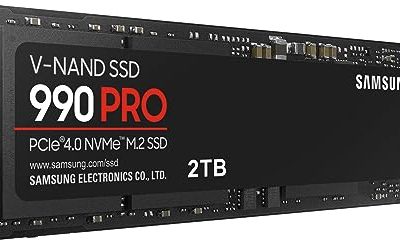
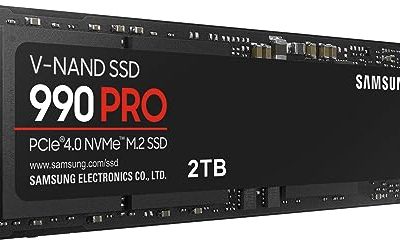
Samsung 990 PRO 2TB: Room for Games and Clips Together

A fast internal NVMe drive that holds a game library and an active recording folder at the same time, with the sustained write speed long captures demand.
Specs
- Capacity: 2TB
- Form factor: M.2 2280
- Interface: PCIe Gen4 x4, NVMe
- Sequential read: up to 7,450 MB/s
- Sequential write: up to 6,900 MB/s
- Model: MZ-V9P2T0B/AM
WD_BLACK SN850X 2TB: A Dedicated Home for Recordings

A gaming-focused Gen4 NVMe drive that gives captures their own high-speed home, keeping recording writes away from the drive your system and games load from.
Specs
- Capacity: 2TB
- Form factor: M.2 2280
- Interface: PCIe Gen4 x4, NVMe
- Sequential read: up to 7,300 MB/s
- Sequential write: up to 6,300 MB/s
- Model: WDS200T2X0E
Samsung T7 Shield 2TB: Archive Sessions Off the PC

A rugged portable SSD for moving finished footage between machines or archiving sessions, with an enclosure built for bags, desk drops, and dust.
Specs
- Capacity: 2TB
- Interface: USB 3.2 Gen 2, up to 10 Gbps
- Read speed: up to 1,050 MB/s
- Write speed: up to 1,000 MB/s
- Protection: IP65 dust and water resistance, drop resistant up to 3 meters
- Model: MU-PE2T0S/AM, Black
Who Should Skip the Repair Path
Skip this guide if your goal is the opposite one: players who turned Game Bar off on purpose for performance should leave it off, since nothing here is aimed at them. Skip it also if your only failing title is a competitive game whose anti-cheat blocks overlays by design; the repair steps cannot change that, and the productive move is an external capture card or the game’s own replay system. Laptop players who record on battery should fix the overlay only for the widgets, because background capture shortens a session noticeably. Finally, if the Microsoft Store itself is broken or missing, repair that first, because Game Bar cannot be updated or reinstalled without it.
Final Verdict
Windows Game Bar failures almost always sit in one of four layers: a toggle, a damaged app package, a leftover policy switch, or a game that blocks overlays on purpose. Work them in that order and most machines are fixed inside the first two. The policy layer is the one to remember, because it makes every other fix look ineffective. And when the built-in recorder itself is the limit rather than the fault, dedicated capture hardware and fast storage are the upgrade that ends the troubleshooting for good.
Frequently Asked Questions
Why does Win+G do nothing at all?
The usual causes are the Game Bar toggle being off, the app package being damaged, or a policy switch set by a debloat tool. Check the toggle first, then repair the app, then look for the GameDVR policy value.
Does resetting Game Bar delete my clips?
No. Reset clears the app settings and sign-in state only. Recorded clips are stored as ordinary files in the Captures folder inside your Videos library, and they stay where they are.
Why does Game Bar work on the desktop but not in my game?
That game is blocking the overlay. Exclusive fullscreen, running the game as administrator, or strict anti-cheat can each prevent the overlay from appearing. Borderless mode and matching privilege levels fix the first two; anti-cheat blocks cannot be overridden.
Can I reinstall Game Bar after uninstalling it?
Yes. Xbox Game Bar is a free Microsoft Store app, so reinstall it from the Store like any other app. A full re-register through PowerShell also works when the package is present but damaged.
Product and ASIN Reference
| Product | ASIN |
|---|---|
| Elgato HD60 S+ | B07XB6VNLJ |
| Elgato Cam Link 4K | B07K3FN5MR |
| Samsung 990 PRO 2TB | B0BHJJ9Y77 |
| WD_BLACK SN850X 2TB | B0B7CMZ3QH |
| Samsung T7 Shield 2TB | B09VLHR4JC |