Running out of room mid-download is the most ordinary upgrade trigger in PC gaming. Modern installs are huge, patches are constant, and deleting one game to make space for another gets old fast. Adding a second SSD fixes the problem at the root: your Windows drive keeps its breathing room, and the new drive becomes dedicated space for your game library.
The job is easier than it looks. There is no Windows reinstall, no cloning, and no risk to your existing files when it is done in the right order. This guide walks through the whole sequence: checking that your board has a usable slot, fitting the drive, initializing it in Windows, and pointing your launchers at it.
As an Amazon Associate, we earn from qualifying purchases.
Quick Answer
Yes, you can add a second SSD to almost any gaming PC without reinstalling Windows. Check your motherboard manual for a free M.2 slot or SATA port, fit the drive, then open Disk Management in Windows, initialize it as GPT, format it as NTFS, and assign it a drive letter. Your boot drive stays untouched.
Before You Open the Case
Three quick checks prevent nearly every failed install. First, confirm what your motherboard can accept. Most boards from the last several years have at least two M.2 slots, and many have three or four, plus four to six SATA ports for 2.5-inch drives. The manual lists exactly which slots exist and what each one supports.
Second, check lane sharing. On many boards, populating a lower M.2 slot disables one or two SATA ports, and on some models a fully loaded set of slots drops the graphics card slot from x16 to x8. Neither outcome breaks anything, but you need to know which SATA ports stay live before you plug cables into dead ones. The manual has a small table for this; read it before you buy.
Third, confirm the physical fit. Desktop NVMe drives are almost always M.2 2280, meaning 22 mm wide and 80 mm long. Check that the standoff in your chosen slot sits at the 2280 position, and note whether the board includes an M.2 heatsink shield. If it does, remember to peel the protective film off the thermal pad before you close it over the drive.
Step 1: Fit the Drive
Power the PC down, switch the power supply off, and unplug it. Hold the power button for a few seconds to drain residual charge, then open the case and ground yourself by touching the metal chassis.
For an M.2 drive, find the slot, remove the heatsink shield if one is fitted, and slide the drive into the connector at a shallow angle of about 30 degrees, gold contacts first. It only fits one way, keyed by the notch, so never force it. Press the raised end down flat against the standoff and secure it with the small screw or the tool-free latch some boards use. Snug is enough; overtightening can crack the board edge of the drive. Refit the heatsink shield if your board has one.
For a 2.5-inch SATA drive, slide it into a drive bay or screw it to a mounting tray, connect a SATA data cable from the drive to a live SATA port on the motherboard, and connect a SATA power lead from the power supply. Route both cables clear of fans.
Close the case, plug back in, and boot. A brand-new drive will not appear in File Explorer yet. That is normal, not a fault.
Step 2: Initialize, Format and Assign a Letter
Right-click the Start button and open Disk Management. Windows usually detects the uninitialized drive immediately and offers the Initialize Disk dialog. Choose GPT, which is the correct partition style for any modern UEFI system and for any drive over 2TB.
Once initialized, the drive shows as unallocated space. Right-click it, choose New Simple Volume, accept the full size, assign a drive letter, and format it as NTFS with the default allocation unit size. Give it a clear label such as Games so it is easy to spot in every launcher dialog.
If the drive does not appear in Disk Management at all, restart and enter the BIOS or UEFI setup. The drive should be listed on the storage or boot page. If it is missing there too, power down and reseat it: M.2 drives that sit at a slight angle, or SATA cables that are not fully clicked home, are the two usual causes. Also re-check the lane sharing table, since a populated M.2 slot may have disabled the exact SATA port you used.
Step 3: Point Your Launchers at the New Drive
With the drive visible in Windows, tell each launcher to use it for future installs. In Steam, open Settings, then Storage, and add the new drive as a library location, then set it as the default install drive. Epic Games and GOG Galaxy ask for an install path at download time, so simply pick the new letter when prompted. Battle.net has a default install setting in its app options.
Leave your existing installs where they are for now. New downloads land on the fast, empty drive, the boot drive stops hovering near full, and Windows keeps the free space it needs for updates and shader cache growth. You can rebalance later if you want your most-played titles on the quickest drive.
How to Choose the Second Drive
Any of these five makes a sound second drive, depending on what your board has free and what role the drive will play. The first three are internal NVMe drives for an empty M.2 slot. The last two cover the common case where the old drive from a previous upgrade, or a portable drive, becomes part of the setup.
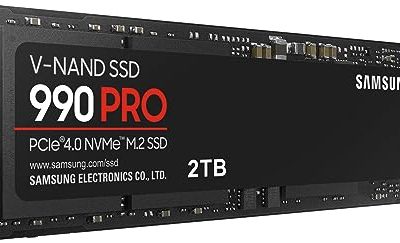
1. Samsung 990 PRO 2TB

The flagship option, worth picking if the second drive will hold your most-played titles and you want it to stay fast as it fills.
Specs
- Capacity 2TB; Interface PCIe Gen 4 x4, NVMe 2.0; Form factor M.2 2280; Sequential read up to 7,450 MB/s; Endurance rating 1,200 TBW.
2. WD Black SN850X 2TB

A gaming-tuned alternative at the same tier, with a Game Mode 2.0 toggle in its dashboard software.
Specs
- Capacity 2TB; Interface PCIe Gen 4 x4, NVMe 2.0; Form factor M.2 2280; Sequential read up to 7,300 MB/s; Endurance rating 1,200 TBW.
3. Crucial P3 Plus 2TB

The sensible capacity pick: a full 2TB of Gen 4 storage for the backlog, at a tier below the flagships.
Specs
- Capacity 2TB; Interface PCIe Gen 4 x4, NVMe; Form factor M.2 2280; Sequential read up to 5,000 MB/s; Endurance rating 440 TBW.
4. Samsung T7 Shield 2TB

A rugged portable SSD that works as overflow storage or as the drive you carry between a desktop and a laptop.
Specs
- Capacity 2TB; Interface USB 3.2 Gen 2; Read speed up to 1,050 MB/s; Drop resistance up to 3 metres; IP65 dust and water resistance rating.
5. Sabrent USB 3.2 Type-C M.2 NVMe Enclosure (EC-SNVE)

The upgrade leftovers solution: drop the smaller M.2 drive you replaced into this tool-free enclosure and it becomes fast external storage instead of e-waste.
Specs
- Interface USB 3.2 Type-C, up to 10 Gbps; Supports M.2 NVMe and SATA SSDs; Tool-free slide design; Aluminium body for heat dissipation.
Who Should Skip
Skip this upgrade if your motherboard genuinely has no free M.2 slot and every SATA port is populated, since there is nowhere for the drive to go. Also skip it if your real problem is a failing boot drive rather than a full one; a second drive does not fix errors, disappearing files, or blue screens, and that machine needs its main drive replaced first. Finally, laptop owners with a single sealed storage slot cannot add an internal drive at all, so an external SSD is the only route.
Final Verdict
Adding a second SSD is the highest-value storage upgrade a gaming PC can get: one short hardware install, one GPT initialization, one new drive letter, and the delete-to-make-room cycle ends. Check the manual for slots and lane sharing, fit an M.2 drive if a slot is free, and give the new drive one job, holding your games.
Frequently Asked Questions
Will a second SSD make my games load faster?
Only the games installed on it, and only if it is faster than the drive they were on before. The bigger everyday win is capacity: your boot drive keeps free space, and downloads, patches and shader caches stop competing for the last few gigabytes.
Can I add a second SSD without reinstalling Windows?
Yes. The new drive is initialized as a separate GPT volume with its own letter, and your existing Windows installation is never touched. Nothing needs to be cloned, moved, or reinstalled for the drive to work.
Should the second SSD be M.2 NVMe or SATA?
Use M.2 NVMe if a slot is free, since it needs no cables and is the fastest option. A 2.5-inch SATA SSD is still a perfectly good games drive, and in most current titles the loading difference between the two is small enough that you would not notice it side by side.
Why does my new SSD not show up in File Explorer?
Because it is uninitialized. Open Disk Management, initialize it as GPT, create a New Simple Volume, format it as NTFS, and assign a letter. If it is missing from Disk Management as well, check that it appears in the BIOS, then reseat it and confirm lane sharing has not disabled its port.
Product and ASIN Reference
| Product | ASIN |
|---|---|
| Samsung 990 PRO 2TB NVMe SSD | B0BHJJ9Y77 |
| WD Black SN850X 2TB NVMe SSD | B0B7CMZ3QH |
| Crucial P3 Plus 2TB NVMe SSD | B0B25ML2FH |
| Samsung T7 Shield 2TB Portable SSD | B09VLHR4JC |
| Sabrent USB 3.2 Type-C M.2 NVMe Enclosure (EC-SNVE) | B08RVC6F9Y |