A gaming laptop that felt fast two years ago rarely slows down for one single reason. Dust, a nearly full drive, background software and ageing storage all chip away at it at once, which is why random tweaks so often disappoint. The reliable approach is to find the one bottleneck that is actually holding your machine back, fix that first, and only open the laptop or buy parts when the diagnosis points there.
As an Amazon Associate, we earn from qualifying purchases.
Quick Answer
Start with Task Manager: a disk at full load means storage is the problem, memory near full means RAM, and clock speeds falling as temperatures climb means cooling. Clear space on the drive, trim startup apps, play plugged in on performance mode, clean the vents, then upgrade only the part your readings blame.
Find the Bottleneck First
Open Task Manager with Ctrl, Shift and Esc, then play a game for ten minutes with the Performance tab visible. Three readings tell you almost everything.
If the system drive hovers near full utilisation while the CPU and GPU loaf, the laptop is storage-bound. This is the classic pattern on machines still running a mechanical hard drive, and on SSD machines whose drive is nearly full, because a solid-state drive slows sharply as its free space disappears. If memory sits above roughly ninety percent during play, the laptop is paging to disk, which feels like random stutter in games and slow alt-tabbing. If CPU or GPU clock speeds fall steadily as the session goes on while temperatures sit near their limits, the machine is throttling: it is protecting itself from heat, and no software setting will fully fix that.
Note which pattern you have before changing anything. Each one has a different fix, and applying the wrong one is how people spend money and gain nothing.
Free Fixes That Come Before Any Upgrade
Whatever the diagnosis, work through these first. They cost nothing and they clear the ground so an upgrade, if you still need one, shows its full effect.
Empty the system drive until at least fifteen percent of it is free. Uninstall games you no longer play through the launcher rather than deleting folders, and move recordings and downloads to an external drive. Next, open the Startup tab in Task Manager and disable launchers, updaters and chat tools you do not need at boot; they can return when you open them manually. Run Windows Update to completion, including optional driver updates, then restart rather than shutting down, because a restart clears the memory state that fast startup preserves.
Check which power mode Windows is using. On battery, most gaming laptops deliberately cap performance, so judge speed only while plugged in. In Settings, set the power mode to Best performance, and open the laptop maker’s own control software as well: most gaming brands ship a performance or turbo profile there that Windows cannot override. Finally, point each game at the discrete GPU in Graphics settings if frame rates look like integrated-graphics numbers, because hybrid laptops occasionally run a title on the wrong chip.
Heat, Dust and the Slowdown That Builds Over Months
A laptop that was fast when new and now slows down twenty minutes into a session is usually choking on its own dust. Felt-like mats build up on the fan blades and fin stacks, airflow drops, and the processor sheds clock speed to stay within its thermal limit. Hold each fan still with a fingertip through the vent and blow the dust out with short bursts of compressed air; letting the fan spin freely under air pressure can damage its bearing. Use the laptop on a hard, flat surface so the underside intakes stay open, and treat a bed or sofa session as a guaranteed throttle.
If temperatures still pin at the limit with clean vents, the thermal compound between the chips and the heatsink may have dried out on a machine several years old. That is a workshop-level job on most gaming laptops, so weigh it against the upgrades below rather than attempting it first.
The Upgrades That Actually Change Things
Three upgrades cover nearly every hardware-bound slow laptop. Match yours to the diagnosis from the first section rather than buying all three.
Samsung 990 PRO 2TB PCIe 4.0 NVMe M.2 SSD

The flagship pick for a storage-bound laptop with a PCIe 4.0 slot. It replaces both a hard drive and an early, small SSD in one step, and its strong sustained writes suit large game installs and shader-cache churn.
Specs:
– Capacity: 2TB
– Interface: PCIe 4.0 x4, NVMe, M.2 2280
– Controller features: in-house controller with DRAM cache
– Endurance rating: 1,200 TBW
WD Black SN850X 2TB PCIe Gen4 NVMe M.2 SSD

A gaming-tuned alternative with a Game Mode 2.0 setting in the WD dashboard and low queue-depth behaviour aimed at load times. Choose it when it is the easier of the two flagships to source.
Specs:
– Capacity: 2TB
– Interface: PCIe Gen4 x4, NVMe, M.2 2280
– Features: Game Mode 2.0, DRAM cache
– Endurance rating: 1,200 TBW
Crucial P3 Plus 2TB PCIe Gen4 NVMe M.2 SSD

The value route to the same transformation. It gives up the DRAM cache of the flagships, which matters in sustained transfers far more than in game loading, and it turns a hard-drive laptop into a responsive machine for far less outlay.
Specs:
– Capacity: 2TB
– Interface: PCIe Gen4 x4, NVMe, M.2 2280
– Design: DRAM-less with host memory buffer support
– Backward compatibility: works in PCIe 3.0 slots at reduced speed
Crucial 32GB DDR4-3200 SO-DIMM Laptop RAM Kit (2 x 16GB)
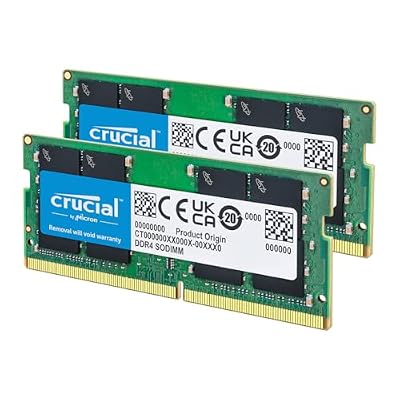
The fix for a memory-bound DDR4 laptop still running 8GB or a single 16GB stick. A matched pair restores dual-channel bandwidth and stops the paging that causes in-game stutter. Confirm your laptop has two accessible SO-DIMM slots and DDR4 rather than DDR5 before ordering.
Specs:
– Capacity: 32GB (2 x 16GB)
– Type: DDR4-3200 (PC4-25600), downclocks to 2933 or 2666
– Form factor: 260-pin SO-DIMM, non-ECC, unbuffered
– Latency and voltage: CL22, 1.2V
llano V12 Ultra Laptop Cooling Pad

For a clean, healthy laptop that still throttles in a warm room. Its sealed foam ring pressurises air into bottom intakes instead of blowing at the base plate, which suits gaming laptops that draw air from underneath.
Specs:
– Fan: single 140 mm turbo fan, up to 2,800 RPM
– Seal: memory foam ring that matches the laptop base
– Fit: gaming laptops from 15.6 to 19 inches
– Controls: touch panel with speed display
How to Choose
Let the Task Manager readings decide. Storage near full load with a hard drive or a nearly full SSD means the SSD upgrade comes first, and any of the three drives above transforms the machine; pick between them on interface support and how much sustained writing you do. Memory pinned near the top during games means the RAM kit, and only if your model actually has replaceable SO-DIMM slots, since some thin gaming laptops solder their memory. Temperatures at the limit with falling clock speeds mean airflow: clean the vents first, add the cooling pad if the room is warm, and consider a repaste only on an older machine that stays hot after cleaning.
Do the free fixes before ordering anything. A surprising share of slow laptops recover fully once the drive has breathing room and the startup list is trimmed, and if yours does, the diagnosis cost you nothing.
Who Should Skip
Skip this process if your laptop is slow only in one specific game after that game’s update, because that points at the title rather than the machine. Skip the upgrades if your laptop is still under warranty and opening it would void coverage; do the software steps and let the maker handle the hardware. And skip everything if the battery is swollen or the chassis is bulging near the keyboard: that is a safety issue, not a performance one, and the machine needs service before it needs speed.
Final Verdict
A slow gaming laptop is almost always one bottleneck wearing a disguise. Read Task Manager during a real game, fix the free causes first, then upgrade the single part the evidence names: an NVMe SSD for storage-bound machines, a matched SO-DIMM kit for memory-bound ones, and airflow help for throttling ones. That order turns a vague, frustrating slowdown into a short checklist, and it stops you paying for parts your laptop never needed.
Frequently Asked Questions
Why is my gaming laptop slower than when I bought it?
Usually a combination of a fuller drive, more background software, dust in the cooling system and larger game installs. None of these is permanent. Work through the diagnosis and free fixes in this guide before assuming the hardware has aged out.
Will adding more RAM make my gaming laptop faster?
Only if memory is the bottleneck. If Task Manager shows memory nearly full while you play, a matched 32GB kit removes paging stutter and helps multitasking. If memory sits comfortably low, extra RAM changes almost nothing in games.
Is an SSD upgrade worth it on an older gaming laptop?
If the laptop still runs a mechanical hard drive, it is the single largest speed upgrade available, affecting boot times, game loads and general responsiveness. On a machine that already has an NVMe SSD, a newer drive helps mainly when the old one is nearly full or very small.
Why does my laptop only slow down after twenty minutes of gaming?
That pattern points at heat. As temperatures reach their limit, the CPU and GPU cut clock speeds to protect themselves. Clean the vents, keep the underside intakes unobstructed, and consider a cooling pad before changing any parts.
Product and ASIN Reference
| Product | ASIN |
|---|---|
| Samsung 990 PRO 2TB PCIe 4.0 NVMe M.2 SSD | B0BHJJ9Y77 |
| WD Black SN850X 2TB PCIe Gen4 NVMe M.2 SSD | B0B7CMZ3QH |
| Crucial P3 Plus 2TB PCIe Gen4 NVMe M.2 SSD | B0B25ML2FH |
| Crucial 32GB DDR4-3200 SO-DIMM Laptop RAM Kit (2 x 16GB) | B08C4X9VR5 |
| llano V12 Ultra Laptop Cooling Pad | B0F6LG31LV |