Updated November 2026 – Is Linux good for gaming? Yes for most single-player Steam games, no for games with anti-cheat that refuses Linux, and Bazzite or SteamOS are the easiest starting points while Linux Mint is a good beginner desktop that needs a little more setup.
Linux gaming now rests on Valve’s Proton compatibility layer, which runs Windows games through Steam. Whether it suits you depends on your library, your graphics card, and whether you play competitive titles with kernel-level anti-cheat. This guide covers Proton and ProtonDB, anti-cheat, AMD versus NVIDIA drivers, whether Linux Mint is good for gaming, Bazzite and SteamOS, dual booting, and gaming mice on Linux.
Is Linux Good for Gaming? Quick Reference
| Use case | Verdict | What to use |
|---|---|---|
| Single-player Steam games | Usually works via Proton | Steam with Proton, check ProtonDB first |
| Competitive shooters with anti-cheat | Hit and miss, some blocked | Check the Are We Anti-Cheat Yet list, or keep Windows |
| Living-room gaming PC | Very good | Bazzite or SteamOS |
| Learning Linux while gaming | Good | Linux Mint with Steam |
| NVIDIA graphics card | Works, with more caveats | Bazzite NVIDIA image or Mint with proprietary driver |
| AMD graphics card | Smoothest experience | Any gaming-friendly distro |
How Proton and Steam Play Work
Proton is Valve’s compatibility layer, based on Wine, that lets Windows games run on Linux through Steam. A 2026 statistics roundup reports that about 90 percent of Windows titles launch on Linux via Proton according to ProtonDB data from late 2025, and that Proton 11.0 shipped in July 2026 on a Wine 11.0 base. Those are third-party summaries, so treat the exact numbers as approximate. Launching is not the same as running well, so check ratings per game.
ProtonDB and Steam Deck ratings
ProtonDB collects player reports and rates games from Platinum, meaning runs perfectly, down to Borked. Valve’s own Steam Deck badges, Verified, Playable and Unsupported, are described by one guide as the strongest signal, and they carry over to SteamOS-based machines. Look a game up before buying, read the newest reports, and note the Proton version players used.
Anti-Cheat: The Main Limit
Anti-cheat is the biggest blocker. Are We Anti-Cheat Yet tracks which games work, and the tracker lists several hundred titles as broken under Proton or Wine. Easy Anti-Cheat and BattlEye both support Linux, but each publisher has to turn that on, and some do not. The same summary lists Valorant and Fortnite as denied and recent Call of Duty titles as broken. If your main games are competitive multiplayer with kernel anti-cheat, check that list before switching, and consider keeping Windows on a second drive.
Is Linux Mint Good for Gaming?
Linux Mint is a good beginner desktop that can play many Steam games, but it is not gaming-first. One guide calls it the best distribution for gaming beginners and recommends Bazzite for a dedicated gaming PC. Mint is based on Ubuntu LTS, which means older components than rolling or Fedora-based systems, and its Cinnamon desktop has only experimental Wayland support, which matters for HDR.
A typical Mint setup runs as follows.
- Install Mint, then install Steam from the Software Manager.
- In Steam, open Settings, Compatibility and enable Steam Play for all titles, choosing a Proton version.
- For NVIDIA cards, open the Driver Manager and install the recommended proprietary driver.
- Optionally install ProtonUp-Qt to add community Proton builds such as Proton-GE for stubborn games.
HDR on Linux generally needs Wayland and a compatible desktop, so if HDR matters to you, a KDE or GNOME based system is the more common route than Mint.
SteamOS and Bazzite
SteamOS is Valve’s Linux-based system for the Steam Deck and Steam Machine. It ships only AMD graphics drivers, so it is not an option for NVIDIA desktops. Bazzite is a Fedora-based, SteamOS-like distribution that comes in desktop and handheld editions, with images for AMD and Intel and separate images for NVIDIA. It uses KDE Plasma or GNOME, is image-based, and keeps the previous version so you can roll back after a bad update. Its documentation notes major caveats for NVIDIA because the driver is not open source, and labels NVIDIA support in Gaming Mode as beta. Switching between NVIDIA and AMD may mean rebasing to another image.
AMD vs NVIDIA on Linux
AMD and Intel graphics use open-source Mesa drivers that are updated with the system and generally give the smoothest experience. NVIDIA works through its proprietary driver and gets more setup requirements, with Wayland and some Proton games reported to need specific settings or driver versions. If you are building a Linux gaming PC from scratch, AMD is the lower-friction pick. If you already own NVIDIA, Bazzite’s NVIDIA image or Mint with the proprietary driver both work.
Dual Booting Windows and Linux
Dual booting keeps Windows for anti-cheat games and Linux for everything else. Put each system on its own drive if you can, install Windows first, then Linux, and turn off Fast Startup in Windows so the drives mount cleanly. Back up your data before changing partitions, and avoid sharing the same game library folder between systems unless you know the file system is compatible.
Best Gaming Mouse for Linux
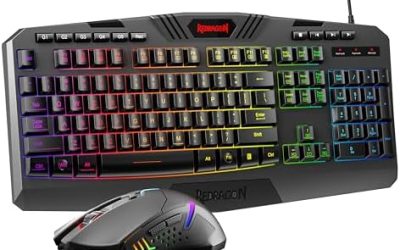
Almost any USB gaming mouse works as a pointer on Linux. The question is configuring DPI, buttons and lighting without the maker’s Windows software. Piper is a graphical front end to the libratbag daemon and supports many gaming mice, but not all, so check its supported-device list. Solaar manages Logitech Lightspeed and Unifying receivers, showing battery status and pairing. OpenRazer provides drivers and a daemon for Razer devices. Practical advice: choose a mouse with onboard memory so you set the DPI and buttons once, then the settings work anywhere. Partial support is common, such as DPI working while lighting does not.
Who Should Switch and Who Should Wait
- Switch now: you play mostly single-player or co-op Steam games, own an AMD card or want a Steam Deck-like PC.
- Dual boot: you want Linux but also play anti-cheat games.
- Wait: your main games are blocked by anti-cheat, or you rely on Windows-only launchers and peripherals software.
Performance and Features Compared With Windows
Reviewers report that many games run at similar speeds under Proton and Windows, while others run slower or have bugs. Results vary by game, GPU and driver, and no single number applies. Features like HDR, some overlays and certain capture tools are less mature on Linux. Frame generation and upscaling options depend on the game and the GPU’s Linux driver support. If you want the Steam Deck-style experience on a desktop, SteamOS-like systems such as Bazzite bundle a gaming mode.
Non-Steam Games and Launchers
Games from other stores can run on Linux using launchers such as Lutris or Heroic Games Launcher, or by adding a non-Steam game to Steam and running it through Proton. Compatibility depends on the game and its protections. Read community wiki pages for the specific title, and keep each game in its own Wine prefix where the launcher offers it, to avoid conflicts.
Tips for a Smooth First Week
- Start with a handful of games you already own and look up each one on ProtonDB.
- Keep your graphics driver current using your distribution’s tools.
- Use the same Proton version that most positive reports mention.
- Back up your save files and game settings before big system updates.
- Keep Windows available, either dual booted or on another drive, until you are sure your key games work.
- Read the Steam Deck badge on each game’s store page as a quick compatibility guide.
Which Distro Fits Which Player
Pick a distribution by how you will use the computer. For a PC that mostly plays games and sits in a living room, Bazzite’s gaming-first design and rollback feature make it a low-maintenance choice. For a machine you also use for work and browsing, Linux Mint is a familiar, stable desktop with a traditional layout that Windows users tend to find comfortable. One guide also suggests Pop!_OS for NVIDIA owners who use the PC for work too. Whichever you choose, install from the project’s official download page, read its gaming documentation and keep a Windows fallback for the games that need it.
Handhelds and the Steam Machine
Valve’s SteamOS also runs on the Steam Machine, and Deck badges carry over to it, so a game’s rating on the store page is a useful guide for both. Bazzite offers a handheld edition for other portable PCs. Because these systems share the Proton layer, the same compatibility research applies to a desktop, a handheld and a console-style box.
Frequently Asked Questions
Is Linux Mint good for gaming?
Yes for many Steam games once Steam, Proton and the right graphics driver are set up. It is better for beginners than for dedicated gaming boxes, where Bazzite is often suggested.
Can I play all Steam games on Linux?
No. A large majority launch through Proton, but quality varies and some multiplayer games block Linux. Check ProtonDB and the Steam Deck badge first.
Does anti-cheat work on Linux?
Sometimes. Easy Anti-Cheat and BattlEye support Linux when the publisher enables it. Many games do not, so check Are We Anti-Cheat Yet.
Is Linux better with AMD or NVIDIA?
AMD is generally easier because its drivers are open source and included. NVIDIA works with the proprietary driver and a bit more setup.
Is Bazzite better than SteamOS for a PC?
For NVIDIA PCs, yes, since SteamOS only ships AMD drivers. For AMD systems, both work and Bazzite adds a desktop and more flexibility.
What is the best gaming mouse for Linux?
One with onboard memory and a supported-device entry in Piper or Solaar. Logitech and many standard gaming mice are common choices.
Sources Consulted
Bazzite documentation and project page, Wikipedia on Proton, GamingOnLinux anti-cheat list, Linux gaming statistics roundups, Piper and libratbag guides, and Mint gaming guides. Distribution details change between releases, so check each project’s own documentation.