Updated November 2026 – To fix gaming lag, first work out whether it is network lag (high or spiking ping) or PC lag (low FPS, stutter or input delay), because the fixes are different.
This guide on how to fix gaming lag and improve latency splits the problem in two. If your ping jumps while players teleport or actions arrive late, start with the network. If the camera looks choppy even offline, start with the PC. Several sources describe the same split, including loaded latency, where lag appears only during downloads or uploads. Follow the table, then the sections for your case.
Lag symptom, cause and fix table
| Symptom | Likely cause | First fix |
|---|---|---|
| Players teleport, actions arrive late | High ping or packet loss | Use Ethernet, pick a closer server, pause downloads |
| Ping is fine idle but spikes during downloads | Bufferbloat on the router | Turn on smart queue management or QoS, cap bandwidth |
| Choppy picture even offline | Low FPS or poor frame pacing | Lower settings, update graphics driver, check temperatures |
| Smooth picture but controls feel slow | Input delay | Use the display’s game mode, turn off V-Sync, use wired peripherals |
| Random freezes for a second | Background tasks, storage or overheating | Close apps, free disk space, check thermal throttling |
| Voice or audio delay on wireless headset | Bluetooth audio latency | Use the maker’s USB dongle or a wired headset |
Step 1: separate ping lag from FPS stutter
Open a game with an on-screen FPS and ping display, or use the overlay your graphics driver provides. Ping lag shows as a high or fluctuating ping number while the frame rate stays smooth. FPS stutter shows as a drop in frame rate or uneven frame times while ping stays steady. One guide notes that a ping that jumps only during downloads points to the network, while steady ping with stuttering frames points to the PC. Loading an offline game is a quick check: if it stutters offline, the network is not the cause.
Is 50 FPS good for gaming?
It is playable in slower games but noticeably less smooth than 60 FPS or above. Fifty frames per second means each frame takes 20 milliseconds, so the picture updates less often than on a 60Hz or 144Hz monitor and fast action feels softer. For competitive shooters, most players aim for at least 100 to 144 FPS if the monitor supports it, and consistency matters more than the number: a steady 60 FPS often feels better than a swing between 40 and 100. If you are stuck near 50 FPS, lower the heaviest settings such as shadows and ray tracing, enable the game’s upscaler if it has one and look for a CPU or thermal bottleneck.
Network fixes that reduce ping and jitter
Use Ethernet or a stronger Wi-Fi signal
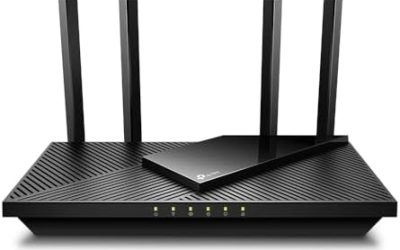
Wired is the most reliable way to lower jitter. If you must use Wi-Fi, connect to 5GHz or 6GHz and move the router closer or higher. Wi-Fi generation helps under congestion, but it does not fix server distance.
Pause background downloads and cloud sync
Game launchers and consoles download updates in the background by default. Pause them, or set the launcher’s download limit to a fraction of your speed, which one guide suggests as about 70 percent in Steam. Cloud backups and video uploads can hurt more than downloads because upload bandwidth is usually smaller.
Fix bufferbloat on the router
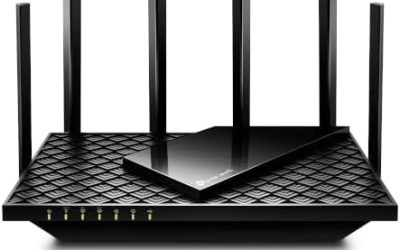
Bufferbloat happens when the router queues too much data, so game packets wait behind a bulk download. Guides describe ping rising from a low idle value to hundreds of milliseconds under load. The fix is smart queue management (SQM, often listed as CAKE or fq_codel) or QoS in the router settings, with the bandwidth limit set a little below your measured speed, commonly 85 to 90 percent. Test while something is downloading, not at idle. Router menus differ, so use the maker’s manual.
DNS: what it does and does not fix
Changing DNS to a public resolver such as Cloudflare or Google can speed up launcher start-up, matchmaking lookups and logins. Several sources say it does not lower in-game ping, which depends on distance and routing to the game server. Try it if sign-in is slow, but do not expect it to cure lag.
Pick the closest server and check NAT
Choose the region with the lowest ping. A strict NAT type can force relayed connections that add delay, and enabling UPnP on the router fixes this for many users; understand that opening ports affects security, so follow the router maker’s guidance.
PC fixes that improve frame pacing and input latency
- Update the graphics driver from Nvidia, AMD or Intel. If problems began after an update, roll back to the previous version.
- Set a performance power plan. Windows defaults to Balanced, and guides advise High Performance on a desktop or a plugged-in laptop. It raises power use and heat.
- Turn on Game Mode. In Windows Settings under Gaming, Game Mode deprioritises background tasks. Guides report a small effect.
- Trim startup apps in Task Manager, leaving drivers and audio software alone.
- Watch temperatures. Use a monitoring tool such as HWiNFO or MSI Afterburner. Guides treat a graphics card above about 85C or a CPU above about 90C as a throttling risk. Clean dust and check fan curves; unplug the PC before opening the case.
- Enable the memory profile. XMP (Intel) or EXPO (AMD) in the BIOS lets RAM run at its rated speed. BIOS changes can cause instability and may affect your warranty, so use the stock profile and follow the motherboard manual.
- Hardware-accelerated GPU scheduling. One guide says it can lower input latency and improve frame pacing but uses extra video memory, which may hurt on 8GB cards. Compare before and after.
- Free disk space. A nearly full SSD slows Windows and shader caches. Guides suggest keeping some space free and installing games on an SSD.
Best memory latency for gaming
Lower timings and higher speed both help, but the gain is modest compared with enabling XMP or EXPO in the first place. Reviewers report that the sweet spot depends on the platform: AMD Ryzen systems often prefer a memory speed that matches the processor’s fabric clock, and the CPU maker’s documentation lists supported speeds. Buying a kit rated for your platform and turning the profile on matters more than chasing the tightest numbers. Manual timing changes can cause crashes, so keep them conservative.
Peripheral latency: headset and mouse
Best low-latency Bluetooth headset
Standard Bluetooth adds audio delay that you notice in fast games. Look for a headset whose maker lists a low-latency mode or its own USB wireless dongle, which usually outperforms plain Bluetooth. Wired headsets have no wireless delay. For competitive play, many players use wired or dongle-based models.
Best wireless gaming mouse for low latency
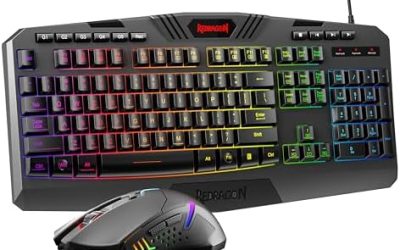
Wireless gaming mice that use a proprietary 2.4GHz dongle are designed for low delay and many makers list a polling rate of 1000Hz or higher. Bluetooth mode on the same mouse is usually slower and meant for office use. Check the maker’s stated polling rate and battery life, and keep the dongle near the mouse with a short extension cable if the case blocks the signal.
How to boost PC gaming performance without risk
- Update Windows and the graphics driver.
- Close overlays and launchers you do not need.
- Apply the performance power plan and Game Mode.
- Enable XMP or EXPO if your RAM runs below its rating.
- Check temperatures and clean dust.
- Lower the heaviest in-game settings and cap the frame rate slightly under the monitor’s refresh rate.
Avoid registry hacks and unknown optimiser tools. Overclocking and BIOS changes can cause instability and may void warranties.
Input delay: when the picture is smooth but controls feel slow
Input delay is separate from ping and from FPS. It is the time between pressing a button and seeing the result on screen. Contributors include a TV or monitor in a slow picture mode, V-Sync, a low frame rate, wireless peripherals and a render queue that buffers several frames. Fixes that sources list include switching the display to its game or low-latency mode, turning off V-Sync (and using adaptive sync instead if your monitor supports it), enabling a game’s low-latency option, and using a wired controller or mouse. A higher refresh rate monitor also shortens the time between frames, so the same input shows up sooner.
A routine to find the cause in ten minutes
- Play offline or in a training mode. If it still stutters, focus on the PC.
- Play online with the ping display on and no other devices busy. Note the ping.
- Start a large download on another device and watch the ping. A large jump means bufferbloat.
- Switch to Ethernet for a session. If the problem disappears, the Wi-Fi link was the cause.
- Check temperatures and CPU and GPU usage during play.
Write down what changed after each step so you can tell which fix mattered.
When to contact support or a technician
If lag appears with every game and every device on your network, contact your internet provider. If frames drop with high temperatures, shutdowns or artefacts, contact the PC or graphics card maker or a technician rather than opening a power supply or forcing settings.
Frequently Asked Questions
How do I fix gaming lag fast?
Connect by Ethernet, pause downloads and restart the router. Then lower graphics settings and update the graphics driver to rule out PC problems.
Is 50 FPS good for gaming?
It is playable but not smooth for fast games. Aim for a steady 60 FPS or higher, and for competitive shooters aim for what your monitor’s refresh rate supports.
Does changing DNS lower ping in games?
Usually not. Sources say DNS helps with sign-in and lookups, but in-game ping depends on server distance and routing, so use it only for slow logins.
What is bufferbloat and how do I fix it?
Bufferbloat is a ping spike caused by the router queuing too much data during downloads. Enable smart queue management or QoS and set the limit a little below your real speed.
Does Wi-Fi 6 fix lag?
It can reduce lag from busy wireless networks but cannot fix a bad ISP route or bufferbloat. Ethernet remains the steadiest option.
Is Bluetooth good for gaming headsets?
Plain Bluetooth adds noticeable delay in fast games. A headset with a dedicated USB dongle or a wired connection is a better option for competitive play.