As an Amazon Associate, we earn from qualifying purchases.
Quick Answer
Micro-stutter in an older game on a modern PC is almost never a power problem. The frame rate looks healthy while individual frames arrive unevenly, because the game was timed for hardware and Windows behavior that no longer exist. Prove it with a frame-time graph, then fix the chain in order: cap the frame rate under your refresh rate and pin the game to one physical core.
Step One: Prove It Is Pacing, Not Performance
Average frame rate hides this fault completely. A game can report 120 frames per second while every twelfth frame takes three times as long as its neighbors, and your eyes read those long frames as a hitch. Turn on a frame-time graph in your usual overlay and walk the same stretch of the game for thirty seconds. Micro-stutter shows up as regular spikes on an otherwise flat line. If the line is flat and the game still feels rough, you are chasing a different problem, most likely a frame rate that sits between two refresh divisions.
Write down three things before changing anything: the spike pattern, whether it repeats in the same spots, and whether it happens in menus as well as gameplay. Spikes in the same spots point at data loading. Spikes everywhere, including menus, point at timing and presentation. That split decides which half of this guide applies to you, and it stops you from applying all six fixes at once and never learning which one worked.
Cause One: The Limiter Fights the Display
Older games shipped with crude frame limiters, often a simple sleep call between frames, and many were tuned around 60 Hz displays. On a 144 Hz or faster panel the limiter and the refresh cycle drift in and out of step, producing a repeating beat pattern of smooth and late frames. The fix is to give the game one clean target it can actually hold.
Set the frame rate cap a few frames below your refresh rate using a precise external limiter rather than the in-game one, and turn the in-game limiter off if the game allows it. If the game has its own VSync toggle, test with it off first, because legacy VSync implementations often quantize frame times to the nearest refresh multiple. Players on variable refresh displays should also confirm the game is running in true fullscreen or that the variable refresh window includes windowed mode, since an old borderless implementation can silently fall back to the desktop compositor’s timing.
Cause Two: One Thread, Wandering Cores
Most older games run their simulation on a single thread. On a modern processor with a dozen or more cores, Windows may migrate that thread from core to core, and each move costs cache warmth and a small timing hiccup. Parked cores make it worse: the thread lands on a core that has to wake before it can work.
Open Task Manager while the game runs, right-click the process, and set its affinity to a single physical core as a test. If the spikes shrink, you have found your cause. Make it permanent with a shortcut target or your motherboard’s preferred-core setting, and choose a performance core on hybrid processors rather than an efficiency core. Pair this with the high performance power plan while gaming so the chosen core stays awake and at a steady clock. Note what this is not: the game is not locked to one core against its will, which is a different fault with a different fix. Here the game only ever had one thread, and your job is to stop it traveling.
Cause Three: Timers and Legacy Presentation
Old engines read time from Windows timers whose resolution and behavior have changed across versions. A game that polls a coarse timer can render in bursts even when nothing else is wrong. Two settings are worth testing, one at a time. First, disable fullscreen optimizations on the game’s executable through its compatibility properties, which changes how the frame is presented. Second, test the legacy timer path: some titles smooth out when the system timer resolution is raised by a media or capture application running in the background, which tells you the engine was starved of timer precision.
DirectX versions matter here too. Games built for DirectX 9 run through translation layers on current Windows, and a wrapper that converts those calls to a modern API often delivers steadier frame times than the stock path. This is a per-game experiment, not a global tweak: change one thing, replay the same thirty-second stretch, and keep the change only if the graph improves.
Cause Four: Data Arriving Late
An older game installed on a aging hard drive, or in a folder that security software scans on every access, can spike exactly where new assets stream in. The tell is location: the hitches repeat at the same doorway, the same corner, the same scripted moment. Move the install to an SSD and add the game folder to your security software’s exclusion list as a test. If the spikes vanish in those spots but remain elsewhere, you had two faults stacked, which is common with games of this vintage.
Background overlays deserve one test as well. Recording, chat, and hardware-monitoring overlays hook the render path, and legacy render paths tolerate those hooks badly. Disable them all for one run before you conclude the game itself is at fault.
Gear That Removes Variables While You Test
None of this hardware rewrites an old engine. It removes the confounders, slow storage chief among them, and gives you a stable, repeatable test setup so the frame-time graph means the same thing from run to run.
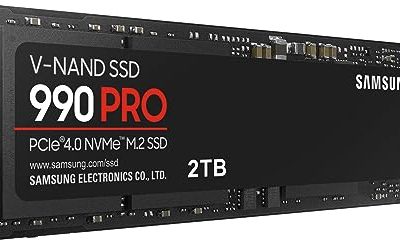
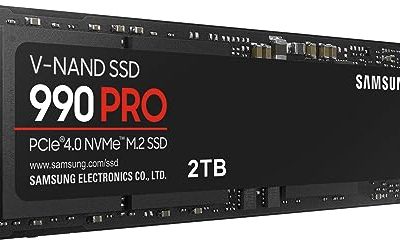
1. Samsung 990 PRO NVMe SSD

The drive upgrade that rules out late asset streaming in older installs. Specs: PCIe 4.0 x4 interface, M.2 2280 form factor, NVMe protocol, capacities up to 4TB, optional heatsink model for tight cases.
2. WD Black SN850X NVMe SSD

A second top-tier game drive, useful as a clean install target when you want to A-B an old title against its current location. Specs: PCIe 4.0 x4 interface, M.2 2280 form factor, NVMe protocol, capacities up to 8TB, heatsink and bare models, Game Mode 2.0 in its dashboard software.
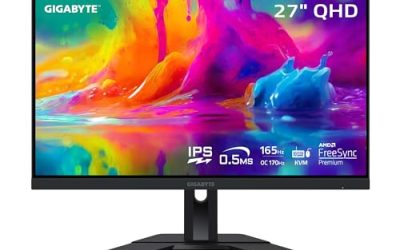
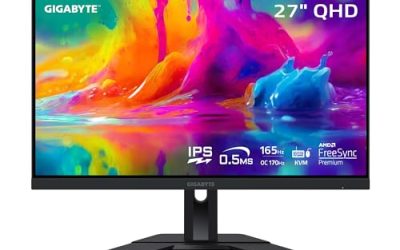
3. Gigabyte M27Q Gaming Monitor

Variable refresh and a high native rate make pacing faults visible instead of smeared. Specs: 27-inch IPS panel, 2560 x 1440 resolution, 170Hz refresh rate with overclock, FreeSync Premium support, built-in KVM switch.
4. Logitech G502 HERO Gaming Mouse

A wired mouse removes wireless polling from the list of suspects during our research. Specs: HERO optical sensor up to 25,600 DPI, wired USB connection, 11 programmable buttons, adjustable weights, onboard memory profiles.
5. Keychron V1 Mechanical Keyboard

A dependable wired board for the test desk, with remapping that survives between machines. Specs: 75 percent layout, hot-swappable switches, QMK and VIA support, south-facing RGB lighting, wired USB-C connection.
How to Choose
Work out which symptom you actually have before buying or changing anything. Spikes at the same locations mean storage or scanning, so start with the drive and the exclusion test. Spikes everywhere, including menus, mean timing, so start with the frame cap and the affinity test. If your older games run through an emulator instead, stop here: emulator stutter has its own causes and its own guide on this site. If the game also runs too fast, that is a separate fault covered by the too-fast fix, not this one. Choose one change at a time, keep a short note of each result, and prefer the fix that flattens the graph with the fewest side effects on your other games.
Who Should Skip This Guide
Skip this guide if your stutter happens in one modern game only, since that points at the game or its drivers rather than legacy timing. Skip it if your frame-time graph is flat and the problem is a low average frame rate, because that is a performance shortfall, not pacing. Skip it if the game runs in an emulator, and skip it if the whole system freezes or the sound keeps playing through the hitches, since those are system-level faults with their own guides.
Frequently Asked Questions
Why does the frame rate look fine while the game still hitches?
Because the counter averages frames over time. Micro-stutter lives inside that average: most frames arrive on schedule and a few arrive very late, and the late ones are what you feel. A frame-time graph shows the spikes that the average hides.
Will capping the frame rate lower my performance?
It lowers the average number while making delivery more even, which is the trade this fault demands. A steady capped rate below your refresh rate feels smoother than a higher rate that beats against the refresh cycle, especially in games with crude built-in limiters.
Is setting CPU affinity safe for older games?
Yes, and it is reversible. Affinity only tells Windows where the process may run; it does not modify the game. For a single-threaded title, keeping its thread on one physical core removes migration hiccups without costing performance the game could have used.
Should I change the system timer settings permanently?
Treat timer changes as a diagnostic, not a default. If raising the timer resolution smooths one old game, apply that workaround only when playing it. Global timer and power changes affect battery life, heat, and every other application on the machine.
Final Verdict
Micro-stutter in older games is a timing mismatch, not a hardware shortage. Prove it with a frame-time graph, then walk the chain in order: a clean frame cap below your refresh rate, the game’s single thread settled on one awake physical core, presentation and timer settings tested one at a time, and storage ruled out for the spikes that repeat in the same places. Most titles from that era smooth out after the first two steps, and the graph tells you honestly whether yours did.
Product and ASIN Reference
| Product | ASIN |
|---|---|
| Samsung 990 PRO NVMe SSD | B0BHJJ9Y77 |
| WD Black SN850X NVMe SSD | B0B7CMZ3QH |
| Gigabyte M27Q Gaming Monitor | B08JWCHR5N |
| Logitech G502 HERO Gaming Mouse | B07GBZ4Q68 |
| Keychron V1 Mechanical Keyboard | B09NLWG6X1 |