You stop in front of a shop sign and the lettering is soup. The brickwork beside it has no edges, the ground looks painted with a wet brush, and waiting does not help: stand there for a minute and nothing sharpens. That permanence is the clue. Textures that arrive late and snap into focus are pop-in, a streaming fault with its own guide on this site. Textures that stay blurry while you stand still are a different fault, and they come in three kinds, each with a different cause and a different fix. This guide sorts the three kinds with a short test, then fixes each one, free settings first and hardware last.
As an Amazon Associate, we earn from qualifying purchases.
Quick Answer
Blurry textures that never sharpen are a different fault from pop-in. First name your blur: soft menus point to render scale, smeared ground points to texture filtering, and detail locked low everywhere points to a VRAM mip cap. Each kind has its own fix below, and most of them are free settings.
The Stand-Still Test: Name Your Blur
Load the game that bothers you, walk to a detailed spot, and stand completely still for ten seconds. Pop-in resolves during those ten seconds; the blur in this guide does not. Now look at three things in turn.
First, the menus and the HUD. If the interface text is soft too, your whole frame is rendered below your panel’s native resolution and stretched: that is kind one. Second, the ground. If the floor at your feet is crisp but smears into mush a few steps ahead, while a wall facing you stays sharp, that angle-dependent smear is kind two. Third, a sign straight ahead. If it is blurry at every distance, and so is everything else in the 3D world while the HUD stays crisp, the engine is serving low-detail textures on purpose: that is kind three.
Kind One: The Whole Frame Is Soft, Menus Included
A soft HUD means the finished frame itself is low-resolution, so no texture setting can save it. The usual culprit is a render scale slider sitting below the native mark, often left there by an old performance preset. Raise it to the full native value and restart the game before judging the result.
Next, hunt for dynamic resolution, which quietly lowers the render resolution whenever the frame rate dips and can live at the bottom of its range almost permanently. Turn it off for the test. Upscalers do a milder version of the same thing: DLSS, FSR and XeSS set to a Performance mode rebuild the frame from a much smaller image, and fine texture detail is the first casualty. Move the upscaler to its Quality mode or to native rendering, and use the game’s own sharpening slider to restore edge bite.
Finish with the output itself. Confirm the game runs at your monitor’s native resolution in exclusive fullscreen, and check whether scaling is done by the GPU or the display in your driver panel; a mismatch stretches the image twice. If the softness survives all of that, the remaining suspect is the panel.
Kind Two: Ground Smears at an Angle, Walls Stay Sharp
Textures are drawn through mipmaps, smaller pre-shrunk copies used as surfaces recede. On a floor or road stretching away from you, the surface sits at a shallow angle and crosses many mip levels in a few pixels. Anisotropic filtering keeps those angled surfaces sampled correctly, and when it is low or off, the ground turns to soup while flat walls facing the camera stay perfectly sharp: the fingerprint of kind two.
Raise the in-game anisotropic filtering to its maximum, usually labelled 16x. Some games cap the setting low or ignore it, so if the smear survives, force it from the driver instead: the NVIDIA Control Panel and AMD Software both expose an anisotropic filtering override per game profile. While you are in the driver, set texture filtering quality to its highest mode. On the NVIDIA side, also clamp the negative LOD bias, because a loose bias lets games sample a blurrier mip than the distance calls for.
The performance cost of maximum anisotropic filtering on a modern graphics card is small, which is why this kind is the most satisfying to fix: nearly free, permanent, and once you have seen a road stay readable to the horizon you will spot its absence everywhere.
Kind Three: Detail Locked Low in Every Direction
Some engines protect themselves. When the textures a scene wants do not fit in the VRAM available, the streaming system quietly caps the mip level it will serve, so every surface is drawn from a smaller copy no matter how long you wait. The settings menu still says High; the game is not lying about what it loaded, it is rationing what it shows. Signs, faces, ground and walls sit at the same soft ceiling, and the HUD stays crisp because it never passes through the texture pool.
Start with the game’s own VRAM meter, shown in the graphics menu of many modern titles. If the meter sits over its budget, the cap is active. The counterintuitive fix is to lower texture quality one notch: a smaller pool that fits gets served in full, while an oversized pool gets capped, so the lower setting frequently looks sharper. Free the budget from the other side too, since resolution, shadow caches and ray tracing draw from the same memory. Then check for a stale configuration: a settings file written for a weaker card can pin texture options low across a hardware upgrade, and resetting the graphics options to default clears it.
Storage feeds this kind as well. Engines assume they can fetch the sharp mips quickly; a game on a mechanical hard drive, or on a nearly full SSD, argues for caution and gets blur. Moving the game to a fast NVMe drive removes that argument, the one purchase this kind can genuinely call for.
How to Choose Where to Start
Match the kind to the first fix. Soft menus mean kind one: render scale, dynamic resolution, upscaler mode, in that order. Smeared ground with sharp walls means kind two: anisotropic filtering in the game, then forced in the driver. A uniform soft ceiling with a crisp HUD means kind three: read the VRAM meter, lower texture quality one notch, and only then think about storage. Change one thing at a time, and repeat the stand-still test after each change. Hardware enters only when a test indicts it.
Gear That Closes the Hardware Legs
Settings solve most cases of permanent blur. When the tests point at hardware, these are the parts that answer: fast NVMe storage that lets the streaming system serve full-detail mips, and native-resolution panels that stop stretching a smaller frame.
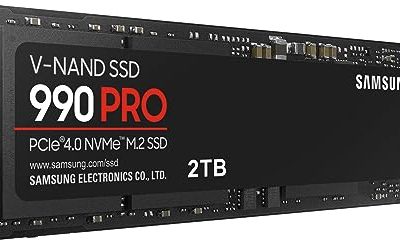
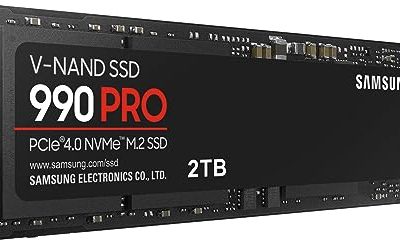
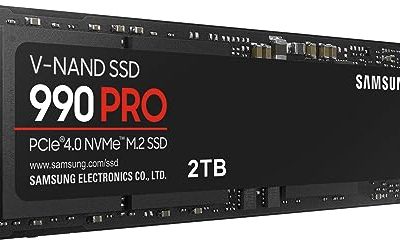
Samsung 990 PRO 2TB NVMe SSD

The storage fix for kind three. Its sequential reads sit near the top of the PCIe 4.0 class, the leg an engine leans on when deciding how much texture detail it can afford to stream.
Specs
- Interface: PCIe 4.0 x4, NVMe, M.2 2280
- Sequential read: up to 7,450 MB/s
- Sequential write: up to 6,900 MB/s
- Endurance: 1,200 TBW for the 2TB model
WD_BLACK SN850X 2TB NVMe SSD

A gaming-tuned alternative for the same job. Its Game Mode 2.0, enabled through the WD_BLACK Dashboard, keeps the drive in its performance posture during play, and it supports DirectStorage.
Specs
- Interface: PCIe Gen4 x4, NVMe, M.2 2280
- Sequential read: up to 7,300 MB/s
- Sequential write: up to 6,300 MB/s
- Features: Game Mode 2.0, DirectStorage support
- Model: WDS200T2X0E, heatsink version also sold
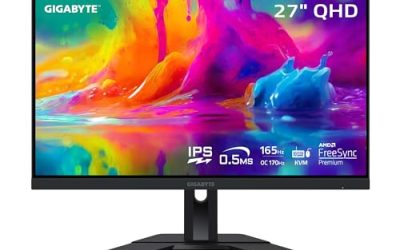
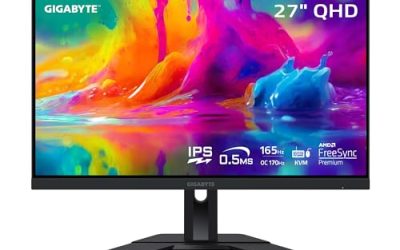
Gigabyte M27Q Gaming Monitor

The kind-one panel for gaming desks. Running games at its native 1440p ends the stretch that makes whole frames soft, with no motion clarity given up for still-image sharpness.
Specs
- Panel: 27-inch Super Speed IPS
- Resolution: 2560 x 1440 native
- Refresh rate: 170 Hz overclocked
- Response time: 0.5 ms MPRT
- Features: FreeSync Premium, DisplayHDR 400, built-in KVM
Dell UltraSharp U2724DE

The hub-monitor route to the same native 1440p. Its IPS Black panel doubles the usual IPS contrast, which helps dark texture detail stay readable.
Specs
- Panel: 27-inch IPS Black
- Resolution: 2560 x 1440 native
- Refresh rate: 120 Hz
- Contrast: 2,000 to 1 native
- Features: Thunderbolt 4 hub, 2.5G Ethernet, USB-C power delivery
ASUS ProArt PA279CRV

The native 4K option, for rigs that can feed it. At 3840 x 2160 there is no upscaling stretch left to soften textures, and its factory calibration suits players who also edit video or photos.
Specs
- Panel: 27-inch IPS
- Resolution: 3840 x 2160 native
- Refresh rate: 60 Hz
- Color: 99 percent DCI-P3 and Adobe RGB, Delta E under 2, Calman Verified
- Features: USB-C with 96W power delivery, DisplayHDR 400
Who Should Skip This Guide
Skip it if your textures sharpen a second or two after you stop moving: that is pop-in, a late-streaming fault, and this site’s texture pop-in guide covers the pool, cache and driver fixes for it. Skip it if a building swaps detail at exactly the same distance on every pass, cleanly and instantly, because that is level-of-detail design working as built. Skip it if the blur only appears while the camera moves and vanishes when you stop, since that pattern belongs to temporal anti-aliasing and motion effects, not textures. And skip the hardware section if your test names a kind whose fix is a menu slider.
Final Verdict
Permanent blur is three faults wearing one name, and the stand-still test separates them in ten seconds: soft menus indict the render scale, smeared ground indicts anisotropic filtering, and a uniform soft ceiling indicts a VRAM mip cap. Work the free fixes for your kind first, in order, testing after each one. Only two purchases ever answer this problem: a fast NVMe drive when storage throttles the mip stream, and a native-resolution panel when the display stretches the frame.
Frequently Asked Questions
Why are my textures blurry even with texture quality set to High?
Because the setting describes what the game loads, not always what it serves. When the loaded textures outgrow the VRAM budget, many engines cap the mip level they draw from, so High quietly displays as medium detail everywhere. Lowering texture quality one notch can release the cap and look sharper, and the game’s VRAM meter tells you whether the cap is active.
Are blurry textures the same problem as texture pop-in?
No. Pop-in is a timing fault: the sharp texture exists and arrives, just late, so blur resolves when you stop moving. The blur in this guide never resolves, because the engine is filtering it away at an angle, capping the detail it serves, or rendering the whole frame below native resolution and stretching it. The stand-still test tells them apart in ten seconds.
Does forcing 16x anisotropic filtering hurt performance?
Very little on a modern graphics card. Anisotropic filtering was expensive on old hardware, which is why some games still default it low, but current cards handle the maximum setting at a cost most players cannot measure outside a benchmark. It is the closest thing in this guide to a free upgrade, especially for roads and floors viewed at an angle.
Can a slow hard drive make textures permanently blurry?
It can contribute. Engines budget texture streaming around how fast they can fetch the sharp mips, and a mechanical hard drive argues for a cautious budget, which shows up as a lower detail ceiling rather than a late one. If your fixes point at storage and the game sits on a hard drive, an NVMe SSD removes that ceiling; on a healthy SSD, look at the VRAM cap instead.
Product and ASIN Reference
| Product | ASIN |
|---|---|
| Samsung 990 PRO 2TB NVMe SSD (MZ-V9P2T0B) | B0BHJJ9Y77 |
| WD_BLACK SN850X 2TB NVMe SSD (WDS200T2X0E) | B0B7CMZ3QH |
| Gigabyte M27Q 27-Inch Gaming Monitor | B08JWCHR5N |
| Dell UltraSharp U2724DE 27-Inch Monitor | B0CMXGDK5S |
| ASUS ProArt PA279CRV 27-Inch 4K Monitor | B0BQPSX5CR |