You press alt-tab to check a message and the screen goes black. The game has not crashed: you can still hear it, your character still answers the keyboard, and sometimes the picture returns after a few seconds. Sometimes it does not, and you are left staring at a dark panel or a No Signal box while the game plays on without you. This is not the alt-tab crash, where the game dies outright and drops you to the desktop. It is not the stutter that follows a successful return, and it is not the switch that costs you your sound. The game survived the switch. The picture did not. A healthy switch hides a negotiation between the game, Windows, and your monitor, and the black in front of you is that negotiation stalling at one of its steps. This guide walks a single switch in the order it actually happens, so you can work out which step is failing and apply the fix that belongs to it.
As an Amazon Associate, we earn from qualifying purchases.
Quick Answer
A black screen on alt-tab means the game survived and the picture did not. During the switch, your display renegotiates resolution, refresh rate, and HDR state, and one hand-off is stalling. Match the game’s resolution and refresh rate to your desktop, test borderless mode, then work through the HDR, cable, and compositor fixes below.
One Switch, Walked Slowly: Where the Picture Gets Lost
A display switch is not instant. Between your keypress and the restored picture, four things happen in order: the game lets go of the display, Windows hands the screen to the desktop or back to the game, the monitor re-locks onto the signal, and any HDR or variable refresh layer re-engages. Each step owns a characteristic kind of black screen. Watching yours tells you which step to fix, and each step below ends with the fix that belongs to it.
Step one: the mode does not match, so the monitor re-syncs
In exclusive fullscreen, a game often runs at a resolution or refresh rate that differs from your desktop: a lower resolution for frame rate, or a refresh rate the desktop is not using. Every switch forces the monitor to tear down one display mode and lock onto another, and monitors go black while they do it. The signature is a consistent few seconds of black in both directions, every time, with the picture always returning by itself. The fix is to remove the mismatch. Set the game’s resolution and refresh rate to exactly what the desktop uses, and the re-sync shrinks to a blink. Or run the game in borderless mode, which never leaves the desktop’s mode and skips this step entirely.
Step two: the HDR and variable refresh layers re-engage badly
Once the base picture is back, two more layers restart: HDR and variable refresh. On some monitor and driver combinations, that second hand-off is the fragile one. The signature is a black screen that lasts longer than a mode change should, often with the monitor’s HDR badge flashing as the picture lands, and it tends to happen in HDR titles while SDR games switch cleanly. Test with HDR switched off in Windows. If the black vanishes, turn HDR back on and narrow it down: disable Auto HDR for the affected game, and try the game with variable refresh disabled in the driver. Whichever toggle removes the black is the layer that was stalling, and you can leave the other one on.
Step three: the monitor loses the signal entirely
A No Signal message is a different failure from a slow switch. The monitor is not taking its time re-locking; it never received a lockable signal. This is the physical step of the switch, and it usually traces to the path the signal travels. A cable that is marginal for the mode you run, high resolution and high refresh with compression, can pass gameplay for hours and fail the renegotiation burst during a switch. Docks, adapters, and capture devices in the path add their handshakes. Monitor deep sleep settings make it worse, because a sleeping panel wakes too slowly to catch the new mode. Work the path in order: connect the monitor directly to the graphics card, swap in a certified cable rated for your mode, move to a different port, and turn off deep sleep or eco wake options in the monitor’s own menu.
Step four: the picture waits for you, or the driver blinks
The last kind of black does not end on a timer. The screen stays dark until you click the mouse or alt-tab again, or it ends with a hard flicker as the display driver resets and Windows logs the recovery. Nothing here is renegotiating; the compositor has stalled while redrawing the switched desktop, and multi-plane overlay handling is the usual suspect on affected driver and monitor pairings. The per-game fix comes first: right-click the game executable, open Properties, then Compatibility, and tick Disable fullscreen optimizations, which changes the path that one game takes through the compositor. If every game stalls the same way, update the graphics driver, and treat the documented registry change that disables multi-plane overlay as a late step: create a restore point first, and undo it if nothing improves.
How to Choose Which Step to Fix First
Let the behaviour of the black screen place your bet. A consistent few seconds of black in both directions, with the picture always returning alone, is step one: match the modes. A longer black that ends with an HDR badge, in HDR games only, is step two. A No Signal box is step three, and it is the only one where hardware is the prime suspect. A black screen that waits for your click, or ends in a driver flicker, is step four. Whatever you suspect, run the control test first: switch the game to borderless and alt-tab twenty times. If the black is gone, the fault lives in the switch machinery and the steps above apply. If it survives even in borderless, skip the settings and go straight to the cable and monitor path in step three. Change one thing at a time, and judge each change on ten switches, not one.
Who Should Skip This Guide
Skip this if your game closes and drops you to the desktop when you switch, because a game that dies during the hand-off is the alt-tab crash problem, with different causes and its own guide. Skip it if only your second monitor goes black while the game keeps playing on the main screen, because that is a display-specific fault, not a switch fault. Skip it if your screen is black everywhere, on the desktop and from boot, because that is the general black screen problem. Skip it if the game minimizes itself without you touching anything, which is a focus-stealing problem. And skip it if the picture returns fine but the sound is gone, because that failure lives in the audio path, not the display path.
Gear That Takes the Display Path Out of the Question
Settings are free, so work through them first. If your black screen survives every setting above, the remaining variables are physical: the cable carrying the mode and the monitor re-locking onto it. The gear below removes those variables, a certified cable path and reference displays with clean, fast hand-offs, so that any remaining black is provably software.
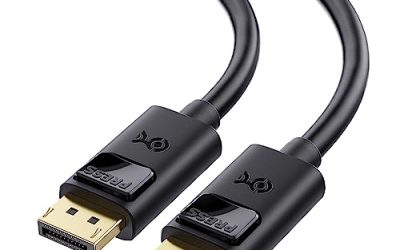
Cable Matters VESA Certified DisplayPort 1.4 Cable
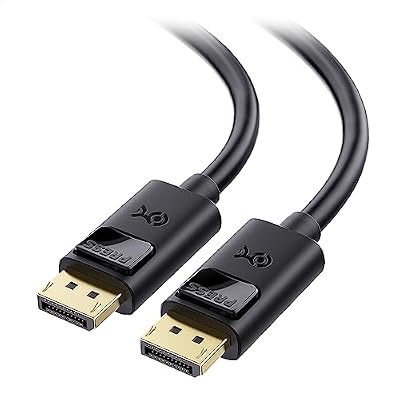
A certified cable is the cheapest way to clear the path. This one is rated for the modes that make marginal cables fail during renegotiation, and its latching connectors rule out a half-seated plug as the cause of a dropped handshake.
Specs
- Version: DisplayPort 1.4 with HBR3
- Bandwidth: 32.4 Gbps
- Support: 8K at 60 Hz, 4K at 144 Hz
- Certification: VESA certified
- Length: 10 feet, model 102025-10
Zeskit Maya 8K Ultra High Speed HDMI Cable

If your display path runs over HDMI, this certified cable carries the full HDMI 2.1 mode set, including the variable refresh and HDR layers that stall at step two when a lesser cable negotiates them badly.
Specs
- Version: HDMI 2.1, Ultra High Speed certified
- Bandwidth: 48 Gbps
- Support: 8K at 60 Hz, 4K at 120 Hz
- Features: eARC, VRR, and Dynamic HDR
- Length: 5 feet, model HDC-8K150
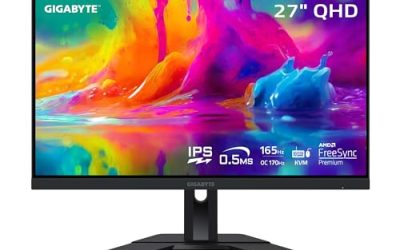
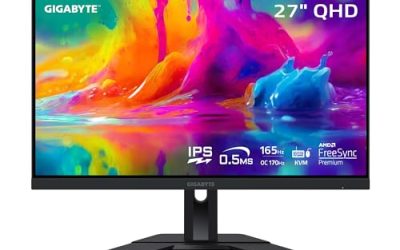
Gigabyte M27Q Gaming Monitor

A mainstream high-refresh panel with fast mode changes makes a clean reference display: if switches are instant here, your original monitor’s re-lock behaviour is the suspect, not your PC.
Specs
- Size and resolution: 27-inch, 2560 x 1440
- Refresh rate: 170 Hz overclocked
- Panel: SS IPS
- Extra: built-in KVM switch for sharing peripherals between two computers
Dell UltraSharp U2724DE Monitor

A Thunderbolt hub monitor gives you a single-cable, dock-free display path, which removes adapters and hubs from the switch path while you test.
Specs
- Size and resolution: 27-inch, 2560 x 1440
- Refresh rate: 120 Hz
- Panel: IPS Black
- Connectivity: Thunderbolt hub with USB-C downstream ports
ASUS ProArt PA279CRV Monitor

A 4K HDR panel is the sternest test of step two: if HDR switches are clean here at resolution, the HDR hand-off in your setup, its cable or its firmware, is where the stall lives.
Specs
- Size and resolution: 27-inch, 3840 x 2160
- Refresh rate: 60 Hz
- Colour: 99 Percent DCI-P3 and 99 Percent Adobe RGB, Calman Verified
- Connectivity: USB-C with 96 W power delivery, DisplayPort, HDMI
Final Verdict
A black screen on alt-tab is a stalled negotiation, not a dying game and usually not dying hardware. The switch asks your display to change modes, re-lock, and rebuild its HDR and sync layers in about a second, and the black stretches as long as the weakest step takes. Read the black before you fix anything: its duration, its message, and what ends it point at one of the four steps. Match modes for the honest blink, isolate the HDR layer for the long hang, replace the cable path for No Signal, and change the compositor path for the black that waits for your click.
Frequently Asked Questions
Why does my screen go black for a few seconds every time I alt-tab?
Because your game and your desktop are running different display modes. Each switch forces the monitor to drop one mode and lock onto the other, and monitors show black while they re-sync. Match the game’s resolution and refresh rate to the desktop, or use borderless mode, and the pause shrinks to a blink.
Why does the picture only come back when I click or alt-tab again?
That is a compositor stall rather than a slow switch: Windows has finished changing modes but has not repainted the game to the front. Disabling fullscreen optimizations for that game’s executable changes the path it takes through the compositor and is the first fix to try.
Is a black screen when alt-tabbing a sign my monitor or graphics card is dying?
Almost never by itself. Failing hardware usually misbehaves under sustained load as well, with artifacts, driver resets during play, or a picture that degrades over time. Hardware that renders cleanly for hours and only goes black during task switches is pointing at the hand-off: modes, layers, and the cable path.
Does borderless mode fix the black screen or just hide it?
It removes the cause for the most common kind. A borderless game never leaves the desktop’s display mode, so there is no re-sync and no renegotiation to stall. The trade-off is the small input and composition difference of running through the desktop compositor, which many players accept permanently in exchange for instant switches.
Product and ASIN Reference
| Product | ASIN |
|---|---|
| Cable Matters VESA Certified DisplayPort 1.4 Cable, 10 Foot | B07J2PGGFX |
| Zeskit Maya 8K Ultra High Speed HDMI Cable, 5 Foot | B08TQTYCYS |
| Gigabyte M27Q Gaming Monitor | B08JWCHR5N |
| Dell UltraSharp U2724DE Monitor | B0CMXGDK5S |
| ASUS ProArt PA279CRV Monitor | B0BQPSX5CR |