A handheld that turns on, shows the maker logo and then simply sits there is not dead. It started booting and stalled partway, which means power, screen and at least the first stage of the firmware are working. The stall itself is the clue: where the boot stops tells you which part of the chain gave up, and most of those parts are cheap and user-replaceable.
As an Amazon Associate, we earn from qualifying purchases.
Quick Answer
A freeze at the boot logo is most often a corrupted microSD card, a battery drained so deeply that the device cannot finish starting, or a firmware update that was interrupted. Force a full power-off first, charge for an hour on a plain charger, then test with the card removed or swapped. Reflashing fresh firmware onto a known-good card fixes the large majority of cases.
Read the Freeze: Where It Stops Points to the Cause
Before changing anything, watch one full boot attempt and note exactly what the screen does. The freeze point narrows the fault down faster than any tool.
| What you see | Most likely cause | First move |
|---|---|---|
| Logo appears, then nothing, forever | Corrupt system files on the card | Boot with the card removed |
| Logo loops back to the start | Firmware fails partway through loading | Reflash the firmware image |
| Logo shows only while plugged in | Battery too drained to sustain boot | Long, slow recovery charge |
| Logo froze right after an update | Interrupted or mismatched update | Reflash with the correct version |
| Logo, then a black screen with a backlight glow | Frontend crashed after the system loaded | Test the card in a PC reader |
Notice that the card appears in most rows. On Linux-based handhelds the operating system lives on the microSD card, so a dying card imitates almost every other fault. That is why the fix ladder below tests the card early instead of treating it as a last resort.
The Fix Ladder, in the Order to Try It
Work down the ladder and stop at the rung that revives the device. Each step rules out one layer.
Rung one: force a real power-off. Hold the power button for ten to fifteen seconds until the screen goes fully dark, wait half a minute, then power on. A frozen boot often leaves the processor running in the background, and a short press does not clear that state. This rung costs nothing and occasionally ends the problem.
Rung two: the recovery charge. A battery drained to near zero can light the logo and then fail when the processor draws full power. Plug the handheld into a basic wall charger, not a laptop port, and leave it for a full hour without touching it. Then try booting while it is still plugged in. If it starts on the cable and dies off it, the battery is the fault, not the firmware.
Rung three: boot without the card. Power off, remove the microSD card and try to start. Many devices will show a warning screen, a recovery menu or a bare system shell. Anything other than the frozen logo proves the board and screen are fine and the card or its contents are at fault. If the freeze is identical with no card inserted, the problem sits in internal storage or hardware instead.
Rung four: inspect the card on a PC. Put the card in a reader and see whether a computer can open it. A card that will not mount, mounts read-only, or shows garbled file names is finished. A card that reads cleanly still may carry a corrupted boot partition, so back up the saves and ROM folders before going further, because the next rung wipes it.
Rung five: reflash fresh firmware. Download the current firmware image for your exact model from the maker or the custom firmware project, write it to a known-good card with your usual imaging tool, and boot from that card. Keep the old card aside untouched until the device is running again; if the new card boots, copy your saves across and retire the old card rather than reformatting it back into service.
How to Choose the Recovery Kit
You do not need a repair bench for this job. Five ordinary items cover every rung above, and choosing them well matters more than owning many of them. For the replacement card, prioritize the application class and brand consistency over headline speed, because the handheld reads cards over a UHS-I bus and cannot use faster rates internally. For the reader, a plain USB 3.0 model that handles microSD directly saves adapter fuss. For charging, a meter that shows live current draw turns guesswork into a reading: a handheld pulling a steady draw is charging, and one sitting at zero is not, whatever the screen says.
SanDisk Ultra 128GB microSDXC Card

The sensible reflash target for cartridge-era libraries. It replaces the unbranded card that ships with many budget handhelds, which is the single most common root cause of the freeze in the first place.
Specs
- Capacity: 128GB (model SDSQUAR-128G-GN6MA)
- Read speed: up to 100MB/s
- Ratings: A1, U1, Class 10
- Includes full-size SD adapter
SanDisk Extreme 256GB microSDXC Card
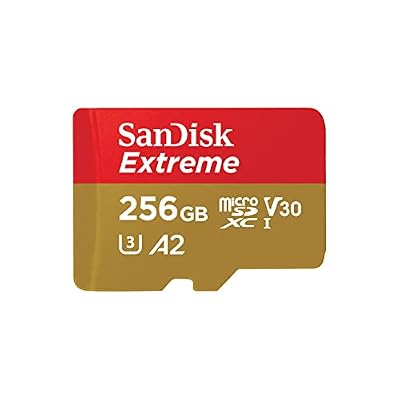
The better pick when the library includes PS1, Dreamcast and a curated set of GameCube or PS2 games, or when the device runs Android and benefits from the faster random reads of an A2 card.
Specs
- Capacity: 256GB (model SDSQXAV-256G-GN6MA)
- Ratings: A2, U3, V30
- Suited to Android handhelds and large libraries
- Includes full-size SD adapter
SanDisk MobileMate USB 3.0 Reader

The tool for rung four. It lets a PC mount the suspect card so you can rescue saves before reflashing, and it writes the fresh firmware image afterward.
Specs
- Interface: USB 3.0, USB-A connector
- Card format: microSD, UHS-I
- Also reads full-size SD with the card adapter
- Compact plug-and-play body
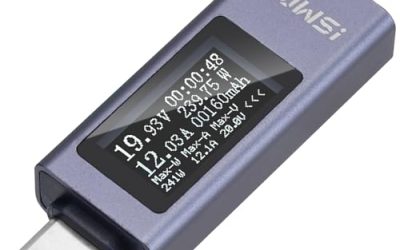
MakerHawk USB-C Power Meter

The tool for rung two. Placed between charger and handheld, it shows whether current is actually flowing into a device whose screen gives you no charging information you can trust.
Specs
- Connector: USB-C in and out
- Measures voltage, current, power, and accumulated charge
- Voltage range: 4 to 30 V
- Current range: 0 to 12 A
- Display: color screen with switchable readouts
Anker 735 Charger (GaNPrime 65W)
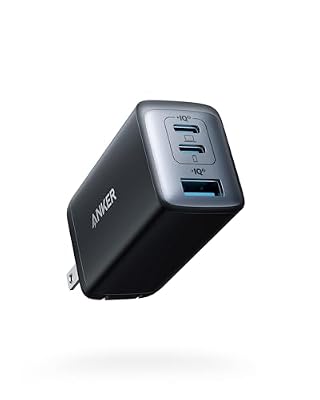
A known-good charger removes a whole variable. A failing brick can mimic a dead battery, so the recovery charge should always be done on a charger you trust with other devices.
Specs
- Model: A2667
- Ports: 2 USB-C, 1 USB-A
- Maximum output: 65 W shared
- Input: 100 to 240 V
Who Should Skip
Skip the ladder if the handheld shows no logo at all, because a completely dark screen is a different fault covered by power and display troubleshooting, not a boot freeze. Skip it if the device was dropped or water-damaged right before the freeze started, since physical damage needs a repair assessment rather than a reflash. And skip the reflash rung if the handheld is still under warranty and the maker offers a mail-in fix, because opening a support case first protects that coverage.
Frequently Asked Questions
Will reflashing firmware erase my save files?
Reflashing writes a fresh system image to the card, so anything stored on that card is at risk. That is why the ladder puts a PC backup at rung four, before any flashing. Saves stored in internal memory on Android handhelds usually survive, but treat the backup step as mandatory either way.
My handheld boots with the card removed but freezes with it in. Is the card dead?
Not always. The system partition may be corrupted while the card hardware is fine. Back up what a PC can read, reflash the card, and test. If the same card freezes again after a clean flash, the card itself is failing and should be replaced.
How long should I leave a drained handheld on the recovery charge?
Give it a full hour untouched before judging. A deeply drained battery often shows the logo early as a sign of life and then needs sustained charging before it can carry the full boot. Booting while still plugged in is the fair test at the end of that hour.
The logo loops forever instead of freezing. Is that different?
Yes. A loop means the firmware starts, fails and restarts, which points at a mismatched or interrupted update more than a dying card. The fix is the same reflash rung, but make certain the image matches your exact model and hardware revision, because the wrong image is a common cause of the loop.
Final Verdict
A boot logo freeze looks dramatic and is usually mundane. Read the freeze point, force a clean power-off, prove the battery with a patient charge, and test the card before blaming the device. In most cases the handheld comes back on a freshly flashed, name-brand card, and the five items above are the whole toolkit the job requires.
Product and ASIN Reference
| Product | ASIN |
|---|---|
| SanDisk Ultra 128GB microSDXC (SDSQUAR-128G-GN6MA) | B073JYC4XM |
| SanDisk Extreme 256GB microSDXC (SDSQXAV-256G-GN6MA) | B09X7CRKRZ |
| SanDisk MobileMate USB 3.0 Reader | B07G5JV2B5 |
| MakerHawk USB-C Power Meter | B0D1QR72ZM |
| Anker 735 Charger (GaNPrime 65W) | B09C5RG6KV |