You press Play, the button flickers, and nothing happens. No window, no splash screen, no error message. This guide covers exactly that failure: a game that never starts at all. It is a different problem from a game that crashes after its first screen appears, and a different problem from a missing DLL or runtime error dialog, which at least tells you what is absent. A silent non-launch gives you no message to work from, so the fix starts with observation instead of repair: watch what the system actually does in the seconds after you press Play, because that behavior tells you which family of causes you are dealing with.
As an Amazon Associate, we earn from qualifying purchases.
Quick Answer
Most games that will not launch fail in one of three ways: nothing runs at all, the process starts and dies within seconds, or the launcher gives up before handing over. Match your symptom to that pattern first. Silent launches usually trace to security software or permissions, dying processes to drivers or corrupted files, and launcher failures to stale cache data. Work the matching branch before reinstalling anything.
First, Name the Failure: Three Ways a Launch Dies
Open Task Manager before you press Play, sorted by name, and keep it visible. Press Play and watch. If no process for the game ever appears, the executable is being stopped before it can run, or the launcher never issued the start command at all. That is the silent branch, and it points at permissions, security software and launcher state.
If the game’s process appears and vanishes again within a few seconds, the executable did start and then died during early initialization, before it could open a window. That is the dying-process branch, and it points at graphics drivers, damaged game files and conflicts with software that hooks into every new process.
If the launcher itself spins, shows a preparing or launching message and then quietly returns to the Play button, the game was never handed a start command. That is the launcher branch, and it points at cache data, pending updates and account or service state inside Steam, the Epic Games Launcher or the EA app. Naming the branch first saves you from applying fixes for a problem you do not have.
Fixes for a Completely Silent Launch
Start with the executable itself. Browse to the game’s install folder, right-click the main executable and choose Run as administrator. If the game starts, the issue is permissions: set the executable to always run as administrator in its Compatibility tab, and check that your Windows account actually owns the install folder, especially on drives carried over from an older PC.
Next, suspect your security software. Windows Security and third-party antivirus tools sometimes quarantine a game executable or block it silently, particularly after a game update changes the file. Open your protection history or quarantine list and look for the game’s executable or its anti-cheat component. If it was blocked, restore it and add the game’s install folder as an exclusion, then try again. Also disable Controlled Folder Access temporarily if it is on, since it can stop a game from creating the settings and save folders it needs during its very first seconds.
Finally, clear the overlay layer. Discord, GeForce Experience, the Xbox Game Bar, MSI Afterburner with RivaTuner and similar tools inject themselves into games at launch. A broken hook can kill a start without a trace. Turn every overlay off, fully exit those tools from the system tray, and test again. If the game launches, re-enable them one at a time to find the culprit.
Fixes When the Process Starts and Then Dies
A process that appears and disappears is leaving evidence behind. Open Event Viewer, go to Windows Logs and then Application, and look for an error entry timestamped at your launch attempt. The faulting module name is the valuable part. If it names your graphics driver file, the driver is the prime suspect. If it names the game executable itself with an exception code, damaged files or a conflict are more likely.
For the driver path, update to the current release from NVIDIA, AMD or Intel, and choose the clean installation option where one is offered. If the failure began right after a driver update, roll back to the previous version in Device Manager instead. Early initialization is where a game first talks to the graphics driver, so a driver that works in other games can still kill one title at this stage.
For the damaged-file path, use your launcher’s built-in verify or repair function for that game. This step belongs here because a corrupted core file stops a process during loading, long before any window exists. While the verification runs, also confirm the drive holding the game is healthy: a game installed on a failing drive can die at the same point every launch because the same unreadable file is hit in the same order.
Fixes When the Launcher Gives Up
Launcher failures live in the launcher, not the game. Fully exit the launcher, including its tray icon, then relaunch it. If that changes nothing, clear its cache. In Steam, the download cache clear in Settings forces the client to rebuild its local state and sign in fresh. In the Epic Games Launcher and the EA app, signing out completely and back in achieves a similar reset, and both also keep web cache folders that can be deleted while the app is closed so they rebuild on the next start.
Check for a stuck pending update next. A game with a half-applied patch often refuses to launch while the launcher believes an update is still in progress. Let any queued update finish, or pause and resume it to force the launcher to re-evaluate the game’s state. Also confirm the launcher’s background service is running: several launchers depend on a Windows service, and if that service is disabled, Play does nothing at all.
The Fixes Every Branch Shares
Whatever the branch, confirm the basics once. Restart the PC rather than relying on sleep and wake cycles, because a stuck background process from an earlier failed attempt can block every new one. Check that your Windows build meets the game’s stated minimum, since newer titles increasingly require a recent Windows 10 or Windows 11 build and will refuse to start on older ones without explaining why. Install pending Windows updates, reboot, and test before changing anything else.
Then run the game executable directly from its folder once, bypassing the launcher entirely. If it starts, the game is healthy and the launcher branch owns the problem. If it dies the same way, the game and system branch owns it. That single test splits the whole problem space in half, and it takes under a minute.
Gear for the Deeper Fixes
Most launch failures are software problems and cost nothing to fix. The gear below matters when the triage points at hardware: a dying drive that corrupts game files, failing memory that kills processes at random points, or repeated reinstalls that deserve a clean foundation.
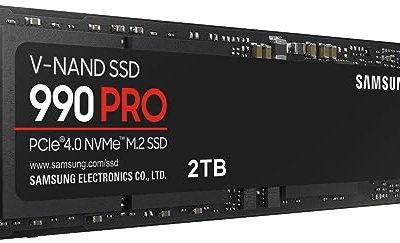
Samsung 990 PRO 2TB NVMe SSD

If verification keeps finding corrupted files on an aging drive, moving the game to a healthy, fast SSD removes the variable entirely and shortens every future patch and repair cycle.
Specs
- PCIe 4.0 x4 interface, M.2 2280 form factor, sequential reads up to 7,450 MB per second, 2TB capacity.
Samsung T7 Portable SSD 1TB

Back up your save folders and launcher settings before any reinstall or Windows repair. A fast portable SSD makes that backup quick enough that you will actually do it first.
Specs
- USB 3.2 Gen 2 interface, reads up to 1,050 MB per second, 1TB capacity, pocket-sized metal enclosure.
Corsair Vengeance LPX 16GB DDR4 Memory Kit

Processes that die at a different point on every attempt can indicate unstable memory. A known-good matched kit is the cleanest way to rule RAM in or out.
Specs
- 16GB across two 8GB modules, DDR4 at 3200MHz, CAS latency 16, low-profile heat spreaders.
SanDisk Ultra Flair 64GB USB Flash Drive

A bootable USB drive is the tool for a clean graphics driver removal, a Windows repair install or testing memory outside the operating system entirely.
Specs
- 64GB capacity, USB 3.0 interface, reads up to 150 MB per second, metal casing.
CyberPower CP1500PFCLCD UPS

A power cut during a game patch or Windows update is a classic way to corrupt an install into a permanent non-launch. A UPS with pure sine wave output keeps the PC alive long enough to shut down cleanly.
Specs
- 1500VA and 1000W capacity, pure sine wave output, 12 outlets, LCD status panel.
How to Choose
Choose your fix path by symptom, not by habit. Nothing appearing in Task Manager means start with permissions, security software and overlays. A process that flashes and dies means read Event Viewer first and let the faulting module decide between the driver path and the file path. A launcher that returns to the Play button means clear caches, finish pending updates and check the launcher’s service before touching the game at all. Choose gear only when a branch points at hardware: repeated file corruption points to the drive, random death points to memory, and a history of outages during updates points to power protection.
Who Should Skip This Guide
Skip this guide if your game opens and then crashes during play or on its first screens, because that is a stability problem with its own fixes. Skip it if you get a clear error dialog naming a missing DLL, runtime or DirectX component, because the dialog already tells you what to install. Skip it if the game launches but runs badly, and skip it if your issue is a single launcher refusing to open at all rather than refusing to start a game.
Frequently Asked Questions
Why does the Play button turn green and then stop with no error?
The launcher issued the start command and the process died before opening a window, or was blocked outright. Watch Task Manager during the attempt: no process at all points to permissions or security software, while a process that appears and vanishes points to drivers or damaged files.
Can an antivirus really block a game without telling me?
Yes. Quarantine actions and behavior-based blocks are often logged only in the protection history rather than shown as a pop-up, especially after a game update changes the executable. Check the quarantine list before assuming the game itself is broken.
Should I reinstall the game before trying anything else?
No. Reinstalling is the slowest fix and it destroys the evidence. Triage first, verify the files second, and reinstall only when verification fails repeatedly or the install folder itself is suspect, after backing up your saves.
What if only one game will not launch while others work fine?
That pattern rules out most system-wide causes. Focus on that game’s files, its anti-cheat component, its per-game launcher settings and any overlay or mod tied to that title, because the shared parts of your system have already proven themselves with the other games.
Final Verdict
A game that will not launch is not one problem but three wearing the same disguise. Watch Task Manager, name the branch, and apply the fixes that match it: permissions and security software for silent launches, Event Viewer and drivers for dying processes, and caches and pending updates for launcher failures. Hardware gear only enters the picture when the evidence points at a drive, memory or power. Follow that order and most silent launches are fixed without a single reinstall.
Product and ASIN Reference
| Product | ASIN |
|---|---|
| Samsung 990 PRO 2TB NVMe SSD | B0BHJJ9Y77 |
| Samsung T7 Portable SSD 1TB | B0874XN4D8 |
| Corsair Vengeance LPX 16GB DDR4 Memory Kit | B0143UM4TC |
| SanDisk Ultra Flair 64GB USB Flash Drive | B015CH1NAQ |
| CyberPower CP1500PFCLCD UPS | B00429N19W |