The PC wakes instantly, the game is still open where you left it, and there is no sound at all. Not through the headset, not through the speakers, not anywhere. The volume icon may even show a red cross, or your usual device may have vanished from the list completely. This is not a routing problem: nothing is playing through the wrong device, because nothing is playing at all. Sleep put the audio hardware down, and something in the chain failed to bring it back.
As an Amazon Associate, we earn from qualifying purchases.
Quick Answer
After waking, open the Sound settings and read your device’s state before changing anything. If it is missing from the list, the audio controller failed to resume, so restart the Windows Audio service and stop Windows powering it down. If it is listed but marked not plugged in, disable and re-enable it. If it looks healthy but stays silent, reinstall the audio driver and test with Fast Startup off.
Read the State, Not the Symptom
Total silence after sleep looks like one fault, but it is three different failures wearing the same coat. The fix that revives a missing device does nothing for a device that is present but wedged, and reinstalling drivers is wasted effort when a service simply never restarted. So the first step is diagnostic, not corrective: wake the PC, open Settings, go to System, then Sound, and look at what state your audio device is in. Match the state below, apply that state’s fixes in order, and only move on if the state itself changes.
State One: The Device Is Gone Entirely
If your headset, DAC, or speakers have vanished from the output list altogether, the hardware underneath them never came back from the low-power state. The high-definition audio controller on the motherboard, or the USB hub your device hangs off, was powered down during sleep and failed to resume. Windows cannot list a device whose controller is still asleep.
Open Device Manager and find the audio controller under System devices, plus the USB hub your device uses under Universal Serial Bus controllers. Open the properties of each, go to the Power Management tab, and clear the option that allows the computer to turn the device off to save power. Then open the classic Control Panel power options, edit your active plan, and set USB selective suspend to disabled. In the same advanced settings, set the PCI Express link state power management to off, because a bus that stays in its deepest sleep state takes the onboard audio controller with it. Restart the PC once so the new power behaviour applies from a clean boot, then test a sleep and wake cycle.
State Two: The Device Is Listed but Dead
Sometimes the device is still there, greyed out, marked not plugged in, or present with a warning that it is disabled even though you never disabled it. The hardware resumed, but the software layer that builds audio endpoints did not finish the job. The usual trigger is the Windows Audio Endpoint Builder service stalling during the wake, which leaves endpoints half-registered.
Press the Windows key and R together, type services.msc, and find Windows Audio Endpoint Builder. Restart it, then restart the Windows Audio service that depends on it. In many cases the device flips back to ready the moment the services cycle, with no reboot needed. If it stays dead, go back to Device Manager, right-click the device, disable it, wait ten seconds, and enable it again. That forces a full re-registration of the endpoint. Set both services to start automatically if they are not already, because a service set to manual start can simply lose the race at wake time.
State Three: Everything Looks Alive but Stays Silent
The hardest state is the one where nothing looks wrong. The device is listed, it is the default, the green level meter even dances when a game plays, and yet the room is silent. The endpoint is registered and the audio engine is running, but the driver underneath is wedged in a half-awake state and passes nothing to the hardware.
Reinstall the audio driver rather than updating over the top of it. In Device Manager, uninstall the device and tick the option to delete the driver software, then restart and let Windows install a clean copy, or install the current driver from the motherboard or laptop maker straight after the restart. Update the chipset driver at the same time, because the audio controller’s resume behaviour is governed by the chipset package, not by the audio driver alone. Finally, test with Fast Startup turned off, in Control Panel power options under what the power buttons do. Fast Startup hibernates the kernel instead of shutting it down, so a driver fault from before the shutdown is carried straight into the next session and can survive for weeks. If silence only ever follows a shutdown rather than a restart, Fast Startup is the prime suspect.
Stop It Coming Back
Once sound survives a wake, make the fix permanent. Keep the power management options you cleared in State One cleared, because a major Windows update occasionally restores them to defaults. Prefer sleep over hibernate for a gaming desk if your board offers the choice, since the deeper the power state, the more of the audio chain has to resume correctly. And if the fault returns after a driver update, roll back that one driver before changing anything else: a regression in a fresh driver is a far more common cause than hardware dying.
Endpoints That Wake Up Cleanly
Software fixes solve most cases. Hardware earns its place when the onboard controller itself is the unreliable part, because an external USB endpoint resumes on the bus’s timetable rather than the motherboard audio codec’s. A device that enumerates as plain USB audio also sidesteps the vendor driver most likely to wedge. The five options below are standard USB audio endpoints with no exotic resume behaviour.
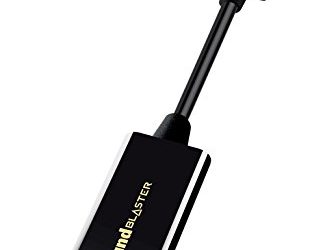
Creative Sound Blaster Play! 4

A USB-C adapter that gives a wired headset its own endpoint, completely independent of the onboard audio controller. If the motherboard codec is the part that fails to wake, this adapter simply is not on that chain. The microphone mute button on the barrel is convenient for voice chat.
Specs
- Connection: USB-C
- Jack: single 3.5 mm four-pole headset socket
- Playback support: up to 24-bit and 96 kHz
- Extras: microphone mute button, SmartComms Kit support
Creative Sound Blaster Play! 3
The USB-A version of the same idea, for machines without a spare USB-C port. It keeps separate headphone and microphone jacks, which suits headsets with split cables, and it enumerates as a standard USB audio device with no vendor driver to stall at wake.
Specs
- Connection: USB-A
- Jacks: separate 3.5 mm headphone and microphone sockets
- Playback support: up to 24-bit and 96 kHz
- Processing: SBX Pro Studio audio enhancements
FiiO K11

A desktop DAC and headphone amplifier that stays powered and enumerated around the clock, so there is no internal device for sleep to lose in the first place. Headphones plug into the front socket and powered speakers into the RCA line-out, putting both listening options behind one always-on endpoint.
Specs
- Inputs: USB-C, optical, coaxial
- Outputs: 6.35 mm headphone jack, RCA line-out
- Playback support: up to 384 kHz and 32-bit PCM, plus DSD256
- Gain: two-stage gain switch
Fosi Audio K5 Pro

A similar fixed endpoint with physical volume, bass, and treble knobs and an analogue RCA input. It suits a desk that switches between a headset and powered speakers daily: both live behind the same named device, and switching happens with a plug rather than a settings page.
Specs
- Inputs: USB, optical, coaxial, RCA
- Outputs: 3.5 mm headphone jack, RCA
- Playback support: up to 192 kHz and 24-bit over USB
- Controls: front-panel volume, bass, and treble knobs
TP-Link UB500

For a Bluetooth headset that disappears after every wake, the fault often sits with the onboard radio’s resume behaviour. This nano adapter gives you one dedicated radio to manage: pair the headset to it, then disable the onboard Bluetooth in Device Manager so the two radios stop competing and only one has to wake reliably.
Specs
- Standard: Bluetooth 5.0
- Form factor: nano USB-A dongle
- Compatibility: Windows PCs
How to Choose
Choose by the state you found, not by budget. If the device vanishes from the list, fix the power management first; hardware only helps if the onboard controller keeps failing afterwards, and then the Play! 4 or Play! 3 moves your headset onto a bus that resumes cleanly. If you listen through both headphones and desk speakers, the K11 or the K5 Pro replaces the flaky internal endpoint with one that never sleeps, the K5 Pro adding tone controls and an analogue input. If only the Bluetooth headset goes missing, the UB500 replaces the radio. Buy nothing until the service restart and power settings have had one full sleep cycle to prove themselves.
Who Should Skip This Guide
Skip this guide if sound still plays but comes out of the wrong speakers or monitor: that is a routing fault with its own dedicated guide on this site, and nothing here will fix it. Skip it too if you hear sound in only one ear, hear crackling, or if the PC will not wake, wakes by itself, or refuses to sleep at all. Those are separate faults with separate guides. This guide is only for total silence after a successful wake.
Frequently Asked Questions
Why does my PC have no sound every time it wakes from sleep?
Because part of the audio chain fails to resume. Either the controller was powered down and never came back, the endpoint services stalled during the wake, or the driver resumed in a wedged state. Read which state your device is in after a wake, then apply that state’s fix rather than changing settings at random.
Will restarting the Windows Audio service fix it permanently?
It fixes the current session whenever the fault is a stalled service, and setting both audio services to start automatically makes a repeat less likely. If the silence keeps returning, the deeper cause is usually power management on the controller or the Fast Startup kernel being carried between sessions.
Why does a full shutdown fix it when a restart does not always?
Actually the reverse is often true. A restart always reloads the driver cleanly, while a shutdown with Fast Startup enabled hibernates the kernel and restores the same wedged driver state next boot. Turning Fast Startup off makes a shutdown behave like a true cold start.
Does this also fix a Bluetooth headset that vanishes after sleep?
Often, yes. The headset disappears because the Bluetooth radio failed to resume, which is the same State One failure on a different bus. Clear the power-saving option on the radio in Device Manager and disable USB selective suspend; a dedicated adapter is the fallback if the onboard radio keeps failing.
Final Verdict
No sound after sleep is a resume failure, not a death. The device list tells you exactly which layer failed: a missing device points at power management on the controller, a dead listing points at the endpoint services, and a healthy-looking device that stays silent points at the driver and Fast Startup. Fix that layer, give it one sleep cycle to prove itself, and only replace the endpoint with USB hardware if the internal chain keeps failing the same way.
Product and ASIN Reference
| Product | ASIN |
|---|---|
| Creative Sound Blaster Play! 4 USB-C Audio Adapter | B08T9LM3LM |
| Creative Sound Blaster Play! 3 USB Audio Adapter | B06XBZ38ZJ |
| TP-Link UB500 Bluetooth 5.0 Nano USB Adapter | B09DMP6T22 |
| Fosi Audio K5 Pro Gaming DAC Headphone Amplifier | B0BFHFSX4C |
| FiiO K11 Desktop DAC and Headphone Amplifier | B0CJFG3DC7 |