Few retro gaming problems sting like this one: the game shows its cheerful “saved” message, you power the handheld off, and when you come back the file is gone, empty, or rolled back to an older point. This is not the same problem as a corrupted save file, where a save exists but loads with errors, and it is not a save state problem either. Here the in-game save, the battery-style SRAM or file-based save the game itself writes, never truly lands on storage or never survives a restart. The causes are almost always mundane: a card that is full or failing, a save folder the firmware can no longer write to, a save-type setting that does not match the game, or a shutdown that cuts power before the write finishes.
As an Amazon Associate, we earn from qualifying purchases.
Quick Answer
Start with the microSD card: leave some free space and test with a known-good name-brand card, because full and failing cards are the top cause. Next, confirm the save folder is writable and the save path did not change after a firmware update. Then check the save type and clock settings for the system you emulate, and exit through the menu instead of holding power.
Read the Symptom Before You Change Anything
The failure pattern points at the cause, so note which of these you see.
The save never appears at all. You save, return to the title screen, and there is no file to load. The write itself is failing: the card is full, the card has gone read-only as it dies, or the save folder lost its write permission.
The save appears, then vanishes after a full power off. It survives sleep or a soft reset but not a cold shutdown. This points at write caching and shutdown habits: the save never flushed from memory to the card, or the firmware changed the save path on boot and now looks in a different folder.
Only some games fail. One system saves fine while another never does, or one title saves and its sequel does not. That is the classic fingerprint of a save-type mismatch, most often on Game Boy Advance, where games expect different save hardware and the emulator picked the wrong type.
Fix the Card: Free Space and Card Health
In-game saves are tiny, often only a few kilobytes, so players assume space cannot be the issue. It can. Flash storage needs free blocks to write anything at all, and a card filled to the last megabyte can fail a small write while still reading ROMs happily. Leave real breathing room on the card.
A dying card is the sneakier version of the same problem. When flash memory wears out, many cards protect themselves by going read-only: everything reads fine, games launch, but nothing new can be written, including saves. Test this in two minutes. Copy any small file onto the card from a computer, safely eject, reinsert, and check whether the file is still there. If it vanished, the card is done as a save device.
Counterfeit cards fail differently. A fake card reports a large capacity it does not have, and once real data passes the true capacity, new writes silently overwrite old ones, which eats save files early because they are rewritten so often. Test any unfamiliar-brand card with a capacity-verification tool on a computer before trusting it with a long role-playing game.
Fix the Folder: Permissions and Save Paths
Every firmware and emulator writes in-game saves to a specific folder, and that folder has to be writable. After a firmware update, a card format on a different operating system, or a restore from backup, the saves folder can end up flagged read-only. On a computer, open the card, find the saves folder for your firmware, and clear any read-only attribute. While you are there, confirm the save files use the extension your emulator expects, since a mismatched extension makes an existing save invisible to the game.
Save paths also move. Some frontends store saves next to the ROM, others in a central saves directory, and switching cores inside RetroArch can split saves between per-core folders. If saves stopped working right after an update or a core change, this is almost certainly your problem. Load the game, save once, then search the card for the newest save file by date. That tells you where the emulator writes now, and you can copy your older saves into that location, keeping filenames identical to the ROM names.
One habit prevents most folder trouble: never rename ROM files after you have started playing, because emulators match saves to games by filename, so a renamed ROM orphans its save.
Fix the Save Type and Clock Settings
Some systems did not store saves in one standard way, and emulators have to guess. Game Boy Advance is the famous case: cartridges used several save formats, including SRAM, Flash at two sizes, and EEPROM, and if the emulator selects the wrong one, the game writes into a format that never persists. This is a per-game or core-option setting. If a single GBA game refuses to save while others work, force the save type that matches the original cartridge, with Flash 128K rescuing many later releases.
The real-time clock causes a quieter version of the failure. Games with clock-based events, including several Pokemon titles, tie parts of their save behaviour to a battery-backed clock on the original cartridge. On a handheld, the equivalent is an emulator RTC option and, on flash cartridges, a small internal battery that eventually runs dry. If clock-based games lose time or refuse to keep progress, enable the RTC option in the core settings, set the system clock before launching, and treat a flash cart with a dead clock battery as a hardware repair.
Fix the Shutdown: Let the Write Finish
Emulators do not always write the save the instant the game says it saved. Many hold it in memory and flush it when you exit the game properly, close content from the frontend menu, or at a timed interval. Holding the power button, letting the battery die mid-session, or pulling the card while the device sleeps can all cut that process short.
Two habits end this whole category of failure. Exit games through the emulator or frontend menu so the save flushes and the file closes cleanly, and shut the handheld down from its menu instead of force-powering it off. If your firmware offers an option to save SRAM automatically or at an interval, turn it on.
How to Choose Replacement Parts That End the Problem
If the card failed its write test, no setting will save it, and this is the moment to replace parts rather than keep troubleshooting. Choose a microSD card from a known brand bought through a reputable store, since saves are the files you can least afford to lose to a counterfeit. A card rated for app performance suits a handheld that rewrites saves constantly, while a basic card is fine for a device that mostly reads ROMs. A small USB reader earns its place too: it makes capacity tests, permission fixes, and save backups on a computer far easier. And if the handheld itself has flaky storage, a dead clock battery you cannot replace, or a save path bug its firmware never fixed, replacing the device is the honest fix.
SanDisk Extreme microSDXC Card
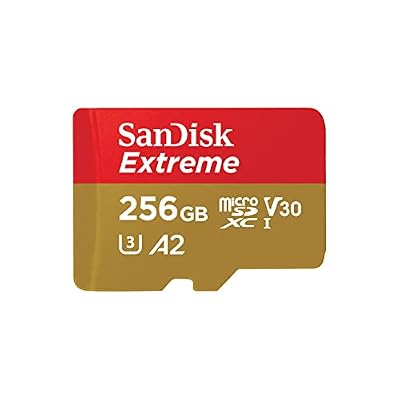
Specs
- Brand: SanDisk
- Type: microSDXC UHS-I
- Speed class: U3, V30
- App performance: A2
The Extreme line is the card to pick when the old one failed a write test. Its A2 app rating and strong small-file write behaviour suit a card that is constantly rewriting saves.
SanDisk Ultra microSDXC Card

Specs
- Brand: SanDisk
- Type: microSDXC UHS-I
- Speed class: Class 10, U1
- App performance: A1
The Ultra is the sensible budget spare and test card. Swapping in a formatted one is the fastest way to prove whether your saves problem is the card or the handheld, and it is plenty for older systems.
SanDisk MobileMate USB 3.0 Reader

Specs
- Brand: SanDisk
- Interface: USB 3.0
- Card support: microSD UHS-I
- Form factor: Compact stick reader
The MobileMate turns card maintenance into a quick computer job: run a capacity test on a suspicious card, clear a read-only flag on a saves folder, and copy your save files somewhere safe before any firmware experiment.
AYN Thor Pro

Specs
- Brand: AYN
- Display: Dual screen, 6.31-inch main display
- Platform: Android
- Storage: Internal storage plus microSD expansion
If the handheld itself is the fault, the Thor Pro is the premium way out: internal storage gives saves a home that does not depend on an ageing card, and the second screen makes save-file management easy to watch while you play.
Anbernic RG406H

Specs
- Brand: Anbernic
- Display: 4.7-inch touchscreen
- Platform: Android 13
- Controls: Hall-effect sticks and triggers
The RG406H is the value replacement for a device whose storage or firmware kept eating saves. Android makes save locations visible and copyable with ordinary file managers, and the touchscreen speeds up the folder checks described above.
Who Should Skip These Fixes
Skip the troubleshooting if your save file exists but loads with glitched data or an error message, because that is a corrupted save, which needs recovery steps rather than write fixes. Skip it if only save states fail while in-game saves work, since states live in a different system. Skip the card tests if you are playing on a real cartridge whose internal save battery has died, because no setting revives a dry battery. And skip replacing hardware if saves broke right after a firmware update on a healthy device, because that pattern is a path or permission change, and the folder fix above is faster.
Frequently Asked Questions
Why does my save disappear only after I turn the handheld fully off?
That pattern points to write caching or a changed save path: the emulator held the save in memory and it never flushed, or the firmware boots into a different saves folder than the one it wrote to. Exit games through the menu, shut down cleanly, and search the card by file date to find where saves land.
Can a full microSD card really stop a tiny save file from writing?
Yes. Flash storage needs free blocks to perform any write, and a card filled to the brim can read ROMs while failing small writes. A card that has gone read-only as it wears out produces the same symptom, which is why the copy-a-file test matters.
Why does one Game Boy Advance game save fine and another never save?
GBA cartridges used several save formats, and the emulator has to pick the right one. When it guesses wrong, the save writes into a format that does not persist. Set the save type manually for the problem game, with Flash 128K fixing many later releases.
Will these fixes get my lost save back?
Usually not, because a save that never wrote to the card was never stored anywhere. Check the card on a computer anyway: if the save file exists in an unexpected folder or with a mismatched name, copying it to the folder the emulator reads now can restore your progress.
Final Verdict
A handheld that will not save games is almost never a mystery once you read the symptom correctly. Test the card first, because full, counterfeit, and read-only cards cause most cases. Then check that the saves folder is writable and where the current firmware expects it, match the save type to the game on systems that offer several, and shut down in a way that lets writes finish. Do those four things and in-game saves take care of themselves.
Product and ASIN Reference
| Product | ASIN |
|---|---|
| SanDisk Extreme microSDXC Card | B09X7CRKRZ |
| SanDisk Ultra microSDXC Card | B073JYC4XM |
| SanDisk MobileMate USB 3.0 Reader | B07G5JV2B5 |
| AYN Thor Pro | B0FV3HKG9P |
| Anbernic RG406H | B0DNF3LD4C |