This guide is about silence, not noise. Crackling and popping mean the sound is arriving corrupted; a dead channel means it arrives on one side only. Cutting out is different: the whole stream stops for two, five, sometimes ten seconds, then returns as if nothing happened. A link in the chain between the game and your ears broke and reconnected: a device was powered down, a radio link let go, or Windows quietly moved the stream to a different output. Each cause leaves a different pattern in when the gaps happen, so this guide starts with the pattern and fixes causes in the order they are cheapest to rule out.
As an Amazon Associate, we earn from qualifying purchases.
Quick Answer
Most mid-game dropouts come from three causes: Windows power management switching the audio device off, a wireless link losing its connection to the PC, or Windows moving the stream when another device wakes up. Disable USB power saving for the audio device and its hubs, move wireless receivers into clear line of sight, and disable every playback device you do not use so the stream has nowhere else to go.
Read the Pattern: When It Drops Tells You Where It Broke
Before changing a single setting, note when the gaps happen. The timing is the diagnosis.
- Drops after quiet stretches, or at suspiciously regular moments, point at power management. Windows may suspend idle USB devices, and each wake-up costs you a few seconds of silence.
- Drops when you turn your head, lean back, or stand up point at the wireless link. Your body is a bag of water and an excellent radio blocker; a link that only fails when you move was marginal all along.
- Drops in the same instant something else happens — a second monitor wakes, a controller connects, a chat app opens — point at device switching: Windows moved the default output, and the game is playing into a device you are not listening to.
- Drops when the cable moves or the desk gets bumped are physical. A worn jack or a cracked plug loses contact mechanically, and no setting will fix metal.
One scope test narrows it further: if the same device drops during desktop videos and music too, the fault lives in the device or its connection. If it only drops inside games, look at the switching and game-specific fixes below.
Fix One: Stop Windows Powering the Device Down
Open Device Manager, find your audio device, open its properties, and on the Power Management tab clear the option that lets the computer turn the device off to save power. Then do the same for every USB Root Hub and Generic USB Hub listed, because a hub can be suspended even when the device itself is protected. Follow it with the power plan: in the advanced settings of your active plan, set USB selective suspend to disabled. Laptops ship with these options at their most aggressive, which is why dropouts that never happen on a desktop follow a laptop everywhere. Retest by playing past the longest gap-free stretch you managed before; power faults hide in short tests.
Fix Two: Hold the Wireless Link Together
A receiver plugged into the back of a metal case, under a desk, is working through three obstacles at once. Move the dongle to a front port, or better, onto a short USB extension lead so it sits on the desk in clear view of the headset. Keep it away from USB storage drives in neighbouring ports: fast USB storage radiates noise in the same 2.4 GHz band, and a drive working hard during loading screens is a classic reason dropouts cluster in busy scenes. For Bluetooth headsets, the same placement rules apply to the PC’s radio, and removing and re-pairing the headset clears a corrupted pairing record. If the headset also drops connected to a phone, the headset is the failing link and nothing on the PC side will save it.
Fix Three: Pin the Output So Nothing Can Steal It
Open the Windows sound control panel and disable every playback device you never use: the HDMI and DisplayPort outputs of monitors, controller audio, virtual cables left behind by old software. Each enabled device is a destination the stream can be moved to when it wakes or reconnects, and games are notoriously slow to follow a move — many keep playing into the old device until restarted. Where a game offers its own output selector, set it explicitly instead of leaving it on the system default. Finally, open the Communications tab and choose Do nothing: Windows can duck other sounds almost to silence when it believes a call is active, and a misfiring detection reads exactly like the game cutting out.
Fix Four: When Only One Game Drops
A single game that loses sound while everything else holds is usually renegotiating or losing its grip on the device. Updates quietly reset in-game audio settings, so check that the game’s output is still pointed at your device rather than a default that no longer resolves to it. Set the Windows format for the device to 24-bit, 48000 Hz, the rate most game audio is produced at, so the engine is not renegotiating formats as scenes change. If the dropouts began with a patch, verify the game files before touching anything else; a damaged audio bank stalls the stream in a way no system setting reaches.
Hardware That Removes a Dropping Link
Software fixes cover powered-down devices and stolen streams. Hardware earns its place when the dropping link is physical: a worn onboard jack path, a built-in radio too weak for the room, or a chain of bus-powered adapters. Each device below replaces one of those links outright, and doubles as a test: if dropouts survive a completely different output path, the fault is upstream in the system.
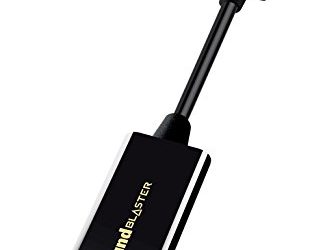
Creative Sound Blaster Play! 3

A USB-A stick that adds a fresh headphone output and microphone input, moving your sound off the motherboard jack and its driver path entirely. It is the direct answer to dropouts that track a worn front-panel jack or a flaky onboard output: one short chain, its own driver, nothing left to lose contact.
Specs
- Connection: USB-A plug
- Playback: 24-bit, 96 kHz stereo
- Output: 3.5mm headphone and speaker jack
- Input: 3.5mm microphone jack
- Software: Sound Blaster Control Panel for Windows
Creative Sound Blaster Play! 4
The USB-C version of the same bypass, built around a single 4-pole headset jack so one device carries game sound and voice chat together. Choose it for a laptop or USB-C front panel, where it also removes one adapter between port and headset.
Specs
- Connection: USB-C plug
- Playback: 24-bit, 192 kHz stereo
- Jack: 4-pole 3.5mm headset jack, microphone supported
- Controls: built-in button for microphone mute and mode switching
- Features: SmartComms Kit voice processing, bass boost mode
TP-Link UB500 Nano USB Bluetooth Adapter

If your dropouts are wireless and your PC relies on an old built-in Bluetooth radio, this replaces the PC side of the link with a Bluetooth 5 radio that holds a cleaner connection at desk range. Be clear about the limit: it fixes the radio in the PC. A headset that drops on every device it meets is failing itself, and no adapter changes that.
Specs
- Bluetooth: 5 standard nano adapter with EDR and BLE support
- Setup: plug and play on Windows 11 and 10
- Form: nano housing sits flush in the USB port
Fosi Audio K5 Pro

A desktop DAC and headphone amplifier for a permanent desk, with USB, optical, and coaxial inputs. Its optical input is the quiet advantage here: an optical feed from the motherboard is one fixed device in Windows that sleeping displays cannot disturb, and a microphone input keeps a gaming headset’s voice channel.
Specs
- Inputs: USB, optical, coaxial
- Outputs: RCA line out, 3.5mm headphone out
- Controls: volume, bass and treble knobs
- Microphone: 3.5mm microphone input for headset use
- Build: desktop metal chassis
FiiO K11

A compact desktop DAC and amplifier that runs from its own wall power supply rather than the USB bus, so it stays a stable, always-present endpoint while driving demanding headphones from its single-ended and balanced outputs. Its one limit is real: the K11 is playback only, with no microphone input, so voice chat needs a separate microphone.
Specs
- Inputs: USB-C, optical, coaxial
- Outputs: 6.35mm headphone, 4.4mm balanced headphone, RCA line out
- DAC: CS43198
- Gain: three gain levels
- Note: playback only, no microphone input
How to Choose
Match the purchase to the pattern you read at the start. Contact drops from a worn jack call for the Play! 3 on USB-A or the Play! 4 on USB-C, whichever your ports offer. Wireless drops with an ageing built-in radio call for the UB500 first, because it is the smallest change that rebuilds the link. A permanent desk that mixes powered speakers with a chat headset fits the K5 Pro, and the K11 is the pick when demanding headphones matter more than a microphone input. Change one link, then play a full session before judging the next.
Who Should Skip This Guide
Skip it if your problem is crackling, static, or distortion inside sound that otherwise keeps playing; that is a different fault family of rates, drivers, and latency. Skip it if sound reaches only one ear or one speaker, which is a channel fault, not a dropout. Skip it for handheld consoles, whose radios and power rules are a separate setup. Skip it if the same headset drops on phones and other PCs too, because the headset itself is failing. And if a wired headset on the rear motherboard jack never drops, your fix is in the free sections above — buy nothing.
Frequently Asked Questions
Why does my game audio cut out for a few seconds and then come back?
That rhythm is a device leaving and rejoining: Windows suspended it to save power, its wireless link dropped and reconnected, or the stream was moved to another output and moved back. The fixes above work through those three causes in order.
Why does the sound drop when my monitor goes to sleep?
Because the monitor is also an audio device. When its HDMI or DisplayPort output sleeps or wakes, Windows may promote it to default, and the game keeps playing into the screen. Disabling the monitor’s playback entries in the sound panel removes the destination entirely.
Why does my wireless headset cut out in games but not in videos?
Video apps buffer sound ahead of time, so a brief link loss passes unnoticed inside the buffer. A game produces sound live and cannot buffer decisions that have not happened yet, so the same two-second loss becomes a two-second hole.
Can Windows ducking mute a game completely?
Almost. The Communications setting can reduce other sounds to near silence when Windows believes a call is active, and voice apps can trigger it by opening a microphone. Setting it to Do nothing removes that cause in one click.
Final Verdict
Audio that cuts out in PC games is a chain problem, and chains fail at links: a device put to sleep, a radio link out of sight of its receiver, an output that Windows keeps reassigning. Read the pattern, clear the power settings, tidy the device list, and only then replace the link that still drops. Worked in that order, most dropouts end at a checkbox — and the ones that do not end at a named piece of hardware, bought for a named reason.
Product and ASIN Reference
| Product | ASIN |
|---|---|
| Creative Sound Blaster Play! 3 | B06XBZ38ZJ |
| Creative Sound Blaster Play! 4 | B08T9LM3LM |
| TP-Link UB500 Nano USB Bluetooth Adapter | B09DMP6T22 |
| Fosi Audio K5 Pro | B0BFHFSX4C |
| FiiO K11 | B0CJFG3DC7 |