A crackle that shows up only under load is rarely a broken speaker. In native Windows PC games, broken audio is usually the sound of a system missing its deadlines: the audio buffer runs dry for a few milliseconds, and the gap reaches your ears as a pop or a burst of static. This guide rules out the causes in the order they are cheapest to test. It covers native PC games on Windows; crackling inside an emulator is a separate problem with its own audio settings.
As an Amazon Associate, we earn from qualifying purchases.
Quick Answer
Most crackling and popping in PC games traces back to four causes: a sample-rate mismatch between Windows and the game, a faulty or overloaded audio driver, DPC latency spikes from another driver, or electrical noise on an analog connection. Work through the fixes in order, from the free settings changes to an external USB DAC that replaces the onboard audio path entirely.
First, Name the Noise
The fix depends on which noise you have, and the four common ones point in different directions.
- Random pops and crackles that get worse in busy scenes usually mean buffer underruns: the PC is not feeding the audio device on time, which points at drivers and latency.
- A constant buzz or hum that changes pitch with frame rate is electrical, not digital. It is the classic ground-loop pattern, and no driver reinstall will touch it.
- Audio that stutters, repeats a slice of sound, or drops out entirely suggests the device is losing its connection or its clock, which points at USB power and cables.
- Distortion only at high volume is plain clipping, in the game mix, the Windows volume stack, or an amplifier stage driven too hard.
Decide which description fits before changing anything; the two noises are fixed at opposite ends of this guide.
The Fix Ladder
Step 1: Match the Sample Rate Everywhere
Open the Windows sound settings for your playback device, open its advanced properties, and note the default format. Then set the same rate in any audio software you run, and check the game’s audio menu if it has one. When a game engine requests one rate and Windows mixes at another, the resampling work lands in the worst possible moments, and the result is often crackle during heavy scenes. A shared rate of 24-bit, 48000 Hz is the safest common ground, because it is the rate most game audio is produced at. Retest in the same scene that crackled before.
Step 2: Clear Out Enhancements and Exclusive-Mode Conflicts
In the same device properties, disable audio enhancements and any spatial sound processing, then retest. Enhancement chains add processing between the game and the device, and a buggy one breaks in exactly the crackling pattern described above. Exclusive mode deserves a test in both directions: some games crackle because a background app has taken exclusive control of the device, while others crackle because they cannot get it. Toggle the exclusive-mode checkboxes, relaunch the game, and keep whichever setting is clean.
Step 3: Reinstall the Audio Driver, Then Try the Generic One
A corrupt or badly updated audio driver is the most common cause of crackle that survives a reboot. Uninstall the device and its driver from Device Manager, restart, and install the current driver from the motherboard or laptop maker’s support page rather than a driver updater tool. If the crackle persists, run the counter-test: uninstall again and let Windows install its generic high-definition audio driver. The generic driver lacks vendor features, but it is a clean, simple path. If the noise disappears on it, the vendor package was the problem, and that is worth knowing before any money is spent.
Step 4: Measure Latency Instead of Guessing
When crackle arrives with hitching or appears only in certain games, measure deferred procedure call latency with a free tool such as LatencyMon while a game reproduces the noise. The tool reports which driver holds the system for too long, and the usual offenders are network, storage, and older USB drivers rather than the audio driver itself. Update or roll back the named driver and retest. This step converts a vague complaint into a named culprit; without it, people replace hardware that was never at fault.
Step 5: Fix USB Power and Port Problems
USB headsets and DACs add two failure modes analog devices do not have. Windows can suspend a USB audio device mid-session to save power, and a device on an overloaded hub can starve when other peripherals wake up. In Device Manager, open each USB hub and the audio device itself and clear the option that lets Windows turn the device off to save power. Connect the audio device directly to a rear motherboard port, not a front-panel port or an unpowered hub, and retest. Front-panel headers use long, poorly shielded internal cables, a recurring source of crackle and buzz.
Step 6: Run the Ground-Loop Test for Buzz
If your noise is the steady buzz from the first section, do the isolation test: play audio with the PC on a different outlet arrangement, or briefly test with a laptop on battery power feeding the same headphones or speakers. If the buzz changes or vanishes, the loop is in the wiring, and an inline ground-loop isolator on the analog connection is the standard fix. An optical connection breaks the same loop digitally, because light carries no ground path at all. That is why two devices below accept optical input.
The Gear That Ends the Argument
Every software step above is free. The hardware below earns its place for one reason: an external USB audio device replaces the onboard codec, its driver, and often its noisy analog wiring in a single move, which makes it both a fix and a diagnostic. If the crackle survives a swap to a known-clean external device, the cause is upstream in the system itself.
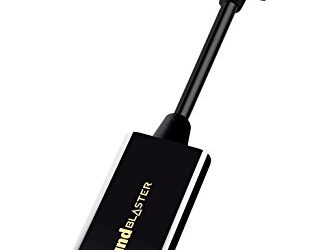
Creative Sound Blaster Play! 3

The cheapest clean test in the list. This USB-A dongle is its own sound device, so plugging a headset into it removes the onboard codec and the case’s front-panel wiring from the chain at once. It needs no driver install.
Specs
- Playback: up to 24-bit, 96 kHz
- Connection: USB-A, plug and play
- Ports: separate headphone and microphone 3.5 mm jacks
- Model: 70SB173000000
Creative Sound Blaster Play! 4
The USB-C version of the same idea, with a stronger DAC stage and Creative’s software suite for mic processing. Useful when the PC’s ports are mostly USB-C, or when the Play! 3 test proves the onboard path is at fault.
Specs
- Playback: up to 24-bit, 192 kHz
- Dynamic range: 110 dB
- Connection: USB-C, USB-A adapter included
- Model: 70SB186000000
Fosi Audio K5 Pro

A desktop DAC and headphone amplifier with one feature the dongles lack: an optical input. Optical in means the audio path from PC to desk carries no electrical ground connection, which makes this the natural pick when the Step 6 test points at wiring. Analog bass and treble knobs handle tone without software.
Specs
- Inputs: USB-C, optical, coaxial
- Outputs: 3.5 mm headphone, RCA line out, microphone input
- Playback: up to 24-bit, 192 kHz
- Headphone drive: 16 to 300 ohm loads
- Controls: analog volume, bass, and treble knobs
FiiO K11

The step up for demanding headphones and desks with several sources. The K11 also accepts optical input, so it covers the ground-loop case, and its amplifier stage has far more headroom than a dongle. It runs driver-free over USB on current Windows versions.
Specs
- DAC: Cirrus Logic CS43198
- USB playback: up to 384 kHz, 32-bit PCM, plus DSD256
- Inputs: USB-C, optical, coaxial
- Outputs: 6.35 mm and 4.4 mm balanced headphone jacks, RCA line out
- Output power: 1400 mW into 32 ohms on the balanced output
Besign Ground Loop Noise Isolator

Not a sound device at all: a small passive filter that sits inline on a 3.5 mm analog connection and breaks the ground loop behind mains hum and frame-rate-linked buzz. It does nothing for digital crackle from drivers or latency, and it should only be bought after the Step 6 test says the loop is real.
Specs
- Connection: 3.5 mm in and out
- Power: none required, fully passive
- Model: GLNI-1Pack
How to Choose
Start with the noise, not the shopping list. Random crackle that tracks system load belongs to Steps 1 through 4, and most of it dies there for free. A steady buzz belongs to Step 6 and to the isolator or an optical-fed DAC. If you want one purchase that doubles as a verdict, the Play! 3 is the diagnostic: clean audio through it convicts the onboard path, while identical crackle through it points back at system latency. Choose the Play! 4 if your machine is USB-C first. Choose the K5 Pro or K11 when the fix needs to be permanent and your headphones need real amplification, with the K11 reserved for high-impedance or balanced headphones.
Who Should Skip
Skip the hardware entirely if your crackle only happens in one game and nowhere else; that pattern points at the game itself, and a patch or an in-game audio setting is the honest fix. Skip this ladder if your noise happens inside an emulator, since emulator audio buffers and sync settings are their own topic. Skip the isolator if your noise is random pops rather than a steady hum, because it cannot help and will only muddy the diagnosis. And skip the DAC upgrade if LatencyMon has already named a misbehaving network or storage driver; fix that driver first, since it will keep interrupting any audio device you attach.
Frequently Asked Questions
Why does the crackling only happen in demanding scenes?
Heavy scenes are when the CPU and storage system are busiest, so the audio thread gets its buffer refilled late, and the gap is heard as crackle. That load-dependence is the signature of a latency or driver problem rather than a broken headphone.
Can a USB DAC really fix crackling, or does it just move it?
Both outcomes are informative. A USB DAC replaces the codec, the driver stack, and the analog output stage, so any fault in those three disappears. If the crackle survives, it was never in the audio path; it is system latency, and Step 4 is where the answer lives.
Is the buzz from my speakers a ground loop or a dying power supply?
Test before concluding. A ground-loop buzz changes when you rearrange which outlets the PC and speakers use, and it often tracks frame rate. A buzz that stays identical through every wiring change points at the speaker amplifier itself rather than a loop.
Should I disable my onboard audio in the BIOS after adding a DAC?
It is optional. Leaving onboard audio enabled is harmless as long as the game and Windows are both set to the external device. Disabling it prevents a game from silently switching back to the onboard output after an update.
Final Verdict
Crackling and popping in PC games is a symptom with a short list of causes, and the ladder above is ordered so the free causes fall first: match the sample rate, strip the enhancements, replace the driver, measure the latency, clean up USB power, and only then test for a ground loop. If a purchase is needed, make it one that also diagnoses: a USB sound device such as the Play! 3 or Play! 4 settles whether the onboard path is guilty, an optical-fed DAC such as the K5 Pro or K11 removes both the codec and the ground path, and the Besign isolator handles the narrow, proven case of a true loop.
Product and ASIN Reference
| Product | ASIN |
|---|---|
| Creative Sound Blaster Play! 3 | B06XBZ38ZJ |
| Creative Sound Blaster Play! 4 | B08T9LM3LM |
| Fosi Audio K5 Pro | B0BFHFSX4C |
| FiiO K11 | B0CJFG3DC7 |
| Besign Ground Loop Noise Isolator | B06XQYN77L |