You are mid-game or mid-scroll and the whole PC locks solid for a few seconds — mouse, sound, everything — then carries on as if nothing happened. If your machine has a mechanical hard drive alongside the SSD, the likely culprit is that drive waking up. A sleeping hard drive needs several seconds to spin its platters up to speed, and while it does, Windows makes every program that touches it wait. This guide proves the drive is the stall, finds what keeps waking it, and fixes the freeze in order.
As an Amazon Associate, we earn from qualifying purchases.
Quick Answer
The hitch is your second drive waking up. A sleeping hard drive takes several seconds to spin its platters up to speed, and Windows makes every program wait while any one of them asks that drive for data. Stop the freeze by moving the page file and game libraries off the spinner, raising its sleep timer, and stopping the indexer and antivirus from poking it.
The Spin-Up Stopwatch: Proving the Drive Is the Stall
Most freeze advice hands you a generic checklist. A spin-up stall carries its own signature, and timing it separates it from every other freeze. Run the Spin-Up Stopwatch check before changing any setting:
- Time the freeze. A waking platter takes a few seconds to reach full speed, so the lockup lasts roughly that long — noticeably longer than a driver hiccup, shorter than a crash. If your freezes match that window again and again, note it.
- Listen and watch. During a spin-up stall you can often hear the drive spin up from silence, and the case drive-activity light sits solid for exactly the length of the freeze. The freeze ends the moment the drive is ready, not gradually.
- Check the rhythm. Spin-up stalls only happen after the PC has been idle long enough for the drive to sleep, and they repeat on that timer’s schedule. A freeze that strikes after every quiet stretch is following the timer, not failing hardware.
- Force a controlled wake. Let the drive sleep, then do one thing — open a game launcher, open Explorer — and watch whether the freeze lands at that exact moment. One deliberate trigger beats an hour of guessing.
If your freezes happen while the drive is already awake, or the pointer still moves during them, this is not your problem: that pattern belongs to the general few-seconds freeze family, with different causes. If the drive clicks or grinds while it wakes, stop here — a noisy wake is a health warning, not a power setting, and the drive needs backing up first.
Why One Sleeping Drive Freezes the Whole Machine
The freeze feels total because of how Windows handles storage requests. When a program asks a drive for data, it cannot continue until the drive answers. One waking drive would only stall one program, except that the programs doing the asking are usually shared services — Explorer building a folder view, a launcher scanning its library, the search indexer, the antivirus on a background pass. When a central service blocks on the waking drive, everything depending on it queues behind it, and the desktop freezes as a group.
Three things commonly live on the second drive and make the stalls frequent. The page file is the worst: if Windows put it on the hard drive, memory pressure wakes the spinner constantly. Game libraries are next, because launchers rescan their folders on launch and on update checks. Media and download folders come third, since browsers, torrent clients and streaming apps poll them in the background.
Finding Who Keeps Waking the Drive
Fixing the sleep timer alone is a bandage if something pokes the drive every few minutes. Catch the waker first:
- Watch Resource Monitor’s Disk tab. Leave it open, let the drive sleep, and when the freeze hits, look at which processes show activity on the hard drive’s letter the moment it wakes. The process at the top of that list is your waker.
- Check the usual suspects. Windows Search indexing the drive, a scheduled antivirus scan, a backup tool, a sync client watching a folder on the spinner, and launchers set to scan on startup cover nearly every case.
- Read the pattern, not just the name. A waker that fires on a fixed schedule is a scheduled task or scan. One that fires when you open anything is Explorer reading the drive. One that fires during games is the page file or a launcher library scan.
The Fixes, in Order
Work down this list and stop when the freezes stop:
- Move the page file to the SSD. In advanced system settings, set the page file on the hard drive to none and let Windows manage one on the SSD. This single change removes the most relentless waker.
- Move hot libraries off the spinner. Games you actually play, and the apps you open daily, belong on an SSD. Leave the hard drive for archives, recordings and backups — data read rarely and never in a hurry.
- Raise or disable the drive sleep timer. In your power plan’s advanced settings, set “Turn off hard disk after” to a much longer interval, or to zero so it never sleeps. A drive that never sleeps can never stall the PC by waking. Desktop drives tolerate this well; the trade-off is a little extra power draw.
- Stop the poking. Exclude the archive drive from Windows Search indexing, and set antivirus scans of that drive to a time you choose rather than a background trigger. Do the same for backup and sync tools that watch folders there.
- Check link power management. Aggressive SATA link power settings (HIPM and DIPM in the power plan) can put the controller to sleep on top of the drive timer. Setting link power management to active while you test removes that second layer.
If the freezes survive all five steps with the drive provably awake, the stall is not a spin-up problem — go back to the general freeze diagnosis with the drive ruled out.
How to Choose
Choose by what the evidence showed. If the page file or a game library lives on the spinner, the fix is relocation, and the only purchase that matters is enough SSD capacity to hold what moves — the picks below are sized for that. If nothing important lives on the drive and the waker was the indexer or a scan, settings alone fix you and you should buy nothing. If your RAM is small enough that Windows pages constantly, memory is the real fix and the drive is just where the symptom shows. Change one thing at a time: a day without a freeze after three simultaneous changes teaches you nothing.
Who Should Skip
Skip this guide if your freezes come with clicking, grinding or repeated spin-up and spin-down cycling from the drive — that is a failing drive asking for a backup, not a settings change. Skip it if the PC blue-screens or reboots, since crashes belong to a different diagnosis. Skip it if only one game hitches while the desktop stays responsive; that is in-game stutter. And skip it if your second drive is an SSD: solid-state drives have no platters to spin up, so a freeze in an all-flash machine has another cause entirely.
Gear for Moving the Hot Data Off the Spinner
Match the part to the job your evidence named.
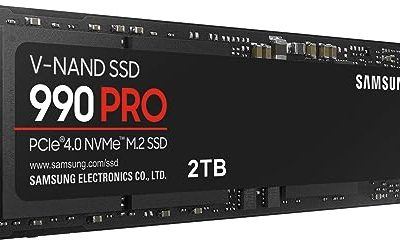
Samsung 990 PRO 1TB NVMe SSD

Tier: premium
The system-drive upgrade for a PC whose page file and operating system deserve the fastest flash in the machine. Moving Windows and its page file here removes the most frequent wake-up calls for good.
Specs
- Capacity: 1TB
- Interface: PCIe 4.0 x4, NVMe
- Sequential read: up to 7,450 MB/s
- Sequential write: up to 6,900 MB/s
- Form factor: M.2 2280
WD Black SN850X 2TB NVMe SSD

Tier: premium
The game-library drive. Two terabytes swallows a modern library whole, so the launchers stop scanning a mechanical drive every time they start, update or check for news.
Specs
- Capacity: 2TB
- Interface: PCIe 4.0 x4, NVMe
- Sequential read: up to 7,300 MB/s
- Sequential write: up to 6,600 MB/s
- Form factor: M.2 2280
Samsung 970 EVO Plus 1TB NVMe SSD

Tier: mid-range
The pick for PCIe 3.0 boards that cannot use newer drives at full speed. It still moves the page file and your most-played games onto flash, which is all this fix actually needs.
Specs
- Capacity: 1TB
- Interface: PCIe 3.0 x4, NVMe
- Sequential read: up to 3,500 MB/s
- Sequential write: up to 3,300 MB/s
- Form factor: M.2 2280
Crucial P3 Plus 1TB NVMe SSD

Tier: budget
Cheap capacity for bulk relocation: the back catalogue of games, the media apps and the download folder that keep poking the spinner. The hard drive retires to archive duty behind it.
Specs
- Capacity: 1TB
- Interface: PCIe 4.0 x4, NVMe
- Sequential read: up to 5,000 MB/s
- Sequential write: up to 3,600 MB/s
- Form factor: M.2 2280
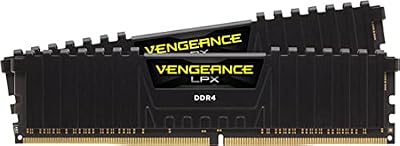
Corsair Vengeance LPX 32GB DDR4 Memory Kit
Tier: mid-range
The memory fix for DDR4 systems that page hard enough to keep a hard drive busy. With 32GB installed, Windows reaches for the page file far less often, and the spinner can sleep in peace.
Specs
- Capacity: 32GB (2 x 16GB)
- Type: DDR4
- Speed: 3600 MT/s
- Latency: CL18
- XMP 2.0 support
Frequently Asked Questions
Why does my whole PC freeze when my second hard drive wakes up?
Because the programs asking the waking drive for data are usually shared services — Explorer, a launcher, the indexer — and everything depending on them queues behind the wait. The drive takes several seconds to spin up, so the queue lasts several seconds, and with a service stalled rather than one app, the freeze looks total.
Is it bad to stop my hard drive from sleeping altogether?
For a desktop drive, no. Spinning continuously costs a little power, while the constant spin-up and spin-down cycles it replaces are themselves a wear factor. If the freezes are ruining the machine, setting the sleep timer to never is a legitimate permanent fix, not a workaround.
Can a spinning-up stall mean the drive is failing?
A plain spin-up stall, on a drive that then works perfectly, is a timing problem, not a health problem. It becomes a health warning when the wake comes with clicking, grinding, repeated attempts to spin up, or errors in Event Viewer. Those signs mean back up first and replace the drive; no setting fixes dying hardware.
Why does the freeze often hit when I open my game launcher?
Launchers rescan their library folders when they start, and if your library lives on the hard drive, that scan is the first serious request the sleeping drive gets. The launcher waits for the spin-up, everything else touching the drive waits behind it, and the whole PC pauses. Moving the library to an SSD ends that freeze completely.
Final Verdict
A PC that freezes for a few seconds on a rhythm, only after idle, with the drive light solid and the spinner audible, is not dying — it is waiting. Run the Spin-Up Stopwatch check to prove it, catch the process that keeps waking the drive, then fix it in order: page file to the SSD, hot libraries onto flash, sleep timer raised, indexer and scans tamed. Most machines are cured by the settings alone. The rest are cured by giving the hard drive the only job it is still good at: holding data nobody needs in a hurry.
Product and ASIN Reference
| Product | ASIN |
|---|---|
| Samsung 990 PRO 1TB NVMe SSD | B0BHJJ9Y77 |
| WD Black SN850X 2TB NVMe SSD | B0B7CMZ3QH |
| Samsung 970 EVO Plus 1TB NVMe SSD | B07MFZY2F2 |
| Crucial P3 Plus 1TB NVMe SSD | B0B25NXWC7 |
| Corsair Vengeance LPX 32GB DDR4 Memory Kit | B07ZPLM1R1 |