Your PC wakes, the picture comes back, and everything plugged into the monitor is dead: keyboard, mouse, webcam, headset dongle. Unplugging each device works, and turning the monitor off and on revives all of them at once. That pattern points at one link in the wake chain failing to restart, not at five broken devices.
As an Amazon Associate, we earn from qualifying purchases.
Quick Answer
The monitor’s built-in USB hub sleeps on its own schedule, separate from the panel. After the PC wakes, one of four links fails to come back: the device, the monitor hub, the upstream connection, or the PC’s root hub. The Wake Chain Test below isolates the dead link in minutes, and most cases end with a power setting or a hub that wakes badly.
How to Choose
Run the Wake Chain Test first
Picture and USB travel to the monitor on separate paths. The video signal can recover perfectly while the USB path stays asleep, which is why the screen looks fine. Test the chain link by link, in this order, the next time it happens:
- Replug one dead device into the same monitor port. If it revives, that device failed to resume on its own. Rare on its own, common as a side effect of a hub that woke late.
- Power-cycle the monitor only, leaving the PC awake. If every device comes back at once, the monitor hub is the dead link. It dropped into a deep standby state and never re-registered with the PC.
- Move one device to a USB port on the PC case. If PC ports are also dead after wake, the fault is on the PC side: a root hub that Windows powered down and did not restart.
- Change the connection path. If you run a single USB-C cable for video and data, test with a DisplayPort or HDMI cable for video plus the monitor’s USB upstream cable. Splitting the paths changes which device sleeps first, and it often ends the problem.
Whichever step revives your devices names the link you need to fix. Do not change settings at random before running it, because the same symptom has four different cures.
Fix the monitor link
Open the monitor’s on-screen menu and look for power behaviour settings. Names vary: Deep Sleep, USB Standby, Power Mode, Eco mode, or a USB charging toggle. A hub set to sleep deeply saves a trickle of power and costs you a dead keyboard every morning. Set the USB ports to stay powered or to wake with the panel, and check the maker’s support page for a firmware update, because hub wake bugs are a common firmware fix. If the hub still refuses to wake after both changes, the hub itself is the weak part, and the realistic options are a monitor with a better-behaved hub or a separate powered hub on the desk.
Fix the PC link
On the PC side, two Windows settings decide whether hubs survive sleep. In your power plan’s advanced settings, set USB selective suspend to Disabled. Then open Device Manager, find each USB Root Hub and Generic USB Hub, open Properties, and on the Power Management tab clear the option that lets the computer turn the device off to save power. Apply the same change to the monitor hub entry itself if it appears in the list. Restart, sleep the PC, and wake it three times before judging the result, because this fault is intermittent by nature.
Choose replacement gear by hub behaviour
If you are shopping your way out of the problem, judge monitors by the hub, not just the panel. Look for a USB-C or USB-B upstream connection, several USB-A ports, and published standby settings you can actually adjust. A KVM switch is a good sign: makers who expect you to share peripherals between two computers tend to build hubs that enumerate quickly and wake reliably. If your current monitor’s picture is fine, keep it and bypass the hub with a powered desktop hub instead. That is the cheaper cure and it works every time, because the desk hub answers to the PC directly.
Dell UltraSharp U2724DE

The U2724DE is the premium fix for a desk built around monitor USB. Its Thunderbolt hub carries video, data, and power on one cable, and it adds a row of USB-A and USB-C ports plus a network jack, so the monitor becomes the docking point for the whole setup. Dell’s standby options are exposed in the menu rather than buried, which is exactly what you want when you are tuning wake behaviour. For a two-computer desk, the built-in KVM keeps keyboard and mouse on the hub full time, so the hub has to wake cleanly, and in this class of monitor it generally does.
Specs
- Panel: 27-inch IPS Black, 2560 by 1440, 120 Hz
- Upstream: Thunderbolt 4 USB-C with power delivery
- Hub: USB-A and USB-C ports, Ethernet pass-through, KVM switch
- Tier: premium
ASUS ProArt PA279CRV

The PA279CRV is a mid-range 4K option whose hub is aimed at people who plug things in and leave them there: a USB-C upstream with power delivery for a laptop, plus USB-A ports for the desk peripherals. Its standby behaviour is adjustable in the on-screen menu, and ASUS publishes firmware updates for this line, which matters because hub wake fixes usually arrive as firmware. If your current monitor’s hub is the dead link and you also want a sharper desktop picture, this is a sensible step up rather than a sideways swap.
Specs
- Panel: 27-inch IPS, 3840 by 2160, 60 Hz
- Upstream: USB-C with 96 W power delivery
- Hub: USB-A ports plus USB-C, DisplayPort and HDMI inputs
- Tier: mid-range
Gigabyte M27Q

The M27Q is the budget-friendly gaming pick in this group, and its KVM switch is the reason it belongs here. KVM monitors live or die by their hubs: the keyboard and mouse sit on the monitor permanently and jump between machines, so the hub is built to enumerate fast and recover cleanly. It uses a USB-B upstream cable for the hub, separate from the video cables, which gives you the split-path setup described above by default. That separation is one of the more reliable ways to stop wake failures.
Specs
- Panel: 27-inch IPS, 2560 by 1440, up to 170 Hz overclocked
- Upstream: USB-B cable for the hub, DisplayPort and HDMI for video
- Hub: USB 3.0 ports with KVM switch
- Tier: budget
Anker USB-C Hub A8313

If your monitor’s picture is good and only its hub misbehaves, skip the new monitor. A powered desktop hub bypasses the monitor entirely: plug keyboard, mouse, and headset dongle into the hub, run one cable to the PC, and the monitor’s sleep state stops mattering. The A8313 is a mid-range hub with a USB-C host connection and a mix of data ports, and because it answers directly to the PC’s root hub, it follows the PC’s wake behaviour instead of the monitor’s. This is also the fastest way to confirm a diagnosis: if devices on the desk hub wake perfectly while the monitor ports stay dead, the monitor hub was the broken link.
Specs
- Host connection: USB-C
- Ports: USB-A and USB-C data ports, video pass-through
- Power: bus powered with pass-through charging support
- Tier: mid-range
Cable Matters DisplayPort 1.4 Cable, 10 ft
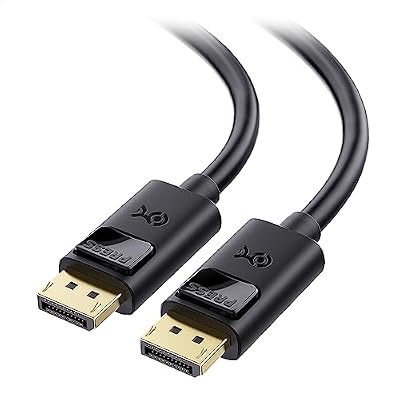
This cable is the split-path fix in a box. When a single USB-C cable carries both video and USB data to the monitor, the two paths sleep and wake as one unit, and a hub that wakes late can take the whole connection down with it. Moving video onto a dedicated DisplayPort cable and letting the monitor’s USB upstream cable handle data alone separates the paths, and each one recovers on its own schedule. The Cable Matters cable is a budget pick rated for DisplayPort 1.4 bandwidth, so it holds high refresh rates at 1440p while your USB link stops depending on the video link. At 10 ft it reaches from a tower under the desk to the monitor without strain.
Specs
- Standard: DisplayPort 1.4 with HBR3 bandwidth
- Length: 10 ft
- Supports: high refresh rates at 1440p and 4K
- Tier: budget
Who Should Skip
Skip this guide if your USB devices drop out randomly while the PC is awake and in use. That is a different fault, usually a failing cable, a weak port, or a device drawing more power than the port supplies, and sleep settings will not cure it. Skip it if the monitor shows no picture at all after wake, because then the video path is the problem, not the hub. Skip it if your peripherals hang off a USB-C dock rather than the monitor itself, since a dock that loses its displays after sleep has its own chain of causes. And skip the replacement hardware if your devices recover with a simple replug every time and it only happens once a month: change the two Windows power settings, turn off the monitor’s deep sleep, and live with it.
Frequently Asked Questions
Why do my monitor USB ports work again after I turn the monitor off and on?
A power cycle restarts the hub’s controller from zero. It re-registers with the PC as if it had just been plugged in, which clears the half-awake state it was stuck in. That behaviour is the classic fingerprint of the monitor link failing: the hub hardware is fine, but its wake routine is not.
Does USB selective suspend affect a monitor’s built-in hub?
Yes. To Windows, the monitor hub is an ordinary USB hub, and selective suspend can park it along with the root hubs. If the monitor also has its own deep-sleep setting, the two can stack: Windows parks the hub, the monitor powers it down, and neither side brings it back. Disabling both is the standard cure.
Should I just plug my keyboard and mouse into the PC instead?
That works, and it is the right call for a single device you cannot afford to lose, such as the keyboard you wake the PC with. The cost is cable reach and tidy routing, which is why people use monitor hubs in the first place. A powered desk hub gives you the same reliability without running cables to the tower.
Can a firmware update really fix a hub that will not wake?
Yes, and it is more common than people expect. The hub runs its own small firmware, and wake-from-sleep handling is software. Monitor makers ship fixes for exactly this symptom. Check the support page for your model before you spend anything, and update the monitor firmware and your PC’s chipset drivers as a pair.
Final Verdict
Dead monitor USB ports after sleep are a wake problem, not a death problem, and the Wake Chain Test tells you which of the four links is failing: device, monitor hub, upstream connection, or PC root hub. Change the monitor’s deep-sleep setting and the two Windows power options first, because that cures most cases for free. If the hub still will not wake, bypass it with a powered desk hub, split the video and data paths, or move to a monitor whose hub was built to wake cleanly. Run the test before you buy anything, and you will only replace the link that is actually broken.
Product and ASIN Reference
| Product | ASIN |
|---|---|
| Dell UltraSharp U2724DE | B0CMXGDK5S |
| ASUS ProArt PA279CRV | B0BQPSX5CR |
| Gigabyte M27Q | B08JWCHR5N |
| Anker USB-C Hub A8313 | B08CK9X9Z8 |
| Cable Matters DisplayPort 1.4 Cable, 10 ft | B07J2PGGFX |