Your teammates describe your voice two ways: like a robot talking underwater, or like a blown speaker whenever you raise your voice. Those are not the same complaint. Robotic audio is a digital fault. Distorted audio is a level fault. This guide splits the two first, then walks your signal chain in the order faults actually occur.
As an Amazon Associate, we earn from qualifying purchases.
Quick Answer
A robotic microphone is a digital fault: sample-rate mismatches, stacked noise processing, or a Bluetooth hands-free profile are starving the signal. A distorted one is a level fault: gain too high or a poor analog input. Record a local test clip first. If it sounds bad there, fix the chain in order; if it sounds clean, the app is at fault.
Two Symptoms, Two Different Faults
Robotic, warbling, metallic, or underwater voices are born after the microphone. The capsule captured your voice fine, then something digital mangled it: a sample-rate conversion gone wrong, two noise-suppression systems fighting each other, a Bluetooth profile squeezing your voice into a narrow telephone-grade stream, or a USB path dropping data. The tell: it comes and goes with settings, apps, or connections.
Distortion is older and simpler. The signal itself is damaged before or during capture. You are too close, too loud, or running too much gain, so the waveform clips and every loud syllable crackles. A worn cable, a loose plug, or a noisy front-panel jack can add the same crunch. The tell: distortion follows volume. Quiet speech sounds fine and loud speech breaks up.
Splitting the symptom matters because the fixes pull in opposite directions. Robotic voices need you to remove processing and match formats. Distorted voices need you to lower levels and clean up the analog path.
Step One: Record Locally and Split the Chain
Before changing a single setting, record a ten-second clip in a local app such as Windows Voice Recorder or any basic audio editor, speaking at match volume, including one loud sentence.
Play it back. If the local clip is robotic or distorted, the fault sits between the microphone and your PC’s recording stack. If the local clip sounds clean but your squad still hears a robot, the fault is inside the voice app or its processing: jump to Step Three. This one test halves the search space, so do not skip it.
Step Two: Match the Sample Rate Everywhere
The classic robotic voice is a sample-rate argument. Your microphone runs at one rate, Windows expects another, and the voice app resamples on the fly, badly. Voices turn thin, pitchy, and metallic.
Open the Windows sound settings, select your microphone under recording devices, and open its advanced properties. Set the default format to a standard rate, either 44.1 kHz or 48 kHz. Then open your voice app and set its input to the same rate where it exposes the option. Discord follows the system format; tools that let you pick independently are a frequent hidden cause of mismatch.
While you are in the advanced tab, untick exclusive mode options that let applications seize the device and change its format mid-session. Then restart the voice app and record another local clip. If the robot is gone, stop here.
Step Three: Strip the Processing Stack
Stacked processing is the second great robot-maker. Windows audio enhancements, a headset suite’s noise removal, Discord’s suppression, and a GPU voice filter can all sit in series, each one re-analyzing what the last one already altered. The result warbles.
Turn everything off, in every layer, and test raw. Disable audio enhancements for the microphone in Windows. In Discord, set noise suppression to none, and switch off echo cancellation, automatic gain control, and attenuation for the test. Quit or bypass any standalone voice filter app. Record locally and in the app.
If raw audio sounds human, re-enable one layer at a time until the robot returns. The last layer you enabled is the conflict; leave that one off permanently. Most setups need at most one suppression system running. If raw audio still sounds robotic with everything off, the fault is lower in the chain: continue to the connection steps.
Step Four: Fix the USB Path
USB microphones and wireless dongles share bandwidth and power on the hub, and a starved or interrupted stream sounds exactly like a robot: chopped syllables, pitch wobble, dropouts that smear words.
Move the microphone or its dongle to a USB port on the motherboard, at the back of the PC, not a front-panel port, a monitor hub, or an unpowered hub. Front-panel audio and USB wiring runs unshielded past the inside of the case and picks up interference that powered hubs repeat. Swap a detachable cable too; one pinched by a chair wheel often fails intermittently rather than cleanly.
In Device Manager, open the USB root hubs and untick the option that lets Windows turn the device off to save power. Then test again at match volume. If the problem only appears when a game is loading or your GPU is working hard, the shared hub was the bottleneck, and the rear-port move settles it.
Step Five: Escape the Bluetooth Hands-Free Trap
If your voice turns robotic the moment a game or call starts, but sounds fine in a local recording, suspect Bluetooth. Wireless headsets carry two profiles: a high-quality listening profile with no microphone, and a hands-free profile that switches on when any app opens the mic. The hands-free profile was built for phone calls and squeezes your voice into a narrow, low-rate stream that sounds robotic by design.
You cannot widen that profile, so route around it. Use the headset for playback only and give the app a separate microphone, or switch the headset to its wired or 2.4 GHz dongle mode if it has one. If the headset must stay on Bluetooth, a modern Bluetooth 5.0 USB adapter at least keeps the connection stable and current, though the profile limit itself remains.
Step Six: Set Gain Before You Blame the Microphone
Clipping happens when the signal arrives too hot, and the most common cause is a microphone six inches too far away with its gain cranked to compensate, plus a second gain stage in the app pushing it over.
Move the microphone closer, around a fist’s width from your mouth and slightly off to the side so breath blasts miss the capsule. Then lower the Windows input level until your loudest match call-out peaks without crunch in a local recording. Turn off any automatic gain in the app so it stops pumping the level up and down.
On a headset, use the inline or earcup volume for playback only, never as a mic fix. If distortion survives close placement and sane gain, test the microphone on a different input: a different jack, a USB sound adapter, or another PC. Crunch that follows the microphone across devices means the capsule or cable is failing; crunch that stays with one input means that input is the problem, which is exactly what the gear below solves.
How to Choose Replacement Gear
Buy only after the steps above name the failing link. A new microphone cannot fix a sample-rate fight, and no setting fixes a dying cable. When the chain does point at hardware, these pieces remove specific faults: dynamic USB microphones with hardware gain, a USB sound adapter to bypass a bad onboard input, a boom arm for steady placement, and a current Bluetooth adapter.
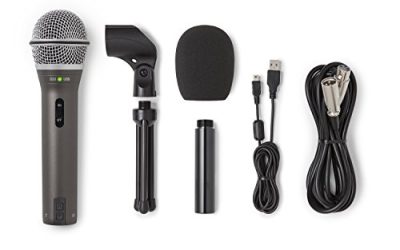
Samson Q2U

A dynamic USB microphone is the standard answer when distortion comes from gain and placement. The cardioid dynamic capsule rejects room noise, so you run less gain, and the onboard controls put level in hardware.
Specs
- Dynamic cardioid capsule
- USB and XLR outputs
- Onboard gain and volume controls
- 3.5 mm headphone jack for zero-latency monitoring
- Desktop stand and USB cable included
Audio-Technica ATR2100x-USB

The same dual-output formula with USB-C, suited to voices that clip on a condenser headset mic. Hardware mic gain and a headphone volume dial let you set levels once and stop software from re-deciding them.
Specs
- Dynamic cardioid capsule
- USB-C and XLR outputs
- Built-in headphone jack with volume control
- Onboard microphone gain control
- Tripod desk stand included
Creative Sound Blaster Play! 4

When distortion or robotic artifacts stay with one PC input, this USB sound adapter replaces the input entirely. It gives a headset or 3.5 mm microphone a clean external path and adds its own voice processing in one controlled place.
Specs
- USB-C connection with USB-A adapter
- Separate headphone and microphone jacks
- Hi-res playback support
- Software voice enhancement and noise reduction controls
- Plug-and-play on Windows
InnoGear Microphone Boom Arm

Placement drift causes more clipping than bad capsules do. A boom arm holds the microphone at the same close distance every session, which keeps gain low and consistent, and gets the mic off the desk.
Specs
- Adjustable scissor arm with desk clamp
- Supports standard microphone mounts with adapter
- Built-in cable management channel
- Folds away when not in use
TP-Link UB500 Bluetooth USB Adapter

For wireless headsets whose connection itself is unstable, this nano adapter brings an older or flaky PC Bluetooth radio up to Bluetooth 5.0. It will not widen the hands-free profile, but it removes dropouts and pairing faults from the list of suspects.
Specs
- Bluetooth 5.0 USB nano adapter
- Plug-and-play on Windows
- Supports multiple simultaneous device connections
- Backward compatible with earlier Bluetooth versions
Who Should Skip This Guide
Skip ahead if your microphone produces no signal at all, picks up your keyboard louder than your voice, or sounds merely muffled and quiet: those are separate faults with their own fix lists. Also skip the gear section if your local recording already sounds clean; when the chain is healthy, the fix is a setting.
Frequently Asked Questions
Why does my mic sound robotic in Discord but fine in recordings?
Because Discord adds its own processing on top of Windows. With a clean local recording, disable Discord’s noise suppression, echo cancellation, and automatic gain, and confirm the app uses the same sample rate as the Windows default format.
Why does my voice sound like a robot only in one game?
That game is likely seizing the microphone in exclusive mode, opening the Bluetooth hands-free profile, or applying its own voice processing. Check the game’s audio settings for enhancement and input options, and test with exclusive mode disabled in the Windows device properties.
Can a bad USB cable make a microphone sound distorted?
Yes. A damaged cable or a loose connector causes dropouts, crackle, and chopped audio that reads as distortion, and the fault often appears only when the cable moves. Swap the cable and move the microphone to a rear motherboard port before suspecting the capsule.
Will a better microphone fix robotic voice chat?
Only if the microphone itself is the failing link, which the local-recording test reveals. Robotic audio usually comes from sample rates, stacked processing, or Bluetooth profiles, and a new microphone inherits all three. Fix the chain first; upgrade when a test shows the hardware is at fault.
Final Verdict
Split the symptom first. Robotic voices come from the digital chain: match the sample rate, run one processing layer at most, give USB devices a clean rear port, and route around the Bluetooth hands-free profile. Distorted voices come from levels: closer placement, lower gain, no automatic gain. Run the local-recording test at the start and after each change, and the chain will tell you exactly where it breaks.
Product and ASIN Reference
| Product | ASIN |
|---|---|
| Samson Q2U USB/XLR Dynamic Microphone | B001R747SG |
| Audio-Technica ATR2100x-USB Dynamic Microphone | B07ZPBFVKK |
| Creative Sound Blaster Play! 4 USB Sound Adapter | B08T9LM3LM |
| InnoGear Microphone Boom Arm | B01L3LL95O |
| TP-Link UB500 Bluetooth 5.0 USB Adapter | B09DMP6T22 |