Your squad can hear your game. Not faintly, and not through the walls: they hear your gunfire, your menu music, and your notification sounds clearly, riding on your microphone channel, including the moments when you are saying nothing at all. Usually nothing is wrong with the microphone. Your PC is sending its own output down the channel meant to carry only you, and the fault sits in the routing, not the capsule.
As an Amazon Associate, we earn from qualifying purchases.
Quick Answer
Your microphone is rarely the culprit. When game and desktop sound travel down your mic channel, the recording input is usually a loopback source such as Stereo Mix, a virtual mixer bus, or a shared onboard device. Mute or unplug the mic and record: if the game audio is still there, fix the input selection and routing, not the mic.
The Mute Test: Prove It Is Routing, Not Sound
Before opening a single settings panel, run one test that splits this problem cleanly in two. Open any local recorder, start a game or a video so the PC is making noise, and record ten seconds while you stay silent. Then do it again with the microphone physically muted, or unplugged entirely.
If the second recording still contains the game audio, no microphone was involved at all. Sound cannot jump into a disconnected capsule, so the device your app is listening to is a source that captures the PC’s output directly. Every fix for you lives in input selection and routing, in the next two sections.
If the game audio vanishes when the mic is muted or unplugged, the signal really is travelling through the mic line. That points to the shared-device and cabling faults in the third section, or to acoustic leak from loud open-back headphones. Note which branch you are on, because the fixes do not overlap.
Path One: The Input Is Not a Microphone
The most common cause is a recording source that captures everything the PC plays. Realtek drivers call it Stereo Mix; some suites label it What U Hear. It exists so streamers can record system sound, and it becomes a fault the moment anything treats it as a microphone: a game using the default input, a chat app that reselected its device after an update, or a driver install that promoted Stereo Mix to default.
Open the Recording tab of the classic Sound control panel. If Stereo Mix or What U Hear is enabled, right-click it and disable it unless you deliberately record system audio with it. Then confirm your real microphone holds both green badges: default device and default communications device. Windows tracks those roles separately, and games tend to follow the communications badge while some apps follow the other, which is why a setup can work in one game and fail in the next.
Then check each app individually, because app-level selections override Windows. In Discord, in your game’s voice settings, and in any recording software, choose the microphone by its own name, never the entry labelled Default. Default is a pointer that any installer can re-aim. A named device cannot move.
Virtual devices belong here too. A virtual cable, streaming mixer, or headset suite with its own virtual microphone may feed that input from a bus that mixes game sound with your voice. Select your physical mic instead, or open that mixer and make its microphone bus carry the mic alone.
Path Two: Monitoring and Mixers Fold the Output Back In
The second path is software that deliberately routes output toward the input side and got left switched on. Recording and streaming tools are the usual suspects. Monitoring sends a source to your headphones, which is harmless, but some suites also offer a virtual output that other apps can record. If your chat app is pointed at that virtual output instead of your microphone, your squad hears the whole mix: game, alerts, and your voice on top.
Headset software can do the same thing quietly. Several gaming suites build a virtual microphone that blends the physical mic with a game channel for effects or sidetone processing. The blend is a feature until the game channel gain is up, at which point your mic feed is mostly game. Open the suite’s virtual mic or mixer page and mute every channel on the microphone bus except the microphone itself.
Voice changers and noise-suppression wrappers deserve the same audit, because they insert themselves as the input device your apps see. If the wrapper’s own input is set to a mix source rather than your physical mic, it will faithfully forward your game audio. Set the wrapper’s input to the physical microphone, then set your apps to the wrapper. Work through these one at a time and re-run the mute test after each change: routing faults stack.
Path Three: Shared Devices, Splitters, and Honest Leak
If the mute test pointed at the mic line itself, suspect the wiring and the device the mic shares. The classic offender is the inexpensive Y-splitter that adapts a headset’s combo plug to separate headphone and microphone jacks. Its output and input conductors run unshielded in one thin cable, and game audio bleeds electrically from the headphone side into the mic side. The tell: the bleed survives the headset’s inline mute, because the crosstalk happens past the switch. Swapping the splitter, or moving the headset to a USB audio device, ends it.
Front-panel case jacks cause a weaker version of the same fault: the long internal cable shares a ground with the headphone output. Plugging the microphone into the rear motherboard jack is a free test. If the game audio drops out of your recordings, the front panel path was the bridge.
There is also honest acoustic leak, the only branch where the microphone is genuinely hearing the game. Open-back headphones at high volume spill enough sound for a sensitive mic at full gain to catch. The fixes are physical: lower playback volume, bring the mic closer so its gain can come down, and let a noise gate close between sentences.
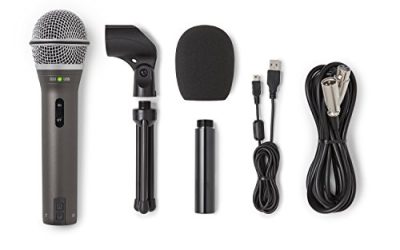
Samson Q2U

The Q2U sidesteps the shared-device problem by being its own recording device. Over USB it appears in every app under its own name, so selecting it replaces any loopback or onboard source in one move. Its headphone jack monitors your voice alone: what you hear there is what the mic captures.
- Specs: Dynamic cardioid capsule; USB and XLR outputs; 3.5 mm headphone jack with direct monitoring; on-mic mute and volume controls
Audio-Technica ATR2100x-USB

The ATR2100x-USB follows the same logic with USB-C and a headphone output with its own level control. For a player whose onboard device keeps reasserting itself as the input, one named USB device removes the ambiguity: the input is a microphone and nothing else.
- Specs: Dynamic cardioid capsule; USB-C and XLR outputs; 3.5 mm headphone jack with volume control; metal body with tripod desk stand included
Creative Sound Blaster Play! 4

The Play! 4 is the fix for headset owners who hit the splitter or front-panel branch. This USB sound card registers as its own playback and recording device, away from the onboard device that hosts Stereo Mix and away from the case wiring. Select it in your apps and the shared paths leave the circuit.
- Specs: USB-C connection with USB-A adapter; headset combo jack; playback and recording on one external device; software mute and voice controls
InnoGear Microphone Boom Arm

For the acoustic branch, position beats processing. This arm floats a microphone at mouth height, close enough that you can drop the gain several steps, and every step removed takes headphone spill down with it. It also lifts the capsule off the desk, where leaked audio is loudest.
- Specs: Desk-clamp boom arm; standard mic screw mounting; cable management channel; suited to USB and XLR desktop microphones
FiiO K11

The K11 needs an honest label: it is a playback-only DAC and headphone amplifier, and it does not process a microphone at all. Its role is separation. Move game audio onto the K11 and keep recording on a USB microphone or sound card, and no single device carries both directions of traffic.
- Specs: Desktop DAC and headphone amplifier; USB input; RCA line output; playback only, with no microphone input
How to Choose
Start from your mute test result, not from a shopping list. If game audio recorded with the mic unplugged, your fault is selection or software routing, and the correct purchase is usually nothing: disable the loopback source, name your input in every app, audit any virtual mixer. Buy hardware only when a path survives the software fixes.
If the bleed follows the mic line, choose by which device the mic shares. A headset on a splitter or front-panel jack points to a USB sound card. A standalone mic fighting an onboard device points to a USB microphone with its own name in the input list. A playback DAC plus any USB mic separates the two directions entirely. And if your branch was acoustic leak, spend on position first: a boom arm and lower gain fix more than any setting.
Who Should Skip
Skip this guide if what your squad hears is a delayed repeat of a voice, theirs or yours. That is echo, a different loop with its own causes and its own guide on this site, and the routing audit here will not find it. Skip it, too, if your problem is tone, level, or dropouts rather than extra sound: a nasal or muffled voice, a mic that cuts out mid-sentence, and a mic games refuse to detect are separate faults with separate fixes.
Streamers who route desktop audio on purpose should also skip the disabling steps. If your broadcast mix intentionally blends game sound and voice, your tools are working as configured; your issue is bus management, not a fault.
Frequently Asked Questions
Why do my teammates hear my game but not an echo of themselves?
Because the loopback path carries the whole output mix, and their voices are only part of it. Game audio dominates because it is constant and loud, while a teammate’s voice appears only when they speak. The mute test still identifies the fault.
I do not have Stereo Mix. Where else can game audio enter the mic channel?
Virtual audio devices are the next most likely source: streaming mixers, headset software with a virtual microphone, voice changers, and virtual cables can all present an input fed by a mix rather than a capsule. Audit every recording device in the Sound control panel, including disabled ones revealed with a right-click.
Will a noise gate or noise suppression fix this?
No. A gate opens whenever the incoming signal is loud enough, and game audio arriving through a routing fault is a strong, constant signal that sails straight through. Suppression may even treat game sound as the content to keep. These tools help with low-level acoustic leak only.
Does using push to talk solve it?
It hides the symptom between sentences and does nothing while you speak, which is exactly when your squad needs your callouts. It also fails in recordings and streams, where the channel stays open. Treat it as a temporary courtesy, not as the fix.
Final Verdict
A microphone channel that carries your game is almost never a broken microphone. It is a PC that has been told, somewhere, to treat its own output as an input: a loopback source left enabled, a virtual bus doing quiet blending, or a shared device and a cheap splitter letting the two directions meet. The mute test tells you which family you are in within a minute. Fix the selection in software first, separate the devices if the fault survives, and save hardware money for the branches where it genuinely helps.
Product and ASIN Reference
| Product | ASIN |
|---|---|
| Samson Q2U USB and XLR Dynamic Microphone | B001R747SG |
| Audio-Technica ATR2100x-USB Microphone | B07ZPBFVKK |
| Creative Sound Blaster Play! 4 USB Sound Card | B08T9LM3LM |
| InnoGear Microphone Boom Arm | B01L3LL95O |
| FiiO K11 Desktop DAC and Headphone Amplifier | B0CJFG3DC7 |