The lighting update finished, the suite restarted, and most of your build came back exactly as you left it. Most, not all. One fan ring still glows the same flat red it showed during the update, a case strip ignores every effect you apply, or a block of keys sits frozen while the rest of the keyboard keeps waving. Nothing flickers, and nothing resets when you reboot. The frozen zones are simply deaf: the suite sends new instructions and those zones never act on them. A partial freeze that begins with an update points at the update itself, which touches four things that can each strand a zone: the saved profile, one device’s firmware, the suite’s hardware record, and the truce between rival lighting apps.
As an Amazon Associate, we earn from qualifying purchases.
Quick Answer
Draw the freeze line. If the frozen zones are exactly one whole device, its firmware update likely stalled halfway, so rerun that device’s firmware update alone. If the line cuts across devices along your old effect groups, the update corrupted the saved profile, so rebuild it from a fresh default. If a device vanished from the suite, clear its detection cache. Reinstall the suite only after all three fail.
The Freeze Line Test: Match the Frozen Zones to a Boundary
Do not change settings yet. Set one build-wide effect, a slow color cycle works well, and watch every lit zone for a full minute. Note which zones stay frozen, then compare them against three boundaries.
- The device boundary. Every frozen zone belongs to one device: all of one fan, one strip, one RAM stick. A line that stops at a device’s edge points inside that device, at its firmware or stored state.
- The profile boundary. The frozen zones follow your old effect grouping instead: the keys in one layer, the fans in one group, regardless of device. A line drawn by software grouping points at the profile file the update carried forward.
- The app boundary. The frozen device does not appear in your suite, or appears greyed out, while a second lighting app, or Windows Dynamic Lighting, still controls it happily. That line is drawn between programs, not inside hardware.
One more check sharpens the reading: apply a plain solid color build-wide. Zones that accept it but ignore animated effects have a broken effect path, usually firmware. Zones that ignore even that are receiving no commands at all, pointing at detection or a rival app. Work the matching cause below.
Cause 1: The Update Corrupted the Saved Profile
Suite updates migrate your old profile into a new file format, and a migration that half-fails leaves some zone entries pointing at effects the new version can no longer render. The zones are not broken; their instructions are written in a dialect the updated suite dropped. This matches a freeze line that follows profile groups, not device edges.
Fix it by rebuilding, not repairing. Screenshot your layout first if you want to recreate it. Then create a brand-new profile from the default template, apply a simple effect to every zone, and confirm the frozen zones move. Only then rebuild your real layout inside it. Editing the migrated profile rarely helps, because the damaged entries are the ones you would be editing around. If the fresh profile animates everything, delete the migrated one.
Cause 2: One Device’s Firmware Update Stalled Halfway
Suites push firmware to keyboards, controllers, and fan hubs during updates, and an interrupted push, a sleep event, a USB hiccup, leaves a device running a mismatched pair: new firmware on one side of its lighting engine, old on the other. The classic signature is the device boundary: the whole device freezes on whatever color it showed when the update stalled, while everything else keeps animating.
Open the suite’s device page and check the firmware version reported for the frozen device against the version the suite says is current. A mismatch, or a blank version field, confirms the stall. Rerun the firmware update for that device alone, on a wired connection where it offers one, and let it finish without sleeping the PC or closing the suite. Most suites also offer a firmware recovery option; use it if a normal rerun reports the device as already current while it still misbehaves. A device that still freezes after a verified firmware update has a hardware fault, and that is a warranty conversation.
Cause 3: The Suite Lost Its Hardware Detection Cache
Lighting suites keep a cache of detected devices, their zone counts, and their capabilities. An update that changes the detection code but inherits the old cache can leave the suite driving a device with a stale map: it sends effect data for zones laid out the old way, part of the device never receives a valid command, and that part holds its last color. The freeze line here is often partial within one device, a few keys, one end of a strip, with no respect for profile groups.
The fix is to force a clean redetection. Fully exit the suite, including its tray icon, then stop its background service in Windows Services. Rename or delete the suite’s device cache folder (under your user AppData folder for most suites; the support page names the exact path). Restart the service and the suite, and let it enumerate every device from scratch before you touch a profile. Your profiles usually survive, since they are stored separately. If the frozen zones animate after redetection, the cache was the fault, and no reinstall was needed.
Cause 4: Two Suites Are Fighting Over the Same Device
An update can quietly install a companion component, a motherboard suite adding a keyboard module, a fan package registering its own service, that begins claiming a device your main suite used to own. The claimed device freezes on the last color the new owner set, because your suite’s commands are now refused or overwritten. This is the app boundary pattern: the device responds to one program and ignores the other. It differs from a general sync failure, where every part animates but disagrees; here one device stopped listening entirely when the update landed.
Decide which suite owns the device, then enforce it. In the losing suite, remove the device, disable its lighting module, or uninstall that component rather than the whole package where the option exists. Also check Windows Dynamic Lighting under Personalization in Settings: an update can enable it, and it will hold a compliant device at a static setting while your suite fights it. Turn it off for any device you manage elsewhere, then reboot once so both services restart with the new ownership settled.
How to Choose
Work in the order the Freeze Line Test dictates, cheapest first. A profile rebuild costs ten minutes and no downloads, so a profile-boundary freeze should always end there. A device-boundary freeze justifies the firmware rerun, the one step with any risk; do it wired and never interrupt it. A partial, map-defying freeze inside one device is the cache clear. An app-boundary freeze is an ownership cleanup. Reinstalling the suite wholesale is the last resort, because a plain reinstall usually inherits the same corrupted profile and stale cache. Replace hardware only when a device freezes identically on a second PC, or after a verified firmware update and a clean suite install.
Best Keyboards With Lighting That Survives Updates
When a keyboard is the frozen device, these five store profiles on the device itself or use open firmware, so a suite update cannot strand their zones.
1. Keychron V1 — budget

A wired 84-key board running QMK firmware with VIA support, so its lighting lives in open tooling rather than a vendor suite that can break itself updating.
Specs:
– Switches: Keychron mechanical, hot-swappable
– Firmware: QMK with VIA configuration
– Lighting: south-facing per-key RGB
– Connection: wired USB-C
– Layout: 75 percent, 84 keys
2. Logitech G PRO X TKL Lightspeed — mid-range

A wireless esports tenkeyless whose LIGHTSYNC zones run from onboard profiles as well as G HUB, so its lighting survives the suite being closed or freshly updated.
Specs
- Switches: GX mechanical
- Lighting: LIGHTSYNC per-key RGB
- Connection: LIGHTSPEED wireless, Bluetooth, wired
- Profiles: onboard storage
- Layout: tenkeyless
3. Corsair K70 RGB PRO — mid-range
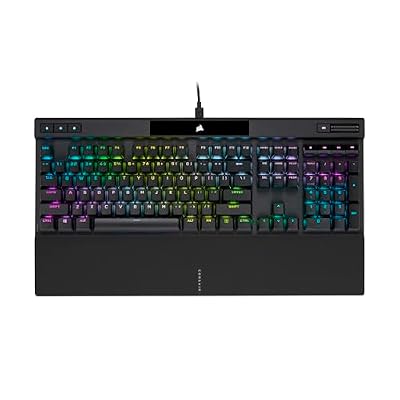
This board stores up to fifty profiles in onboard memory with hardware playback, so zones saved to the device play their effects with iCUE shut down entirely, sidestepping suite-side corruption.
Specs
- Switches: Cherry MX mechanical
- Polling: AXON high-speed processing
- Lighting: per-key RGB
- Profiles: onboard storage with hardware playback
- Layout: full size with media controls
4. SteelSeries Apex Pro Gen 3 — premium

OmniPoint adjustable switches headline this board, and its per-key RGB pairs with an OLED Smart Display that shows the active profile, making a mismatched state visible at a glance.
Specs
- Switches: OmniPoint Adjustable HyperMagnetic
- Actuation: adjustable per key, with Rapid Trigger
- Lighting: per-key RGB
- Display: OLED Smart Display
- Layout: full size and tenkeyless versions
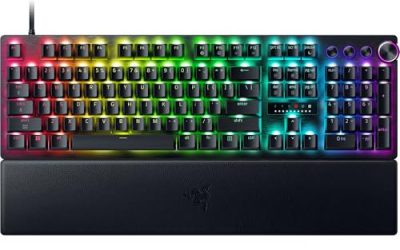
5. Razer Huntsman V3 Pro 8KHz — premium

Razer’s flagship pairs analog optical switches with onboard profile storage, and its firmware updates run per device inside the suite, so a stalled push can be rerun on the keyboard alone.
Specs
- Switches: Razer Analog Optical Gen-2
- Polling: high-speed wired polling on the 8KHz model
- Lighting: Razer Chroma per-key RGB
- Profiles: onboard hybrid storage
- Layout: full size
Who Should Skip This
Skip the update diagnosis if your lighting resets to default on every reboot; that is a boot handoff problem, not a freeze, and a different guide covers it. Skip it if zones light but show the wrong hues while effects still run; that is a channel or zone-map fault with its own test. Skip it if every part animates but they disagree with each other; that is a sync problem across the whole build. And skip straight to the vendor if the freeze began with a spill, a drop, or a pinched cable, because no software step repairs physical damage.
Frequently Asked Questions
Will reinstalling the lighting suite fix frozen zones?
Sometimes, but it is the bluntest tool here. A standard reinstall usually keeps your profiles and detection cache, the two most common causes, so the freeze often survives it. Rebuild the profile and clear the cache first; reinstall only if both fail, and uninstall fully when you do.
Can a stuck firmware update damage the keyboard or fans?
A stalled update normally leaves the device in a recoverable state, because vendors design the update path to be rerun. The risk comes from interrupting a rerun: disconnecting the device or losing power mid-flash. Keep the device wired and the PC awake, rerun the update for that device alone, and it should complete cleanly.
Why did only some of my zones freeze and not all of them?
Because an update fault is selective by nature. A corrupted profile damages only the entries it migrated badly, a stalled firmware push affects only the device being flashed, and a stale cache misaddresses only the zones whose layout changed. A total freeze of everything would point at the suite service itself, a different fault.
Final Verdict
A partial RGB freeze that starts with an update is almost never dead hardware. Draw the freeze line first: device edge means rerun that device’s firmware, profile grouping means rebuild the profile from default, a ragged line inside one device means clear the detection cache, and a device answering only to a rival app means settle the ownership. If you end up replacing a keyboard over this, pick one whose lighting lives on the device, like the Keychron V1 or the Corsair K70 RGB PRO.
Product and ASIN Reference
| Product | ASIN |
|---|---|
| Keychron V1 | B09NLWG6X1 |
| Logitech G PRO X TKL Lightspeed | B0BQBSH6NQ |
| Corsair K70 RGB PRO | B09NCMHTSB |
| SteelSeries Apex Pro Gen 3 | B0D4RKYZJ5 |
| Razer Huntsman V3 Pro 8KHz | B0FRPHGXJZ |