The graphics driver update finished, the picture came back sharper than ever, and your first game launched with its sound coming out of the monitor: thin, quiet speakers you never use, or worse, an HDMI output connected to nothing that makes sound. Your headset sits silent. You set it back as the default, and it works until the next reboot, when the monitor wins again. Nothing about your audio hardware changed; the update rebuilt the neighbourhood your audio lives in, and a new tenant moved in.
This guide separates the four things a GPU driver update does to your audio endpoints, gives you a test that reads which one bit you, and ends with the fix that survives the next update.
As an Amazon Associate, we earn from qualifying purchases.
Quick Answer
A GPU driver update reinstalls the display audio driver with the graphics driver, so Windows meets your monitor’s audio endpoint as new hardware, promotes it, and orphans the settings that pointed at your old setup. Set your headset or DAC as the default, clear any per-app pin naming the monitor, and disable the monitor endpoint in Device Manager so the next update has nothing to promote.
The New Tenant Test
Think of the update as a landlord renovating the building overnight. In the morning, one flat has a new nameplate, the lease book has been rewritten, the mail forwarding still points at the old flat, and the new tenant keeps getting handed the keys. Run four readings, in order; each failure names a different cause.
First, the nameplate: open the classic Sound panel through More sound settings. If the monitor endpoint’s name looks freshly minted, it was rebuilt. Second, the lease: if the monitor holds the default, the rebuilt endpoint won the election the moment it registered. Third, the forwarding: open the volume mixer while a game runs and read the game’s output line; if it names the monitor while the default names your headset, a per-app assignment is forwarding the game to the wrong address. Fourth, the keys: reboot once. If the endpoint you disabled is back and promoted again, the driver re-hands the keys at every boot, and the fix belongs at the driver.
Cause One: The Update Rebuilt the Monitor Endpoint
A graphics driver package is two drivers wearing one coat. Alongside the display driver sits an HD audio driver that owns the sound half of your HDMI and DisplayPort cables. Update the graphics driver and that audio driver is uninstalled and reinstalled too, so Windows treats the returning monitor endpoint as a device it has never seen.
New devices get a welcome. Windows registers the endpoint fresh, with a fresh identity, and a freshly registered endpoint is a strong candidate for promotion, so the newcomer takes the default your headset used to hold. The picture path and the sound path were updated by the same installer, which is why the fault’s birthday is always the day you updated the driver and never a day you touched anything audio.
The fix for this cause alone is simple: set your real device as the default again, in both elections. But do not stop there, because a rebuilt endpoint also strands the settings covered by the next two causes.
Cause Two: Your Per-App Assignments Point at a Ghost
Windows remembers an output choice for each program, stored against endpoint identities, and Cause One just changed the identities. A game once pinned to your headset may now hold a pin that resolves to nothing, and a game with no working pin falls back to the current default: after an update, the monitor.
This cause explains the split symptom: your browser and chat land in the headset because they follow the default you repaired, while one stubborn game still plays through the monitor because its private forwarding address predates the renovation. It also explains why the fault hits the title you play most, the one likeliest to have earned a per-app assignment.
Fix it while the game runs. Open Settings, System, Sound, and find the volume mixer list. If the game’s output line names the monitor, set it to your headset, or reset the app volume and device preferences entirely so every program follows the default again. Check a second game too; pins are per program.
Cause Three: The Monitor Endpoint Keeps Coming Back
You disabled the monitor endpoint, the sound behaved for a day, and after the next reboot the monitor is back, enabled, and holding the default again. This is the fourth reading failing: the keys keep being re-handed.
The mechanism is the driver itself. At every boot it enumerates the displays on the card and registers an audio endpoint for each one that reports audio capability. Disabling the endpoint in the Sound panel is a note pinned to a device instance; when the driver refreshes that instance, the note can go with it. A silent variant catches other desks: the monitor has no speakers at all, so the promoted endpoint produces no sound anywhere, and the game looks muted rather than misrouted.
The durable fix works one level down. Disable the display audio device in Device Manager, under the sound controllers; a device disabled at the driver level is not re-registered by a reboot. If even that returns after the next update, install the update with the custom option and leave the HD audio component out entirely: no audio driver in the package means no monitor endpoint is ever built, and a device that does not exist cannot be promoted. Your headset, DAC, and motherboard audio are untouched.
Cause Four: The Communications Default Moved Without the Game Default
Sometimes the game sounds right and voice chat lands on the monitor, or the reverse. Windows holds two elections, the default device games follow and the default communications device chat apps follow, and a rebuilt endpoint can win one and not the other.
Read both before fixing either. In the classic Sound panel, note which device holds the plain default and which holds the communications default, on the playback and recording tabs alike. Set the same headset for all of them, then confirm your chat app names that headset too. When every line names one device, the split has nothing left to split along.
How to Choose
Settings fix this fault for free, and the order matters: repair the default, clear the stale pins, then remove the monitor endpoint at the driver level so the repair survives. Hardware earns a place when the fight keeps returning, or when you no longer trust the onboard path: an external USB endpoint is enumerated by the USB stack, not the graphics driver, so a GPU update cannot rebuild, rename, or promote anything over it.
Choose by how much of the path you need to move outside the graphics driver’s reach. A plain USB adapter moves just the endpoint; a desktop DAC and amplifier moves the endpoint, the conversion, and the headphone drive onto the desk. Either way, the device should install on the class drivers Windows already has, appear under one fixed name, and need nothing from the graphics package.
Endpoints the Graphics Driver Cannot Rebuild
Sabrent USB External Stereo Sound Adapter (AU-MMSA)

The diagnostic-grade escape hatch: a small USB-A adapter with separate headphone and microphone sockets, running entirely on the Windows class audio driver, so a graphics update has nothing to disturb and the endpoint name never changes. It is also the cleanest test of the fault: if the game behaves on this endpoint, your headset was never the problem.
Specs
- Connection: USB-A, class-driver, no software to install
- Outputs: separate 3.5 mm headphone and microphone sockets
- Tier: budget
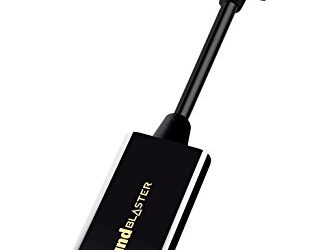
Creative Sound Blaster Play! 3

A USB sound card that moves a headset onto one stable endpoint with a proper volume path, enumerating the same way after every update, so the default you set today survives the next driver package.
Specs
- Connection: USB-A external sound card
- Playback: up to 24-bit, 96 kHz
- Outputs: combined headset socket with microphone support
- Tier: budget
Creative Sound Blaster Play! 4
The Play! 4 adds a physical volume wheel and mute control on the device itself: once the routing is pinned, a wheel on the desk replaces trips into the Sound panel.
Specs
- Connection: USB-C external sound card
- Controls: on-device volume wheel and mute
- Outputs: combined headset socket with microphone support
- Tier: mid-range
Fosi Audio K5 Pro

A desktop DAC and headphone amplifier that takes the whole listening path off the PC’s internal audio. Powered speakers can hang off its line-out while headphones use the front socket, so both sit behind one fixed endpoint name that driver updates never touch.
Specs
- Connection: USB, optical, and coaxial inputs
- Outputs: headphone socket plus RCA line-out for powered speakers
- Controls: volume, bass, and treble on the front panel
- Tier: mid-range
FiiO K11

The premium version of the same argument: a compact desktop DAC and amplifier with the cleanest output of this group, a display showing the active input and rate, and enough drive for demanding headsets.
Specs
- Connection: USB, optical, and coaxial inputs
- Outputs: single-ended and balanced headphone sockets, RCA line-out
- Display: front screen showing input and sample rate
- Tier: premium
Who Should Skip This
If your sound flips devices at random moments unrelated to updates, that is a different fault with its own guides on this site; the same goes for audio lost when you switch devices mid-game, sound stuck on speakers after replugging a headset, and the default changing at every boot on a machine whose drivers never change. If a USB headset is not recognised at all after a Windows update, that is a recognition fault, not a routing one. This guide is only for the desk where the trigger was a graphics driver update and the winner is always the monitor.
Frequently Asked Questions
Why did the sound move to the monitor right after I updated my graphics driver?
Because the graphics package reinstalls the display audio driver alongside the display driver. Windows registers the returning monitor endpoint as new hardware, promotes it to default, and your old settings, which pointed at pre-update identities, stop matching.
I set my headset as default and it worked, so why did the monitor win again after a reboot?
The graphics driver re-registers the monitor endpoint as it enumerates displays at boot, and an endpoint refreshed that way can shed a Sound panel disable and re-enter the election. Disable the display audio device in Device Manager instead, or install the next driver without its HD audio component.
Why does one game use the monitor while everything else uses my headset?
That game holds a per-app output assignment written before the update, naming the monitor or an endpoint identity the update replaced, and per-app pins outrank the system default. Open the volume mixer while the game runs and set its output line to your headset, or reset all app preferences.
Will leaving the HD audio driver out of the next update break anything?
Only if you actually listen through monitor or TV speakers over HDMI or DisplayPort; that is the one path the component serves. Headsets, USB DACs, speakers on the motherboard jacks, and Bluetooth are served by other drivers and are unaffected.
Final Verdict
A driver update is a renovation, and the monitor endpoint is the new tenant it installs. Read the four signs in order: a rebuilt endpoint, a lost default, a stale per-app pin, and a driver that keeps re-handing the keys. Fix each at its own level, and finish at the driver level. Do that, and the next graphics update will improve your picture and leave your sound where you put it.
Product and ASIN Reference
| Product | ASIN |
|---|---|
| Sabrent USB External Stereo Sound Adapter (AU-MMSA) | B00IRVQ0F8 |
| Creative Sound Blaster Play! 3 | B06XBZ38ZJ |
| Creative Sound Blaster Play! 4 | B08T9LM3LM |
| Fosi Audio K5 Pro | B0BFHFSX4C |
| FiiO K11 | B0CJFG3DC7 |