The new graphics card is in, the PC boots, and a screen even lights up on HDMI. But the DisplayPort monitor, the main one, the one that worked yesterday on the old card, never appears. Windows shows one display where there should be two, and the panel sits on its no-signal screen or stays black, as if the cable were plugged into nothing.
That narrow presentation matters. A machine that shows nothing at all after a card install is a different fault, covered by a different guide, and so is a second monitor never detected on an unchanged PC. This guide is for the swap-specific case: the machine works, the card works, other outputs work, and only the DisplayPort link to that one panel refuses to come up. Detection after a hardware change fails at the handshake, and the handshake has four places to break.
As an Amazon Associate, we earn from qualifying purchases.
Quick Answer
A DisplayPort monitor that vanishes after a GPU swap is almost never dead. Work the link in order: power-cycle the panel fully to clear its stale DisplayPort state, set the monitor’s DP version explicitly in its menu, use the new card’s first DisplayPort output for the first boots, then clear the old driver and its ghost monitor entries.
The Handshake March: Four Stations in Order
DisplayPort is a negotiated link. Unlike HDMI, which pushes a picture and hopes, DisplayPort trains the connection: card and panel exchange capabilities, agree a lane count and link rate, and only then does a picture exist. A GPU swap disturbs every assumption that negotiation was built on: the panel remembers the old card, the new card initialises its ports in its own order, and Windows remembers a monitor that no longer answers as it used to.
The Handshake March tests the negotiation one station at a time, cheapest first. Each station either restores the display or clears one suspect so the next starts from solid ground. Do not skip ahead: a driver reinstall cannot fix a panel holding stale link state, and a new cable cannot fix a version mismatch. March in order.
Station One: Wake the Panel Out of Its Stale Link State
DisplayPort panels keep a small amount of link state alive in standby, and some hold it stubbornly. The panel went to sleep paired with the old card, the card changed underneath it, and its receiver is still waiting for a conversation that ended yesterday. The card knocks, the panel never properly answers, and detection fails before Windows is even involved.
The fix is a real power cycle, not a standby cycle. Switch the monitor off, unplug its power cable for a full minute so the receiver fully discharges, and shut the PC down while it rests. Plug the monitor back in, power the PC on, and let the two meet fresh.
Afterwards, look in the monitor menu for a DisplayPort deep sleep option and turn it off. That setting is the usual reason a panel holds stale state so aggressively, and disabling it stops the fault returning at the next hardware change. If the panel appears after the power cycle, stop here: the cause was the cheapest one.
Station Two: Match the DisplayPort Version Explicitly
Most gaming panels expose a DisplayPort version setting, typically offering 1.1, 1.2 and 1.4, and many ship set to an older version for compatibility. The old card may have been happy with that. The new card, especially a higher-end one, opens negotiation expecting the full modern feature set, and a panel pinned to an old version can fail the training silently: no error, no picture, no detection.
Open the monitor menu using any input that still works, an HDMI feed from the same PC is fine, and find the DisplayPort version or DP mode setting. Set it explicitly to the highest version both panel and card support, usually 1.4 on current gear, or 1.2 on older panels. Save, switch the input back to DisplayPort, and reboot so the link trains from cold.
The reverse mismatch exists too: a new panel at its highest mode can refuse an older card that predates that standard, and stepping the panel down one version is the fix. Either way, the version must be a deliberate match, not a leftover. Owners of older NVIDIA cards should also check for the maker’s DisplayPort firmware updater, which fixes a known limitation those cards have with newer 1.3 and 1.4 panels.
Station Three: Give the New Card Its First Port
Graphics cards do not treat their outputs as equals during the first boots after an install. Each design initialises its ports in a fixed priority order, and on many cards one specific DisplayPort output is the primary one carrying the boot screens and the first link training. Plug a panel into a lower-priority port on a fresh install and that port can stay dark or undetected until everything else is configured, a chicken-and-egg problem that looks exactly like a dead monitor.
Move the cable to the output physically closest to the bracket end of the card, the first port on most designs, and disconnect every other display for the first boot. One card, one cable, one panel. If the panel trains and appears, reconnect the other screens one at a time. Keep the cable that worked on the old card for this test: if it still produces nothing on the first port, the cable is cleared and the remaining suspect is software.
Station Four: Clear the Old Card’s Driver and Ghosts
If the link trains at boot and firmware screens appear on the panel, yet Windows still refuses to list it, the fault has moved to software. Windows stores an identity for every monitor it has met, keyed to the card it was attached to. After a swap, and doubly after a change of GPU brand, that identity can be stranded behind the old card’s records while the leftover driver argues with the new one.
Boot on the working display. Open Device Manager, enable Show hidden devices from the View menu, and uninstall the greyed-out monitor entries and any display adapter entries from the old card. Then install the current driver for the new card using its clean installation option; after a brand change, a dedicated driver removal in safe mode first is worth the ten minutes. Reboot, then use the Detect button in display settings. With the ghosts gone, the panel enumerates as a fresh device and stays.
How to Choose Test and Replacement Gear for a Dead DP Link
The march needs two things from your parts shelf: one cable you can trust absolutely, and a second signal path to cross-test with. A certified DisplayPort cable is the reference lead; with it in the chain, the cable variable is closed and every later result is trustworthy. A known-quality HDMI cable is how you reach the panel’s menu at station two and prove the panel still works. A USB-C path from a laptop isolates the PC entirely: if the panel lights from the laptop, panel and cable are cleared together.
If the fault ends in replacement, choose the panel by its link behaviour, not its headline specification. A monitor with an explicit, reachable DisplayPort version setting is far easier to bring up after any future hardware change, and high-refresh panels should list DisplayPort 1.4 with compression support so the full rate trains without argument.
Cable Matters DisplayPort 1.4 Cable, 10 ft
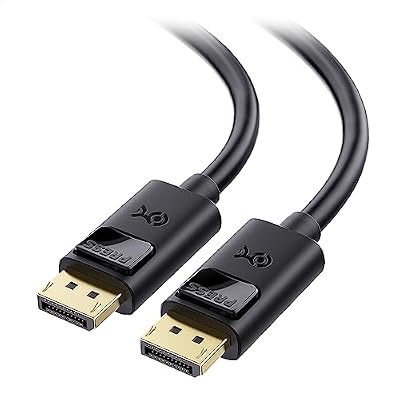
The reference lead for the march. A certified cable removes the most common false suspect in any DisplayPort detection fault, and the ten foot length reaches test-bench layouts where the PC cannot sit beside the panel.
Specs
- Connector: DisplayPort to DisplayPort
- Standard: DisplayPort 1.4, full rated bandwidth
- Length: 10 ft
- Tier: budget
Zeskit Maya HDMI Cable, 5 ft

The cross-test cable. Feed the missing panel over HDMI with this and you can reach its menu to change the DP version at station two, and prove the panel still displays while the DisplayPort path is investigated.
Specs
- Connector: HDMI to HDMI
- Standard: HDMI 2.1 rated
- Length: 5 ft
- Tier: budget
Cable Matters Thunderbolt 4 Cable, 1 m

The isolation test in a cable. Run it from a laptop’s USB-C port to a USB-C input on the panel, and a working picture clears the monitor independently of the swapped PC, splitting the fault in half.
Specs
- Connector: USB-C to USB-C
- Standard: Thunderbolt 4, DisplayPort alt mode capable
- Length: 1 m
- Tier: mid-range
Gigabyte M27Q

The replacement panel that behaves well at the negotiating table. Its menu exposes the DisplayPort version setting plainly, and it trains reliably with cards from both major makers, exactly the temperament a swap-prone desk needs.
Specs
- Panel: 27 inch IPS, 2560 by 1440
- Refresh: high-refresh gaming class with variable refresh
- Inputs: DisplayPort, HDMI, USB-C
- Tier: mid-range
LG UltraGear 27GP950-B

The full-rate option. A 4K high-refresh panel whose DisplayPort 1.4 input with compression support lets a current flagship card train at its highest link rate, removing bandwidth negotiation from the things a future swap can disturb.
Specs
- Panel: 27 inch Nano IPS, 3840 by 2160
- Refresh: high-refresh gaming class with variable refresh
- Inputs: DisplayPort 1.4 with DSC, HDMI 2.1
- Tier: premium
Who Should Skip This
Skip this guide if the PC shows nothing on any screen after the install; that is the whole-machine no-signal fault, and it starts with seating, power connectors and the supply, not DisplayPort negotiation. Skip it if your second monitor was never detected on a PC that has not changed; the general detection chain applies there instead. Skip it if the monitor vanished immediately after a driver update on an unchanged card, a driver rollback problem. And skip it if Windows cannot see the graphics card itself in Device Manager; a card that is not detected is a different fault from a monitor the card will not detect.
Frequently Asked Questions
Why does HDMI work after the swap but DisplayPort does not?
Because the two links negotiate differently. HDMI pushes a picture at a fixed mode, so a working card and panel usually produce something. DisplayPort trains lanes and a link rate before any picture exists, and that training is what stale panel state, a version mismatch or a low-priority port interrupts after a hardware change.
Can a cable work on my old card and fail on the new one?
Yes. The new card may negotiate a higher link rate or add compression the old card never asked for. A cable that was marginal all along passes at the old rate and fails training at the new one, which is why the march insists on a certified reference cable before any part is condemned.
Should I update the monitor firmware for a detection fault?
Only after the four stations. A panel that cannot agree a DisplayPort version with the new card occasionally has that behaviour corrected in firmware, and the maker’s support page will say so. Update over a working input, never as a first guess, and never while the DP link itself is the only path to the screen.
Final Verdict
A DisplayPort monitor that disappears after a GPU swap is a negotiation that failed, not a panel that died. March the handshake in order: power-cycle the panel, set the DP version explicitly, give the new card its first port, and clear the old driver and its ghosts. Worked in that order, the march restores detection in nearly every case, and the one time it does not, it has already told you which part is genuinely at fault.
Product and ASIN Reference
| Product | ASIN |
|---|---|
| Cable Matters DisplayPort 1.4 Cable, 10 ft | B07J2PGGFX |
| Zeskit Maya HDMI Cable, 5 ft | B08TQTYCYS |
| Cable Matters Thunderbolt 4 Cable, 1 m | B08YS59V4K |
| Gigabyte M27Q | B08JWCHR5N |
| LG UltraGear 27GP950-B | B094RWMN8K |