The room is dark, the PC is asleep, and then the monitor flares to full brightness on its own. No desktop, no fan noise, just a glowing panel showing a no-signal message or a black screen lit by its own backlight. A minute later it sleeps again. An hour later it does it again.
This is not the computer waking up. When a PC wakes, it logs the event and spins its fans. A monitor that wakes alone is answering something inside the display chain: its own input scanning, another device sharing the panel, or the cable between them. Chasing Windows power settings cannot fix it, because Windows is not involved. The way in is to read the timing: the schedule a waking monitor keeps names the culprit before you change a single setting.
As an Amazon Associate, we earn from qualifying purchases.
Quick Answer
When the monitor wakes but the PC stays asleep, the trigger lives in the display chain, not the computer. Note when it happens: instant re-wakes mean input hunting or a cable fault, random ones mean a console or dock polling over CEC, and same-time wakes mean a scheduled device. Fix the layer the timing names.
First, Prove the PC Really Is Asleep
Before blaming the display chain, rule the computer out, because the two faults look identical from across a dark room. Stand in front of the machine during or just after a wake and check three things. The case fans should be still. The power LED should be doing its slow sleep pulse rather than sitting solid. And the disk and case lighting should be dark.
Then confirm it in the log: after the next wake, run powercfg -lastwake. If the PC itself had woken, the command would name a device or timer, and Event Viewer would hold a fresh Power-Troubleshooter entry. If the newest entries are old and nothing was recorded at the moment the panel lit, the PC slept through the whole thing. That is the signature of this fault: the display chain acted alone.
Read the Timing: Three Wake Patterns
Note when the panel lights for one night, or check the monitor’s own power log if its menu offers one. The pattern sorts almost every case into one of three groups.
Pattern one is the instant re-wake. The monitor lights within a minute or two of the PC sleeping, settles, sleeps, then lights again on a rough cycle. That rhythm means the panel is hunting: it lost its signal when the PC dropped into deep sleep, and its input board keeps scanning for a live source, lighting the backlight on every pass.
Pattern two is the random wake. The panel lights at scattered times with no rhythm, sometimes twice in an evening, sometimes not for days. That points at company on the chain: a console, streaming stick, second computer, or dock sharing the monitor, each checking in on its own schedule and nudging the panel awake as it polls its inputs.
Pattern three is the appointment. The monitor lights at the same time, or the same few times, every day. Something is scheduled: a console downloading updates overnight, a TV box running its nightly guide refresh, or a second machine waking for its own maintenance and flashing the shared panel.
Fix the Monitor’s Own Settings
Start in the panel’s menu, because pattern one lives here and the fixes cost nothing. The single most effective setting is the input selector. Turn off automatic source detection and lock the monitor to the exact input your PC uses. A monitor told to watch one port stops scanning the others, and the hunting cycle ends.
Next, find the deep sleep options. Most gaming monitors carry separate deep sleep toggles for HDMI and DisplayPort, and they ship disabled more often than you would expect. With deep sleep off, the input board stays half awake after the signal drops and keeps reacting to noise on the line. Enable deep sleep for the input you use.
Turn off the panel’s own CEC setting as well, listed as HDMI CEC or a brand variant of it. While you are in the menu, disable ambient light and presence features: some monitors wake when a room sensor notices movement or a light shift, which reads exactly like a random wake. Finally, if the monitor has a USB hub, set it to charge only, or off, during standby, so a connected peripheral cannot keep the input board busy.
Fix the Other Devices on the Chain
Patterns two and three live here. Anything plugged into the monitor is a suspect: a console on the second HDMI port, a streaming stick, a work laptop, a dock. Each of them can light the panel without touching the PC, either by sending a CEC wake command or simply by powering its output for a background task.
The clean test is subtraction. For one night, unplug every input except the PC. If the wakes stop, reconnect one device per night until the culprit identifies itself. The permanent fix is usually a setting on that device: consoles bury it as HDMI Device Link or CEC, streaming boxes call it CEC control, and turning it off stops the device from commanding the panel while still letting it work normally when you switch to it yourself. Consoles also deserve a look at their automatic update and rest-mode download settings, since a nightly download is the classic pattern-three appointment. If a device offers no way to behave, move it to a TV or a different display and give the gaming monitor a single tenant.
Fix the Cable Between Them
The cable is the quiet suspect, and it explains the cases that survive both fixes above. A DisplayPort cable that is wired with its power pin connected can feed standby voltage back into the monitor, keeping the input board awake and provoking repeated re-detection. Cheap no-name cables are the usual offenders, and the fault follows the cable if you move it to another desk.
Marginal HDMI cables cause the mirror-image problem: the handshake between source and panel drops and retries, and each retry lights the screen. Either way, the test is a swap: borrow a cable you trust for one night and route it directly, with no adapters, extenders, or switch boxes in the path. If the wakes stop, the old cable was the fault and the borrowed one just wrote your shopping list. Replace like for like in standard and length, and resist paying for exotic builds; correct wiring and honest certification are what matter here.
How to Choose
Let the timing pattern set the order of work. Instant re-wakes start in the monitor menu: fixed input first, deep sleep second, and the cable swap third, because those three cover nearly every hunting cycle. Random wakes start with subtraction: one tenant at a time until the polling device confesses, then its CEC setting gets switched off. Appointment wakes start with the schedules of everything sharing the panel, especially console update windows.
Replacement gear is justified only after the free fixes have had their night. A panel that still hunts with a locked input, deep sleep on, and a known-good cable has a faulty input board, and that is a replacement case. A cable that fails the swap test gets replaced, not forgiven. Everything else is settings, and settings are free.
Gear That Removes the Usual Triggers
When the isolation tests do convict hardware, these are the known-good replacements: three panels with sane sleep behaviour at three tiers, and the two cables that end handshake arguments.
Gigabyte M27Q Gaming Monitor

The budget replacement tier: a fast 1440p panel with a built-in KVM, and input handling that settles properly when the source sleeps.
Specs
- Panel: 27-inch Super Speed IPS
- Resolution: 2560 x 1440 native
- Refresh rate: 170 Hz overclocked
- Features: FreeSync Premium, built-in KVM
Dell UltraSharp U2724DE

The mid-range tier, and the tidy answer for one-cable desks: its Thunderbolt hub replaces a separate dock, removing one whole class of polling device from the chain.
Specs
- Panel: 27-inch IPS Black
- Resolution: 2560 x 1440 native
- Refresh rate: 120 Hz
- Features: Thunderbolt 4 hub, USB-C power delivery
ASUS ProArt PA279CRV

The premium tier: a 4K panel for desks that mix gaming with colour work, with a single USB-C connection and standby behaviour that stays quiet overnight.
Specs
- Panel: 27-inch IPS
- Resolution: 3840 x 2160 native
- Refresh rate: 60 Hz
- Features: USB-C with 96W power delivery
Cable Matters DisplayPort 1.4 Cable, 10 ft
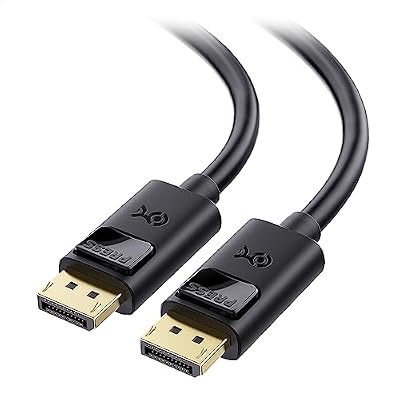
The DisplayPort replacement: correctly wired and honestly rated, so the standby-power backfeed and re-detection loop from a bargain cable never starts.
Specs
- Standard: DisplayPort 1.4, HBR3
- Bandwidth: 32.4 Gbps
- Length: 10 feet
Zeskit Maya 8K Ultra High Speed HDMI Cable, 5 ft

The HDMI replacement: a certified Ultra High Speed cable whose handshake holds, so consoles and PCs stop renegotiating with the panel in the small hours.
Specs
- Standard: Ultra High Speed HDMI, version 2.1
- Bandwidth: 48 Gbps
- Length: 5 feet
Who Should Skip This Guide
Skip this guide if the PC itself is waking: fans spinning, desktop waiting at the lock screen, a fresh entry in the wake log. That fault runs through wake timers and device permissions, and it has its own guide on this site. Skip it if your PC will not wake from sleep at all, which is the opposite problem with its own diagnosis. Skip it if the device lighting up is a handheld console surfacing in a bag or on a nightstand; those are handheld faults with their own fixes. And skip it if your monitor misbehaves while you are playing rather than while the desk sleeps: flicker, black screens mid-game, and ghosting trails are active-use faults, not standby ones.
Frequently Asked Questions
Why does my monitor turn on by itself in the middle of the night?
Because something in the display chain asked it to. The usual senders are the monitor’s own input scanning, a console or streaming device polling over CEC, or a cable fault provoking repeated re-detection. Note the timing for one night: a repeating cycle, random times, and the same time daily each point at a different sender.
My monitor shows no signal, then sleeps, then lights again. What is that cycle?
That is input hunting. The monitor lost its source when the PC entered deep sleep, and with automatic source detection enabled it keeps scanning its ports and lighting the panel on each pass. Lock the input selector to your PC’s port and enable deep sleep for that input, and the cycle stops.
Can a console wake my monitor without waking my PC?
Yes. A console sharing the panel can light it with a CEC command or simply by powering its own output for an update check, and none of that touches the sleeping PC. Disable the console’s HDMI link or CEC setting, or move the console to a different display.
Why did the problem start after I changed my cable?
A cable swap is one of the most common triggers. Some DisplayPort cables carry a wired power pin that backfeeds standby voltage into the monitor, and some HDMI cables cannot hold a clean handshake. Swap back for one night to confirm, then replace the cable with a correctly wired, certified one.
Final Verdict
A monitor that wakes alone is not haunted and not broken by default. It is answering a signal from its own input board, a neighbour device, or the cable, and the timing of the wakes tells you which. Lock the input, enable deep sleep, silence the neighbours, and swap the cable on suspicion. Work in that order and the panel will stay dark until the PC itself decides otherwise.
Product and ASIN Reference
| Product | ASIN |
|---|---|
| Gigabyte M27Q Gaming Monitor | B08JWCHR5N |
| Dell UltraSharp U2724DE | B0CMXGDK5S |
| ASUS ProArt PA279CRV | B0BQPSX5CR |
| Cable Matters DisplayPort 1.4 Cable, 10 ft | B07J2PGGFX |
| Zeskit Maya 8K Ultra High Speed HDMI Cable, 5 ft | B08TQTYCYS |