Here is the strange part. Your game holds a locked, glassy 60 frames per second without a single hitch. Uncap it, or raise the cap toward your monitor’s refresh rate, and the picture starts to judder: tiny pauses, uneven motion, a frame time graph like a saw blade instead of a flat line. The average frame rate is higher than ever, yet the game feels worse.
That backwards symptom is a diagnosis in itself. Hardware that cannot keep up stutters most at demanding settings, not at easy ones. Stutter that only appears when frames are plentiful points at pacing: the systems that schedule, limit, and display frames, which behave very differently at 200 frames per second than at 60. This guide works through them in pipeline order, starting with a test that confirms the pattern.
As an Amazon Associate, we earn from qualifying purchases.
Quick Answer
If your game runs smoothly with a 60 frame per second cap but stutters when the frame rate climbs, the problem is pacing, not power. At high frame rates the CPU, your limiter settings and the edge of your monitor’s variable refresh range decide frame times. Cap a few frames below your refresh rate with one limiter, then work down the list.
The Cap Ladder: Confirm the Pattern First
Do not guess. Run one short test first. Pick a repeatable stretch of gameplay, ideally the exact spot where the hitching bothers you. Play it three times: fully uncapped, capped at your monitor’s refresh rate, and capped at 60. Keep every other setting identical, and watch a frame time graph rather than the frame rate counter.
If the 60 cap is flat and each higher step gets rougher, the pattern is confirmed and the rest of this guide applies. If the stutter is identical at all three settings, frame rate is not the variable and you are chasing a different fault. Worst at 60 and better uncapped points elsewhere, usually a broken in-game limiter. The pattern’s shape: averages climb while frame times spike, more often the faster the game runs.
Cause One: The CPU Becomes the Pacemaker
At 60 frames per second, your graphics card asks the CPU for a new frame roughly every 16 milliseconds, a pace almost any modern processor handles with room to spare. At 240 frames per second, that budget shrinks to about 4 milliseconds, and every task on the render path, from game logic to the driver’s own work, has to fit inside it.
When one of those tasks overruns its tiny budget, the frame arrives late. The GPU has nothing new to show, so the previous frame repeats: a spike on the frame time graph, a hitch on screen, even though your average frame rate never dropped. This is why high-frame-rate stutter so often shows a healthy average and terrible one percent lows.
The practical checks are simple. Watch per-core CPU load while you play uncapped: one core pinned near full load while the rest idle is the signature of a main-thread limit. Background work matters more up here too, because a browser or recording tool stealing a few milliseconds steals a whole frame’s budget. Close background apps, then retest. If the spikes shrink, your CPU was the pacemaker all along, and the honest fix is a sensible cap: a frame rate your CPU can feed evenly beats a higher one it feeds in bursts.
Cause Two: Too Many Limiters Stacked on Top of Each Other
A modern gaming PC can limit frame rates in at least four places: the game itself, the graphics driver, a third-party tool such as RTSS, and VSync waiting on the display. Each holds frames back by its own clock. Stack two or three and they take turns being the slowest, producing a steady, rhythmic judder that only appears near the cap, exactly where high-frame-rate play lives.
The fix is subtraction. Choose exactly one limiter and disable the rest. For most players the in-game cap is the worst choice, because some engines implement it with uneven pacing of their own; a driver-level cap or RTSS generally paces frames more evenly. Whichever you pick, set it a few frames below your monitor’s maximum refresh rate rather than exactly on it: 141 on a 144 hertz screen, 237 on a 240. That gap keeps you inside the variable refresh window described next, and keeps VSync from engaging and disengaging at the boundary. Then turn VSync off in the game if your display supports variable refresh, because a cap plus VSync is two limiters again. Retest after each change: limiter problems are binary, and when you find the right single value, the saw blade flattens immediately.
Cause Three: Living at the Edge of the VRR Window
Variable refresh rate technology, sold as G-Sync or FreeSync, only works inside a window. Below the floor, the display leans on frame doubling tricks that engage and release at the boundary. Above the ceiling, it stops adapting and falls back to fixed-refresh behavior, with tearing if VSync is off or a hard wait if it is on.
High frame rates push you against the ceiling constantly. A game averaging 160 on a 144 hertz screen spends its life crossing in and out of the adaptive zone, and every crossing can land as a visible stutter. This is why the cap from the previous section works: holding the game a few frames under the ceiling keeps every frame inside the window, so the display never changes modes mid-session.
Two checks support this diagnosis. First, note whether the stutter correlates with frame rate peaks, such as looking at the sky or entering an empty room, rather than with busy scenes. Second, confirm your cable carries the bandwidth your refresh rate needs: a poor-quality DisplayPort cable can force link fallbacks that show up as judder at high refresh while working perfectly at 60, and a certified DisplayPort 1.4 cable is a cheap, decisive test.
Cause Four: Boost Clocks That Will Not Sit Still
An uncapped game asks the graphics card for everything it has, all the time. The card holds its highest boost clocks until it reaches a power or temperature limit, steps down, recovers, and boosts again. Each step changes how long a frame takes to render, and the oscillation can repeat every few seconds. The result is a slow, pulsing unevenness that never appears at a modest cap, because a capped card sits below its limits and its clocks stay parked.
You can confirm this without any purchase. Watch the GPU clock readout while playing uncapped: a clock swinging by several hundred megahertz in a repeating pattern, paired with a power reading pinned at its ceiling, is the signature. Then set a cap roughly three quarters of your uncapped average and watch again. If the clock line goes flat and the stutter goes with it, you have your answer. The cap is not a compromise here; it is the fix, because a stable clock produces the even frame times that smooth motion actually is.
Cooling headroom widens the stable zone, so a dust clean-out helps too, but prove the pattern with a cap first.
Cause Five: Per-Frame Overhead That Scales With Frame Rate
Some costs are charged per frame, so they grow as frame rate grows. Overlays that draw every frame, recording software encoding every frame, and monitoring utilities polling sensors on a fast loop all bill you per frame. At low frame rates the bill is invisible; at high frame rates it arrives as irregular spikes, because the overhead itself is irregular.
Strip this layer one variable at a time. Close overlays and recording tools entirely and play uncapped. If the graph flattens, restore them one by one until the spikes return, and you have found the tool that cannot afford your frame rate. Lowering a mouse polling rate from its maximum to a middle setting is the other classic test here; a few engines and interrupt-heavy systems smooth out immediately, with negligible difference in pointer feel.
How to Choose Hardware That Supports the Fix
Nothing here requires a purchase. Hardware enters the picture only when a component narrows the stable zone so much that the free fixes run out of room.
A monitor with a wide variable refresh window gives the ceiling problem less power over you. The Gigabyte M27Q pairs a 1440p panel with a 170 hertz refresh rate and FreeSync Premium, leaving generous room to cap under the ceiling. The Dell UltraSharp U2724DE takes the other route: a 120 hertz ceiling most systems can feed evenly all day.
The cable is the cheapest hardware variable in the chain. A certified Cable Matters DisplayPort 1.4 cable, in the 10 foot length, guarantees the link is not the quiet cause of the judder.
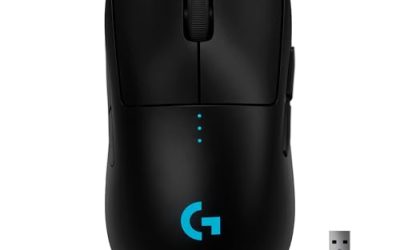
A fast internal drive such as the Samsung 990 PRO will not fix pacing, but it removes asset streaming as a confounder when you are proving the stutter follows frame rate alone. And a wireless mouse with adjustable polling, like the Logitech G305, lets you run the polling test from cause five properly.
Who Should Skip This Guide
Skip this guide if your stutter appears at every frame rate, because a fault that ignores the cap ladder is not a pacing fault. Skip it if only one game stutters while others run fine at the same frame rates; that pattern belongs to that title’s profile, cache, or install, and has its own guide. Skip it if the hitching happens only when you swing the camera, only in certain areas, only in fullscreen, or only with a second monitor connected, since each of those patterns points elsewhere. And skip it for emulators, where pacing follows the emulated machine’s timing, not your display’s.
Final Verdict
Stutter that only shows up at high frame rates is not a power shortage; it is a scheduling problem. Run the cap ladder to prove the pattern, then work the pipeline in order: check whether the CPU has become the pacemaker, reduce yourself to one limiter set a few frames below your refresh rate, stay inside the variable refresh window, and watch for boost clocks oscillating at the power ceiling. Most systems smooth out at one of those steps, and the frame rate you settle on will feel faster than the higher, uneven one you started with.
Frequently Asked Questions
Why does my game feel smoother at 60 than at 144?
Because smoothness is even frame times, not a high average. At 60, your CPU and limiters have a wide time budget per frame, so frames arrive evenly. At 144 and above, the budget shrinks, small delays turn into repeated frames, and the uneven spacing reads as stutter even though the counter shows a bigger number.
Should I cap my frame rate below my monitor’s refresh rate?
Yes, if you use variable refresh. A cap a few frames below the maximum refresh keeps every frame inside the adaptive window, so the display never falls back to fixed-refresh behavior mid-game. Use one limiter only, ideally the driver or RTSS rather than the in-game cap.
Can a DisplayPort cable really cause stutter at high refresh rates?
It can. A cable that cannot sustain the required bandwidth may cause the link to renegotiate or fall back, showing up as intermittent judder at high refresh rates while 60 hertz works flawlessly. A certified DisplayPort 1.4 cable is the standard test: if the stutter vanishes with the swap, the old cable was it.
Is VSync the cause of my high frame rate stutter?
It can be a contributor. When your frame rate hovers at the refresh ceiling, VSync engages and releases repeatedly, and each transition can land as a hitch. With a variable refresh display, the usual answer is VSync off plus a single cap just under the ceiling.
Product and ASIN Reference
| Product | ASIN |
|---|---|
| Gigabyte M27Q 27 Inch 1440p 170Hz Gaming Monitor | B08JWCHR5N |
| Dell UltraSharp 27 Thunderbolt Hub Monitor U2724DE | B0CMXGDK5S |
| Cable Matters DisplayPort 1.4 Cable, 10 ft | B07J2PGGFX |
| Samsung 990 PRO NVMe SSD | B0BHJJ9Y77 |
| Logitech G305 Lightspeed Wireless Gaming Mouse | B07CMS5Q6P |