A frozen webcam is one of the most disruptive faults a streamer can hit, because it rarely announces itself. Your game keeps running, your voice keeps going out, and chat is the first to know your face has been locked on one expression for half a minute. The camera has not usually failed. In most setups the freeze is the visible end of a chain that runs through the USB port, the cable, the video format, and the app pulling the feed.
The good news is that this fault leaves evidence. A camera that freezes the moment the stream starts tells a different story from one that dies forty minutes in, and both differ from one that only locks up when a game runs at the same time. Read the pattern first, then work the matching fix.
As an Amazon Associate, we earn from qualifying purchases.
Quick Answer
Most webcam freezes during a stream come from three causes: the camera sharing USB bandwidth or power with other devices, an uncompressed format too heavy for the connection, or a second app fighting for the same feed. Move the camera to a rear motherboard port of its own, set a compressed format or lower frame rate, close rival camera apps, and the freeze usually disappears.
Read the Freeze Pattern Before You Change Anything
Spend one short test stream watching when the image locks, because timing narrows the cause faster than any setting change. If the picture freezes within seconds of going live, the format is likely more than the connection can carry, or the app never got a clean hold on the device. If it freezes after twenty or forty minutes, heat and power delivery top the list, since both build slowly. If it freezes only when a game launches or a scene changes, the camera is competing for bandwidth and processor time.
Note also what the freeze looks like. A frame that holds while your audio continues means the video path stalled but the stream is alive. A camera that vanishes from the app and reappears points at a USB disconnect: a power or cable problem, not a format problem. A feed that freezes in one app but runs cleanly in the maker’s camera app clears the hardware and blames the streaming software.
Give the Camera a Clean USB Path
More webcam freezes are born in the USB path than anywhere else. Front panel ports run through an internal cable and a shared header, and cheap unpowered hubs divide one port’s power and bandwidth between everything plugged into them. A camera that needs both can starve on either. Move the camera to a USB port soldered directly on the rear of the motherboard, with nothing in between, and test again before changing any software setting.
Power saving is the quiet partner to this fault. Windows can suspend USB devices it thinks are idle, and a camera mid-stream can be misread that way. In Device Manager, open the properties for each USB Root Hub, and on the Power Management tab clear the option that lets the computer turn the device off to save power. In your power plan’s advanced settings, disable USB selective suspend as well. Then swap the cable if the camera still drops: a long, thin, or damaged cable may not hold a steady high-rate video link, and extension cables are a frequent hidden cause.
Lower the Format Load the Camera Is Pushing
A webcam does not send a picture; it sends a river of data, and the format decides how wide that river is. Uncompressed video at 1080p and 60 frames per second needs far more bandwidth than USB 2.0 can deliver, so a camera set to an uncompressed format on a slow port may connect, run briefly, then lock as buffers overflow.
In your streaming app, set the camera source to a specific format instead of leaving it on automatic. If you stream at 1080p, try 30 frames per second before 60, and if the freeze survives that, test at 720p. This is a diagnostic, not a surrender: if 720p runs an hour without a lock, the fault is throughput, and you can choose between a faster port, a compressed format at full resolution, or a camera built for uncompressed video over USB 3.0. Also avoid sending resolution your stream never uses; pushing 4K to a canvas that shows your face in a corner wastes bandwidth on pixels nobody sees.
Stop Other Devices and Apps Stealing the Feed
A camera can only serve one master at a time on most systems, and streaming setups quietly create rivals. The maker’s camera software, a browser tab with camera permission, a chat app in the background, and your streaming software can all request the feed. Some combinations share politely; others freeze the active feed when the rival polls the device. Close every app that can touch the camera except the one you stream from.
The same rivalry happens one level down, on the USB controller. A capture card, an audio interface, and a high-resolution camera on ports served by one controller share its total bandwidth. If your freezes began when you added a capture device, move the camera to ports on the opposite side of the board, often served by a different controller. In OBS Studio, also deactivate the camera source when it is not showing, so hidden scenes stop pulling frames the encoder never uses.
Update the Driver, the Firmware, and the App
When the hardware path is clean and the format is sane, the remaining suspects are the instructions the camera runs on. Webcams use either a standard Windows video driver or a vendor driver, and both have shipped versions with freezing faults that later releases fixed. Install the maker’s current software, since it often carries a firmware update, and apply any firmware it offers; firmware governs how the camera handles its own heat and USB timing, exactly the systems behind slow-building freezes.
If the freezes began right after a Windows update or driver change, roll the driver back in Device Manager instead. Keep the streaming app current too; a feed that is stable everywhere except one program has already told you where the fault lives.
Gear That Removes the Usual Bottlenecks
If the checks above point at hardware, these parts address the specific weak points: cameras that handle their format load properly, a capture path that takes the camera off USB video entirely, and powered USB that stops power starvation.
Elgato Facecam MK.2

Built for streaming, this camera sends uncompressed 1080p at 60 frames per second over USB 3.0, with the maker’s software handling exposure and field of view.
Specs
- Resolution and frame rate: 1080p at 60 fps, plus 720p at 120 fps
- Sensor: Sony STARVIS CMOS
- Connection: USB-C, USB 3.0 for uncompressed video
- Focus: fixed, with an 84 degree field of view
Logitech Brio 4K
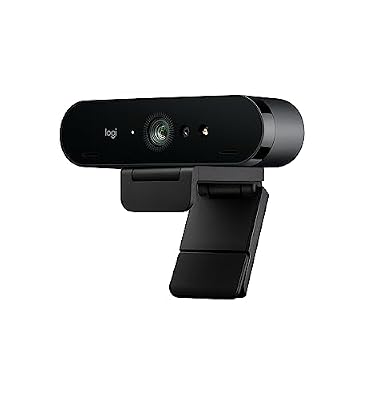
A step up in resolution headroom, with 4K at 30 frames per second and 1080p at 60, plus software field of view settings so the camera is not sending a wide room shot.
Specs
- Resolution and frame rate: 4K at 30 fps, 1080p at 60 fps
- Field of view: 65, 78, and 90 degree settings
- Connection: USB 3.0
- Extras: autofocus, dual microphones, privacy shutter
Logitech C920s HD Pro

The long-running budget and mid-range standard. Its 1080p feed at 30 frames per second is light enough for almost any USB path, making it a useful known-good swap when an older camera is the suspect.
Specs:
– Resolution and frame rate: 1080p at 30 fps
– Field of view: 78 degrees
– Connection: USB-A
– Extras: autofocus, stereo microphones, privacy shutter
Elgato Cam Link 4K

For streamers using a camcorder or mirrorless camera, this capture stick takes the HDMI output and presents it as a webcam, moving the video path off the camera’s own USB streaming mode, a common freeze source.
Specs
- Input: HDMI, unencrypted
- Capture: 1080p at 60 fps, 4K at 30 fps
- Connection: USB 3.0
- Compatibility: OBS Studio, Zoom, Discord, and other camera apps
Anker 7-Port USB 3.0 Powered Hub

When a camera must share a desk with several other devices, a powered hub with its own adapter stops the power half of the starvation problem and gives the camera a stable port.
Specs
- Ports: 7 USB 3.0 data ports
- Power: dedicated 36W adapter included
- Transfer rate: USB 3.0 speeds up to 5 Gbps
- Extras: one BC 1.2 charging port
How to Choose
Choose fixes in the order the evidence points. If the freeze follows a pattern tied to time or heat, solve power and cooling first; if it follows format changes, solve bandwidth. When replacing a camera, match its top format to the port you actually have: an uncompressed 1080p60 camera belongs on USB 3.0, while a compressed 1080p30 camera is safer for older machines and long cables. If you run several high-bandwidth USB devices, budget for a powered hub as part of the upgrade. And if your camera is a photo camera pressed into webcam duty, a capture stick is usually more reliable than its built-in USB streaming mode.
Who Should Skip
Skip this guide if your whole game freezes rather than just the camera image; that is a game or system fault, covered in our guides to games that freeze while the sound keeps playing and PCs that freeze for a few seconds then recover. If your camera freezes when you capture your screen rather than while streaming, the screenshot freeze guide is the closer match. This guide is only for a camera feed that locks up while the rest of the stream keeps running.
Frequently Asked Questions
Why does my webcam freeze after about half an hour of streaming?
A freeze that arrives on a timer usually means heat or power. The camera warms up, a hub delivers less stable power as it warms, or a power saving setting finally triggers. Give the camera a rear motherboard port, disable USB selective suspend, and keep it out from behind a hot monitor bezel so it gets airflow.
Why does my webcam freeze in OBS but work in other apps?
That pattern clears the hardware and points at the app. Another program may be holding the camera, the source may be set to a format the USB path cannot sustain, or the source stays active in hidden scenes. Set a fixed format in the source properties, enable deactivation when not showing, and close other camera apps.
Does a USB 3.0 port really matter for a webcam?
Yes, for higher formats. Uncompressed 1080p at 60 frames per second cannot fit through USB 2.0, and even compressed feeds behave better with headroom. Cameras often stall instead of warning you, so the port is one of the first things to check.
Can a long USB extension cable cause webcam freezing?
It can. Video at high rates is far less forgiving than charging, and a long passive extension adds resistance and signal loss until the link drops frames or disconnects. Use the shortest quality cable that reaches, or move the computer and camera closer.
Final Verdict
A webcam that freezes while streaming is almost never a dying camera. It is a camera asking for more bandwidth, more power, or more exclusive access than the setup gives it. Read the freeze pattern, clean up the USB path, set a format the connection can honestly carry, and evict rival apps; those four moves solve most cases. Replace hardware only when the pattern points at it, and buy for the port and format you will actually run.
Product and ASIN Reference
| Product | ASIN |
|---|---|
| Elgato Facecam MK.2 | B0CW1S7XP5 |
| Logitech Brio 4K Webcam | B01N5UOYC4 |
| Logitech C920s HD Pro Webcam | B07K986YLL |
| Elgato Cam Link 4K | B07K3FN5MR |
| Anker 7-Port USB 3.0 Powered Hub | B014ZQ07NE |