The game looks perfect on your main display, but the second monitor next to it will not sit still. It blinks, pulses or shimmers whenever a match loads, while the desktop was fine a minute earlier. That split behavior is the biggest clue: the PC can clearly drive two screens, so something about the gaming state — the mode change, the sync range, the bandwidth or the second display’s settings — is pushing that one screen over the edge.
As an Amazon Associate, we earn from qualifying purchases.
Quick Answer
Treat the flicker pattern as the diagnosis. Brief blinks to black mean the signal is renegotiating, so start with the cable, port and refresh rate on the second screen. Brightness pulsing points at variable refresh or dynamic backlight features, and shimmer points at cable quality or interference. Change one variable per test, starting with a role swap.
Read the Flicker Before You Change Anything
“Flickering” covers at least four different failures, each with a different fix. Match your symptom to a pattern before touching settings.
- Hard blinks to black for a second or two. The display is losing and re-locking the signal, which points at the cable, the port, a dock in the chain, or a mode the link cannot hold under load.
- Brightness pulsing or breathing. The image stays visible but the backlight swells and fades, often in dark scenes. That points at variable refresh near the bottom of the sync range, or at dynamic contrast or local dimming reacting to the game.
- Rolling shimmer, sparkles or faint moving lines. The picture is present but unstable at the pixel level. That points at a marginal cable, a long cable run, or interference.
- Flicker only in menus, loading screens or cutscenes. Gameplay is stable, so this points at refresh switching: menu frame rates drop far below in-game rates, the sync range bottoms out, and the panel keeps entering and leaving its comfort zone.
Timing matters too. Flicker starting the moment a game takes over is a mode problem. Flicker appearing twenty minutes in leans toward a marginal cable. Flicker in one game only traces back to that game’s display mode or HDR toggle.
Step 1: The Role Swap Test
Before buying or reinstalling anything, swap the jobs of the two screens. Make the flickering monitor the primary display in your system settings and run the game on it, with the previously clean monitor as the secondary.
If the flicker follows the monitor, the problem lives in that display, its cable or its port. If it stays on whichever screen is secondary, the problem lives in how the system drives a second output during games — sync settings, bandwidth sharing or the driver. This one test halves the suspect list for the cost of a game restart.
While the cables are in your hands, reseat both ends of the second monitor’s cable firmly. A connector that is almost seated can pass a desktop all day and still drop the link when a game changes modes.
Step 2: Lock Down Refresh Rate and Sync on the Second Screen
Mixed refresh rates are the classic dual-monitor gaming trap. A high-refresh main display beside a 60 Hz secondary forces the graphics card to juggle two different clocks, and the slower screen usually complains first.
Open your display settings and confirm the second monitor is running at its native refresh rate rather than a fallback picked after a mode change. Then try the sync experiment: turn variable refresh off for the second screen only, in the graphics control panel, and play for ten minutes. Many secondary panels have a narrow sync range, and when a game’s frame rate dips near the bottom of it the backlight pulses as the panel enters and leaves sync. If the pulsing stops with sync off, leave it off for that screen — a chat window gains nothing from variable refresh anyway.
Capping the game’s frame rate a few frames below the main display’s maximum also helps: it steadies the whole pipeline and often calms a secondary screen reacting to wild frame-time swings next door.
Step 3: Replace the Link, Not the Monitor
Signal dropouts during gaming are a cable problem until proven otherwise. Games push higher refresh rates, deeper color and HDR metadata a desktop never asks for, so a cable adequate for office work can fail only in games.
Swap the second monitor’s cable for a known-good, certified one and move it to a different output on the graphics card. If the monitor was connected through a dock, a hub or an adapter, remove that middle link for the test and connect directly to the card — docks and adapters renegotiate the signal, and each renegotiation is a chance to blink. Shorter is better: long passive runs are where sparkle and dropout problems breed.
If the blinking stops, the old link was the fault. Reintroduce pieces one at a time only if you genuinely need the dock.
Step 4: Turn Off the Features That Fight the Game
Several features behave well on a desktop and badly next to a fullscreen game. Work through them one at a time on the second screen.
- HDR on the secondary display. Mode changes can make it blink each time the game gains or loses focus. Turn HDR off for that screen and retest.
- Dynamic contrast, eco modes and local dimming. These react to changing average brightness, so a game flashing menus beside it can make the backlight hunt. Set a fixed, plain picture mode.
- Monitor overclocking. If the second screen runs an overclocked refresh rate from its on-screen menu, drop it back to the rated rate. Marginal overclocks often hold on the desktop and fail under game load.
- Hardware-accelerated GPU scheduling. This changes how the compositor shares the two outputs. Toggling it and rebooting is a legitimate test when the flicker stays on the secondary screen whichever monitor fills the role.
Step 5: Rule Out the Driver and the Power Side
If the role swap pointed at the system, clean-install the graphics driver with the option that removes previous settings, and retest before reinstalling overlay or recording software, which can trigger mode renegotiation on the second output every time it appears.
Power deserves one quick check. A second monitor on a tired power strip shared with a PC under full load can see its supply wobble when the game starts pulling hard. Plug the monitor into the wall for one session; if the flicker vanishes, the strip was the problem.
How to Choose
Replacement parts only make sense after the tests name the failing link, so choose by diagnosis. If the cable swap fixed it, buy a certified cable of the right standard and keep the length as short as your desk allows — the two cables below cover DisplayPort and HDMI. If the flicker followed the monitor through every test, the panel itself is the fault: choose a replacement with a sync range wide enough not to pulse at low frame rates. For a screen that mainly shows chat, streams and guides, plain fixed picture modes beat dynamic features you will only end up disabling.
The Parts That Actually Fix This Fault
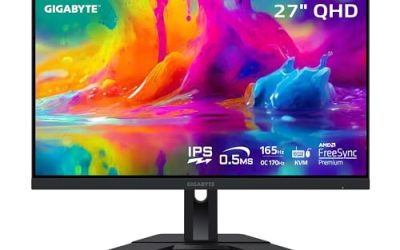
Gigabyte M27Q

A 27-inch 1440p panel with a 170 Hz refresh rate, the M27Q is the like-for-like replacement when the flicker has followed the old monitor through every test. Its sync behavior suits the secondary role, where frame rates swing constantly.
Specs
- Size and resolution: 27-inch, 2560 x 1440
- Refresh rate: 170 Hz
- Panel: IPS with FreeSync Premium
- Extras: KVM switch, HDR support
Dell U2724DE

This 27-inch 1440p IPS Black monitor runs at 120 Hz and doubles as a Thunderbolt hub, removing one separate dock from the chain — useful when a dock was part of the renegotiation problem. Its steady, work-focused picture modes suit a screen that shows chat, calls and documents between games.
Specs
- Size and resolution: 27-inch, 2560 x 1440
- Refresh rate: 120 Hz
- Panel: IPS Black
- Connectivity: Thunderbolt hub, HDMI, DisplayPort
ASUS ProArt PA279CRV

A 27-inch 4K monitor for when the side display doubles as an accurate screen for editing or streaming previews. Its factory-calibrated color and restrained feature set make it a calm partner beside a fast gaming panel.
Specs
- Size and resolution: 27-inch, 3840 x 2160
- Refresh rate: 60 Hz
- Panel: IPS, wide DCI-P3 coverage
- Connectivity: USB-C with power delivery, HDMI, DisplayPort
Cable Matters DisplayPort 1.4 Cable, 10 Foot
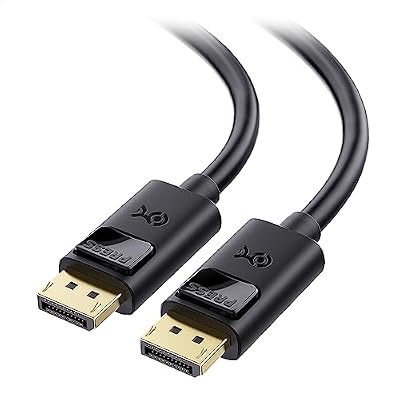
The first purchase when the blinks point at the link: a certified DisplayPort 1.4 cable with the bandwidth for high-refresh 1440p and 4K signals. At 10 feet it reaches most desk layouts without the margin problems of longer passive runs.
Specs
- Standard: DisplayPort 1.4
- Length: 10 feet
- Supports: high-refresh 1440p and 4K signals, HDR
- Connectors: latching DisplayPort at both ends
Zeskit Maya HDMI 2.1 Cable, 5 Foot

For a second screen connected over HDMI, the Maya is a certified HDMI 2.1 cable with full 48 Gbps bandwidth, so the link stops being the suspect. The short 5-foot length is deliberate: less cable means a cleaner signal.
Specs
- Standard: HDMI 2.1, 48 Gbps
- Length: 5 feet
- Supports: 4K high-refresh and 8K signals, eARC
- Certification: Ultra High Speed HDMI
Who Should Skip
Skip the shopping if the role swap showed the flicker staying on the secondary output regardless of which monitor fills it — that is a settings or driver problem, and new hardware will inherit it. Skip it as well if the screen only flickers in one specific game: check that game’s display mode and HDR setting first. And if your second monitor goes fully black for long stretches rather than flickering, that is a different failure with a different checklist.
Frequently Asked Questions
Why does my second monitor only flicker during games and not on the desktop?
Games change the rules the link lives by: higher refresh rates, exclusive display modes, HDR metadata and sudden frame-rate swings. A cable, sync range or picture mode that copes with a static desktop can fail under those conditions, and the flicker pattern tells you which one is responsible.
Should I match the refresh rate of both monitors?
Matching rates removes one class of timing conflict, and it is worth testing if your second screen supports the same rate as the main one. It is not mandatory: plenty of mixed setups run cleanly once the secondary screen’s sync range and cable are sorted. Test before spending.
Can a dock or adapter cause the second monitor to flicker?
Yes. Anything between the graphics card and the monitor has to renegotiate the signal, and gaming mode changes are exactly when a weak middle link blinks. Connect the monitor directly to the card for one session; if the flicker stops, the dock or adapter was the fault.
Is the flickering damaging my second monitor?
The flicker itself is a symptom, not usually a cause of damage. A panel that blinks from signal renegotiation is not being harmed, but a monitor that flickers on every input and cable after these tests may be developing a backlight or power fault — that is a warranty conversation, not a settings one.
Final Verdict
A second monitor that flickers only while gaming is almost never dying — it is reacting to a mode change, a sync range or a link the desktop never stresses. Read the pattern, run the role swap to learn whether the fault follows the screen or the output, then fix the named link: a certified cable for signal faults, calmer sync and picture settings for pulsing, and a replacement panel only when the flicker has followed the old monitor through every test.
Product and ASIN Reference
| Product | ASIN |
|---|---|
| Gigabyte M27Q | B08JWCHR5N |
| Dell U2724DE | B0CMXGDK5S |
| ASUS ProArt PA279CRV | B0BQPSX5CR |
| Cable Matters DisplayPort 1.4 Cable, 10 Foot | B07J2PGGFX |
| Zeskit Maya HDMI 2.1 Cable, 5 Foot | B08TQTYCYS |