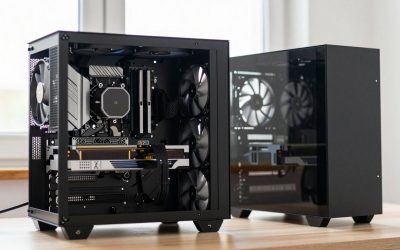
Gigabyte Control Center (GCC) is the unified software for Gigabyte motherboards, graphics cards and peripherals, handling drivers, RGB, fan control and system monitoring in one place. If you own Gigabyte or AORUS hardware, it is the app to know.
- What Gigabyte Control Center Does
- How to Download It Safely
- Updating Drivers and BIOS
- RGB, Fan Control and Monitoring
- Is Gigabyte Control Center Safe?
- Common Issues and Fixes
- Trimming Background Resource Use
- Alternatives to Control Center
- Final Thoughts and Quick Recap
- Keeping Your PC in Good Shape
- A Quick Checklist
- Where to Go From Here
- Frequently Asked Questions
- Related Guides
This guide explains what Gigabyte Control Center does, how to download it safely, and how to get the most from it.
What Gigabyte Control Center Does
GCC replaced Gigabyte’s older separate apps (like App Center and RGB Fusion) with a single hub. From it you can update drivers and BIOS, control RGB lighting, set fan curves, monitor temperatures and voltages, and tweak performance settings.
Consolidating everything into one app makes managing a Gigabyte system far simpler than juggling multiple utilities.
How to Download It Safely
Always download Gigabyte Control Center from Gigabyte’s official website, on your motherboard or GPU’s support page, to avoid fake or bundled installers. Match the download to your exact model for the correct modules.
Avoid third-party download sites, which may serve outdated or tampered versions.
Updating Drivers and BIOS
GCC can detect and install the latest chipset, LAN, audio and other drivers for your board, and it can flash BIOS updates. Updating drivers through GCC is convenient, though some enthusiasts still prefer manual downloads for BIOS.
Keep drivers current for stability, and only update BIOS when you have a specific reason, such as CPU support.
RGB, Fan Control and Monitoring
Through GCC you can sync RGB lighting across compatible components, create custom fan curves to balance noise and cooling, and monitor temperatures, clocks and voltages in real time.
Fan tuning in particular is worth setting up, letting you keep the system quiet at idle and cool under load.
Is Gigabyte Control Center Safe?
Downloaded from the official site, GCC is safe and legitimate. Past concerns about Gigabyte’s update mechanism were addressed with BIOS and software updates, so keeping both current is wise. Some users prefer to install only the modules they need.
If you dislike background software, you can install GCC, apply your settings, and disable unneeded background services.
Common Issues and Fixes
If GCC fails to install or detect hardware, update your BIOS first, then reinstall GCC from the official page. Corrupted installs are best fixed by fully uninstalling, rebooting and installing fresh.
Installing only the modules you use also reduces conflicts and background resource use.
Trimming Background Resource Use
Some users dislike that Control Center runs background services. If you prefer a lean system, install GCC, apply your fan curves and RGB, then disable the modules and startup entries you do not need day to day. Your saved fan and lighting settings usually persist.
This gives you the configuration benefits without a permanent background footprint.
Alternatives to Control Center
For fan control you can also use the motherboard BIOS directly, and for monitoring, free tools like HWiNFO work independently of GCC. Third-party RGB software exists too, though mixing RGB apps can cause conflicts.
GCC is the most integrated option for Gigabyte hardware, but you are not locked into it for basic tasks.
Final Thoughts and Quick Recap
Gigabyte Control Center comes down to a few simple habits: use trusted, official sources, change one thing at a time, and confirm the result before moving on. That keeps your PC stable and saves hours of guesswork, whether you are a first-time builder or a seasoned enthusiast.
The guidance above on gigabyte control center is quick, safe and reversible, so there is little risk in following it. A little care now pays off across every game and task you run, and it keeps the rest of your build healthy too.
Bookmark this guide and revisit it whenever you upgrade a part or hit a new issue, and use the related guides below to keep the whole system in top shape. Consistent small maintenance always beats occasional big fixes.
Keeping Your PC in Good Shape
Whatever brought you to this guide on gigabyte control center, the same principle applies across your whole system: small, regular attention prevents big problems later. Keep drivers and firmware current on a sensible schedule, watch your temperatures, leave some free space on your drives, and enable your memory profile so the hardware you paid for runs at full speed.
None of this needs deep technical knowledge or costly tools; the free utilities and official software mentioned here are enough to keep a gaming PC fast and reliable for years. Building these habits now means fewer nasty surprises when you are in the middle of a game you love.
A Quick Checklist
Before you finish with gigabyte control center, run through the essentials one more time: use official software and sources, apply changes one at a time, verify each result, and keep a note of what you changed. This simple discipline turns a fiddly task into a repeatable, low-stress routine.
If something does not work as expected, undo the last change rather than piling on more, and re-check from a known-good state. Most problems around gigabyte control center come from changing too much at once rather than from the change itself.
Where to Go From Here
With gigabyte control center handled, it is worth giving the rest of your system the same quick attention: confirm drivers and firmware are current, temperatures are healthy, drives have free space, and your memory profile is enabled. A balanced, well-maintained PC performs better and lasts longer than one where a single part has been over-tuned.
The related guides below cover these neighbouring topics, so you can keep the whole build in good shape rather than fixing one thing while another quietly holds you back.
Frequently Asked Questions
What is Gigabyte Control Center?
It is Gigabyte’s unified app for updating drivers and BIOS, controlling RGB and fans, and monitoring a Gigabyte or AORUS system.
Is Gigabyte Control Center safe?
Yes when downloaded from Gigabyte’s official site; keep BIOS and the app updated, and install only the modules you need.
Where do I download Gigabyte Control Center?
From your motherboard or GPU’s support page on gigabyte.com, matched to your exact model.
Do I need Gigabyte Control Center?
It is useful for RGB, fan control, monitoring and updates, but not mandatory; you can install only the drivers you need if you prefer.
Related Guides
- How to Update Gigabyte BIOS Safely
- Gigabyte RGB Fusion: How to Sync Your RGB
- How to Update AMD Chipset Drivers
- What Is AORUS? Gigabyte’s Gaming Brand Explained