A road marking strobes against the tarmac beneath it. A poster on a wall keeps swapping places with the wall itself, and a distant rooftop flashes between two textures as if the building cannot decide what it is made of. The frame rate is steady, and the flicker sits exactly where two surfaces lie on top of each other. That is z-fighting: two surfaces so close together that the graphics card cannot reliably tell which one is in front, so the winner changes frame to frame. It is not a brightness fault, not a cable fault and not your monitor dying. It is arithmetic running out of room, and this guide works through the levers that give it more room.
As an Amazon Associate, we earn from qualifying purchases.
Quick Answer
Flickering textures where two surfaces meet are z-fighting: the depth buffer cannot tell which surface is in front, so the winner changes frame to frame. It worsens with distance and survives every monitor swap. Shrink the game’s view distance first, then try the other graphics API, then check for a patch or mod for that spot.
The Overlap Test: Four Signs It Is Really Z-Fighting
Several unrelated faults get called texture flicker, and each answers to a different fix, so confirm the diagnosis before touching a setting. Z-fighting passes all four checks.
It only happens where surfaces overlap or nearly touch. Decals on floors, signs on walls, water planes meeting a shoreline, a rug on a floorboard: the flicker lives on the seam between two surfaces and nowhere else. A texture that flickers across its whole area with nothing overlapping it is a different fault, usually filtering or a corrupt shader cache.
It gets worse with distance. The poster that sits still when you stand in front of it strobes when you back across the room. Distance is the fingerprint of depth precision, because the depth buffer spends most of its accuracy near the camera and very little far away.
A screenshot captures it. Take a screenshot mid-flicker and view it on your phone. Z-fighting is drawn into the frame itself, so the swapped patches appear in the capture. If the screenshot is clean while your eyes see flicker, the fault is in the display leg, and the screen flickering guide on this site is the right address.
Moving closer calms it. Walk toward the flickering spot. As the depth values separate, the strobing slows and stops. Faults that ignore your distance belong to other guides.
Two neighbours, briefly: flickering shadows flicker even where nothing overlaps, and shimmering edges sparkle along outlines rather than swapping flat patches. Both have their own guides here.
Why Distance Runs Out of Numbers
The graphics card keeps a depth buffer, a grid recording how far away the nearest surface is at every pixel. When a second surface is drawn, its depth is compared against the stored value and the closer one wins. The catch is that depth values are not spread evenly. Most of the precision clusters near the camera, and the far end of a large map is divided into coarse steps. Two surfaces a hair apart up close land in different steps and sort cleanly. The same pair, from two hundred metres away, falls inside one step, the comparison becomes a coin flip, and the coin is tossed again every frame.
That is why the near and far planes matter so much. The far plane is set by the game’s view distance; the wider the span, the thinner the precision is spread. Every fix below either narrows that span, changes the comparison, or separates the surfaces.
Fix One: Pull the Far Plane Closer
The single most effective setting is view distance, sometimes labelled draw distance or detail distance. Lowering it pulls the far plane in, and depth precision stretched across the whole map is redistributed across a shorter span. Distant decals, rooftops and road markings that strobed often settle immediately, because their depth step is now finer than the gap between the surfaces.
Test it properly: stand where the flicker is worst, drop the setting one step, and look again without moving. If the strobing slows or stops, diagnosis and cure are both confirmed. Raise it back step by step until the flicker returns, then settle one step below that point. The cost is scenery appearing closer in; the gain is a picture that sits still.
Fix Two: Change the Depth Path
If view distance alone does not settle it, change how the depth comparison itself is performed.
Try the other graphics API. Many games offer DirectX 11 and DirectX 12, or Vulkan, in their settings or launcher. The APIs differ in how they handle depth, and some engines show z-fighting on one path and not the other. Switch, restart, and revisit the same spot. This five-minute test settles a surprising share of cases, especially in older titles on newer drivers.
Update the driver, then clear the shader cache. A driver update occasionally ships with broken depth behaviour for a specific engine, and a stale shader cache can keep the broken version alive after the driver is fixed. Clear the DirectX shader cache through Windows storage settings after updating, expect the first session to hitch while shaders rebuild, and judge on the second run.
Leave resolution alone. Raising the render resolution does not add depth precision, so it cannot cure z-fighting, whatever it does for edge shimmer. Spending performance there is the most common wasted afternoon in this whole topic.
Fix Three: Separate the Surfaces, or Patch the Spot
Some z-fighting is baked into the level itself: a designer placed two surfaces at almost exactly the same height, and no setting rescues geometry that truly shares a plane. Three routes remain.
First, check for a decal or surface detail setting. Some games expose decal depth, decal distance or a terrain detail toggle that changes how decorations are offset from what they sit on; nudging it can end a fight the view distance could not.
Second, look for a game patch. Developers fix reported z-fighting spots by moving one surface a fraction, and long-supported games accumulate dozens of these corrections. A flicker every player sees in the same doorway is a strong candidate for a known issue with a fix already shipped or pending.
Third, check community mods. Popular games often have small mods whose entire job is lifting decals and posters off their walls by a hair. Search the mod library for the location name plus the word flicker before assuming your hardware is involved.
How to Choose the Display Gear That Proves the Point
No monitor or cable can add depth precision to a game. What display gear legitimately does is settle the screenshot question in hardware: a stable panel fed by a certified cable shows the frame exactly as the card produced it, so any flicker left is provably in the frame, not the display leg. A higher-resolution panel also shrinks each fighting patch, making a mild, unfixable case easier to live with.
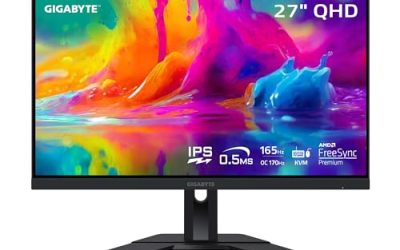
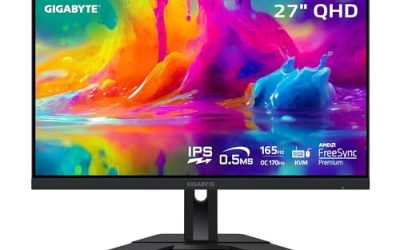
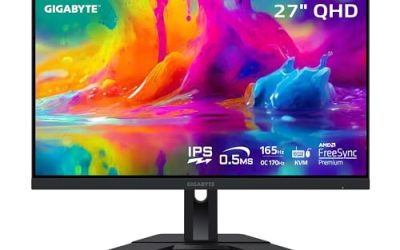
Gigabyte M27Q Gaming Monitor

A 27-inch IPS panel at 2560 by 1440 with a 170Hz overclocked refresh rate, this is the balanced pick for proving the display leg is innocent: DisplayPort input, wide colour coverage and a KVM switch. If textures still swap here, they are swapping in the frame itself.
Specs
- Panel: 27-inch IPS, 2560 by 1440
- Refresh rate: 170Hz overclocked
- Inputs: DisplayPort 1.2, HDMI 2.0, USB-C
- Extras: built-in KVM switch
Dell UltraSharp U2724DE

A 27-inch IPS Black panel at 2560 by 1440 and 120Hz, with a Thunderbolt hub built in. Its strength here is greyscale accuracy: subtle texture swaps on dark surfaces show up clearly instead of hiding in crushed blacks, making fix testing honest.
Specs
- Panel: 27-inch IPS Black, 2560 by 1440
- Refresh rate: 120Hz
- Inputs: Thunderbolt, DisplayPort 1.4, HDMI
ASUS ProArt Display PA279CRV

A 27-inch 4K IPS panel at 3840 by 2160. The extra pixel density is the one hardware trait that genuinely softens this fault’s appearance: each fighting patch covers fewer visible steps on screen, so a distant decal that strobes coarsely at 1440p breaks into finer, less distracting fragments.
Specs
- Panel: 27-inch IPS, 3840 by 2160
- Refresh rate: 60Hz
- Inputs: DisplayPort 1.4, HDMI, USB-C with power delivery
Cable Matters DisplayPort 1.4 Cable, 10 ft
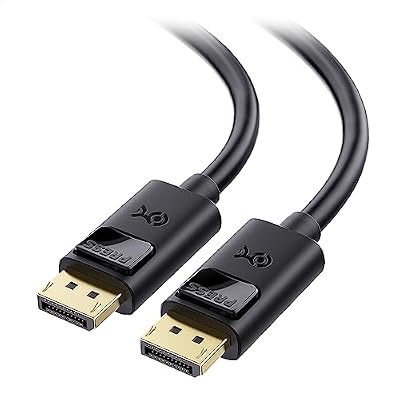
A certified DisplayPort 1.4 cable rated for HBR3 bandwidth. Its point in this guide is elimination: swap it in, and if the flicker pattern is unchanged, the cable is formally off the suspect list and the depth buffer is on it.
Specs
- Standard: DisplayPort 1.4, HBR3
- Length: 10 ft
- Rated for: 8K at 60Hz, 4K at high refresh
Zeskit Maya HDMI 2.1 Cable, 5 ft

A certified Ultra High Speed HDMI cable at 48 Gbps, for setups that run the panel over HDMI. Short and certified, it removes bandwidth headroom and loose connector seating from the list of things that could imitate a rendering fault.
Specs
- Standard: HDMI 2.1 Ultra High Speed, certified
- Bandwidth: 48 Gbps
- Length: 5 ft
Who Should Skip This Guide
Skip this guide if your whole screen pulses or flashes, including menus and the desktop: that is a display or signal fault, not a depth fault. Skip it if only shadows flicker on otherwise stable surfaces; the shadow pass has its own guide. Skip it if the sparkle runs along edges rather than swapping flat patches, because that is aliasing shimmer. Console players should skip the settings ladder entirely; on console, the patch route in Fix Three is the only one open. And if the flicker lives in one famous spot every player reports, go straight to the patch and mod checks.
Frequently Asked Questions
Why does z-fighting get worse the farther away I stand?
Depth precision is not spread evenly. Most of it clusters near the camera, so distant surfaces are sorted with coarse steps. Two surfaces that sort cleanly up close fall into the same step at range, the comparison becomes a coin flip, and the textures swap every frame.
Can a better monitor or cable fix flickering textures?
No. Z-fighting happens inside the rendered frame, before the signal reaches a cable or panel, which is why a screenshot captures it. Good display gear is still useful as a diagnostic: a stable panel on a certified cable proves the flicker is rendered, so you can stop swapping hardware and work on the game’s depth settings instead.
Why did the flicker start after a game or driver update?
Updates change both sides of the comparison. A patch can move a surface a fraction and create a new overlap, and a driver can change how depth is handled for a specific engine. Test in order: revisit the same spot on the other graphics API, clear the shader cache, and check the patch notes for that location before changing hardware.
Is z-fighting a sign my graphics card is failing?
Almost never. A failing card produces artifacts that spread across the screen, corrupt geometry, coloured blocks and crashes, not a tidy flicker confined to the seam between two surfaces in one game. If the flicker respects surface boundaries, worsens with distance and appears in screenshots, the card is doing what the depth math tells it to.
Final Verdict
Flickering textures at surface seams are a precision shortage, not a hardware failure. Confirm it with the overlap test, pull the view distance in until the depth steps grow finer than the gap, try the other graphics API, and only then hunt for a patch or mod for the specific spot. Keep display purchases in their proper role: a clean panel and a certified cable prove the frame is guilty, and a 4K panel makes whatever fight remains smaller.
Product and ASIN Reference
| Product | ASIN |
|---|---|
| Gigabyte M27Q Gaming Monitor | B08JWCHR5N |
| Dell UltraSharp U2724DE | B0CMXGDK5S |
| ASUS ProArt Display PA279CRV | B0BQPSX5CR |
| Cable Matters DisplayPort 1.4 Cable, 10 ft | B07J2PGGFX |
| Zeskit Maya HDMI 2.1 Cable, 5 ft | B08TQTYCYS |