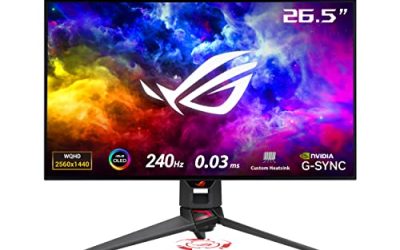
Look at a night sky, a fog bank, or the fade to black before a cutscene, and instead of a smooth gradient you see distinct rings and steps, as if the scene were painted in bands of slightly different shades. That is color banding, and it is one of the most misunderstood picture faults in PC gaming, because the broken link is rarely where players first look. A gradient has to survive a long journey: the game renders it, the GPU formats it, a cable carries it, and the panel displays it. Banding appears when any one of those links squeezes the gradient into too few steps. This guide walks the chain link by link, in the order the signal travels, so you can find the exact link that is failing and fix that one instead of changing settings at random.
As an Amazon Associate, we earn from qualifying purchases.
Quick Answer
Color banding happens when a smooth gradient is squeezed into too few color steps somewhere between the game and your screen. Work through the chain in order: raise in-game quality settings, set the GPU output to the highest bit depth with full-range RGB, confirm the cable has the bandwidth for that output, and turn off monitor processing that crushes shades. Only the last link, a low-bit-depth panel, needs new hardware.
What Banding Is, and What It Is Not
A gradient is a slow change from one shade to a neighboring shade. A display pipeline that carries enough steps renders that change invisibly. When the pipeline carries too few steps, the eye catches the boundary where one step ends and the next begins, and the smooth change becomes visible bands. The fault is about step count, not about brightness or color accuracy.
That distinction separates banding from its lookalikes. Washed-out colors are a range problem, where black looks gray. A blurry picture is a scaling problem. Blurry textures are an asset and filtering problem inside the game. Banding is none of those: the image can be sharp and perfectly calibrated, and still show hard rings in a sunset because the gradient itself was reduced to a staircase somewhere along the chain. Every fix below is about restoring steps at one specific link.
Link One: The Game Renders the Gradient
The chain starts inside the game, and some banding is baked in before your hardware sees a single frame. Skyboxes, fog, and vignette effects are often rendered or stored with limited precision, and texture compression can flatten subtle shade differences into blocks. Video cutscenes are the worst offenders, because they are encoded video rather than real-time rendering, and their gradients carry the compression of the file itself.
Start here anyway, because the in-game fixes are free. Raise texture quality and any setting tied to effects or post-processing quality, since lower tiers sometimes reduce the precision of fog and lighting. Turn off film grain if the game offers the toggle; grain is sometimes used to mask banding, but a heavy layer can also make bands look worse on a clean panel. If banding appears only in one game and only in its menus or cutscenes while the wider world looks clean, the source material is the limit and no setting downstream will fully repair it.
Link Two: The GPU Formats the Signal
The second link is where most fixable banding is born. Your graphics driver decides the bit depth, the color format, and the range of the signal that leaves the PC, and its defaults are often conservative rather than correct.
Open your GPU control panel and find the display output settings. Set the output color depth to the highest value offered, ideally 10 bits per channel when your monitor accepts it. Set the output format to RGB rather than a YCbCr format, and set the output dynamic range to full rather than limited. A limited range compresses the shade scale into a narrower band, a classic banding cause on its own. The depth option may shorten the refresh rate list if the link cannot carry both, which leads directly to the next link.
On the software side, keep the driver current, because driver updates have historically changed dithering behavior. Dithering mixes neighboring shades so the eye perceives steps that are not really there, and it is the most effective band-aid for banding on an 8-bit path. Windows adds a wrinkle: its HDR toggle changes how the desktop and borderless games are composed, so if banding appeared when you enabled HDR, test the same scene with HDR off.
Link Three: The Cable Carries It, or Strangles It
Between the GPU and the panel sits a link with a hard bandwidth ceiling, and this link fails silently. A cable and port combination that cannot carry your chosen resolution, refresh rate, and bit depth together does not show an error. Instead, the driver quietly negotiates down: bit depth drops, or the format falls back to a subsampled mode where color detail is shared between pixels. Both compromises manufacture banding in exactly the smooth areas, skies and shadows, where subsampling and shallow depth show first.
Audit this link honestly. DisplayPort 1.4 and HDMI 2.1 carry far more than earlier revisions, and a long, thin, or aging cable can fail at lengths a certified cable handles easily. If you raised the bit depth at link two and the option vanished or the refresh rate fell, the link budget is your answer: shorten the run, use the better port on both ends, and use a certified cable rated for the full bandwidth of the standard.
Link Four: The Monitor Processes the Picture
The final electronic link is the monitor itself, and its picture processing can crush gradients that arrived intact. Open the on-screen display and work through the usual suspects. Dynamic contrast changes brightness scene by scene and can step visibly in dark gradients, so turn it off for this test. Local dimming on aggressive settings can draw halos and steps around bright objects on dark fields. Black equalizer and shadow-boost features lift the darkest shades unevenly, rearranging the bottom of the gradient where banding is most visible. Switch to the standard or custom preset rather than a vivid or game-boost mode, set gamma to its middle value, and re-check your test scene after each single change.
If the bands survive with processing off, run one isolation test: feed the monitor from a second source, even a laptop, and view a known smooth gradient. Bands that follow the monitor belong to the panel. Bands that stay with the PC belong upstream.
Link Five: When the Panel Is the Ceiling
Some panels simply have fewer steps to give. Budget panels built on 6-bit drivers with frame rate control simulate extra shades by flickering between two real ones, and on slow gradients that simulation can shimmer and band no matter how clean the incoming signal is. A true 8-bit panel is the sensible gaming baseline, and a 10-bit panel gives gradients the most headroom, especially for HDR titles.
This is the only link where money is the fix, which is why it comes last. If your test scene bands on every source, with processing off and a full-depth signal confirmed, the panel is the ceiling.
Gear That Raises the Ceiling
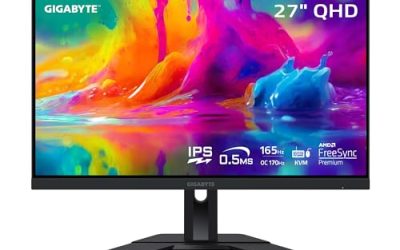
Gigabyte M27Q

A 1440p esports staple whose 8-bit plus frame rate control panel handles gradients well for its tier, and a sensible step up from older 6-bit displays.
Specs
- Panel: 27-inch IPS
- Resolution: 2560 x 1440
- Refresh rate: 170 Hz
- Color depth: 8-bit with frame rate control
- Inputs: DisplayPort and HDMI
Dell U2724DE

An IPS Black panel with a 10-bit path and a Thunderbolt hub, for players who also work at the same desk.
Specs
- Panel: 27-inch IPS Black
- Resolution: 2560 x 1440
- Refresh rate: 120 Hz
- Color depth: 10-bit
- Connectivity: Thunderbolt hub monitor
ASUS ProArt PA279CRV

A 4K creator panel with a 10-bit path, for players who grade screenshots and video on the same screen they game on.
Specs
- Panel: 27-inch IPS
- Resolution: 3840 x 2160
- Refresh rate: 60 Hz
- Color depth: 10-bit
- Series: ProArt creator line
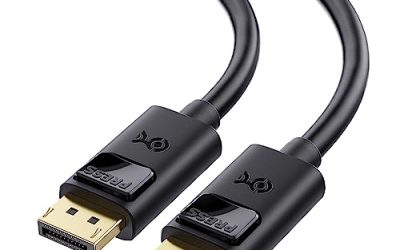
Cable Matters DisplayPort 1.4 Cable, 10 Ft
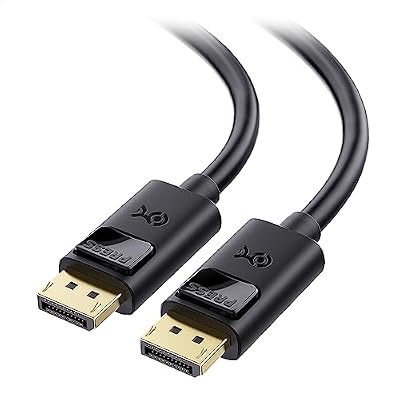
The link-budget fix in cable form: a full-bandwidth DisplayPort 1.4 run that lets high refresh and high bit depth coexist.
Specs
- Standard: DisplayPort 1.4 with HBR3 bandwidth
- Length: 10 ft
- Features: DSC support for high-bandwidth modes
Zeskit Maya HDMI 2.1 Cable, 5 Ft

A certified Ultra High Speed HDMI cable for setups that run the display link over HDMI, with the full 48 Gbps budget 10-bit output needs.
Specs
- Standard: HDMI 2.1 Ultra High Speed
- Bandwidth: 48 Gbps
- Length: 5 ft
How to Choose
Choose in the order the signal travels. First, confirm the free fixes: if your current monitor already accepts a 10-bit signal, a cable with real bandwidth headroom is the only purchase that makes sense, so pick the standard your ports share and keep the run short. Second, if you are replacing a panel, treat color depth as a headline spec rather than fine print: 8-bit with frame rate control is the gaming baseline, and 10-bit is the comfort tier for HDR and dark scenes. Third, match the panel to your desk life: a fast 1440p IPS serves competitive play, an IPS Black hub monitor serves a mixed work and play desk, and a 4K creator panel serves image quality first. For banding, the honest specs are bit depth, inputs, and processing you can fully disable.
Who Should Skip This Guide
Skip it if your picture problem is gray, milky blacks rather than visible steps, because that is a range or HDR issue with a different fix chain. Skip it if the bands appear in exactly one cutscene of one game, since that is the source video and no hardware changes it. And skip the hardware section if your panel already takes a 10-bit signal and a certified cable carries it; your fix lives in the driver settings at link two, and it is free.
Frequently Asked Questions
Why does banding show most in skies and dark scenes?
Those scenes are wide, slow gradients with nothing else to look at, so the eye catches every step boundary. Busy textures hide the same step count, which is why a setup can look perfect in a firefight and broken in a sunset.
Is 10-bit output always better than 8-bit?
It gives the gradient more steps, so it helps when the panel can use it and the link can carry it. On a 6-bit panel it changes little, and if enabling it forces a lower refresh rate or a subsampled format, the trade can look worse overall.
Can a cable really cause banding?
Yes, indirectly. A cable or port without the bandwidth for your resolution, refresh rate, and depth forces the driver to quietly drop depth or subsample color, and both compromises appear as banding in smooth areas.
Does HDR make banding worse?
It can. HDR raises the stakes because tone mapping stretches the shade scale, and a shallow pipeline shows steps it hid in SDR. A full-depth signal and a panel with real headroom matter more with HDR on than off.
Final Verdict
Banding is a chain problem, so fix it like one. Prove whether the game, the GPU output, the cable budget, the monitor processing, or the panel itself is dropping the steps, in that order, and change one link at a time. Most players will find their fault at link two or three, in a settings page or a cable, and never need the fifth link at all. When the panel truly is the ceiling, buy bit depth and honest inputs, and the gradients will finally go smooth.
Product and ASIN Reference
| Product | ASIN |
|---|---|
| Gigabyte M27Q | B08JWCHR5N |
| Dell U2724DE | B0CMXGDK5S |
| ASUS ProArt PA279CRV | B0BQPSX5CR |
| Cable Matters DisplayPort 1.4 Cable, 10 Ft | B07J2PGGFX |
| Zeskit Maya HDMI 2.1 Cable, 5 Ft | B08TQTYCYS |