- Top Pick: Philips 24 Inch Computer Monitor FHD 100Hz VA VESA Flicker-Free, 241V8LB | 1920×1080 LED Monitor, 4ms GtG, Adaptive Sync, HDMI 1.4, Tilt Adjust, Low Blue Light, 4yr Advance Replacement Warranty
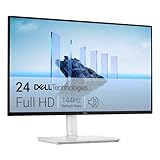
- Best Value: Dell 24 Plus Monitor – S2425HSM – 23.8-inch FHD (1920×1080) 144Hz 1ms Display, 2 x 3W Speakers, HDMI Connectivity, Height/Tilt/Pivot/Swivel Adjustability, AMD FreeSync – Ash White
- Premium Choice: Samsung 27" Essential S3 (S36GD) Series FHD 1800R Curved Computer Monitor | 100Hz, Game Mode, Advanced Eye Comfort, HDMI and D-sub Ports (LS27D366GANXZA)
A MacBook owner shopping for an external display faces a problem Windows laptop users rarely meet: the laptop has only USB-C or Thunderbolt ports, and many monitors expect HDMI or DisplayPort. The decision behind a list of the best monitors for a MacBook is therefore less about raw size and more about how the screen will connect, how sharp the image needs to be next to the laptop panel, and whether you want a desktop display or a portable one that travels in your bag.
This guide is for students, remote workers and editors comparing ten screens, from compact portable panels to a 4K USB-C desktop monitor and several basic 1080p models. Everything is drawn from the product titles, so confirm cable and adapter needs on the maker’s page. Throughout, “budget” means a basic panel and “premium” means sharper or better-connected, not any specific figure, and the guidance applies to 2026 buying decisions.
Quick Picks
As an Amazon Associate we earn from qualifying purchases at no extra cost to you.






| Product | Best for | Key spec from the title |
|---|---|---|
| Philips 241V8LB | Basic 24-inch office use | FHD 100Hz VA, HDMI 1.4, tilt |
| Dell 24 Plus S2425HSM | Adjustable desk setup | 144Hz, height/tilt/pivot/swivel, speakers |
| Samsung 27″ Essential S3 | Curved large-ish screen | 1800R curve, 100Hz, HDMI and D-sub |
| Dell 27 SE2726H | 27-inch IPS for general use | FHD 144Hz IPS, 2x HDMI |
| Dell 27 S2725QC | Sharp 4K with one-cable setup | 4K UHD IPS, USB-C, 163 PPI |
| Sceptre 22-Inch Gaming | Small footprint with ports | FHD up to 144Hz, HDMI and DisplayPort |
| MNN 15.6″ Portable | Travel with USB-C | 15.6″ IPS, USB-C one-cable, 60Hz |
| Acer KB272 G0bi | Color-conscious 27-inch | IPS 120Hz, sRGB 99%, VESA |
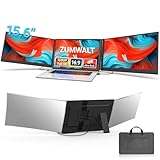
| 15.6″ Triple Laptop Screen Extender | Mobile multi-screen workflow | Fits 12-17.3″ laptops, USB-C, Win/Mac |
| Samsung 32″ Flat | Big workspace | 32″, 75Hz, HDMI and DisplayPort |
How to Choose
Plan the connection before you pick the screen
Most monitors here list HDMI, DisplayPort or both. Those work with a MacBook through a USB-C adapter or dock, but a USB-C monitor can run on one cable. The Dell S2725QC and both portable screens name USB-C in the title. If you want a single cable carrying video and power, put those near the top of your list.
Resolution and size affect how sharp text looks
Full HD at 24 inches looks fine for documents and video calls. At 27 and 32 inches, a 1080p panel shows less detail than the laptop’s own display. The 4K model lists 163 PPI, which is the closest match to the pixel density you are used to. If you read text all day, prefer the sharper option.
Refresh rate matters less than you think
Titles list 60Hz up to 144Hz. A MacBook user doing office work or editing gains little from 144Hz, though it makes cursor motion look smoother. Treat higher refresh rates as a bonus rather than the reason to buy, and ignore “gaming” in the name unless you also play on the screen.
Panel type, color and stand adjustments
IPS panels, named on several listings, offer wider viewing angles than VA. If you do photo work, look for a stated sRGB figure; the Acer lists 99% sRGB. The Dell S2425HSM lists height, tilt, pivot and swivel, which keeps posture healthy. Budget models cut corners on stand adjustment and ports, so check what the title includes.
A note on the list: nearly every screen here is Full HD, which looks fine at 24 inches and a bit soft at 27 or 32 inches. Only one model is 4K, so if sharpness is your priority your shortlist is short.
The 10 Best Options
Philips 241V8LB 24-Inch
A basic office display. The title lists 1920×1080 resolution, 100Hz, a VA panel, 4ms GtG, Adaptive Sync, HDMI 1.4 and tilt adjustment, plus a four-year advance replacement warranty.
- Strength: Flicker control and low blue light features listed.
- Strength: Generous advance replacement coverage per the title.
- Trade-off: HDMI 1.4 is the only digital input listed.
It fits anyone who needs a plain second screen for email, documents and video calls beside a MacBook on a stand. Skip it if you want a USB-C connection, an adjustable-height stand or a sharper panel, since this is a straightforward 1080p display.
Dell 24 Plus S2425HSM
A 23.8-inch FHD monitor with a fast 144Hz listing. The title lists 1ms, two 3W speakers, HDMI, AMD FreeSync and full height, tilt, pivot and swivel adjustability.
- Strength: Full stand adjustability including pivot.
- Strength: Built-in speakers for video calls.
- Trade-off: HDMI is the only connection named.
It suits a compact home office where posture and desk space both matter, and the speakers cut the need for separate audio. Skip it if you need USB-C input, because an adapter or dock will be required for a MacBook.
Samsung 27-Inch Essential S3 Curved
A 27-inch FHD curved monitor. The title lists a 1800R curve, 100Hz, Game Mode, Advanced Eye Comfort, HDMI and D-sub ports.
- Strength: Curved screen suits a single-user desk.
- Strength: Eye comfort features listed.
- Trade-off: 1080p stretched across 27 inches is less sharp than your laptop panel.
It works for people who want a bigger, more immersive screen for video and casual work. Skip it if you want crisp text, modern digital-only ports or a more neutral flat panel for design work.
Dell 27 SE2726H
A 27-inch IPS monitor at FHD. The listing includes 144Hz, 1ms, AMD FreeSync, a TUV eye-comfort certification, two HDMI ports and tilt.
- Strength: IPS panel with wide viewing angles.
- Strength: Two HDMI inputs for switching between devices.
- Trade-off: Tilt-only stand.
It is a solid mid-sized choice for dual-device desks, such as a MacBook and a console sharing one display. Skip it if you want height adjustment, USB-C or a high-resolution panel for sharper text.
Dell 27 S2725QC 4K
The sharpest desktop screen here. The title lists 3840×2160, 163 PPI, a 120Hz IPS panel, 99% sRGB, FreeSync Premium, USB-C, HDMI, DisplayPort and an anti-glare finish.
- Strength: 4K resolution gives text clarity closer to a laptop screen.
- Strength: USB-C plus HDMI and DisplayPort for flexible setups.
- Trade-off: Premium tier compared with the 1080p options.
It is the one to shortlist if the MacBook is your main computer and you read or edit all day. Skip it if you only need a basic second screen, since the 4K panel is a premium step over the 1080p models here.
Sceptre 22-Inch Gaming Monitor
A compact 22-inch FHD monitor. The title lists up to 144Hz, HDMI, DisplayPort and built-in speakers, in machine black.
- Strength: HDMI and DisplayPort both included.
- Strength: Small size suits a tight desk.
- Trade-off: Gaming branding, with limited detail beyond the specs.
It fits a small desk, dorm room or shared workspace where a bigger display would crowd the area. Skip it if you want a larger screen or need USB-C input for a one-cable MacBook link.
MNN 15.6″ Portable Monitor
A slim portable display. The listing mentions FHD 60Hz, USB-C and HDMI, IPS HDR, one-cable USB-C and compatibility with PC, Mac, phones and Switch, plus a smart case.
- Strength: USB-C one-cable setup with Mac named.
- Strength: Smart case doubles as a stand.
- Trade-off: Small 15.6-inch screen.
It is for people who move between a desk, a coffee shop and a client site and want a second screen that fits in a bag. Skip it if you want a permanent desk monitor, since 15.6 inches is small for a main display.
Acer KB272 G0bi 27-Inch
A 27-inch IPS monitor at 120Hz. The title lists 1ms, AdaptiveSync, 99% sRGB, HDMI, VGA, VESA mounting and a bluelight filter.
- Strength: 99% sRGB suits photo-adjacent work.
- Strength: VESA mounting for monitor arms.
- Trade-off: VGA and HDMI only, no DisplayPort.
It is for people who want a larger IPS screen for color-aware work such as photo browsing and light editing. Skip it if you need USB-C, because the listed ports are HDMI and VGA, so a MacBook needs an adapter.
15.6″ Triple Laptop Screen Extender
A portable add-on for multi-screen workflows. The title lists 1080P FHD, a triple-screen layout, USB-C plug and play, and a fit for 12 to 17.3-inch laptops, with Windows, Mac and Android named.
- Strength: Adds two extra screens while traveling.
- Strength: Mac compatibility named.
- Trade-off: Only works as an extension of a laptop screen.
It suits consultants and developers who live on a laptop and want extra panels on the road. Skip it if you want a stationary desk setup, or if your laptop is smaller than 12 inches, which falls outside the listed fit.
Samsung 32-Inch Flat Monitor
A big, flat panel. The listing mentions a 75Hz refresh rate, a borderless design, AMD FreeSync, Game Mode, Advanced Eye Care, HDMI and DisplayPort.
- Strength: Large 32-inch workspace.
- Strength: Both HDMI and DisplayPort listed.
- Trade-off: Resolution is not stated, so check detail.
It fits people who juggle many windows at once and want screen real estate more than pixel density. Skip it if text clarity is critical, because a 32-inch panel without a stated resolution warrants a closer look at the spec sheet first.
Which One Fits Your Situation
You want one-cable simplicity
The Dell S2725QC pairs USB-C with 4K. For travel, the MNN 15.6″ Portable uses USB-C too.
You have a small desk
The Sceptre 22-Inch and Dell 24 Plus keep the footprint modest, and the Dell adds pivot and height adjustment.
You edit photos
The Acer KB272 G0bi lists 99% sRGB, and the Dell S2725QC also lists 99% sRGB with 4K detail.
You want a large workspace
The Samsung 32-Inch gives the most room, while the Samsung 27-Inch Curved wraps it in front of you.
When the shortlist is down to two, pick the one that connects the way you work. A single cable that handles video and charging beats a slightly better panel you will fight with adapters every morning.
Common Mistakes
- Forgetting that a MacBook needs a USB-C adapter for HDMI-only monitors.
- Choosing 1080p at 27 or 32 inches and expecting laptop-level sharpness.
- Focusing on 144Hz rather than panel type.
- Ignoring stand adjustment on a long workday.
- Assuming every portable monitor works with a single cable.
Related guides
- Aio Liquid Coolers For High Performance Gaming
- How To Lower Input Delay In Competitive Shooters
- Wireless Gaming Headsets Under 100 For Pc
Frequently Asked Questions
Do I need a USB-C monitor for a MacBook?
No, but it simplifies the setup. HDMI and DisplayPort monitors work through a USB-C adapter or dock. Just add the adapter to your shopping list so the cable does not become a surprise on delivery day.
Is 4K necessary?
Not necessary, but it gives a sharper match to the laptop screen at 27 inches. If you mostly browse and send email, a 24-inch Full HD screen is acceptable, and the difference shows mainly in small text.
Are portable monitors worth it?
If you travel or work from different spots, they add screen space without a desk setup. Check that the listing names USB-C and Mac, as the MNN and the triple extender do.
Does refresh rate matter on a Mac?
For office work it is a minor factor; panel type, resolution and connection matter more. Higher rates mainly make cursor and scrolling motion look smoother, which is a nice extra rather than a requirement.