
Best Graphics Card for Video Editing 2026: Decode, Effects and Export Explained
Video editing puts a different load on a graphics card than gaming does. Editors spend their time decoding footage, applying effects, scrubbing a timeline and exporting finished files. Some of that work runs on the GPU through the editing software’s acceleration features, and some runs on dedicated video engines built into the chip. Choosing the right card for editing means checking which codecs your footage uses, which effects you rely on and how much memory your timelines need.
This guide explains what to look for in an editing GPU in 2026. The hero listing below is one of the cards in this comparison. Confirm its exact model, memory size and warranty on the listing before you buy. We have not run our own editing benchmarks for this article. The guidance focuses on how editing software uses GPU hardware and on the specifications that affect your workflow.

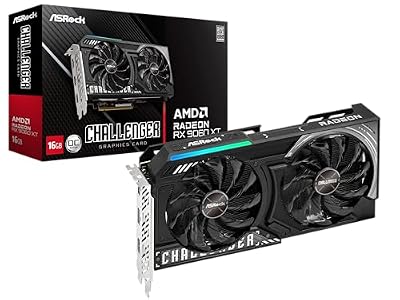

How Editing Software Uses the GPU
Editing applications use the graphics card in several ways. The first is decoding: turning compressed footage into frames that the timeline can display. Modern cards include fixed-function decoders for common codecs, which can keep playback smooth with high-bitrate files. The second is effects and colour work, where shaders and compute tasks speed up filters, transitions and colour grading. The third is export, where encoders compress the final timeline into a delivery file.
Each of those jobs depends on different hardware. Decoders and encoders are fixed-function blocks, and shader performance depends on the core count and clock speed. A card that does well at one task may not lead at another, so match your choice to the work you do most.
Check your footage codec
Look at the codecs your cameras and screen recorders produce. H.264 and HEVC are common, and AV1 is increasingly used for web delivery. Confirm that the card supports hardware decode for those codecs at your resolution and bit depth. Hardware support for a codec at 4K 10-bit is a more demanding test than support at 1080p 8-bit, so check specifications at the level you shoot.
Editing GPU Comparison Table
The table below compares the classes of card you are likely to consider for editing. Ranges are broad, and you should check the listing for current prices.
| Card class | Typical memory | Best for | Typical price range |
|---|---|---|---|
| High-end NVIDIA RTX card | 16GB to 32GB GDDR class | 4K and multi-stream timelines, heavy effects | Check current price |
| Upper-mid NVIDIA RTX card | 12GB to 16GB GDDR class | 1080p and 4K editing with moderate effects | Check current price |
| High-end AMD RDNA card | 16GB GDDR6 class | Editing with strong export and raster performance | Check current price |
| Entry card with 8GB or more | 8GB to 12GB class | Light 1080p editing and learning | Check current price |
If you also game on the same machine, our best GPU for video editing and gaming guide covers the overlap. For the NVIDIA mid-range options, our RTX 5070 Ti review is a useful reference.
GIGABYTE Radeon RX 9070 XT Gaming OC 16G Graphics Card, PCIe 5.0, 16GB GDDR6, GV-R9070XTGAMING OC-16GD Video Card


As an Amazon Associate we earn from qualifying purchases. Product prices and availability are accurate as of the date/time indicated.
Memory: Timelines, Effects and Previews
Memory matters in editing because timelines hold decoded frames, effect caches and preview renders. A simple 1080p timeline with a few clips can run well on an 8GB card. A 4K timeline with multiple layers, colour grades and motion effects will use more memory and can stutter when the card runs out. For serious 4K work, 12GB is a comfortable minimum, and 16GB gives more room for multi-layer projects.
System memory also matters, and a balanced editing system often needs more of it than a gaming PC. Our guides to the best 32GB DDR5 RAM and the best 64GB DDR5 RAM show how to size memory for heavier projects.
Preview quality and render cache
Most editors use a preview or render cache to keep the timeline smooth. A larger cache can reduce stutter, but it also uses drive space. Store the cache on a fast drive, and plan for enough space when working with high-bitrate footage.

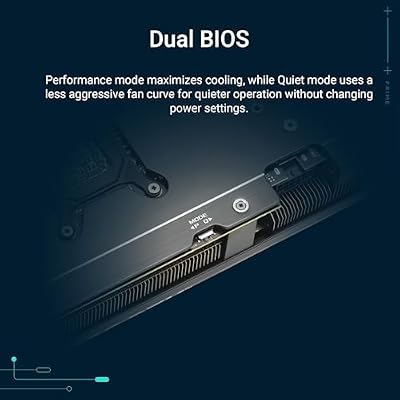
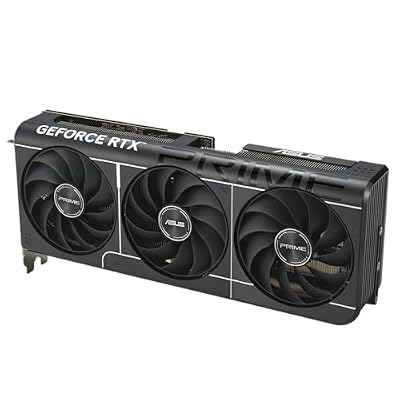
ASUS PRIME GeForce RTX 5070 12GB GDDR7 OC Edition Gaming Graphics Card | SFF-Ready, PCIe 5.0, HDMI/DP 2.1, 2.5-slot, Axial-tech Fans, Dual BIOS






As an Amazon Associate we earn from qualifying purchases. Product prices and availability are accurate as of the date/time indicated.
Storage, Power and Cooling for Editing
Editing involves heavy disk reads and writes, so storage speed can limit the experience as much as the GPU does. Use a fast NVMe drive for the operating system, the editing software and the cache, and keep the media on a fast drive or a fast external array. Our guide to the best 2TB SSD explains the performance tiers that suit editing work.
Power and cooling follow the same logic as rendering. Long export sessions keep the GPU under load for a long time. Choose a card with a robust cooler, use a case with good airflow and a power supply with headroom. Our guide to the best power supply for gaming explains the ratings that carry over to editing builds.
A common mistake is to buy a powerful card and then pair it with slow storage and a weak CPU. Balance matters, because an editing timeline is only as fast as its slowest stage. Our guide to the best CPU for gaming and streaming helps you choose a processor that keeps up with the GPU during encoding and playback.
Who Should Buy Which Editing Card
1. Editors working mostly in 1080p
An entry or upper-mid card with 8GB to 12GB covers 1080p work with moderate effects. It keeps the budget reasonable and handles most common codecs well.
2. Editors working in 4K with multi-layer timelines
An upper-mid or high-end card with 16GB of memory gives you room for 4K timelines and colour grading. It is the safer choice if your projects grow over time.
3. Creators who also game
A high-end card covers both tasks well. Choose one with strong driver support in the editing software you use and enough raster performance for your games.
Frequently Asked Questions
Do I need a professional card for video editing?
Most editors do not. A consumer card with current decode support and enough memory handles many workflows well. Professional cards are mainly for specific certified workflows.
Does more VRAM speed up exports?
Not directly. VRAM mainly helps timelines with many layers and effects. Export speed depends more on the encoder and the GPU’s compute performance.
Which codecs should I check?
Check H.264, HEVC and AV1 at the resolution and bit depth you shoot. Confirm hardware decode support for your camera’s formats.
Can I edit on an Intel Arc card?
Many editors can, provided the software supports the card’s acceleration features. Check your editing application’s list of supported GPUs before you buy.
Final Recommendation
Our ranked advice for editing is as follows. First, if you edit 4K with multi-layer timelines, choose a 16GB card from the upper-mid or high-end range, because the memory headroom prevents stutter as projects grow. Second, if you edit mainly 1080p, an upper-mid card with 12GB is a practical choice and keeps the budget under control. Third, if you also game, pick a high-end card that balances export speed with gaming performance. Compare the hero listing and the alternatives on memory, codec support and warranty, and confirm the exact model before ordering. Pair the card with fast storage and enough system memory, because a balanced build will outperform a single powerful part. If your editing rig doubles as a 4K gaming machine, our best GPU for 4K gaming guide shows where the high-end cards sit.


