Best Graphics Card for 3D Rendering 2026: VRAM, Renderer Support and Buying Advice
A graphics card for 3D rendering is judged by different criteria than a gaming card. Rendering engines care about memory capacity because a large scene has to fit in video memory, they care about which compute API a renderer supports, and they care about sustained performance over many hours of work rather than short bursts. Choosing a GPU for rendering therefore means checking the software you use, the scene sizes you work with and the memory your projects need.
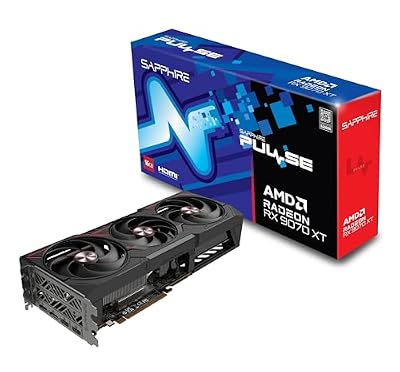
This guide explains how to choose a rendering graphics card in 2026. The hero listing below is one of the candidates in this comparison. Read its title and specification table to confirm the exact model, memory size and warranty before buying. We have not run our own rendering benchmarks for this article. The advice relies on how common renderers use GPU hardware and on the specifications that matter for the work.


What Rendering Needs That Gaming Does Not
Gaming cards are tuned for real-time frame rates. Rendering cards are asked to produce a finished image or animation frame, which can take seconds or minutes per frame. That work is often compute-heavy, and it benefits from large memory pools because the scene, textures and acceleration data must fit on the card. If the scene does not fit, many renderers either fall back to the CPU or fail, and the speed advantage of the GPU disappears.
Sustained performance also matters. A card that boosts high for a few seconds may slow down after a long render if its cooler cannot keep up. For long jobs, cooling quality and power limits are as important as the chip itself.
Renderer Support Comes First
Check which GPU backends your renderer supports before you compare cards. Blender’s Cycles renderer supports NVIDIA through CUDA and OptiX, AMD through HIP, and Intel through oneAPI, depending on the platform and version. In practice, NVIDIA cards have the most mature support in many GPU renderers, and OptiX is a common choice for ray-traced rendering in Cycles. Other renderers, including several commercial GPU engines, are built primarily around CUDA.
Before you buy, confirm in your renderer’s documentation that your card and driver combination is supported. Also check whether the renderer uses the GPU for denoising, viewport work or final frames, because the answer changes which feature matters most.
Why this matters for your budget
A card that looks excellent on paper can be a poor fit if your renderer favours another API. Check the support matrix for your exact software version. If you use several tools, prioritise the one that takes the most of your working hours.
3D Rendering GPU Comparison Table
The table below compares the classes of card you are likely to consider for rendering work. Ranges are broad because prices change with stock and promotions.
| Card class | Typical memory | Best for | Typical price range |
|---|---|---|---|
| Flagship NVIDIA card | 24GB to 32GB GDDR7 class | Very large scenes and heavy simulation | Check current price |
| Upper-mid NVIDIA card | 16GB GDDR7 class | Most freelance and hobby scenes | Check current price |
| High-end AMD card | 16GB GDDR6 class | Renderers with strong HIP support | Check current price |
| Budget card with 12GB or more | 12GB GDDR6 class | Light scenes and learning | Check current price |
For a deeper look at the NVIDIA options, read our RTX 5070 Ti review and our RTX 5090 review, which cover the top of the range where memory capacity matters most.
NVIDIA RTX PRO 4000 Blackwell Graphics Card - 24GB GDDR7 ECC Memory, PCIe 5.0 x16, 4X DisplayPort 2.1b, Single Slot Full Height AI Workstation GPU, Retail Packaging
As an Amazon Associate we earn from qualifying purchases. Product prices and availability are accurate as of the date/time indicated.
Memory Capacity: The Number That Decides Scene Size
Memory capacity is the first specification to check for rendering. A scene with dense geometry, high-resolution textures and volumetric effects can exceed 8GB quickly. If your scenes do not fit, you either reduce their complexity or move to a larger card. Estimate the memory your typical project uses by checking your renderer’s memory readout, then buy with headroom above that number.
Memory bandwidth and bus width matter too, but capacity is the constraint that stops work entirely. As a rule, buy the largest memory you can justify for your work, then choose the chip generation within your budget.
Memory for simulation and animation
Simulation and animation work often pushes memory harder than still images, because caches, particles and frame sequences build up. If you work in these areas, plan for more memory than a still-image workflow needs.
Power, Cooling and Workstation Fit
Rendering loads keep a GPU at full power for long periods. Choose a card with a robust cooler and check the case airflow, because heat builds up over hours of work. A quality power supply with headroom is essential, and a unit with a stable 12V rail protects the system during long jobs. Our guide to the best power supply for gaming explains the ratings to look for, and the principles carry over to workstation builds.
Plan the rest of the workstation too. A rendering system benefits from a fast CPU, ample system memory and quick storage for scene caches. Our guide to the best 32GB DDR5 RAM and the best 64GB DDR5 RAM help you size system memory for heavier projects.
Who Should Buy Which Class of Card
1. Hobby and freelance artists working on individual scenes
An upper-mid NVIDIA card with 16GB of memory covers most hobby and freelance scenes. It offers mature renderer support and enough headroom for typical projects, and it keeps the budget manageable.
2. Professionals with very large scenes or simulation work
A flagship card with more memory is the right choice when your scenes routinely exceed 16GB. The extra capacity saves you from rebuilding scenes to fit, and it reduces the risk of failed renders.
3. Learners and light users
A budget card with 12GB of memory can handle learning projects and light scenes. Upgrade when your scenes start to fail to fit or your render times become a bottleneck.
Frequently Asked Questions
Is NVIDIA better than AMD for rendering?
For many GPU renderers, NVIDIA has the most mature support, especially through CUDA and OptiX. AMD cards can work well in renderers with strong HIP support, so check your software’s support list.
How much VRAM do I need for 3D rendering?
It depends on your scene size. Many hobby and freelance projects fit into 16GB, while very large scenes and simulations may need more. Measure your typical scene in your renderer before you buy.
Do gaming cards work for rendering?
Yes, a gaming card can render well if its memory and renderer support meet your needs. The main differences are memory capacity and cooling under long sustained loads.
Should I buy a card with a higher memory bandwidth?
Bandwidth helps in some workloads, but capacity usually decides whether a scene fits at all. Check both, and prioritise memory capacity if you have to choose.
Final Recommendation
Our ranked advice for rendering is as follows. First, match the card to your renderer’s supported GPU backend, because a supported card with the right driver is worth more than a faster card that the software cannot use. Second, choose memory capacity above your typical scene size, with headroom for growth. Third, favour a card with a strong cooler and a reliable warranty if your work involves long, sustained renders. Compare the hero listing and the alternatives on memory, cooling and renderer support, and confirm the exact model before you order. For the broader GPU field, our best GPU for video editing and gaming guide covers the overlap between creative and gaming workloads. For the processor side of a render workstation, see our best CPU for gaming guide, which covers the chips that pair with these cards, and the wider best GPU for gaming list for context.