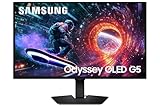
A second monitor is the single biggest upgrade you can make to a gaming setup without touching your graphics card. Suddenly you’ve got Discord, a strategy guide, Twitch chat, or a live map on one screen while the action stays front and center on the other. No more alt-tabbing out of a raid to check a build guide.
Getting dual monitors running smoothly takes more than plugging in a second cable, though. Refresh rates need to match, resolutions need to make sense side by side, and your GPU needs to have the ports to drive both without bottlenecking. This guide walks through picking the right pair of monitors, wiring them up correctly, and configuring Windows or your GPU control panel so both screens actually cooperate.
As an Amazon Associate we earn from qualifying purchases.



Choosing the Right Monitor Pair for Gaming
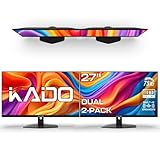
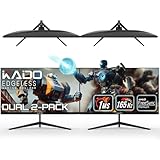
The easiest path to a clean dual-monitor setup is buying two identical monitors rather than mixing and matching. Matched pairs mean identical bezels, identical stands, and no fiddling with mismatched refresh rates or color profiles. Kado’s 2-packs are built specifically for this, shipping two identical panels so you’re not hunting for a second unit that matches your first.
- 24″ curved (1500R): The Kado 2-Pack Dual 24″ Curved 1500R 1920×1080 75Hz monitors fit most desks without needing extra depth, and the 1500R curve wraps the edges into your peripheral vision.
- 27″ curved (1500R): The Kado 2-Pack Dual 27″ Curved 1500R 1920×1080 75Hz pair gives more screen real estate for split-screen strategy games or wide spreadsheet-style overlays, at the cost of needing about 6 more inches of desk depth.
- 22″ flat: The Kado 2-Pack Dual 22″ Flat Screen 1920×1080 75Hz monitors are the budget-friendly, space-saving choice for smaller desks or secondary battlestations.
- 27″ flat: The Kado 2-Pack Dual 27″ Flat Screen 1920×1080 75Hz pair suits players who want a bigger flat canvas without the curve, useful if you also do design or video work on the side.
Curved vs. Flat: Which Fits Your Games
Curved panels like the 1500R curve found on Kado’s 24″ and 27″ curved 2-packs reduce edge distortion and eye travel, which matters most when a monitor sits close to your face or when you’re running an ultra-wide-style dual span for racing and flight sims. Flat panels are better for competitive shooters where a perfectly straight edge helps with aim consistency along horizontal lines, and they’re also the safer pick if you plan to rotate one screen vertically for chat or a coding editor.
- Curved: better immersion, less eye strain over long sessions, ideal for RPGs and sims.
- Flat: better for vertical rotation, slightly cheaper to mount, preferred by esports players.
Matching Resolution and Refresh Rate
Every panel listed here runs 1920×1080 at 75Hz, which is the detail that actually makes a dual setup work well. When both monitors share the same resolution and refresh rate, Windows treats them as a uniform extended desktop, windows drag between them without resizing, and your GPU doesn’t have to juggle two different render targets. Mixing a 60Hz monitor with a 75Hz one is the most common cause of stuttery mouse movement when dragging a window across the seam, so buying a matched 2-pack sidesteps that problem entirely.
Cables, Ports, and GPU Requirements
Check your graphics card’s output ports before ordering cables. Most modern GPUs (GTX 1660 and up, any RTX card, current AMD RX cards) have at least one HDMI and one DisplayPort output, which is enough to run two 1080p 75Hz monitors independently. If your card only has a single output type, you’ll need a splitter or adapter, but note that some cheap splitters mirror rather than extend the display.
- Use DisplayPort for your primary gaming monitor when possible; it handles 75Hz at 1080p with more headroom than HDMI 1.4.
- Confirm your GPU supports true multi-monitor output (nearly all do) rather than relying on a USB-to-HDMI adapter, which can introduce input lag.
- Grab two separate cables rather than one long one and one short one — Kado’s 2-packs typically include the necessary cables, but double check your GPU’s exact port types beforehand.
Setting Up Windows for Dual Monitors
Once both monitors are connected and powered on, right-click the desktop and select Display Settings. Windows should detect both panels automatically. From there:
- Drag the monitor icons in the layout view to match their physical left-right position on your desk.
- Set both to 1920×1080 and 75Hz under “Advanced display settings” if either defaults to 60Hz.
- Choose “Extend these displays” rather than “Duplicate” so each screen shows independent content.
- Pick your main gaming monitor as the “Primary display” so fullscreen games launch there by default.
Tips
- Keep your primary gaming monitor directly in front of you and angle the secondary screen slightly inward to reduce neck strain during long sessions.
- Use dual monitor arms instead of stock stands if desk space is tight — it also makes matching height between a 24″ and 27″ pair easier.
- In fullscreen games, use borderless windowed mode instead of true fullscreen so you can still glance at your second monitor without alt-tab lag.
- Calibrate brightness and color on both panels to match; identical models make this a quick one-time adjustment rather than an ongoing hassle.
Frequently Asked Questions
Do I need a high-end GPU to run two 1080p 75Hz monitors?
No. Driving two 1080p displays at 75Hz is light work for any GPU released in the last several years. The main requirement is having the right ports, not raw graphics horsepower.
Can I use one curved and one flat monitor together?
Technically yes, since Windows only cares about resolution and refresh rate matching, but the visual seam between a curved and flat edge is distracting for most people. A matched 2-pack avoids this entirely.
Will dual monitors slow down my game’s frame rate?
Not if the second monitor isn’t rendering the game itself. Running a browser or Discord on a secondary screen has minimal impact; the GPU only works hard on whatever window is actively rendering 3D content.
Should both monitors be the same size?
It’s strongly recommended. Mismatched sizes create uneven eye-line heights and make window dragging feel inconsistent. Kado’s identical 2-packs solve this by design.
Conclusion
Dual monitors turn a single-screen setup into a real command center, and the setup process is straightforward once you pick a matched pair. Whether you land on the curved 24″ or 27″ Kado 2-packs for immersion or the flat 22″ or 27″ options for a straighter edge and smaller footprint, matching resolution and refresh rate across both screens is what makes the whole thing feel seamless. Get the cabling right, set your primary display in Windows, and you’ll be running a two-screen setup that feels like it was always meant to be there.