

- Top Pick: FRESMOL Compressed Air Duster, Rechargeable Cordless Electric Air Blower
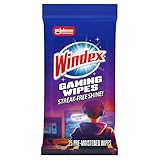
- Best Value: Windex Gaming Cleaning Wipes, Pre-Moistened Wipes to Instantly Clean all Gaming Gear and Electronics, Resealable Packaging for a Freshness Lock, 25 count (Pack of 1)
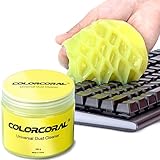
- Premium Choice: ColorCoral Cleaning Gel Universal Dust Cleaner for PC Keyboard Car Detailing Office Electronics Laptop Dusting Kit Computer Dust Remover, Computer Gaming Car Accessories, Gift for Men Women 160g
Affiliate disclosure: As an Amazon Associate we earn from qualifying purchases. This post contains affiliate links — if you buy through them we may earn a small commission at no extra cost to you. This never affects our recommendations.
Knowing how to clean your gaming PC properly is essential maintenance that directly affects gaming performance — dust buildup is the primary cause of thermal throttling, elevated temperatures, and premature component failure. A dusty GPU running at 90°C+ will throttle performance by 10–20%; after cleaning, the same GPU at 70°C delivers full boost clock speeds. This guide covers the complete PC cleaning process, from basic dust removal to deep cleaning of filters, heatsinks, and thermal paste replacement.
As an Amazon Associate we earn from qualifying purchases at no extra cost to you.




In a hurry? See the top-rated How to Clean Your Gaming PC deals available right now:
🛒 Check How To Clean Your Gaming Pc Prices on Amazon →🛒 Best Price Today on Amazon
Prime members get fast, free shipping on everything above, plus member-only deals. New members get a 30-day free trial — cancel anytime.
Start 30-Day Prime Free Trial →See Today’s Amazon DealsHow Often Should You Clean Your Gaming PC?
Every 3–6 months (standard): Quick dust removal with compressed air from exterior vents, filter cleaning, and visual inspection. Sufficient for cases with good dust filters in clean environments. Every 6–12 months (light users, clean rooms): Full interior cleaning including heatsink fins and fan blade wiping. Monthly or bimonthly (pet owners, carpeted floors, smokers): Dust accumulation dramatically faster in these environments — quarterly minimum is too infrequent. Signs your PC needs immediate cleaning: CPU/GPU temperatures 10°C+ higher than normal under same workload, increased fan noise (fans spinning faster to compensate for dust restriction), system stuttering or throttling in games that ran smoothly before.
Tools and Supplies Needed
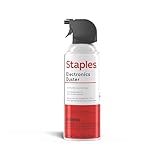
Essential: Compressed air can (or electric air duster — more eco-friendly, reusable, same pressure) — available at any electronics store. Microfiber cloth for wiping surfaces. Isopropyl alcohol 90%+ (IPA) — for cleaning thermal paste. Small soft-bristle brush (makeup brush or electronics cleaning brush) — for loosening stubborn dust. Phillips head screwdriver for panel removal. Optional but useful: Anti-static wrist strap ($5) — prevents electrostatic discharge during component handling. Plastic spudger or toothpick — for cleaning heatsink fin gaps. Thermal paste (if doing CPU/GPU repasting): Thermal Grizzly Kryonaut or Noctua NT-H1 recommended.
Step-by-Step PC Cleaning Guide
Step 1: Preparation and Safety
Shut down Windows completely (not sleep/hibernate). Power off the PSU via the switch on the back (set to “O”). Unplug the power cable. Press the power button once to discharge any remaining capacitor charge. Wait 30 seconds. Move your PC to a work area — ideally a table in an uncarpeted area, or outside/in a garage for dusty systems. This prevents redistributed dust from landing on carpet and being sucked back in.
Step 2: Clean Dust Filters
Most modern cases (Fractal, be quiet!, Corsair, NZXT) have removable mesh dust filters on front intake, top, and/or bottom panels. Remove each filter. Tap gently over a trash can to dislodge loose dust. Rinse under running water if heavily clogged (they’re metal or plastic mesh — water is fine). Allow to fully dry before reinstalling (30–60 minutes air dry, or gentle pat-dry with microfiber). Reinstalling a wet filter will cause condensation issues — ensure fully dry.
Step 3: Open the Case and Remove Major Components
Remove the side panel (typically thumb screws on rear or top-rear). For thorough cleaning, remove GPU from PCIe slot (unscrew the bracket, press PCIe release latch, slide out) and set aside on an anti-static surface. GPU removal allows full access to case interior and GPU heatsink cleaning without obstruction. CPU cooler can remain installed for basic cleaning; remove only if repasting thermal paste.
Step 4: Compressed Air Cleaning
Use short 1–2 second bursts of compressed air rather than sustained blasting — sustained airflow can over-spin fan bearings, potentially causing damage. Hold fans in place with a finger or a toothpick inserted through the fan grill while blowing dust off — prevents the fan from free-spinning and generating back-EMF in the fan header. Clean in this order: GPU heatsink fins (blow from top, sides, catch dust falling out), case fans (hold blades, blow from both sides), CPU cooler heatsink (blow through fin stack from short side), RAM slots and PCIe slots (light pass), PSU (blow through its exhaust grill — do NOT open PSU), case corners and bottom dust buildup.
Step 5: Wipe Down Fan Blades
After compressed air, fan blades still have adherent dust. Dampen a microfiber cloth corner with IPA or water (wrung out — not dripping) and wipe each fan blade individually. This removes the sticky layer of dust that compressed air can’t dislodge and significantly improves airflow efficiency. Case fans, CPU cooler fans, and GPU fans — all benefit from blade wiping.
Thermal Paste Replacement (Annual Maintenance)
CPU thermal paste dries out over 2–3 years, increasing temperatures by 5–15°C. If CPU temperatures have crept up over time even after dust cleaning: remove CPU cooler, clean old thermal paste from CPU IHS and cooler base using IPA 90%+ on a lint-free cloth, apply new thermal paste (Thermal Grizzly Kryonaut: pea-sized dot center method, or Noctua NT-H1 for lower cost), reinstall cooler. GPU thermal paste similarly degrades — GPUs 3+ years old benefit from repasting, though this voids warranty on newer cards and requires confident disassembly skills.
Frequently Asked Questions
Can I use a vacuum cleaner to clean my PC?
No — household vacuum cleaners generate static electricity that can damage components and have insufficient fine-dust capture, instead redistributing fine particles. Use compressed air (canned or electric duster) which displaces dust outward without static risk. Exception: a soft brush attachment on a vacuum can collect dust from the exterior of a heavily clogged case fan grill before compressed air cleaning, but never use suction directly near PCIe cards or motherboard.
How do I know if my GPU is thermal throttling from dust?
Use GPU-Z or MSI Afterburner monitoring overlay in-game to check GPU temperature and GPU Clock speed simultaneously. If GPU Clock speed drops below the GPU’s rated boost clock while temperature is above 83°C (NVIDIA) or 110°C junction (AMD): that is thermal throttling. Post-cleaning, the same GPU should run 10–20°C cooler and sustain full boost clock speeds. A dusty GPU running at 88°C throttling from a 2.5GHz boost to 2.0GHz loses approximately 20% performance that cleaning restores for free.
Is it safe to clean a PC while it’s on?
No — always clean a PC while fully powered off and unplugged. Compressed air can dislodge dust onto powered components causing shorts, can spin fans past safe RPM on powered fan headers, and creates static electricity risk near live circuits. The only “while running” diagnostic is using monitoring software to check temperatures — the physical cleaning itself must be performed with the PC fully shut down, PSU switched off, and power cable unplugged.
Related Articles
Looking for more on this topic? Browse the hand-picked guides below — each one applies the same scoring rubric used in this review.


