Affiliate disclosure: As an Amazon Associate we earn from qualifying purchases. This post contains affiliate links — if you buy through them we may earn a small commission at no extra cost to you. This never affects our recommendations.
Learning how to set up dual monitors for gaming transforms your gaming experience — a second monitor for Discord, browser, YouTube, or stream management eliminates constant alt-tabbing and keeps your game running in full focus on your primary display. Modern GPUs support two or more monitors natively, and the setup process takes under 15 minutes once you have the right cables. This is the complete dual monitor gaming setup guide for 2025.
As an Amazon Associate we earn from qualifying purchases at no extra cost to you.





In a hurry? See the top-rated How to Set Up Dual Monitors for Gaming deals available right now:
🛒 Check How To Set Up Dual Monitors For Gaming Prices on Amazon →🛒 Best Price Today on Amazon
Prime members get fast, free shipping on everything above, plus member-only deals. New members get a 30-day free trial — cancel anytime.
Start 30-Day Prime Free Trial →See Today’s Amazon DealsWhat You Need for Dual Monitor Gaming
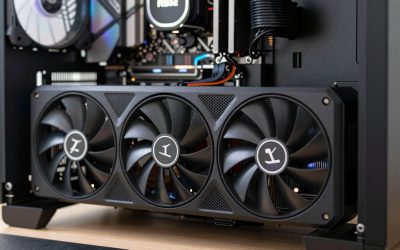
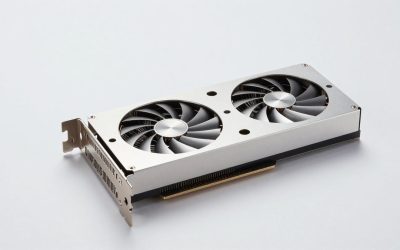
GPU with two video outputs: Any modern discrete GPU (NVIDIA RTX, AMD RX) has 3–4 video outputs (typically: 2× DisplayPort 1.4, 1× HDMI 2.1, 1× HDMI 2.0 or USB-C). Even entry-level RTX 4060 supports three simultaneous monitors. Two monitors: Primary gaming monitor (high refresh rate, low response time) + secondary monitor for multitasking (1080p 60Hz is sufficient for a secondary display). Cables: DisplayPort cables for the primary monitor (supports high refresh rates at 1440p/4K). HDMI 2.0 or DisplayPort for the secondary. Match cable to monitor input and GPU output. Desk space and mount: Dual monitor arm recommended for space efficiency and cable management (VESA 100×100mm mounting pattern on 90% of monitors).
Step-by-Step Dual Monitor Setup
Step 1: Connect Both Monitors to Your GPU
Power off your PC. Connect primary monitor → GPU’s primary DisplayPort output (usually labeled DP1 or the top port). Connect secondary monitor → GPU’s second DisplayPort or HDMI output. Power on the PC. Windows should automatically detect both monitors. If a monitor shows no signal: check the cable connection, verify the monitor input source setting matches the cable type used (press monitor’s Input button to select HDMI/DisplayPort).
Step 2: Configure Display Settings in Windows
Right-click desktop → Display Settings. You should see two numbered monitor thumbnails (1 and 2). Click “Identify” to see which number corresponds to which physical monitor. Drag the monitor thumbnails to match your physical layout (primary on left/right, secondary on other side). Click on each monitor thumbnail to set: Resolution (match native resolution of each monitor), Refresh Rate (set primary to maximum, secondary to 60–144Hz as appropriate), Scale (125% for 1080p, 100% for 1440p typically). Set your primary display: click primary monitor thumbnail → scroll down → check “Make this my main display.” Click Apply → Keep Changes.
Step 3: Set Up Windows Snap and Multi-Monitor Taskbar
Taskbar on both monitors: Right-click Taskbar → Taskbar Settings → System Tray Behaviors → scroll to “Taskbar behaviors” → enable “Show taskbar on all displays.” This puts the taskbar on both monitors for easy app navigation. Windows Snap: Windows 11 enables multi-monitor snap by default. Hover over a window’s maximize button to see snap layouts. Use Windows Key + Left/Right arrow to snap windows to monitor halves. Use Windows Key + Shift + Left/Right arrow to move a window to the other monitor.
Step 4: Configure Your Game for Dual Monitor Use
Most games default to full screen on the primary monitor. For competitive games (CS2, Valorant, CoD): use Fullscreen Exclusive mode on primary monitor — prevents accidental cursor leaving the game window. For single-player games: Windowed Borderless mode allows easy alt-tab to secondary monitor without losing game focus. Discord/browser on secondary: launch on secondary monitor, leave it open while gaming on primary. NVIDIA users: NVIDIA Control Panel → 3D Settings → “NVIDIA Surround and Physx” — do NOT enable Surround unless you want a stretched single-display across both monitors.
Recommended Dual Monitor Configurations
Gaming + Productivity setup: 27″ 1440p 165Hz primary + 24″ 1080p 60–75Hz secondary ($350–500 total). Gaming + Streaming: 27″ 1440p 144Hz primary + 24″ 1080p secondary for OBS/Twitch Dashboard ($350–500 total). Premium dual 1440p: Two matching 27″ 1440p 165Hz monitors for visual consistency and surround gaming capability ($600–800 total). Ultrawide + secondary: 34″ ultrawide 3440×1440 primary + 24″ secondary — wider primary FOV with full secondary screen for apps ($600–900 total).
Frequently Asked Questions
Does dual monitor setup affect gaming FPS?
A secondary monitor at idle (displaying static content like Discord, browser, or desktop) has minimal impact on gaming FPS — typically under 1–2%. Running video or GPU-intensive content on the secondary monitor (YouTube, streaming software) adds 2–5% GPU load. The primary concern is VRAM usage: two monitors occupy additional VRAM framebuffers (~100–200MB). On 8GB VRAM GPUs at 4K with demanding games, this marginal VRAM reduction can occasionally matter — at 1440p and below, it’s inconsequential.
Can I use two different monitor brands and sizes?
Yes — Windows handles mixed-size, mixed-resolution, mixed-refresh-rate dual monitor configurations natively. Set each monitor to its native resolution independently. Color calibration may differ between monitors (different panel quality, factory calibration). For color-critical work, matching panel brands improves consistency — for gaming, mismatched monitors are perfectly functional. The main practical consideration is physical height matching at your desk — adjustable stands or a dual monitor arm resolves height differences.
What cable do I need for 1440p 144Hz on a second monitor?
DisplayPort 1.4 cable (recommended): supports 1440p up to 240Hz, 4K up to 144Hz — future-proof choice for gaming monitors. HDMI 2.0 cable: supports 1440p up to 144Hz (technically 120Hz native, 144Hz on gaming monitors that enable it) and 4K at 60Hz. HDMI 2.1 cable: supports 4K 144Hz and 1440p 240Hz — required for high-end 4K 144Hz gaming on secondary monitors. Use DisplayPort for primary gaming monitor where possible; HDMI 2.0 is entirely sufficient for a secondary 1080p or 1440p 60–75Hz display.
Related Articles
Looking for more on this topic? Browse the hand-picked guides below — each one applies the same scoring rubric used in this review.