Buy a RAM kit rated for 6000MT/s and it’ll still boot at a sluggish 4800MT/s or even 3600MT/s until you tell your motherboard to unlock its full speed. That’s where XMP (Intel Extreme Memory Profile) and EXPO (AMD Extended Profiles for Overclocking) come in. These are one-click profiles baked into your memory sticks that push voltage, frequency, and timings to the values the manufacturer actually tested and binned for.
The performance gap is real and measurable. Going from JEDEC default speeds to a rated EXPO or XMP profile typically nets 8-15% more frames per second in CPU-bound games, and noticeably faster load times, 1% lows, and application responsiveness. In 2026, with DDR5 kits standard across new AMD and Intel builds, enabling this profile is arguably the single highest-value five-minute setting change you can make. Here’s exactly how to do it safely.
Related guide: Best gaming controllers
As an Amazon Associate we earn from qualifying purchases at no extra cost to you.




⚡ Save on Your Next PC — Amazon Prime
Prime members get fast free shipping on the systems above, plus early access to Prime Day & Black Friday PC deals. New members get a 30-day free trial.
Watch: How to Enable XMP / EXPO for Faster RAM — Video Review
XMP vs. EXPO: What’s the Difference?
Both accomplish the same goal: loading a pre-validated overclock profile for your RAM. The difference is which platform created and certified it.
- XMP (Intel): Found on Intel motherboards and most RAM kits. Current standard is XMP 3.0, which supports up to five saved profiles.
- EXPO (AMD): AMD’s answer for Ryzen platforms, introduced with AM5. Kits explicitly marked “AMD EXPO,” like the G.SKILL Trident Z5 Neo RGB kit, are tuned specifically for Ryzen memory controllers.
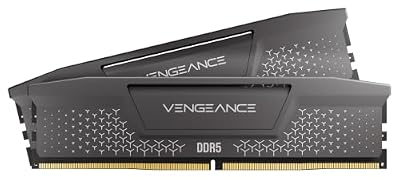
- Dual-certified kits: Many modern kits, including several Corsair Vengeance DDR5 lines, carry both an XMP and an EXPO profile on the same stick, so the identical kit works optimally on either platform.
Before You Enable It: Quick Checklist
Enabling a memory profile is low-risk, but a few checks up front prevent boot loops and wasted troubleshooting time.
- Update your motherboard BIOS to the latest version. Memory compatibility and stability improve with almost every BIOS revision.
- Confirm your RAM kit’s rated speed matches what your CPU and motherboard officially support (check the motherboard’s QVL, or Qualified Vendor List, if you want zero surprises).
- Make sure your kit’s rated voltage (commonly 1.35V-1.40V on DDR5 kits) is safe for sustained use. It is, by design, since manufacturers validate at that voltage.
- Have your BIOS access method ready: usually Del or F2 during boot.
Step-by-Step: Enabling XMP or EXPO in BIOS
The process takes about two minutes on almost any modern motherboard.
- Restart your PC and press Del or F2 repeatedly to enter BIOS/UEFI setup.
- Switch to Advanced Mode if your board opens in a simplified EZ Mode screen.
- Look for a memory section labeled “Ai Tweaker,” “Extreme Memory Profile,” “DOCP,” or “EXPO” depending on your motherboard brand (ASUS, MSI, Gigabyte, and ASRock all label this slightly differently).
- Select the profile matching your kit’s advertised speed, for example DDR5-6000 CL30.
- Save and exit (usually F10), then let the system reboot. It may restart twice while it trains the new memory timings.
Verifying It Worked
Never assume the profile applied correctly. Confirm it.
- Open Task Manager (Windows) and check the Performance tab under Memory. It should show your rated speed, e.g., 6000 MHz, not a lower default.
- Use CPU-Z’s Memory tab for a more detailed read on frequency, timings, and voltage.
- Run a quick stress test with something like Memtest86 or AIDA64 for quicker read/write/copy bandwidth numbers if you want peace of mind on stability.
Tips
- If your system won’t boot after enabling the profile, clear CMOS or use the motherboard’s memory retry button. Most boards will auto-fallback to safe defaults after a few failed attempts.
- Populate the correct DIMM slots (usually A2/B2, check your manual) for dual-channel mode. Single-channel operation quietly kills a big chunk of the bandwidth gain.
- On AMD Ryzen, EXPO also tunes your Infinity Fabric clock (FCLK) alongside memory speed, which is why Ryzen sees a larger performance jump from enabling it than Intel typically does.
- Don’t chase a profile faster than your kit is rated for. Manual overclocking past EXPO/XMP is possible but requires its own stability testing and isn’t a “one setting” fix.
Frequently Asked Questions
Is enabling XMP or EXPO considered overclocking?
Technically yes, since you’re running the memory above its default JEDEC spec. But it’s manufacturer-validated overclocking, tested for stability at the factory, which makes it far safer than manual tuning.
Will it void my warranty?
No. Both AMD and Intel, along with virtually every RAM manufacturer, explicitly support and expect users to enable these built-in profiles. It’s a standard, sanctioned feature.
Can I use an XMP kit on an AMD motherboard, or vice versa?
Often yes, if the kit is dual-certified. If it’s XMP-only, an EXPO-certified AMD motherboard can usually still read and apply the profile manually, though results vary slightly by kit and platform.
Why won’t my PC boot after enabling the profile?
Usually it’s a speed higher than your specific CPU’s memory controller can handle at stock settings, or DIMMs in the wrong slots. Drop to a lower supported speed, double check slot placement, and update BIOS before troubleshooting further.
Conclusion
Enabling XMP or EXPO is the closest thing to a free performance upgrade left in PC building: no extra cost, no extra hardware, just unlocking what you already paid for. Pair a rated DDR5-6000 kit, whether that’s a 16GB Corsair Vengeance kit for a budget-focused build or a 64GB G.SKILL Trident Z5 Neo EXPO kit for heavier workloads, with the correct BIOS profile, verify it with CPU-Z, and you’re done in under five minutes.