- Top Pick: Build Your Ultimate Gaming PC (2025/2026 Edition): A Beginner-to- Pro Guide to Building a High Performance Custom Rig (Custom Rig Blueprint Series: Designing … Streaming, Editing, and Everyday Use)
- Best Value: How to Build a Gaming PC for Beginners: A Complete Step-by-Step PC Building Guide for Gaming, Streaming, and Performance (Custom Rig Blueprint Series: … Streaming, Editing, and Everyday Use)
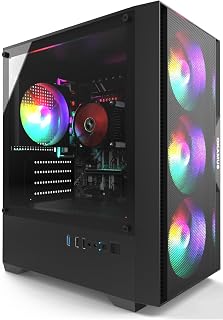
- Premium Choice: Pre-Built PC, i5 CPU Up to 3.6GHz, Integrated Graphics Only, 256 GB M.2, 8 GB RAM Cheap Budget Gaming PC, RGB Fans x 3, Win 11 Home,WiFi 6 + BT 5.3, 400W PSU (i5+No GPU+8GB+256GB)
Nothing kills the mood faster than hitting the power button and getting silence, a spinning fan with no display, or a quick blink that dies right away. Before you assume the worst, know that most no-power issues on gaming PCs come down to a handful of usual suspects: the power supply, loose connections, a tripped motherboard safeguard, or a display signal problem that only looks like a power issue.
- Watch: Why Won’t My Gaming PC Turn On? (2026 Fixes) — Video Review
- Start With the Basics: Power Delivery
- Inspect Internal Connections
- Diagnose With Motherboard LEDs and Beep Codes
- Rule Out a Case Short or PSU Failure
- When It’s a Display Problem, Not a Power Problem
- Tips
- Frequently Asked Questions
- Conclusion
- Related Articles
This guide walks through a logical troubleshooting order so you’re not guessing, plus a few resources worth having on hand if you end up needing to reseat components or rebuild from scratch.
As an Amazon Associate we earn from qualifying purchases at no extra cost to you.




⚡ Save on Your Next PC — Amazon Prime
Prime members get fast free shipping on the systems above, plus early access to Prime Day & Black Friday PC deals. New members get a 30-day free trial.
Watch: Why Won’t My Gaming PC Turn On? (2026 Fixes) — Video Review
Start With the Basics: Power Delivery
Before touching anything inside the case, rule out the simple stuff. A surprising number of “dead PC” calls turn out to be a bad outlet, a loose cable, or a switch nobody noticed.
- Check the PSU’s rear power switch is set to “1” (on), not “0”.
- Plug the PC directly into a wall outlet, skipping surge protectors and power strips to rule them out.
- Try a different outlet or a known-good power cable.
- Listen and look for any response at all: fan spin, RGB flicker, or motherboard LEDs. Zero response points to the PSU or motherboard; a brief flicker points elsewhere.
Inspect Internal Connections
Cables can work loose during shipping, upgrades, or even just from vibration over months of use. This is the single most common fix for a PC that won’t POST.
- Reseat the 24-pin motherboard connector and the 4/8-pin CPU power connector. Both need to click fully into place.
- Confirm the front-panel power switch cable is connected to the correct motherboard pins (check your manual for the exact pinout).
- Reseat the GPU in its PCIe slot and make sure its PCIe power cables are fully inserted, not just resting in the socket.
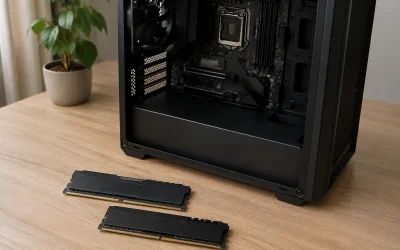
- Reseat RAM sticks one at a time; a single bad seat can prevent boot entirely on some boards.
Diagnose With Motherboard LEDs and Beep Codes
Most motherboards built in the last several years include diagnostic LEDs labeled CPU, DRAM, VGA, and BOOT. Whichever one stays lit tells you where the fault likely is.
- CPU LED lit: check CPU seating and cooler mounting pressure; an improperly seated cooler can trigger thermal protection shutdowns.
- DRAM LED lit: reseat RAM, try a single stick in slot A2, and confirm it’s on the motherboard’s QVL (qualified vendor list).
- VGA LED lit: reseat the GPU or test with integrated graphics if your CPU has it.
- No LEDs at all: suspect the PSU or a short somewhere in the case.
Rule Out a Case Short or PSU Failure
If you’ve checked connections and still get nothing, the case itself or the power supply may be at fault.
- Breadboard test: remove the motherboard from the case and power it on a non-conductive surface (its own box works) with just CPU, one RAM stick, and the PSU connected. If it boots, the case has a short, often from a misplaced standoff.
- Test the PSU with a paperclip trick or a dedicated PSU tester on the 24-pin connector; if the fan doesn’t spin, the PSU is likely dead.
- For budget builds like a Pre-Built PC with integrated graphics and a 400W PSU, an undersized or aging power supply is a common failure point once other components draw more current over time.
When It’s a Display Problem, Not a Power Problem
Fans spinning and lights on but no image can look like a power failure but usually isn’t.
- Confirm the monitor cable runs from the GPU, not the motherboard’s video output, if you have a discrete card installed.
- Try a different cable and input port on the monitor itself.
- Clear CMOS via the motherboard jumper or battery removal if you recently changed BIOS settings or overclocked.
Tips
- Keep your motherboard manual handy; front-panel and diagnostic LED layouts vary by brand and model.
- Work on an anti-static surface and ground yourself before handling components, especially RAM and the CPU.
- If you’re building from scratch and want to avoid these headaches entirely, a step-by-step resource like “How to Build a Gaming PC for Beginners” or “Build Your First PC: A Complete Beginner’s Guide” covers proper cable seating and connector order in detail.
- Label cables as you disconnect them during troubleshooting so reassembly doesn’t introduce a new problem.
Frequently Asked Questions
My PC turns on for one second then shuts off. What’s wrong?
This is almost always a protection shutdown triggered by the motherboard detecting a short, an unseated CPU, or a PSU that can’t maintain stable voltage under load. Reseat the CPU cooler and check for any stray screws or standoffs touching the motherboard’s underside.
Is it safe to test a power supply outside the case?
Yes, using either a dedicated PSU tester or the paperclip method on the 24-pin connector’s green and any black wire. This confirms the fan spins and rails are live, though it won’t catch every failure mode under real load.
Could a BIOS update cause a no-boot situation?
Yes. A failed or interrupted update can corrupt the BIOS. Clearing CMOS sometimes resolves this, but persistent failures may require a USB BIOS flashback feature if your motherboard supports it.
Should I just buy a pre-built if my PC keeps failing?
If you’ve ruled out cables, RAM, and the PSU and still have issues, a budget option like a Pre-Built PC with an i5 CPU and 256GB storage removes the guesswork, though it trades upgrade headroom for reliability out of the box.
Conclusion
A gaming PC that won’t turn on is frustrating, but the fix is rarely as dramatic as a dead motherboard. Work through power delivery, connections, and diagnostic LEDs in order before assuming the worst, and keep a solid build reference like “Your Guide to Building Custom PCs for Gaming” or the Haynes “Build Your Own Gaming PC” manual nearby for the next time you’re inside the case.