
Marvel Rivals Pro Player Setup & Settings Guide
Marvel Rivals is a fast team-based hero shooter where crosshair placement, frame rate stability and quick input response all shape how often you win fights. Many players search for a pro setup, but the practical value lies in understanding why certain choices are made and how to test them on your own hardware. This guide explains the principles that competitive players usually prioritise, including frame rate, display settings, mouse and keyboard setup and network stability. It does not quote a specific professional player’s configuration, since those settings change often and cannot be verified here.
The hero listing above was chosen from a search for mouse and keyboard combinations used with competitive shooters, and the alternatives came from the same search. It is the closest match we found, not a confirmed copy of a named product or a pro player’s kit. Check the card for the exact model, connection type and current price before you buy anything.
What Competitive Players Prioritise
Competitive play in Marvel Rivals depends on a small set of factors that compound. Frame rate and frame pacing determine how clearly you see enemies and how responsive your aim feels. Input hardware determines how precisely you can move and react. Network stability decides whether your actions register on time. A setup that is strong in one area but weak in another can lose fights that a balanced setup would win. Build from the bottom up: first stable performance, then input, then comfort.
It is also worth remembering that players differ in grip, sensitivity and preferred layout. A setting that suits one player may hurt another. Use the principles here as a starting point, then test in practice mode or casual matches and keep changes that clearly help.
Frame Rate and Display Settings
Choosing a Frame Rate Target
For a fast shooter, a steady frame rate matters more than a high peak. Decide on a target that your hardware can hold through team fights, and set a frame cap slightly below your monitor’s refresh rate. A stable cap often feels smoother than an uncapped setting that swings between high and low values. Test the cap during a heavy fight, not only in a quiet area.
Upscaling, Resolution and Sharpness
Upscaling can recover frame rate without a large loss in clarity, but the mode matters. Quality modes preserve more detail, while performance modes add speed at the cost of sharpness. Choose the mode that keeps enemy silhouettes and small details clear at range. If the game offers a sharpening slider, use it carefully, since too much can create halos around characters.
Refresh Rate and Adaptive Sync
A high refresh monitor helps only if the game can deliver frames to match. Enable adaptive sync if your monitor supports it, and check that the refresh rate is set to its maximum in the operating system. Our guide to refresh rates for gaming explains how to decide between 144Hz and higher-refresh panels, and the best 1440p 240Hz gaming monitors roundup covers the high refresh category.
Comparison Table: Setup Priorities by Role
The table compares setup priorities by what they affect. It is a decision aid, not a set of fixed values.
| Setup area | Main benefit | Main risk if wrong | Suggested test |
|---|---|---|---|
| Frame rate cap | Steady frame pacing | Stutter or input lag | Test during team fights |
| Upscaling mode | Higher frame rate | Blurry enemies at range | Compare quality and performance |
| Mouse DPI and sensitivity | Precise, repeatable aim | Overshoot or slow tracking | Use a consistent value across games |
| Keyboard layout | Comfortable hand position | Fatigue or missed inputs | Practise in custom games |
| Network connection | Consistent hit registration | Rubber-banding and spikes | Test wired versus wireless |

AULA F99 Wireless Mechanical Keyboard,Tri-Mode BT5.0/2.4GHz/USB-C Hot Swappable Custom Keyboard,Pre-lubed Linear Switches,RGB Backlit Computer Gaming Keyboards for PC/Tablet/PS/Xbox


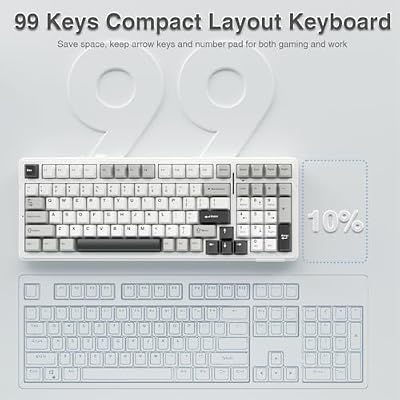
As an Amazon Associate we earn from qualifying purchases. Product prices and availability are accurate as of the date/time indicated.
Mouse and Keyboard Setup
Start with a mouse sensitivity that lets you move smoothly across the screen with a comfortable arm or wrist motion. Many players find that a moderate DPI with a lower in-game sensitivity gives more consistent small movements. Keep the same DPI and in-game sensitivity across games if you can, since it helps muscle memory. Our best DPI for gaming guide explains how to relate DPI to sensitivity, and the best gaming mouse 2026 roundup covers mice that suit fast shooters.
For the keyboard, set the bindings for abilities and movement so that your fingers stay on home keys. Many players keep the most common actions close together and avoid awkward stretches. Switch type is a matter of feel. Linear switches suit quick repeated presses, while tactile switches suit players who want feedback. Our best gaming keyboard 2026 guide covers the options, and the best keyboard switches for gaming roundup explains the differences.
Network and Input Stability
Wired Ethernet usually gives a more stable connection than Wi-Fi, which matters in a game where small delays change outcomes. If you must use Wi-Fi, keep the router close and avoid congested channels. Close background downloads and streaming during matches. Our best Ethernet settings for gaming guide covers the basics, and the best router settings for gaming roundup helps with the network side.
Hardware Pairing for Marvel Rivals
The graphics card sets your visual ceiling, and the processor can limit frame rate in busy matches with many effects on screen. If you see low frame rates with low GPU load, check the CPU side. Our best GPU for Marvel Rivals guide compares cards for this game, and the best CPU for gaming roundup covers processors that keep frame times steady.
If you are building a dedicated competitive PC, the best CPU for 1440p gaming guide helps match a processor to a 1440p display, and the best FPS gaming roundup explains which hardware choices matter most for shooters.
Testing and Refining Your Setup
Change one setting at a time and test in the same type of match. Record your frame rate, noticeable stutter and how the crosshair feels during fights. Keep changes that improve consistency and remove changes that add noise. Revisit the setup after game patches, since performance and balance can shift. The goal is a setup you trust in a tense round, not a copy of someone else’s configuration.
Frequently Asked Questions
Do I need a pro player’s exact settings?
No. Pro configurations change often and depend on the player’s hands and hardware. Use the principles here and test what works for you.
Is a higher frame rate always better?
Not if it comes with stutter. A steady frame rate with consistent pacing is usually better than a higher average with spikes.
Should I use upscaling in competitive play?
Often yes, if the quality mode keeps enemies clear at range. Test the mode you choose in busy scenes before committing.
Which input device matters most?
Both matter. A comfortable mouse and a keyboard layout that suits your hands usually make a bigger difference than a small spec gap between models.
Final Recommendation
The best Marvel Rivals setup for most players combines a steady frame cap, a quality-focused upscaling mode, a comfortable mouse sensitivity, a keyboard layout that keeps your hands in place and a wired network connection. Test each change in real matches, keep what improves consistency, and revisit the setup after patches. Compare the hero listing and alternatives on their cards, confirm the connection type and current price, and build a setup you can rely on under pressure.







