Affiliate disclosure: GamingPCGuru is reader-supported. When you buy through links on our site, we may earn an affiliate commission at no extra cost to you. This does not influence our independent reviews.


As an Amazon Associate we earn from qualifying purchases at no extra cost to you.
🛒 Best Price Today on Amazon
Prime members get fast, free shipping on everything above, plus member-only deals. New members get a 30-day free trial — cancel anytime.
How to Pick Gaming Cables and Adapters: The Hidden Bottleneck Most Builds Ignore
Quick Answer (TLDR)
Cables are the most overlooked component in modern gaming builds, and the wrong cable can silently rob you of half the performance you paid for. A 4K 240Hz monitor connected via an old DisplayPort 1.4 cable runs at 4K 120Hz or 4K 240Hz with DSC compression. A 12V-2×6 GPU power cable bent at a tight angle is the failure mode behind most RTX 4090/5090 melting cable horror stories. A USB 3.2 Gen 2×2 external SSD on a USB 3.0 cable runs at one-third speed. The 2026 cable rules: DisplayPort 2.1 UHBR 20 for any 4K 240Hz or 1440p 480Hz monitor, native 12V-2×6 PSU cable (not an adapter) for any RTX 4080+ class GPU, USB-C 3.2 Gen 2×2 cables marked with the 20Gbps logo for fast external storage, and Cat 6a or Cat 7 Ethernet for 2.5GbE+ connections. Spend $30-80 on cables to avoid silently bottlenecking $3,000 of hardware.
The Five Criteria That Matter
1. DisplayPort and HDMI bandwidth standards. DisplayPort 1.4 (32 Gbps): handles 4K 144Hz, 1440p 240Hz uncompressed. DisplayPort 2.1 UHBR 20 (80 Gbps): handles 4K 240Hz, 8K 60Hz uncompressed. HDMI 2.1 (48 Gbps): handles 4K 144Hz, 8K 30Hz. HDMI 2.1a/b (FRL 12 Gbps per lane): supports higher refresh with DSC. Match cable standard to monitor maximum, not minimum.
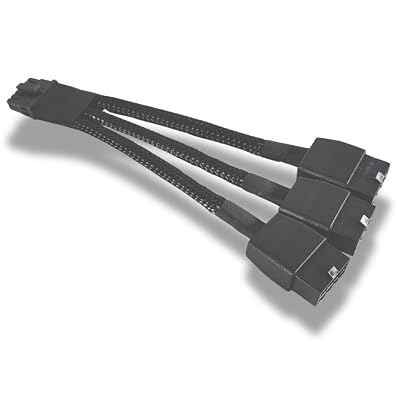
2. GPU power cable — native 12V-2×6 mandatory. RTX 4080/4090 and RTX 5080/5090 use the 12V-2×6 (formerly 12VHPWR) connector. PSU adapters from 4x 8-pin to 12V-2×6 are failure-prone — they create resistance points and cable strain. Buy a PSU with native 12V-2×6 output cable, or buy a quality aftermarket cable from your PSU manufacturer.
3. USB-C cable certification levels. Not all USB-C cables are equal. USB 2.0 USB-C: 480 Mbps, charging only. USB 3.2 Gen 1 USB-C: 5 Gbps. USB 3.2 Gen 2 USB-C: 10 Gbps. USB 3.2 Gen 2×2 USB-C: 20 Gbps. USB4 USB-C: 40 Gbps. Thunderbolt 5 USB-C: 80 Gbps. Look for clear bandwidth labeling and USB-IF certification.
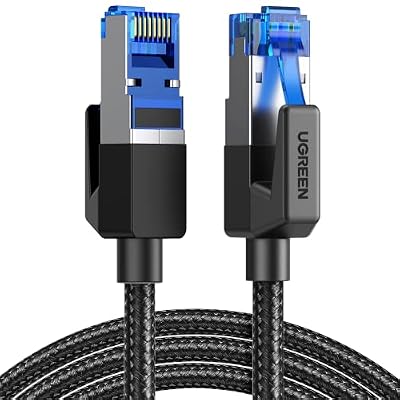
4. Ethernet category for fast networking. Cat 5e: 1 Gbps. Cat 6: 1-10 Gbps (10 Gbps only short distances). Cat 6a: 10 Gbps to 100m. Cat 7: 10 Gbps shielded. Cat 8: 25-40 Gbps. For 2.5GbE motherboard ports, Cat 5e works; for 10GbE, Cat 6a minimum.
5. Audio cable shielding and length. Long unshielded headphone cables pick up RFI/EMI causing audible interference. Shielded cables and quality interconnects matter for high-impedance headphones and analog audio. For digital audio (USB, optical), length matters less but cable quality still affects reliability.
Buying Checklist
- Identify your monitor’s maximum resolution and refresh rate
- Match DisplayPort/HDMI cable spec to monitor maximum (don’t use old cables)
- Verify GPU power: prefer native 12V-2×6 PSU output over adapter
- Identify all USB-C device bandwidth requirements
- Buy USB-C cables matching device bandwidth (not random Amazon cables)
- For high-speed networking: Cat 6a Ethernet minimum, Cat 7 ideal
- For wired headsets: 1.5-3m length, shielded if possible
- Verify SATA cable lock-tabs functional (cheap cables fail at the connector)
- Get one quality DisplayPort 2.1 cable in reserve for monitor upgrades
- Replace old USB 2.0 charging cables — they’re often the bottleneck for phone fast charging
Spec Primer: What the Numbers Actually Mean
DisplayPort bandwidth and DSC. Display Stream Compression (DSC) is “visually lossless” compression that lets DisplayPort 1.4 run higher refresh rates than its raw bandwidth supports. DSC works for most users but can interfere with HDR, color accuracy on professional workflows, and adds 5-15ms latency. Native uncompressed signal (DisplayPort 2.1) is always preferable when supported.
12V-2×6 connector evolution. The 12VHPWR connector (2022-2023) had failure issues from incomplete seating and excessive bending. The 12V-2×6 revision (2024+) improved sense pin design to prevent unsafe operation. Both connectors are physically compatible but 12V-2×6 cables are safer. RTX 50 series ships with 12V-2×6.
USB-C cable identification. Quality USB-C cables list specific bandwidth (10 Gbps, 20 Gbps, 40 Gbps) and power delivery rating (60W, 100W, 240W). Cables without these specifications are usually USB 2.0 with USB-C connector — slow data and limited power.
Ethernet cable shielding. Unshielded twisted pair (UTP) works for most home use. Shielded (STP) cables prevent EMI interference in noisy environments (near power supplies, fluorescent lights). Cat 7 and Cat 8 are typically STP. For gaming PCs near power supplies, STP avoids occasional packet loss.
Cable length signal degradation. Longer cables have more signal degradation. DisplayPort beyond 3m typically requires active cables. USB-C beyond 1m for high-bandwidth signals requires powered/active cables. HDMI beyond 5m for 4K requires fiber HDMI or active HDMI. Plan cable routes minimizing length.
Common Buyer Mistakes
Using included monitor cables for high-refresh setups. Many monitors ship with basic DisplayPort 1.2 or HDMI 2.0 cables — barely adequate for 1440p 144Hz, insufficient for 4K 240Hz. Always upgrade to DisplayPort 2.1 UHBR 20 cable for premium monitors.
Bending the 12V-2×6 cable sharply. The connector requires at least 35mm clearance for safe bending. Cables bent immediately at the connector concentrate force and contribute to melting failures. Plan case routing to avoid sharp bends near the GPU connector.
Using PSU-included 8-pin to 12V-2×6 adapter. These adapters work but create more resistance and potential failure points than native cables. If your PSU shipped before 2024, consider buying a native 12V-2×6 cable from your PSU manufacturer.
Buying cheap USB-C cables. Random Amazon USB-C cables often perform as USB 2.0 speeds despite USB-C connectors. For data transfer, buy USB-IF certified cables from established brands (Anker, Belkin, Cable Matters).
Ignoring SATA cable quality. Cheap SATA cables develop intermittent connection issues over time. Quality cables (Cable Matters, Monoprice, BENFEI) with proper lock tabs prevent random drive disconnections during gaming.
FAQ
Do gold-plated cables make a difference? For digital signals (DisplayPort, HDMI, USB, Ethernet) — no, signal is binary, gold plating is purely cosmetic. For analog audio interconnects — gold plating reduces corrosion at the connector but doesn’t improve sound quality in well-designed cables.
Is DisplayPort 2.1 cable backward compatible? Yes. DisplayPort 2.1 cables work with DisplayPort 1.4, 1.2, etc. Buying DisplayPort 2.1 cables now future-proofs for future monitor upgrades.
Should I worry about cable EMI interference? For typical home use, no. Cable shielding matters in environments with significant EMI sources (industrial settings, near radio transmitters). Home gaming setups rarely encounter problems with standard unshielded cables.
Are USB-C to DisplayPort adapters reliable? Modern USB-C with DisplayPort Alt Mode is reliable for connecting to monitors. Verify the source device supports DisplayPort Alt Mode (most modern laptops and tablets do; many phones do not).
The Cable Upgrade Priorities
Highest-impact cable upgrades for a 2026 gaming build: 1) DisplayPort 2.1 UHBR 20 cable for premium monitor ($25-40), 2) Native 12V-2×6 GPU power cable from PSU manufacturer ($20-35), 3) USB-C 20 Gbps cable for external SSD ($15-25), 4) Cat 6a Ethernet cable for fast wired networking ($10-20), 5) Quality 3m HDMI 2.1 cable for living room PC-to-TV setups ($20-35). Total cable upgrade cost: $90-155. Negligible versus build cost; significant versus performance impact.
Final Take
Cables are the cheapest hardware in your build but matter more than most builders realize. A high-end monitor with the wrong DisplayPort cable runs at half its rated refresh. A premium GPU with a sketchy power adapter risks melting. A fast external SSD on a USB 2.0-spec cable performs like spinning rust. Budget $80-150 for quality cables matching your hardware’s actual capability. Buy DisplayPort 2.1 UHBR 20 for any modern high-refresh monitor. Insist on native 12V-2×6 cables for RTX 4080+ GPUs. Verify USB-C cable bandwidth matches the connected device. Choose Cat 6a or better Ethernet for 2.5GbE+ networking. The cable that came in the box is usually inadequate for premium hardware — upgrade it.
Related Guides
- How to Choose Gaming RAM in 2026 — The Definitive Buyer's Guide
- Best Phanteks PC Cases for Gaming in 2026
- $3000 Gaming PC Build 2026 — Workstation Gaming PC for 4K + streaming
Frequently Asked Questions
DisplayPort or HDMI for a high-refresh gaming monitor?
DisplayPort is generally the better choice on PC because DisplayPort 2.1 offers higher bandwidth than HDMI 2.1 and supports adaptive sync more consistently across GPU brands. Use HDMI 2.1 for TVs, consoles, and when your display only offers it. Both handle 4K at 144Hz, but check the certified bandwidth tier of the specific cable.
How do I know if a cable can handle my resolution and refresh rate?
Look for the certification label rather than the marketing text. DisplayPort cables should be DP40 or DP80 certified for high bandwidth, and HDMI cables should be labeled Ultra High Speed with the holographic certification sticker. Uncertified cables often work at 60Hz and then produce black flickering or signal dropouts at higher refresh rates.
Are the 12VHPWR and 12V-2×6 GPU power connectors safe?
The revised 12V-2×6 connector addressed the seating issues that caused early failures. The rule is to push the connector fully home until it clicks, avoid tight bends within 35mm of the plug, and prefer a native cable from an ATX 3.1 power supply over a multi-headed adapter whenever possible.
Does USB cable choice matter for peripherals?
For a mouse or keyboard, almost any working USB 2.0 cable is sufficient since data rates are tiny. It matters for VR headsets, high-bitrate capture, and fast external drives, where you need a cable rated for the correct USB generation. Many bundled cables are charge-only and carry no data lines at all.
Do expensive cables improve image quality?
No. Digital video either transmits correctly or produces visible artifacts and dropouts; there is no gradual quality improvement from a more expensive cable. Pay for correct certification, adequate length, and solid connectors. Beyond that, a twenty dollar certified cable and a hundred dollar one deliver identical pixels on screen.