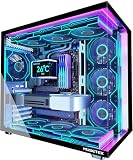
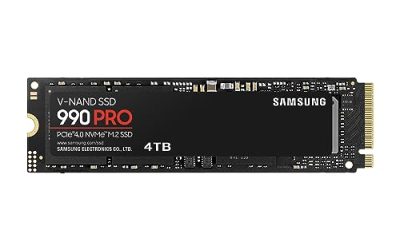
- Top Pick: CORSAIR 4000D RS ARGB Frame Customizable Mid-Tower PC Case – Black | 3x Pre-Installed Fans, High Airflow, Fully Modular, Easy InfiniRail Fan Mounting, GPU Anti-Sag, Reverse Motherboard Support
- Best Value: CORSAIR 3500X RS ARGB Panoramic Mid-Tower PC Case – Black | 3x Pre-Installed Reverse Fans, High Airflow, Spacious Interior, GPU Anti-Sag, Removable Panels, Cable Routing
- Premium Choice: CORSAIR 3500X RS ARGB Panoramic Mid-Tower PC Case – White | 3x Pre-Installed Reverse Fans, High Airflow, Spacious Interior, GPU Anti-Sag, Removable Panels, Cable Routing
The main computer system unit parts inside a desktop case are the motherboard, CPU (with cooler), RAM, graphics card, storage drives, power supply (PSU), and the cabling that ties them together — and once you know what each part does and which connectors link them, opening a case stops being intimidating. Below is a labeled walk-through of every component you’ll find inside a modern 2026 gaming PC, plus a worked power budget and a connector map so you can identify parts in your own machine.
- The System Unit at a Glance
- Motherboard: The Backbone Everything Plugs Into
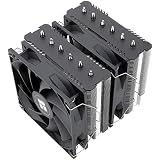
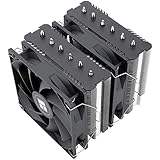
- CPU and Cooler
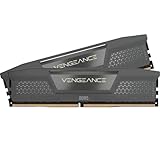
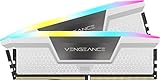
- RAM: The Short-Term Workspace
- Graphics Card: The Biggest Part in the Case
- Storage: M.2 and SATA
- Power Supply: The Box at the Bottom
- Fans, Cooling, and the Cabling That Connects It All
- Quick Decision Matrix: Which Parts Matter for Your Situation
- FAQ
As an Amazon Associate we earn from qualifying purchases at no extra cost to you.


The System Unit at a Glance
“System unit” is the case itself plus everything bolted inside it — monitor, keyboard, and mouse are peripherals, not part of the unit. Here is the full inventory before we go component by component.
| Part | What it does | Key connectors / slots |
|---|---|---|
| Motherboard | The backbone every part plugs into; routes data and power between components | CPU socket, DIMM slots, PCIe slots, 24-pin ATX + 8-pin EPS power, SATA, M.2, USB/front-panel headers |
| CPU (processor) | Executes game logic, physics, AI, and all general computing | Socket AM5 or LGA1851; powered via 8-pin EPS; cooled by heatsink/AIO |
| RAM (memory) | Short-term workspace holding active game and OS data | DIMM slots (DDR5 in current builds) |
| Graphics card (GPU) | Renders the image you see; the biggest factor in gaming FPS | PCIe x16 slot; one or more 8-pin PCIe or a single 12V-2×6 power cable |
| Storage (SSD/HDD) | Permanent storage for Windows, games, and files | M.2 slot (NVMe) or SATA data + SATA power |
| Power supply (PSU) | Converts wall AC into the DC voltages components use | 24-pin, EPS, PCIe/12V-2×6, SATA, Molex outputs |
| Fans / AIO cooler | Move heat out of the case and off the CPU | 4-pin PWM fan headers, pump header, SATA power on some hubs |
| Case & front panel | Holds everything; power button, USB ports, audio jacks on the front | F_PANEL pin header, USB 3.x header, USB-C header, HD_AUDIO header |
Motherboard: The Backbone Everything Plugs Into
The motherboard is the large PCB screwed to the case’s standoffs. Every other part either slots into it or cables to it. The parts you’ll actually interact with:
- CPU socket — the large square near the top under a metal bracket. AMD’s AM5 (Ryzen 7000/8000/9000 series) and Intel’s LGA1851 (Core Ultra 200S) are the current 2026 sockets, and they are not cross-compatible.
- DIMM slots — usually four long slots right of the socket for RAM. For two sticks, use the second and fourth slots from the CPU (often labeled A2/B2) so the memory runs in dual-channel mode — single-channel can cost 10–15% FPS in CPU-bound games.
- PCIe x16 slot — the longest reinforced slot, where the graphics card goes. PCIe 4.0 and 5.0 cards and slots are backward/forward compatible with each other.
- M.2 slots — small flat sockets (usually under a heatsink plate) for NVMe SSDs. The top slot typically runs direct to the CPU at PCIe 4.0 x4 or 5.0 x4.
- SATA ports — small L-shaped ports along the right edge for 2.5″ SSDs and hard drives.
- Headers — rows of small pins along the bottom edge: front-panel power/reset/LED pins, USB 3.0 and USB-C headers for the case’s front ports, HD_AUDIO, and fan headers (4-pin PWM).
- Power inputs — the big 24-pin block on the right edge and one or two 8-pin EPS plugs at the top-left. Both must be connected or the board won’t boot.
CPU and Cooler
The CPU sits in the socket under a cooler, so you’ll often only see the heatsink or AIO radiator block. A typical 2026 gaming chip like AMD’s Ryzen 7 9800X3D or an Intel Core Ultra 7 265K draws roughly 120–160W under load, all of which the cooler must move into your case airflow. Between the CPU’s metal heatspreader and the cooler base is a pea-sized dot of thermal paste — skip it (or double-stack old paste under new paste) and temperatures climb 15–20°C immediately. Air coolers and all-in-one liquid coolers both work; a decent tower air cooler handles any mainstream gaming CPU.
RAM: The Short-Term Workspace
RAM sticks are the long thin modules beside the CPU socket. In 2026, 32GB of DDR5-6000 is the sensible gaming standard — 16GB still works but is showing its age in titles that stream large assets. Two things trip people up: first, seated sticks click at both ends (the top latch is usually the only movable one); second, the speed printed on the box isn’t the speed you get until you enable EXPO or XMP in the BIOS — otherwise DDR5-6000 runs at a default 4800 MT/s.
Graphics Card: The Biggest Part in the Case
The GPU is the large horizontal card in the top PCIe x16 slot, usually with two or three fans and its own heatsink. Mid-range 2026 cards like the RTX 5070 or Radeon RX 9070-class draw around 220–300W through power cables on the card’s edge — either two 8-pin PCIe plugs or one 12V-2×6 connector on higher-end cards. Seat it until the slot latch clicks, then screw the bracket to the case; a sagging card under its own weight can crack a slot over time. On 12V-2×6 cards, push the plug in until it’s fully flush — a partially seated connector is the documented cause of melted plugs on 500W-class cards.
Storage: M.2 and SATA
Two physical formats coexist in modern builds:
- M.2 NVMe SSD — a gumstick-shaped drive screwed flat onto the motherboard between/under the PCIe slots. No cables at all. A 2TB PCIe 4.0 drive is the sweet spot for a game library.
- 2.5″/3.5″ SATA drives — mounted in case bays, needing two cables each: a thin SATA data cable to the motherboard and a wider SATA power plug from the PSU. Fine for bulk storage; noticeably slower for game loads.
Power Supply: The Box at the Bottom
The PSU is the metal box at the bottom rear of the case (older cases mount it top-rear). It converts wall power into the 12V, 5V, and 3.3V rails components need. Three cable rules matter:
- Never mix modular cables between PSU brands or models. The pinouts at the PSU end differ, and a borrowed cable can kill a drive or GPU.
- Run two separate 8-pin PCIe cables to a GPU, not one daisy-chained cable, if the card needs more than ~225W — each cable is rated for roughly 150W of continuous load.
- Buy an ATX 3.1-rated PSU for current builds — it natively supports the 12V-2×6 connector and is specced to absorb GPU power spikes up to 200% of rated draw for microseconds.
Worked Power Budget: What Wattage Do You Actually Need?
Add realistic load wattages, then apply 40–50% headroom so the PSU runs in its efficient, quiet mid-range:
| Component | Example part (2026) | Load wattage |
|---|---|---|
| CPU | Ryzen 7 9800X3D-class | ~140W |
| GPU | RTX 5070-class | ~250W |
| Motherboard + RAM | B650/X870 + 2× DDR5 | ~50W |
| Storage + fans + pump | 2× NVMe, 4 fans, AIO | ~30W |
| Total sustained load | ~470W | |
| × 1.5 headroom | transient spikes + efficiency | ~705W → buy 750W |
Rule of thumb: a 750W unit covers mainstream builds (CPU + one mid-range GPU), 850W covers high-end cards, and 1000W+ is only needed for flagship GPUs like the RTX 5090. Good 750–850W ATX 3.1 units typically run $80–$130.
Fans, Cooling, and the Cabling That Connects It All
Case fans screw to the front, top, and rear of the chassis and plug into 4-pin SYS_FAN headers on the motherboard (or a hub that itself needs SATA power). A basic layout that works for almost every build: two or three front intakes, one rear exhaust — positive pressure keeps dust out through filtered intakes.
The “computer system all parts” picture only completes with the connectors that link them:
| Cable / connector | Runs from → to | Carries |
|---|---|---|
| 24-pin ATX | PSU → motherboard right edge | Main board power (12V/5V/3.3V) |
| 8-pin EPS (4+4) | PSU → top-left of board | CPU power only — do not confuse with 8-pin PCIe |
| 8-pin PCIe (6+2) | PSU → graphics card | GPU power, up to ~150W each |
| 12V-2×6 | PSU → GPU (ATX 3.1 units) | Up to 600W on flagship cards |
| SATA power + SATA data | PSU → drive; board → drive | Power and data for SATA drives |
| F_PANEL pins | Case wires → board header | Power/reset buttons, LEDs |
| USB 3.0 / USB-C / HD_AUDIO headers | Case → board | Front-panel ports and jacks |
Quick Decision Matrix: Which Parts Matter for Your Situation
| If you are… | Prioritize | Can wait / reuse |
|---|---|---|
| Building a new gaming PC | GPU → CPU → 32GB DDR5 → NVMe SSD | Case, SATA drives |
| Upgrading an older PC for more FPS | GPU first (check PSU wattage and case length) | RAM/storage unless below 16GB / no SSD |
| Fixing a PC that won’t boot | Check 24-pin + 8-pin EPS seating, RAM slot position, F_PANEL pins | GPU/storage — boot to BIOS without them to isolate |
| Just identifying parts in a prebuilt | Match the connector table above to what you see | — |
FAQ
Is the system unit the same thing as the CPU?
No — a common mix-up. The CPU is one chip inside the system unit; the system unit is the whole case and everything in it. When someone says “check the system unit,” they mean open the side panel and look at all the parts above.
Can I reuse cables from my old power supply in a new one?
Only the wall cord. Never reuse the modular cables that plug into the PSU itself — pin layouts differ between brands and even between models from the same brand, and the wrong cable can send 12V down a 5V line.
How do I know if a graphics card fits my case?
Check the card’s listed length against your case’s max GPU clearance (in the case spec sheet) and leave 10–15mm spare for power cables. Also confirm your PSU wattage with the budget method above.
What actually holds all the parts in place?
The motherboard screws to brass standoffs pre-fitted in the case (never mount a board directly to the metal — that’s a short). The GPU and drives screw to brackets and bays, and the PSU bolts to a rear cutout. Nothing should rattle; if something moves, a screw is missing.