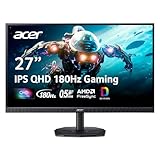
For most gamers, 144 to 165 Hz is the practical sweet spot, 240 Hz or more only pays off in fast competitive shooters, and 60 Hz is still fine for slow single-player games. Refresh rate only helps if your graphics card can actually produce that many frames per second, so the right number depends on the games you play and the hardware driving the screen.
This guide helps you match refresh rate to game type instead of chasing the biggest number on a spec sheet. It explains how frame time changes as Hz rise, why returns diminish, what else has to line up (GPU, cables, resolution, adaptive sync), and how to choose by use case in 2026. Panel specifications vary by model, so confirm the real refresh rate, response behavior and supported inputs on the manufacturer’s spec sheet before buying.
What Refresh Rate Actually Changes
Refresh rate is how many times per second the display redraws the image, measured in hertz. A higher number means each frame stays on screen for less time, so motion looks clearer and the delay between your input and what you see can shrink.
Frame time math
The time per refresh is simply 1000 divided by the Hz number, in milliseconds. At 60 Hz it is about 16.7 ms, at 120 Hz about 8.3 ms, at 144 Hz about 6.9 ms, at 240 Hz about 4.2 ms and at 360 Hz about 2.8 ms.
Why the gains shrink
Going from 60 to 144 Hz saves nearly 10 ms per frame, a large and obvious change. Going from 144 to 240 Hz saves under 3 ms, and going from 240 to 360 Hz saves about 1.4 ms. Each step is still real, but fewer players can notice it, and it matters mostly to those playing at a high skill level in fast games.
Your GPU sets the real limit
A 240 Hz monitor showing 90 frames per second behaves like a 90 fps experience with adaptive sync. Check the frame rates your system reaches in your games at your resolution before paying for a faster panel.
Refresh Rate by Game Type
Different games reward speed differently. Use these ranges as a starting point rather than a rule.
Slow single-player, strategy and story games
These games are about visuals more than reaction time. 60 Hz works, and 100 to 144 Hz is a pleasant upgrade for scrolling and camera movement. Resolution and panel quality usually matter more than a higher refresh rate here.
Action and open-world games
Third-person action, racing and open-world titles look noticeably smoother at 120 to 165 Hz. These games are often demanding, so many players cannot reach more than 100 fps at high settings anyway.
Competitive shooters and esports titles
Fast aim-heavy games such as tactical and arena shooters benefit most from 240 Hz and above, especially for players who can sustain very high frame rates in lighter, esports-oriented settings. Even so, a 144 to 165 Hz screen already delivers most of the benefit for casual play.
Fighting games and rhythm games
Many fighting games run internally at 60 frames per second, so a higher refresh rate adds little to the game itself, though it can help with display latency and input handling. Look for low input lag and consistent response rather than a very high Hz figure.
Console-style TV and couch gaming
If a PC connects to a television, 60 or 120 Hz is typical. Check which refresh rates and resolutions the TV accepts through its HDMI ports before assuming it can match a PC monitor.
What Else Has to Line Up
- Resolution: Higher resolutions demand more GPU power, so a 4K screen at 240 Hz is hard to feed in modern games. A 1440p panel is a common balance of sharpness and frame rate.
- Adaptive sync: Variable refresh rate (VRR) technologies such as G-Sync or FreeSync match the monitor to your GPU’s output and remove tearing without a big latency penalty. Check which version the monitor supports and whether your GPU is compatible.
- Cables and ports: High refresh rates at high resolution need enough bandwidth. DisplayPort is the usual choice for PC monitors, and HDMI versions differ in what they allow, so verify the monitor’s spec sheet and use the cable it recommends.
- Panel type and response time: A fast refresh rate cannot hide slow pixel response. Fast IPS, VA and OLED panels all behave differently in motion, so look for reviews that discuss motion clarity.
- Your CPU: At very high frame rates, the CPU often becomes the limit, especially in esports titles.
Matching Frame Rate to Refresh Rate
Adaptive sync makes the match forgiving
With variable refresh rate, the monitor follows your frame rate within its supported range, so a 165 Hz screen showing 110 fps still looks smooth and tear-free. This is why you do not need your GPU to hit the maximum refresh rate all the time. Check the monitor’s supported VRR range, since some screens stop working below a certain frame rate.
Without adaptive sync
Fixed-refresh screens either tear or use v-sync, which can add latency and stutter when the frame rate falls under the refresh rate. In that case, choosing a refresh rate your system can hit consistently matters even more.
Capping frames
Capping the frame rate a few frames under the refresh rate keeps adaptive sync active and reduces latency spikes. It also lowers heat and noise, which is useful for games where you do not need every frame.
Overclocked refresh modes
Some monitors advertise a higher rate that is reached by overclocking the panel. These modes may bring slower response or visual artifacts, so read reviews that confirm how the faster mode behaves before treating it as the real specification.
Refresh Rate Targets by Budget Tier
| Tier | Refresh rate target | Resolution that fits | Key features to look for |
|---|---|---|---|
| Budget | 75 to 144 Hz | 1080p | Adaptive sync, low input lag, DisplayPort or HDMI that supports the full rate |
| Mid-range | 144 to 180 Hz | 1080p or 1440p | Fast response without strong overshoot, adaptive sync, decent color coverage |
| High-end | 240 Hz and above | 1440p | Very fast response, strong motion clarity, DisplayPort with adequate bandwidth |
| Premium | 240 Hz and above, OLED or fast mini-LED | 1440p or 4K | Excellent motion clarity, HDR, high-bandwidth ports, GPU able to feed it |
How to Decide in Four Steps
- List the games you play most and identify whether they reward speed or visuals.
- Estimate the frame rates your GPU and CPU reach in those games at your resolution.
- Choose a refresh rate you can fill about most of the time, not a number you will rarely reach.
- Confirm the ports, cable and adaptive sync support before buying.
Common Mistakes
- Buying a 240 Hz or 360 Hz screen while the GPU delivers 80 fps in your favorite games.
- Forgetting to set the refresh rate in the operating system; many monitors default to 60 Hz until you change it.
- Using a cable or port that cannot carry the full resolution and refresh rate.
- Ignoring response time and motion clarity, and judging a monitor only by its Hz number.
- Paying extra for a high refresh rate for a game that is locked to 60 frames per second.
Before You Buy Checklist
- Confirm the advertised refresh rate is the native panel rate, not an overclocked mode with limitations.
- Check which input provides the maximum rate at your resolution.
- Verify adaptive sync support with your GPU brand.
- Read reviews that discuss motion blur and response, not just features.
- Make sure your desk setup and graphics card can handle the screen’s resolution.
Related guides
- Aio Liquid Coolers For High Performance Gaming
- Wireless Gaming Headsets Under 100 For Pc
- Ssds For Large Video And Raw Photo Files
Frequently Asked Questions
Is 144 Hz enough for gaming?
For most players, yes. It is a big step up from 60 Hz in smoothness and responsiveness, and it suits nearly every genre. Only players in fast competitive shooters tend to feel a need to go beyond it.
Can I tell the difference between 144 Hz and 240 Hz?
Many players can see a smoother image, but the difference is smaller than the jump from 60 to 144 Hz. It is most noticeable in fast camera movement and competitive play, and only if your GPU sustains very high frame rates.
Do I need a high refresh rate for a 60 fps game?
Not for the game’s frame rate itself. Some players still prefer a faster display for lower input delay and smoother desktop use, but it is not necessary for locked 60 fps titles.
Does a higher refresh rate need a better graphics card?
To make use of it, yes. A faster screen only shows its advantages when your system produces enough frames, so match the monitor to the frame rates your hardware can deliver.