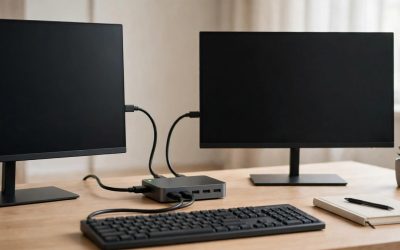
- Top Pick: AV Access 8K KVM Switch 3 Monitors 2 Computers, KVM Docking Station | 8K@60Hz, 4K@165Hz, 100W PD, 10Gbps USB Hub, 1GbE, Triple Monitor KVM for Laptop & Desktop PC, Ideal for Work & Gaming
- Best Value: AV Access 8K KVM Switch 3 Monitors 2 Computers, Desktop PC KVM Dock | 4K 165Hz, 1080p 240Hz, Gigabit Ethernet, USB 3.0, SD Card, Auto Wake, HDMI & DP, KVM Switch Triple Monitor for Work & Gaming
- Premium Choice: Acer Dual Monitor HDMI KVM Switch 2 Computers, 4K@60Hz, 4 USB 3.0 Ports | Extended dual display for Mac/PC. Features 4 ultra-fast USB 3.0 ports, Audio out & Wired remote for the ultimate WFH setup
The best KVM switch for a gaming PC in 2026 is the Level1Techs HDMI 2.1 KVM for gamers who want 4K at 144 Hz with variable refresh rate and HDR, with the TESmart 4-port HDMI 2.1 KVM as the multi-computer alternative, the GiantMatrix HDMI 2.1 KVM as a budget-minded HDMI 2.1 option, and the TJCXELE DisplayPort 1.4 KVM as the cheapest way to keep 144 Hz. Everything below is research-based: we compared published specifications, maker documentation and owner-reported behavior, and we explain which numbers matter for a gamer who shares one monitor, keyboard and mouse between a gaming rig and a second machine.
As an Amazon Associate we earn from qualifying purchases at no extra cost to you.
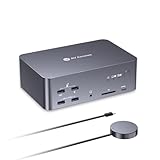


Quick picks
- Best overall for 4K high refresh: Level1Techs HDMI 2.1 KVM, built around real HDMI 2.1 bandwidth, EDID emulation and a dedicated input channel for peripherals.
- Best for three or four computers: TESmart 4-port HDMI 2.1 KVM (8K60 / 4K144 class).
- Best value HDMI 2.1: GiantMatrix HDMI 2.1 KVM with EDID emulator.
- Best for mixed HDMI and DisplayPort sources: Hearvo HDMI plus DisplayPort hybrid KVM.
- Best budget 144 Hz: TJCXELE DisplayPort 1.4 KVM.
How we chose
This guide is built from specification sheets, manufacturer documentation, protocol standards (HDMI 2.1 and DisplayPort 1.4 bandwidth) and the recurring complaints and praise in owner discussions and roundup coverage. We did not benchmark hardware. Because KVM listings frequently advertise “4K 144 Hz” while the signal chain cannot carry it, we ranked each model by whether its video path actually supports the refresh rate, VRR and HDR a gamer needs, then by how it treats USB devices, then by multi-host flexibility. Where a maker’s claim could not be confirmed from a second source, we say so in the final section of the product notes instead of presenting it as fact.
What gamers should demand from a KVM switch
1. A video path that matches your monitor
A KVM sits between your graphics card and your monitor, so it must carry the full signal. The two practical families are HDMI 2.1 models and DisplayPort 1.4 models. A switch labeled only “HDMI 2.0” tops out around 4K 60 Hz at 8-bit or 1440p 144 Hz. For 4K at 120 or 144 Hz you want either real HDMI 2.1 (48 Gbps fixed-rate link) or DisplayPort 1.4 with display stream compression.
2. EDID emulation
EDID is the monitor’s identity handshake. Without emulation, switching away from your PC makes Windows think the monitor was unplugged, so windows jump to another screen and icons rearrange. A gaming KVM should keep reporting the monitor to every computer all the time. Treat EDID emulation as non-negotiable.
3. Peripheral handling for high polling rates
Many switches emulate a keyboard and mouse through a USB HID chip. That is fine for typing but can cap or smooth a gaming mouse running at 1,000 Hz or higher. The safer design is a dedicated USB pass-through port, where you plug the mouse receiver or a small hub directly into a port that is simply switched between hosts. If you run a 4,000 or 8,000 Hz mouse, plug it into a pass-through port and keep the keyboard on the emulated one.
4. Switching latency and hotkeys
Switching takes a few seconds while the monitor renegotiates. Hotkey or mouse-wheel switching saves reaching for a front button on a shelf under the desk. Look for a wired remote or hotkey on the keyboard if the unit will sit behind the monitor.
5. Cable quality
High-bandwidth signals fail in subtle ways: flicker, black screens, dropped HDR. Use certified Ultra High Speed HDMI cables or VESA-certified DisplayPort cables, and keep runs short.
Worked example: does your signal fit the link?
Use this quick logic before buying. Multiply pixels by refresh rate by bits per pixel to get the raw active-video bit rate.
- 4K is 3,840 by 2,160, which is 8,294,400 pixels.
- At 144 Hz that is about 1,194 million pixels per second.
- At 10-bit color (30 bits per pixel) that is roughly 35.8 Gbps of active video; at 8-bit (24 bits) it is roughly 28.7 Gbps. Blanking intervals add a few percent more.
- HDMI 2.0 carries about 14.4 Gbps of usable data, so 4K 144 Hz is impossible without compression and even 4K 120 Hz at 8-bit (about 23.9 Gbps) does not fit.
- DisplayPort 1.4 carries about 25.9 Gbps usable, so 4K 144 Hz needs display stream compression (DSC). This works when both the graphics card, the KVM and the monitor support DSC through the chain.
- HDMI 2.1 carries up to roughly 42.7 Gbps usable, so 4K 144 Hz 10-bit fits uncompressed, which is why true HDMI 2.1 KVMs preserve VRR and HDR most reliably.
Result: if your monitor is 1440p at 165 or 240 Hz, a DisplayPort 1.4 KVM is typically enough. If it is 4K at 144 Hz or higher, buy a genuine HDMI 2.1 unit or a DisplayPort unit that explicitly documents DSC passthrough.
Comparison table
| Model | Video path | Max claimed mode | Hosts | EDID emulation | Peripheral ports | Best for |
|---|---|---|---|---|---|---|
| Level1Techs HDMI 2.1 KVM | HDMI 2.1 FRL | 4K 144 Hz with VRR and HDR | Multi-host | Yes, always on | Dedicated HID channel plus USB pass-through | 4K high-refresh gamers |
| TESmart 4-port HDMI 2.1 KVM | HDMI 2.1 | 8K 60 Hz or 4K 144 Hz | 4 | Yes | USB 3.0 / 2.0 hub ports | PC plus consoles plus laptop |
| GiantMatrix HDMI 2.1 KVM | HDMI 2.1 | 4K 144 / 4K 240 / 5120×1440 165 Hz | 2 | Yes | USB hub ports | Value 4K and ultrawide |
| DXchip 4-port HDMI 2.1 KVM | HDMI 2.1 | 8K 60 Hz or 4K 144 Hz | 4 | Listing-dependent | 4 x USB 3.0 | One monitor, four machines |
| Hearvo HDMI + DP hybrid | HDMI 2.1 and DisplayPort 1.4 inputs | Per input | Mixed | Yes | USB hub ports | DP gaming PC plus HDMI laptop |
| TJCXELE DisplayPort KVM | DisplayPort 1.4 | 4K 144 Hz | 2 | Listing-dependent | 4 x USB 3.0 (5 Gbps) | Cheapest 144 Hz |
| JCYMELE 4K 144 Hz KVM | DisplayPort 1.4 | 4K 144 Hz | 2 | Listing-dependent | USB 3.0 ports | Budget DP alternative |
The best KVM switches for gaming, reviewed
Level1Techs HDMI 2.1 KVM
Spec line: HDMI 2.1 FRL · 4K 144 Hz with VRR and HDR · always-on EDID emulation · dedicated keyboard and mouse channel · USB pass-through for gaming peripherals
Best for: gamers with a 4K 144 Hz or faster monitor who want the least compromise in a consumer KVM. Skip if: you only run 1440p 144 Hz, where a cheaper DisplayPort switch is enough.
- Pros: genuine HDMI 2.1 bandwidth rather than a re-labeled HDMI 2.0 chip; always-on EDID emulation keeps desktop layouts intact; separate input channel respects mouse polling.
- Cons: premium tier price; limited availability compared with mass-market brands.
TESmart 4-port HDMI 2.1 KVM
Spec line: HDMI 2.1 · 8K 60 Hz or 4K 144 Hz · 4 hosts · USB hub ports · hotkey and button switching
Best for: one gaming monitor shared by a gaming PC, a work laptop, a console and a spare machine. Skip if: you want a single-box simple pair-of-computers setup, because four ports adds cable bulk.
- Pros: widest host count in this group; HDMI 2.1 lets a console and a PC share a 4K high-refresh panel; established brand in KVM and matrix hardware.
- Cons: bulkier body; USB ports are hub-style, so route the high-polling mouse through a pass-through arrangement if possible.
GiantMatrix HDMI 2.1 KVM with EDID emulator
Spec line: HDMI 2.1 · 4K 144 Hz / 4K 240 Hz / 5120×1440 165 Hz · EDID emulation · 2 hosts
Best for: super-ultrawide and 4K high-refresh owners who want HDMI 2.1 at a mid-range cost. Skip if: you want brand-name support and long warranty terms.
- Pros: advertised support for demanding modes including ultrawide and 240 Hz; EDID emulator built in.
- Cons: smaller brand, so firmware updates and support are thinner; verify your exact monitor mode in owner reports.
DXchip 4-port HDMI 2.1 KVM
Spec line: HDMI 2.1 · up to 8K 60 Hz or 4K 144 Hz · 4 hosts · 4 x USB 3.0
Best for: multi-machine desks that want every host on a single monitor. Skip if: you need documented VRR and HDR behavior, which the listing leaves open.
- Pros: four inputs and four USB 3.0 ports; HDMI 2.1 signal chain.
- Cons: little independent documentation; confirm VRR before relying on it for competitive play.
Hearvo HDMI plus DisplayPort hybrid KVM
Spec line: HDMI 2.1 input · DisplayPort 1.4 input · mixed-source switching · USB hub ports · EDID support
Best for: a desktop gaming PC on DisplayPort alongside an HDMI-only laptop or console, with no adapter chain. Skip if: all your sources use the same connector, since a straight HDMI 2.1 or DisplayPort switch is simpler.
- Pros: removes adapters that often break high-refresh signals; one box covers both connector types.
- Cons: you must check which mode each input supports separately; niche brand.
TJCXELE DisplayPort 1.4 KVM
Spec line: DisplayPort 1.4 · 4K 144 Hz · 4 x USB 3.0 at 5 Gbps · 2 hosts
Best for: two-computer desks on a tight budget where the monitor uses DisplayPort. Skip if: you need HDMI 2.1 console input or documented HDR over DSC.
- Pros: entry-level cost; keeps 144 Hz on a DisplayPort signal chain; four USB 3.0 ports.
- Cons: budget-brand quality control; possible flicker with long or uncertified cables.
JCYMELE 4K 144 Hz KVM
Spec line: DisplayPort 1.4 · 4K 144 Hz · USB 3.0 ports · 2 hosts
Best for: shoppers who want a second budget DisplayPort option; it is frequently described by owners as keeping 144 Hz through the chain. Skip if: you need HDMI inputs.
- Pros: low cost; commonly cited as holding its refresh rate.
- Cons: limited documentation; check return terms before wiring it behind a mounted monitor.
Models to approach with caution
Popular budget HDMI KVMs, including the widely sold UGREEN HDMI KVM, are generally limited to 4K 60 Hz. That is fine for a work monitor but wrong for a high-refresh gaming panel. Always read the line that states the maximum resolution and refresh rate, not just the “4K” in the title. A listing that mentions “4K 144 Hz” on an HDMI 2.0 chip is describing a mode it cannot actually carry.
Choose by buyer scenario
| Your setup | Pick this class | Threshold to check |
|---|---|---|
| 4K 144 Hz or higher, VRR and HDR in use | True HDMI 2.1 KVM | 48 Gbps FRL, EDID emulation, VRR documented |
| 1440p 165 to 240 Hz, DisplayPort monitor | DisplayPort 1.4 KVM | HBR3 support, 5 Gbps USB |
| Gaming PC plus console on one monitor | HDMI 2.1 with 3 to 4 ports | Console output mode at 4K 120 Hz |
| Desktop on DisplayPort and laptop on HDMI | Hybrid KVM | Each input’s separate maximum mode |
| Mouse at 4,000 Hz or higher | Any model with a pass-through USB port | Plug mouse receiver directly into pass-through |
Setup tips that prevent the usual problems
- Use the cables supplied or certified replacements; most “random black screen” reports trace to cables.
- Set the graphics driver to the monitor’s native mode before connecting the KVM, then confirm the mode after.
- Enable VRR in the monitor on the specific input being used; some monitors apply the setting per port.
- Turn off the monitor’s deep sleep feature if the screen takes too long to wake after switching.
- Put the KVM on the same power strip as the monitor to avoid ground-loop flicker.
- Update the KVM firmware when the maker offers it, since EDID and VRR fixes often arrive that way.
When you do not need a KVM
If your second machine is a console, a monitor with multiple inputs and its own built-in USB switch may do the job with no extra box. Several gaming monitors include a USB upstream switch tied to the input selection. Check that before buying a separate unit.
Frequently asked questions
Will a KVM switch add input lag when gaming?
A properly designed video path adds no meaningful lag because it only passes the signal. The risk is USB handling, so plug high-polling mice into a pass-through port.
Keyboard and mouse emulation chips are usually designed for office use. If a switch caps your polling rate, you would notice it as slightly choppier cursor movement, not as video delay.
Can a KVM switch do 4K 144 Hz?
Yes, but only HDMI 2.1 models or DisplayPort 1.4 models with compression support carry it. HDMI 2.0 switches cannot.
Check the monitor, the graphics card and the cables as well, because any weak link in the chain drops the mode to a lower refresh rate.
Does a KVM keep VRR (G-Sync or FreeSync) working?
Only if the KVM is documented as passing VRR. True HDMI 2.1 switches and some DisplayPort units do, and many cheaper units do not.
Verify in the graphics control panel after connecting, since a switch that blocks VRR will show the option greyed out or disabled.
What is EDID emulation and why does it matter?
It lets the KVM report the monitor to every computer continuously. Without it, switching inputs rearranges windows and resets resolution.
For gamers it also prevents games from losing their chosen resolution and refresh rate when you swap to another computer and back.
Can I share a gaming mouse with 8,000 Hz polling?
Not safely through an emulated port. Use a pass-through USB port or leave the mouse receiver on a separate small hub switched by the KVM.
Keyboards are fine on emulated ports because they never need high polling rates.
HDMI or DisplayPort for a gaming KVM?
Choose the connector your monitor and graphics card use best. DisplayPort 1.4 handles 1440p high refresh well, while HDMI 2.1 is the safer path for 4K 144 Hz and console sharing.
If your sources use both, a hybrid KVM avoids adapters.
Can I switch between a PC and a console?
Yes, with an HDMI 2.1 KVM that supports the console’s output mode. Check that it passes 4K 120 Hz and VRR if your console uses them.
Consoles do not need a USB keyboard or mouse switched, so connect only the controller or leave it on its own wireless link.
Why does my screen flicker after switching?
Usually a cable or handshake problem. Replace the cable with a certified one, enable EDID emulation and update the firmware.
If it persists only at the top refresh rate, lower the mode one step to confirm the signal chain is the limit.
Verdict
For a gaming rig, buy by signal path first: true HDMI 2.1 for 4K 144 Hz and console sharing, DisplayPort 1.4 for 1440p high refresh on a budget, and a hybrid when your sources use different connectors. Then insist on EDID emulation and a pass-through USB port for a fast mouse. The Level1Techs HDMI 2.1 KVM is the strongest overall match for those priorities, with TESmart for four-host desks, GiantMatrix for value HDMI 2.1 and TJCXELE or JCYMELE for the cheapest 144 Hz.