Buying a gaming mouse for a Chromebook is really a compatibility decision before it is a performance decision. ChromeOS has no place for the Windows-only driver suites that unlock half the features on many gaming mice, so the spec that matters most is printed right in the system requirements: the mouse has to list Chrome OS support and work properly the moment it is plugged in or paired. A high DPI figure means nothing if the extra buttons stay dead or the settings vanish every time the machine sleeps.
This guide is for Chromebook owners who play through GeForce NOW, Xbox Cloud Gaming, Steam on ChromeOS, or browser and Android titles, and for anyone replacing a flimsy bundled mouse. Every pick below was chosen from its Amazon product page, and each one names Chrome OS in its listed operating system requirements, so the core functions work without extra software.
Quick Picks
As an Amazon Associate we earn from qualifying purchases.
| Product | Best for | Key spec from title |
|---|---|---|
| Logitech G305 LIGHTSPEED | Wireless cloud gaming on the couch or at a desk | HERO 12K sensor, 250h battery life |
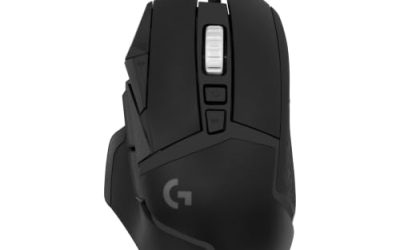
| Logitech G502 HERO | Players who want maximum buttons and a fast scroll wheel | HERO 25K sensor, 11 buttons |
| Logitech G203 LIGHTSYNC | A simple wired pick for school or office Chromebooks | 8K DPI tracking, 6 programmable buttons |
| Logitech G502 LIGHTSPEED | A wireless flagship feel without giving up the G502 shape | HERO 25K sensor, 11 programmable buttons |
How to Choose
Check the listed operating systems, not the marketing
Plenty of gaming mice work on a Chromebook by accident because ChromeOS accepts standard USB and Bluetooth HID input, but “works” and “supported” are different things. The safe route is a listing that prints Chrome OS in its system requirements or compatible devices field, because that is the manufacturer stating the mouse was intended to run there. All four mice in this guide carry that line on their Amazon pages. If a listing only mentions Windows and macOS, basic pointing and clicking will usually still function, yet you should expect the companion app, firmware updates, and onboard profile tools to be unavailable on the Chromebook itself.
Decide between a USB receiver, Bluetooth, and a cable
Most Chromebooks ship with very few ports, and many newer models dropped USB-A entirely. A LIGHTSPEED mouse such as the G305 or G502 LIGHTSPEED uses a small USB receiver, which gives a fast 1ms connection but occupies a port and may need a USB-C adapter on a port-light machine. Bluetooth mice pair without a dongle, though none of the picks here rely on Bluetooth as their main link. A wired mouse like the G203 or G502 HERO never needs charging and wakes instantly, which suits a fixed desk, but the cable has to reach and the port question still applies. Match the connection to the ports your Chromebook actually has.
Understand what onboard memory replaces
On Windows, gaming mice lean on software such as Logitech G HUB to store DPI stages, button assignments, and lighting. ChromeOS cannot run those apps, so onboard memory becomes the feature that carries your settings. A mouse with onboard memory can be configured once on a Windows or Mac computer, save the profile to the mouse itself, and then bring those DPI levels and button mappings to the Chromebook with no app involved. The G305, G502 HERO, and G502 LIGHTSPEED all list onboard memory on their Amazon pages. Without it, you are limited to factory defaults and whatever the physical DPI button cycles through.
Match DPI and weight to cloud gaming reality
Cloud gaming adds a small amount of network latency no mouse can remove, so chasing the highest DPI number buys less on a Chromebook than on a local gaming PC. What you feel instead is sensor consistency, click response, and comfort over long sessions. A range like the G305’s 200 to 12,000 DPI already covers everything from careful aim in a shooter to fast swipes in a strategy game. Weight matters the same way: the 99-gram G305 is easy to flick for hours, while the heavier G502 body suits players who rest their whole palm down and use the extra buttons rather than lifting the mouse constantly.
The 4 Best Options
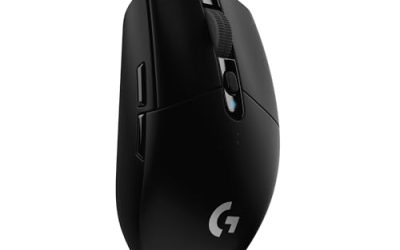
Logitech G305 LIGHTSPEED Wireless Gaming Mouse

The G305 is the easiest recommendation for Chromebook gaming because it removes the two biggest friction points at once: the cable and the battery anxiety. Its LIGHTSPEED receiver delivers a 1ms report rate that keeps cloud sessions feeling responsive, and the listing’s system requirements include Chrome OS, so the mouse is a genuine supported option rather than a hopeful plug-in. Six programmable buttons and onboard memory mean a profile set up once elsewhere travels with the mouse, and the receiver stores inside the shell, which matters when the mouse lives in a laptop bag between classes or trips.
Specs
- Sensor: HERO optical sensor, 200 to 12,000 DPI
- Tracking speed: up to 400 IPS
- Connection: LIGHTSPEED wireless via USB receiver, 1ms report rate
- Battery: up to 250 hours on a single AA battery
- Buttons: 6 programmable buttons
- Weight: 99 grams
- Memory: onboard memory for saved settings
- Listed system requirements: Windows 7 or later, macOS 10.11 or later, Chrome OS
Best for: Chromebook gamers who want one wireless mouse for cloud gaming, school, and travel.
Watch out for: The receiver is USB-A, so a Chromebook with only USB-C ports needs an adapter, and there is no Bluetooth fallback.
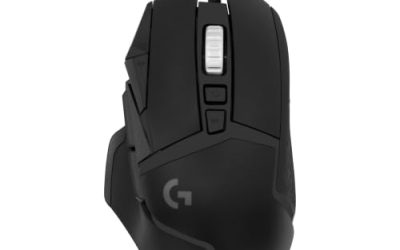
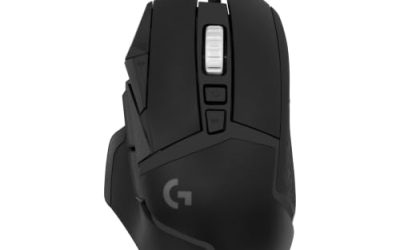
Logitech G502 HERO High Performance Wired Gaming Mouse

The G502 HERO suits Chromebook players who treat the mouse as a control panel. Eleven buttons give you room for push-to-talk, ability keys, and media controls, and the dual-mode scroll wheel switches between a free-spinning mode that flies through long pages and a notched mode for weapon swaps. Its Amazon listing names Chrome OS among the supported operating systems for the wired connection, and onboard memory stores your DPI and button layout so the setup survives without G HUB on the Chromebook. Adjustable weights let you tune the feel, adding up to 18 grams across five removable 3.6-gram weights.
Specs
- Sensor: HERO 25K optical sensor, 100 to 25,600 DPI
- Buttons: 11 programmable buttons
- Scroll wheel: dual-mode hyper-fast scroll wheel
- Weight: 121 grams, with five optional 3.6-gram tuning weights
- Connection: wired USB
- Memory: onboard memory
- Lighting: RGB lighting
- Listed operating system support includes Chrome OS
Best for: Desk-based Chromebook gamers who want lots of buttons and a free-spin wheel for work and play.
Watch out for: At 121 grams before weights it is heavy for fast flick shots, and the cable plus USB-A plug still needs a free port or adapter.
Logitech G203 LIGHTSYNC Gaming Mouse

The G203 LIGHTSYNC is the straightforward wired option for a Chromebook that mostly lives in one place, such as a school-issued machine or a family laptop. Its Amazon listing puts Chrome OS directly in the compatible devices field, and the classic six-button layout needs no learning curve. The gaming-grade sensor adjusts from 200 to 8,000 DPI with a button on the shell, which is plenty for browser games, Android titles, and cloud shooters, and the 1,000Hz report rate keeps input feeling direct. LIGHTSYNC RGB adds a strip of colour that reacts through the Logitech software on a supported computer, while the mouse itself simply works when plugged into the Chromebook.
Specs
- Sensor: gaming-grade optical sensor, 200 to 8,000 DPI
- Buttons: 6 programmable buttons
- Report rate: 1,000Hz (1ms)
- Connection: wired USB, 2.1-metre cable
- Weight: 85 grams
- Lighting: LIGHTSYNC RGB
- Listed compatible devices include Chrome OS
Best for: Students and casual players who want a dependable wired gaming mouse for a Chromebook.
Watch out for: The cable is fixed and fairly long for a small laptop desk, and customising the lighting or buttons requires G HUB on a Windows or Mac computer.
Logitech G502 LIGHTSPEED Wireless Gaming Mouse

The G502 LIGHTSPEED takes the button-heavy G502 layout wireless for Chromebook owners who game at a desk but hate cable drag. The listing’s requirements include ChromeOS, and the HERO 25K sensor with LIGHTSPEED wireless keeps the connection at a 1ms report rate, so cloud sessions feel no different from the wired version. Eleven programmable buttons, onboard memory, and the adjustable weight system carry over, which makes this the pick for players who swap between a Chromebook and a gaming PC and want one profile to follow them. It charges over its cable, so there are no disposable batteries to manage between sessions.
Specs
- Sensor: HERO 25K optical sensor, up to 25,600 DPI
- Buttons: 11 programmable buttons
- Connection: LIGHTSPEED wireless via USB receiver, also usable wired
- Weight: 114 grams, with optional tuning weights included
- Memory: onboard memory
- Lighting: RGB lighting
- Listed system requirements include ChromeOS
Best for: Chromebook gamers who want the full G502 button layout without a cable.
Watch out for: The USB receiver needs a USB-A port or an adapter on USB-C-only Chromebooks, and the mouse is priced and built as a flagship, which is more than casual cloud play requires.
Which One Fits Your Situation
You game on the couch with a Chromebook and a TV
Pick the G305 LIGHTSPEED. The receiver-based connection stays responsive across a room, the 250-hour battery means you are not hunting for a cable mid-session, and the compact 99-gram body is comfortable for the mixed pointing, clicking, and aiming that cloud gaming on a big screen involves. It also pairs well with a lap desk, where a cable would constantly snag.
Your Chromebook is also your school or work machine
The G203 LIGHTSYNC fits best. It plugs in and works, the wired connection never sleeps or drops, and the simple six-button layout is unobtrusive in a classroom or office. You give up wireless freedom, but you gain a mouse that needs zero maintenance beyond the occasional DPI button press, and it tolerates being shared between desks without pairing or charging routines.
You play shooters and MMOs through cloud services
Choose the G502 HERO if your desk is permanent, or the G502 LIGHTSPEED if it is not. Both give you eleven buttons for abilities and voice chat, a sensor that far exceeds what cloud gaming can bottleneck, and onboard memory so your layout is identical every time you sign in, whichever machine you configured it on.
You share one Chromebook with the whole family
The G305 LIGHTSPEED is the safest shared pick. It survives being tossed in a drawer, runs for months on one AA battery, stores its receiver inside the body so the dongle does not get lost, and its symmetrical shape works for different hand sizes and both claw and fingertip grips.
Common Mistakes
- Buying a mouse whose listing only names Windows, then discovering the companion app, macros, and firmware updates cannot run on ChromeOS at all.
- Forgetting to count ports: many Chromebooks have a single USB-C port, so a USB-A receiver mouse needs an adapter that should be ordered at the same time.
- Assuming Bluetooth and 2.4GHz wireless are the same thing; a receiver mouse will not pair over Bluetooth just because the Chromebook supports it.
- Paying for extreme DPI figures that cloud gaming latency makes irrelevant, instead of prioritising listed Chrome OS support and onboard memory.
- Skipping onboard memory and then losing every custom setting, because there is no software on the Chromebook to hold the profile.
Frequently Asked Questions
Do gaming mice actually work on Chromebooks?
Yes, as standard pointing devices almost any USB or Bluetooth mouse works on ChromeOS. The difference is support: mice that list Chrome OS in their requirements, like the four picks here, are confirmed by the manufacturer to function, while advanced features such as macros and lighting control may still need the Windows or Mac app for initial setup.
Can I use Logitech G HUB on a Chromebook?
No. G HUB is built for Windows and macOS, and there is no ChromeOS version. The workaround is onboard memory: configure DPI stages and button assignments once on a compatible computer, save them to the mouse, and the settings then travel to the Chromebook automatically. Mice without onboard memory fall back to their factory defaults.
Is a wired or wireless mouse better for cloud gaming on a Chromebook?
Both are fine because the network adds more latency than either connection. A 1ms LIGHTSPEED receiver mouse feels identical to wired in practice and frees you from cable drag, while a wired mouse never needs charging and wakes instantly. Choose based on your ports, your desk, and whether the mouse travels with the Chromebook.
What DPI should I use for gaming on a Chromebook?
Most players settle between 800 and 1,600 DPI for shooters and up to about 3,200 for fast-paced strategy or MOBA play. Every mouse here covers that range easily, and each has a physical DPI button, so you can experiment in-game and keep the setting you like without opening any software on the Chromebook.