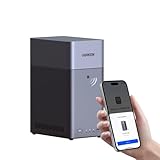
Synology DS NAS Review 2026: Is a Synology DS Box Worth It for Gamers?
Synology makes some of the most widely used network-attached storage (NAS) systems for home and small office use. Its DS series of desktop units runs DiskStation Manager (DSM), a web-based operating system known for a clean interface, a large package catalogue and dependable backup tools. This guide explains what a DS-series box does well, where it falls short for gaming, and what to check on the listing before you spend money.
The listing above may be a close match for the Synology DS model you are considering rather than the exact variant. Synology sells several DS models that differ in bay count, processor, memory and network ports. Confirm the model number, drive bay count and port speed on the card before you order. The checklist in this guide applies to the DS series in general, so it stays useful whichever model you choose.
What a Synology DS NAS Does for a Gamer
A NAS is not a gaming component. It will not raise frame rates or shorten load times for a game installed on your PC. Its value to a gamer sits around the PC: a central store for media, a place to back up save files and screenshots, a home server for light tasks, and a shared drive for a household with several machines. If you expect a NAS to replace the fast NVMe drive in your gaming PC, you will be disappointed. A sensible rule is to keep active games on local storage and use the NAS for everything else.
Game Library Storage Over the Network
Some players keep a second copy of their library on a NAS and copy titles back to the PC when they need them. This works, but a gigabit connection moves data at roughly 110 MB/s in practice, which is slow for large installs. A 2.5GbE port is a clear step up, and 10GbE suits anyone who moves large files every week. Check the port type on the card, then check that your router or switch supports the same speed. A fast NAS on a gigabit switch will still run at gigabit speed.
Backup and Save File Protection
This is where a DS-series system earns its place. Synology’s backup applications can protect PCs, phones and cloud accounts, and the 3-2-1 rule is a sound target: three copies of important data, on two kinds of media, with one copy off-site. The NAS covers the local copies. You still need an off-site copy, which can be a cloud service or a drive stored at another address.
Synology DSM: Strengths and Limits
DSM is the main reason people choose Synology. The interface is easier to learn than many rivals, the Package Center covers media serving, photo management, surveillance and backup, and the documentation is extensive. For a buyer who wants a NAS that works without much tinkering, that matters more than raw specifications.
The limits are worth knowing. Container workloads and hardware-accelerated media transcoding depend on the model’s processor and memory, so a cheap DS with a modest CPU may struggle with several simultaneous streams. Synology publishes a drive compatibility list, and you should check it for any drives you plan to install. Expansion on smaller bay counts is limited, so plan the capacity you will need in two or three years, not only today.
Comparison: Synology DS Setups by Role
| Setup | Best for | Redundancy options | Trade-off | Price guidance |
|---|---|---|---|---|
| 2-bay DS | Single user, backups, light media | Mirror (RAID 1) or Synology Hybrid RAID | Small capacity ceiling | Check current price |
| 4-bay DS | Family media library and PC backups | RAID 5, RAID 6 or Hybrid RAID | More noise and power than 2-bay | Check current price |
| DS with 2.5GbE or 10GbE | Large file transfers and heavy backups | Depends on bay count | Switch and cable must match | Check current price |
| Higher-bay DS | Large archives and growing libraries | RAID 6 or Hybrid RAID | Higher cost, more heat | Check current price |
Use the table as a shortlist filter, then read the exact bay count and port speed on the card. Prices move often, so treat any figure in an article as a snapshot and compare against the live listing.
Setup Checklist Before You Buy
Choosing Drives and RAID Level
Fill the bays with matching drives where you can. A two-bay unit set to mirror gives you one drive of protection, which is simple and safe for personal backups. A four-bay unit with RAID 5 tolerates one failed drive, and RAID 6 tolerates two. Use CMR (conventional magnetic recording) drives for NAS duty. Drives built for NAS workloads, with vibration tolerance and long warranties, are a better fit than desktop drives in a box that runs all day. Redundancy is not backup, so keep a separate copy of anything you cannot replace.
Network Speed and Your Router
If the NAS has a 2.5GbE port, your router, switch and cable all need to support 2.5 gigabit. A Cat5e cable can carry 2.5GbE over short runs, but Cat6 or better gives more headroom. Our notes on choosing an Ethernet switch for gaming and the Cat8 cable roundup cover the practical options. Connect the NAS by cable where possible, because Wi-Fi will cap transfer speed well below the NAS capability.
Power Protection
A NAS that loses power during a write can corrupt files and disturb a rebuild. A small uninterruptible power supply (UPS) is cheap insurance. Our guide to the best UPS for a gaming PC explains the sizing logic, and the same principles apply to a NAS.
Who Should Buy a Synology DS
A Synology DS suits a buyer who values stability and a polished interface over the lowest possible price. It is a strong pick for a household that wants one place for family photos, shared documents and PC backups. It is also a good fit for a gamer who keeps a large library of recordings, mods or save backups and wants them protected without learning a complex operating system.
It is a weaker choice for someone who wants to run heavy virtual machines on a tight budget, or who needs the highest transfer speeds from day one. In those cases, compare a QNAP or a higher-spec model. For a more compact alternative, the Synology DS224+ review and the Synology DS923+ review show how two different DS models compare in practice.
Pairing a NAS with Gaming Storage
The NAS works best as the second tier of a storage plan. Keep your operating system and active games on a fast internal drive, and use the NAS for archive and backup. Our overview of the best NVMe SSDs for gaming covers the local drive. If you also need bulk capacity inside the PC, the best hard drive for gaming guide compares mechanical options. For portable backups between machines, the best external SSD for gaming list is a useful companion.
If you are weighing the QNAP or TerraMaster alternatives, the QNAP TVS-H874 review and the TerraMaster F4-424 Pro review give a useful comparison point across brands.
Top Picks for a Synology DiskStation
Synology’s DiskStation line ranges from single-bay backup boxes to multi-bay systems for creative work. These models come in different sizes, all sold diskless, so you can match the bay count to your storage plan.
Synology DS124 1-Bay Personal Backup and File Hub (Diskless)
The simplest entry point, with one bay for a single drive. It works as a personal backup target and file hub for photos and documents, though one drive means no built-in redundancy.
As an Amazon Associate we earn from qualifying purchases at no extra cost to you.

Synology DS223 2-Bay Home and Office Backup Hub (Diskless)
Two bays allow mirrored storage, a common choice for protecting important files. It is aimed at households and small offices that want to centralize data and keep an eye on a property with cameras.

Synology DS423 4-Bay Family and Business Backup (Diskless)
With four bays, this model offers more capacity and more flexible drive layouts. It is described for secure file sharing, a photo vault and video surveillance, which suits a busy family or small team.

Synology DS725+ 2-Bay Expandable NAS (Diskless)
A two-bay unit that can be expanded later, positioned as a private cloud for home and small business. Choose it when you want room to scale without starting with a large enclosure.

Synology DS1525+ 5-Bay Video Editing and Production Server (Diskless)
A larger system that is 10GbE ready and built with multi-user workflows in mind. It suits video teams or heavy users who need shared storage that many machines can reach at once.

Frequently Asked Questions
Is a Synology DS NAS good for gaming?
It is good for the storage side of gaming: backups, save files, recordings and a shared library. It does not speed up games installed on your PC. Keep active games on a fast local SSD and treat the NAS as bulk storage.
Can I run games directly from a Synology NAS?
You can map a network share, but most launchers do not recommend running games from a network location. Load times and stability can suffer. Install games locally and use the NAS for copies and archives.
Do I need 10GbE for a Synology DS?
Not for most home use. 2.5GbE is a practical middle ground for a single PC. 10GbE makes sense if you transfer very large files often and your switch and PC network card also support it.
Should I use RAID or a single drive?
Use redundancy when you care about uptime and recovery from a single drive failure. RAID is not a backup, so you still need a second copy of irreplaceable files, ideally off-site.