- Top Pick: Samsung 27" Odyssey OLED G6 (G61SH) QD-OLED, QHD (1440P) Gaming Monitor
- Best Value: Samsung 27” Odyssey OLED G6 (G60SD) Series Gaming Monitor with QHD & QD-OLED, 360Hz 0.03ms, AMD FreeSync Premium Pro, Anti-Glare, Sleek Design, Cooling System, 3 Year Warranty, LS27DG602SNXZA
- Premium Choice: Samsung 27” Odyssey OLED G6 (G60SF) QHD QD-OLED Gaming Monitor
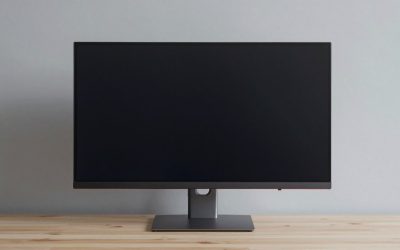
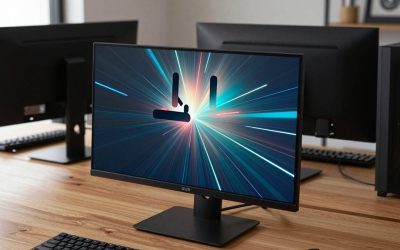
The Samsung 27-inch Odyssey OLED G5 (G50SF) is one of the most attractive entry points into QD-OLED gaming. It pairs a flat 27-inch QD-OLED panel with a QHD 2560×1440 resolution, a 180Hz refresh rate, a 0.03ms (gray-to-gray) response time, both AMD FreeSync and NVIDIA G-Sync Compatible support, HDR10, Samsung’s OLED Safeguard burn-in protection and Pantone Validated colour tuning, all at a mid-range price. This Samsung Odyssey OLED G5 G50SF review covers the panel, motion handling, gaming features and whether mid-priced QD-OLED finally makes sense.
Updated October 2026 — The Samsung Odyssey G5 you want is probably the Odyssey OLED G5 (G50SF): a 27-inch QHD QD-OLED gaming monitor with 180Hz refresh and a 0.03ms response time at a mid-range price. It is a strong buy for 1440p gaming in a controlled-light room, but it is not the same monitor as the older Odyssey G5 (G51F) IPS panel.
Top 3 picks for a 27-inch QHD OLED gaming monitor: the Samsung Odyssey OLED G5 (G50SF) for value, the MSI MAG 274QP QD-OLED X24 for a 240Hz alternative, and the LG UltraGear 27GX704A-B for a 240Hz OLED with G-Sync Compatible support.
🛒 Best Price Today on Amazon
Prime members get fast, free shipping on everything above, plus member-only deals. New members get a 30-day free trial — cancel anytime.
As an Amazon Associate we earn from qualifying purchases.


Samsung Odyssey OLED G5 G50SF at a Glance
| Component | Specification |
|---|---|
| Screen size & type | 27″ flat QD-OLED |
| Resolution | QHD 2560×1440 |
| Panel technology | QD-OLED |
| Refresh rate | 180Hz |
| Response time | 0.03ms (gray-to-gray, manufacturer figure) |
| Adaptive sync | AMD FreeSync + NVIDIA G-Sync Compatible |
| HDR & brightness | HDR10; modest brightness (one review cites about 200 nits) |
| Ports | HDMI and DisplayPort (check the listing for the exact mix) |
| Price | Mid-range, roughly $350-$450 |
Samsung Odyssey G5 vs Samsung Odyssey OLED G5: Which G5 Is Which?
Search results for “samsung odyssey g5” mix two very different monitor families. Use this table before you buy.
| Feature | Odyssey OLED G5 (G50SF) | Odyssey G5 (G51F) |
|---|---|---|
| Panel type | QD-OLED | IPS (LCD) |
| Size and resolution | 27″, 2560×1440 | 27″, QHD (1440p) |
| Refresh rate | 180Hz | Check the listing for the exact refresh rate |
| Response time | 0.03ms (gray-to-gray) | LCD response, slower than OLED |
| Blacks and contrast | Pixels switch off, near-infinite contrast | Backlit, grayer blacks |
| Burn-in concern | Yes, manageable with care | No |
| Best for | Image quality and motion clarity | Lowest-cost 1440p, static desktop work |
The older LCD family also includes curved Odyssey G5 ultrawide monitors. If a listing says only “Odyssey G5” with no “OLED” and no G50SF code, it is not the QD-OLED monitor reviewed here.
Samsung Odyssey OLED G5 G50SF Specs at a Glance
Spec line: 27″ flat QD-OLED · 2560×1440 · 180Hz · 0.03ms GtG · FreeSync and G-Sync Compatible · HDR10 · Pantone Validated · OLED Safeguard
- Reviewers report about 99% DCI-P3 coverage, which is very wide for a gaming monitor.
- Typical brightness is modest, with one review citing about 200 nits, so a bright room can wash out dark scenes.
- Samsung backs the Odyssey OLED line with a multi-year warranty, and buyers report a three-year term. Confirm it on the seller page.
- Finish: one reviewer calls it glare free and another calls it glossy. Check your exact listing and look at the screen in your own room if possible.
Image Quality: Panel, Resolution and Colour
The Samsung Odyssey OLED G5 G50SF uses a QD-OLED panel, combining OLED’s self-emissive pixels with a quantum-dot colour layer. OLED pixels emit their own light and switch off completely, producing perfect blacks and effectively infinite contrast. On an LCD a backlight always leaks light through dark areas; on this QD-OLED, dark scenes are genuinely dark and bright highlights sit directly next to deep black with no haze. Quantum-dot technology adds notably vivid, wide-gamut colour, which Samsung’s heritage in display manufacturing knows how to tune well.
The QHD 2560×1440 resolution suits the 27-inch screen size well, with strong pixel density for crisp text and detailed game content. Pantone Validated is a manufacturer claim rather than an independent measurement, so treat colour accuracy as unverified, but the wide colour should suit everyday content alongside games. The combination of QD-OLED contrast and wide colour should look striking, a meaningful step up from a typical mid-priced LCD.
Best Settings for the Samsung Odyssey OLED G5 (PC and Console)
A few minutes of setup gets the most from a 180Hz QHD OLED. These steps use standard Windows, NVIDIA and AMD options and apply to any similar monitor.
PC setup steps
- Set the refresh rate: in Windows display settings, open advanced display and choose 180Hz. Many monitors default to 60Hz until you change it.
- Turn on adaptive sync: enable G-Sync Compatible in the NVIDIA Control Panel or FreeSync in AMD Software.
- Cap your frame rate: set a limit a few frames below 180 in the driver or in-game, which keeps adaptive sync active and reduces latency.
- Calibrate HDR: turn on HDR in Windows and run the Windows HDR Calibration app so games and films map brightness correctly.
- Keep SDR mode for desktop work: HDR on the desktop can make normal apps look washed out.
Console and living room tips
- Use the monitor’s HDMI input for PS5 or Xbox Series X and check the console’s video output settings for 1440p support.
- A dim room shows off the QD-OLED blacks best.
- If the console only outputs 1080p or 4K, expect scaling, so a 1440p PC remains the ideal source.
Quick troubleshooting
- Flicker in menus or loading screens with adaptive sync can be reduced by capping the frame rate.
- If the image looks soft, make sure Windows scaling is set to 100% at 1440p on a 27-inch screen.
- If the panel shows a brief image-care message, follow the on-screen instructions rather than cutting power.
Refresh Rate and Motion Performance
The Odyssey OLED G5 runs at 180Hz, a refresh rate firmly in genuine high-refresh territory. Stepping up from a standard 60Hz panel to 180Hz is a transformative change: motion looks dramatically clearer, fast camera movement stays sharp, and the whole experience feels immediate and fluid. For both fast-paced competitive games and richer single-player titles, that uplift is immediately worthwhile, and on a QHD panel the 180Hz refresh is comfortably reachable on capable mid-to-high-end graphics hardware.
Where OLED truly excels is response time, and the quoted 0.03ms figure (gray-to-gray, from the manufacturer) is very low. Response time measures how fast a pixel can change colour, and OLED pixels switch state effectively instantly — far faster than any LCD, where the liquid-crystal layer needs measurable time to shift. The practical result is essentially no ghosting and exceptionally clean motion. Combined with 180Hz, the OLED-grade response gives this monitor a sharp, immediate feel that punches above LCDs at the same refresh rate.
Gaming Experience: Adaptive Sync and HDR
The Odyssey OLED G5 supports both AMD FreeSync and NVIDIA G-Sync Compatible certification, providing tear-free adaptive sync across both major graphics-card brands. Adaptive sync matches the monitor’s refresh rate to the graphics card’s frame rate, eliminating the horizontal tear that appears when frames and refreshes drift apart. Dual-brand support is genuinely useful: it removes any worry about graphics-card pairing and keeps the picture clean across the panel’s full refresh range.
HDR10 support is listed, and on a QD-OLED panel HDR10 content benefits significantly from the perfect-black starting point and wide-gamut quantum-dot colour. Bright highlights sit directly next to deep black with no blooming, giving HDR content a punch that LCD-based HDR cannot equal even when LCD HDR peaks brighter on paper. For supported games and films, the HDR experience on this monitor is noticeably more impactful than mid-priced LCD HDR alternatives, even without flagship True Black 400 certification.
Samsung Odyssey OLED G5 Burn-In Risk: How to Protect the Panel
Burn-in is the biggest question for any OLED buyer. GadgetPickr’s review calls burn-in the best reason to skip this monitor if your day is mostly static desktop work. Samsung includes OLED Safeguard to help, but your habits matter more.
Daily habits that lower the risk
- Hide the Windows taskbar, or set it to auto-hide.
- Use a dark theme and a changing wallpaper.
- Set the screen to turn off after a few minutes of inactivity.
- Do not leave a game menu, a browser tab or spreadsheet static for hours.
- Let the monitor run its automatic panel care routines when it is on standby, rather than cutting power.
Who should be careful
If you spend eight hours a day in static office apps, an IPS monitor is safer. If your main use is gaming, video and mixed content, the risk is lower and the picture quality is a big upgrade.
Samsung Odyssey OLED G5 Text Clarity and Bright Room Use
QD-OLED panels use a different subpixel layout from standard LCDs, so small text can look slightly softer at 27 inches and 1440p. Most gamers will not notice it in games, but some people notice it in documents.
- Bright rooms: QD-OLED blacks can look grayer when strong light hits the screen. Close the blinds or add a bias light.
- Dark rooms: this is where the monitor looks best, with deep blacks and rich colour.
- HDR: HDR10 content looks punchy because of the per-pixel contrast, but peak brightness is lower than flagship True Black tiers.
Which GPU Do You Need for a 1440p 180Hz Monitor?
To use the 180Hz refresh rate at 1440p in modern games, pair the monitor with a mid-range or better GPU. As a rule of thumb, an RTX 5060 Ti or Radeon RX 9060 XT class card works for esports and medium to high settings in most games, an RTX 5070 or RX 9070 class card covers high settings comfortably, and anything faster gives headroom for ray tracing. These are estimates by GPU tier, not measured results. Console players on a PS5 or Xbox Series X can use the monitor at 1440p where supported and 120Hz.
Design, Connectivity and Ergonomics
The Samsung Odyssey OLED G5 carries the Odyssey gaming-brand styling — a recognisably enthusiast look that fits a gaming desk while feeling distinctly Samsung. The 27-inch flat QD-OLED panel has a modern look on a desk. The Odyssey OLED range includes Samsung’s OLED Safeguard burn-in protection, which is an important reassurance for an OLED used for productivity as well as gaming.
Connectivity covers the standard inputs needed to drive a QHD 180Hz HDR signal from a gaming PC and to connect a console or laptop. Stand adjustability varies by model, so check the listing for the tilt and height range, and use a VESA mount if you need more flexibility.
Samsung Odyssey OLED G5 Buying Guide: What to Check First
1. Confirm the exact model code
The monitor reviewed here is the G50SF. The names Odyssey G5, G51F and other G5 variants refer to different panels, including IPS and curved versions.
2. Match your GPU to 1440p 180Hz
If your graphics card cannot reach 120fps or higher at 1440p, the refresh rate advantage is wasted. VRR keeps motion smooth below the cap, but a faster GPU lets you use the panel fully.
3. Check your room lighting
Choose OLED if you game in a dim room. If sunlight hits the desk, an IPS or Mini-LED panel may be easier to live with.
4. Use the right cable
A DisplayPort cable from a certified maker is the safest way to get 1440p at 180Hz on a PC. HDMI works for consoles and some graphics cards.
5. Plan your warranty and burn-in habits
Read what the warranty covers, keep your purchase record, and adopt the burn-in habits in the section above.
How We Chose the Alternatives
This page is research-based. We compared maker spec sheets and independent reviews such as GadgetPickr, TechEBlog and TurboVS, and we did not run our own measurements. Alternatives had to be 27-inch QHD OLED monitors from known brands with 180Hz or faster refresh rates.
Who Is the Samsung Odyssey OLED G5 For?
The Odyssey OLED G5 G50SF is for the buyer who wants the transformative benefits of QD-OLED — perfect blacks, vivid wide-gamut colour, a 0.03ms response time — at a sensible QHD 27-inch size and at a comparatively accessible price. If you value image quality and motion clarity above all but cannot justify flagship OLED prices, and prefer the reassurance of Samsung’s Odyssey brand with OLED Safeguard burn-in protection, this monitor is built precisely for you. It excels at single-player games, competitive play and everyday content alike.
It is less suited to buyers who want a 4K experience or an ultrawide canvas, or to dedicated competitive players who would benefit from a 240Hz panel. But for the gamer who wants QD-OLED’s benefits at a mid-tier price point without compromising on Samsung quality, the Odyssey OLED G5 is one of the most compelling new options in the category and a genuinely standout value proposition.
Pros and Cons
Pros: QD-OLED panel with perfect blacks and vivid quantum-dot colour at a mid-tier price; very low 0.03ms (gray-to-gray) response time; genuine 180Hz refresh on a sharp QHD panel; dual AMD FreeSync and NVIDIA G-Sync Compatible support; HDR10 with the OLED contrast that genuinely benefits HDR; Samsung’s OLED Safeguard burn-in protection; Pantone Validated colour tuning; recognised Odyssey brand.
Cons: 180Hz is below the highest competitive refresh rates; OLED panels need care features to manage burn-in risk despite OLED Safeguard; not a 4K option; aimed at QHD 27-inch buyers rather than ultrawide enthusiasts; HDR10 rather than flagship True Black tier.
Best Alternatives to the Samsung Odyssey OLED G5 (27-Inch QHD OLED)
Four other 27-inch QHD OLED monitors are worth comparing. Each is listed with one spec line so you can scan the differences quickly.
MSI MAG 274QP QD-OLED X24 — Best for a lower-cost QD-OLED with 240Hz

Spec line: 27″ QD-OLED · 2560×1440 · 240Hz · 0.03ms · Adaptive-Sync
Pros: a higher refresh rate than the G5, the same QD-OLED panel type, a competitive price tier. Cons: fewer premium extras than Samsung’s line. Skip it if you want Samsung’s OLED Safeguard branding and warranty.
LG UltraGear 27GX704A-B — Best for G-Sync Compatible OLED
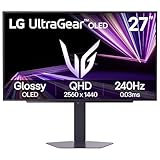
Spec line: 27″ QHD OLED · 2560×1440 · 240Hz · 0.03ms · NVIDIA G-Sync Compatible and AMD FreeSync
Pros: 240Hz, strong brand support, dual adaptive sync. Cons: a WOLED-based design can show different colour volume than QD-OLED. Skip it if maximum colour saturation is your priority.
ASUS ROG XG27AQDMG — Best for glossy OLED with a heatsink

Spec line: 27″ 1440p · 240Hz · glossy OLED · 0.03ms · custom heatsink · anti-flicker
Pros: a glossy coating for sharper contrast, a heatsink for uniform brightness, a strong gamer-focused brand. Cons: a higher price tier than the G5, and glossy panels reflect lights in bright rooms. Skip it if your desk faces a window.
MSI MAG 271QP QD-OLED X28 — Best for a faster QD-OLED step-up
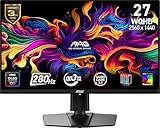
Spec line: 27″ QD-OLED · 2560×1440 · 280Hz · 0.03ms · QHD
Pros: 280Hz for competitive play, QD-OLED colour. Cons: more expensive than the G5 and needs a faster GPU to feed the refresh rate. Skip it if you play single-player games at 120fps or less.
| Monitor | Panel | Refresh | Best for |
|---|---|---|---|
| Samsung Odyssey OLED G5 (G50SF) | QD-OLED | 180Hz | Value and Samsung warranty |
| MSI MAG 274QP QD-OLED X24 | QD-OLED | 240Hz | Lower-cost 240Hz |
| LG UltraGear 27GX704A-B | OLED | 240Hz | G-Sync Compatible |
| ASUS ROG XG27AQDMG | Glossy OLED | 240Hz | Dark room contrast |
| MSI MAG 271QP QD-OLED X28 | QD-OLED | 280Hz | Competitive play |
Samsung G5 OLED vs Odyssey G5: Quick Answer
The Samsung G5 OLED is the Odyssey OLED G5 (G50SF), a 27-inch QHD QD-OLED monitor at 180Hz. The plain Samsung Odyssey G5 is an older LCD family, so check the model code before buying.
| Search term | Model to look for | Panel |
|---|---|---|
| samsung odyssey oled g5 g50sf | G50SF | 27-inch QD-OLED, 2560×1440, 180Hz |
| samsung odyssey g5 (plain) | G51F and older G5 variants | LCD (IPS or VA), varies by listing |
| samsung g5 oled | Odyssey OLED G5 | QD-OLED |
If the product title does not say OLED and does not show the G50SF code, treat it as a different monitor. The Samsung Odyssey OLED G5 G50SF review above covers the QD-OLED model only; for other sizes, see the Related Articles list at the end of this page.
Is the Samsung Odyssey OLED G5 G50SF Worth It?
At a mid-range price of roughly $350-$450 the Samsung Odyssey OLED G5 G50SF is a strong value proposition that brings QD-OLED meaningfully closer to mainstream gaming. It delivers what makes OLED special — perfect blacks, vivid quantum-dot colour, a very low 0.03ms response — alongside a genuine 180Hz refresh on a sharp QHD panel, dual-brand adaptive sync, HDR10, Pantone Validated colour tuning and Samsung’s OLED Safeguard burn-in protection. For a buyer who wants QD-OLED’s transformative benefits at a mid-tier price and recognised brand reliability, this monitor is one of the most compelling new options in the category. Buyers wanting 4K, ultrawide or the very highest competitive refresh rates should look at more specialised flagship alternatives.
Who Should Skip the Samsung Odyssey OLED G5?
- Office workers on static apps: choose an IPS monitor to avoid burn-in worries.
- Players in bright rooms: the roughly 200-nit typical brightness reported by one review can look dim in daylight.
- Competitive esports players: 240Hz or higher panels like the MSI MAG 274QP QD-OLED X24 give a small edge.
- 4K shoppers: this is a 1440p panel. Look at the Odyssey OLED G7 or G8 for 4K.
Who Should Buy It?
- PC and console players who want OLED contrast on a mid-range budget.
- People who watch films and play single-player games in a dim room.
- Owners of NVIDIA or AMD graphics cards, thanks to dual adaptive sync.
Frequently Asked Questions
How is QD-OLED different from WOLED?
QD-OLED combines OLED’s self-emissive pixels with a quantum-dot colour layer, typically delivering wider, more vivid colour than WOLED while sharing OLED’s perfect blacks and instantaneous response time.
Does the Samsung Odyssey OLED G5 work with NVIDIA?
Yes. It supports both AMD FreeSync and NVIDIA G-Sync Compatible certification, providing tear-free adaptive sync across both major graphics-card brands.
What is OLED Safeguard on Samsung Odyssey monitors?
OLED Safeguard is Samsung’s set of burn-in protection features for its Odyssey OLED monitors, designed to manage pixel-level wear and support long-term reliability.
Is 180Hz fast enough for competitive gaming?
Yes for most players. A genuine 180Hz refresh delivers clear, fluid motion. Dedicated competitive players chasing the very highest refresh rates may prefer a 240Hz or higher panel.
More Samsung Odyssey OLED G5 Questions
Is the Samsung Odyssey G5 OLED good for gaming?
Yes. It combines a 27-inch QHD QD-OLED panel, 180Hz refresh and a 0.03ms response time, which gives clean motion and deep blacks for gaming.
What is the Samsung Odyssey OLED G5 G50SF?
It is Samsung’s entry-level QD-OLED gaming monitor: 27 inches, 2560×1440, 180Hz, with FreeSync and G-Sync Compatible support and HDR10.
Does the Samsung Odyssey G5 G50SF have burn-in?
Any OLED can burn in with long static content. Samsung includes OLED Safeguard, and habits such as hiding the taskbar and using screen-off timers reduce the risk.
What is the difference between Samsung Odyssey G5 and Odyssey OLED G5?
The Odyssey G5 (G51F) is an IPS LCD, while the Odyssey OLED G5 (G50SF) is a QD-OLED with much better contrast and faster pixel response.
Is the Samsung G5 OLED good for work and text?
It is fine for mixed use, but QD-OLED text can look slightly softer than on IPS at 27 inches. Heavy static office work raises burn-in risk.
How bright is the Samsung Odyssey OLED G5?
One review reports a typical brightness of around 200 nits, which is fine for dim rooms and less ideal for bright ones.
More Gaming Monitor Reviews
Related reading: the best monitors for gaming roundup, the step-by-step guide to choosing a gaming monitor, and our explainer on the best refresh rate for gaming.
- LG UltraGear 32G620B 32-inch QHD IPS Gaming Monitor Review
- Pixio PXC279 Wave Mint 27-inch 300Hz Curved Gaming Monitor Review
- HP OMEN 27 Gaming Monitor Review: FHD 180Hz
- Sceptre Curved 24.5-inch 240Hz Gaming Monitor Review
- Dell 27 240Hz Gaming Monitor Review (SE2726HG)
- Dell 27 Plus 4K Monitor Review (S2725QS)
- Acer Nitro 27-inch QHD 240Hz IPS Gaming Monitor Review
- Acer Nitro 27-inch WQHD 300Hz IPS Monitor Review
Affiliate Disclosure: As an Amazon Associate, we earn from qualifying purchases. If you click a link and make a purchase, we may earn a small commission at no extra cost to you. Prices and availability are accurate as of publication and may change.
Related Articles
Looking for more on this topic? Browse the hand-picked guides below — each one applies the same scoring rubric used in this review.