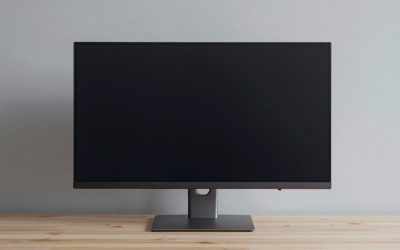
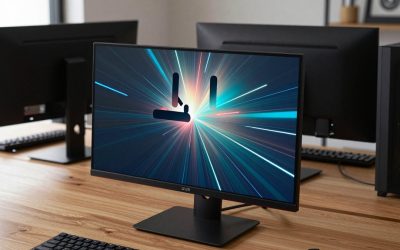
- Top Pick: Sceptre New 22-Inch Gaming Monitor, FHD 1080p, Up to 144Hz, HDMI, DisplayPort, Built-in Speakers, Machine Black (E225W-FW144 Series, 2026)
- Best Value: Samsung 27" Odyssey G5 (G51F) Series QHD (1440P) Gaming Monitor
- Premium Choice: New! Sceptre 27-inch Curved Gaming Monitor 1080p 1500R up to 250Hz DisplayPort x2 HDMI x2 100% sRGB 1ms Build-in Speakers, Machine Black 2027 (C275B-FW250G Series)
To choose a gaming monitor in 2026, match resolution and refresh rate to what your GPU and CPU can actually sustain in the games you play most, then choose panel type, size, and connectivity based on your room lighting, desk depth, and whether you prioritize competitive speed or image quality.
- Start With Your Use Case, Not the Spec Sheet
- Decision Matrix: Find Your Category in 30 Seconds
- Step 1: Choose Resolution By Pixel Density and GPU Headroom
- Step 2: Pick Refresh Rate Based on Real FPS, Not Maximum Spec
- Step 3: Understand Panel Technology Trade-offs
- Step 4: Decode the Specs That Mislead Buyers
- Step 5: Size, Aspect Ratio and Ergonomics
- Step 6: Color, Calibration and HDR Setup
- How to Narrow to a Final Choice
- Quick Reference Tables: GPU Match, Panel Types and Sizes
- Common Mistakes to Avoid in 2026
- Checklist Before You Buy
- Frequently Asked Questions
- Related Guides
Quick answer: Match your monitor to your GPU tier for optimal performance. Mid-range GPUs pair best with 27-inch 1440p displays running at 180Hz to 240Hz, offering the ideal balance of pixel density and frame rates. High-end GPUs (RTX 5070 Ti, RTX 5080 or RX 9070 XT class) can drive 32-inch 4K panels at 144Hz to 240Hz or ultra-fast 1440p 360Hz esports monitors, while entry-level cards should stick to 24-inch 1080p at 144Hz to 240Hz.
Last updated: October 2026.
As an Amazon Associate we earn from qualifying purchases at no extra cost to you.





Start With Your Use Case, Not the Spec Sheet
The same spec means something different for different players. Sorting by use case first prevents overspending on specs you will not use or buying a panel that holds back hardware you already own.
The 3 questions that decide everything
- What do you play most? List your top 3 games by hours in the last 6 months. Competitive shooters (Valorant, Counter-Strike 2, Apex Legends, Overwatch 2) reward high refresh rate and low motion blur. Story-driven AAA (Cyberpunk 2077, Baldur’s Gate 3, Elden Ring, Alan Wake 2) reward contrast, color and resolution. Sim and racing titles (Microsoft Flight Simulator, Forza Horizon 5, Assetto Corsa Competizione) reward size, immersion and ultrawide aspect ratios.
- What does your PC or console actually push? Check your average FPS at your target resolution in those games, not just in benchmarks. Also check your GPU’s best output: HDMI 2.1, DisplayPort 1.4 with Display Stream Compression (DSC), or DisplayPort 2.1 (UHBR10, UHBR13.5, or UHBR20). This determines whether you can run 4K 240Hz without compression.
- Where will you use it? Measure desk depth and note ambient light. A 32-inch 4K panel on a 50 cm deep desk forces constant head movement, and a glossy QD-OLED facing a sunny window will show reflections that wash out its contrast advantage.
Decision Matrix: Find Your Category in 30 Seconds
Use this table as a starting filter, then fine-tune with the detailed sections below.
| Player Profile | Recommended Resolution & Size | Target Refresh Rate | Best Panel Type in 2026 | Broad Market Range |
|---|---|---|---|---|
| Competitive / Esports-first | 24-25″ 1080p or 27″ 1440p | 240Hz to 360Hz (480Hz+ only if you consistently exceed 400 FPS) | Fast IPS or TN for max speed; 360Hz OLED if budget allows | Entry to Mid-range |
| Balanced AAA + Competitive | 27″ 1440p | 180Hz to 240Hz | Fast IPS or QD-OLED / WOLED | Mid-range to Premium |
| Cinematic Single-Player / Story | 27-32″ 4K | 144Hz to 240Hz | QD-OLED or WOLED; high-end Fast IPS as affordable alternative | Premium |
| Sim, Racing, Immersive | 34″ UW-QHD (3440×1440) or 49″ DQHD (5120×1440), or 32″ 4K | 144Hz to 240Hz | QD-OLED ultrawide or VA for budget curved ultrawide | Mid-range to Premium |
| Console-primary (PS5 / Xbox Series X) | 27-32″ 4K | 120Hz to 144Hz with HDMI 2.1 | Fast IPS or WOLED with HDMI 2.1 VRR support | Mid-range to Premium |
If you sit between two rows, prioritize the games where performance matters most. A player who plays 70% single-player and 30% ranked shooters will be happier with a 27-inch 1440p 240Hz OLED than a 24-inch 1080p 540Hz TN panel.
Step 1: Choose Resolution By Pixel Density and GPU Headroom
Resolution controls sharpness and how hard your GPU has to work. Do not choose it in isolation.
Pixel density (PPI) matters more than resolution alone
- 24″ 1080p: ~92 PPI. Sharp enough at this size, easy to drive at high frame rates. Standard for esports.
- 27″ 1080p: ~82 PPI. Noticeably soft at desktop viewing distance; not recommended unless budget is very tight.
- 27″ 1440p: ~109 PPI. The current sweet spot for Windows desktop, gaming, and productivity without scaling.
- 32″ 1440p: ~92 PPI. Larger image but softer text; better if you sit farther away.
- 27″ 4K: ~163 PPI. Extremely sharp, but requires 150% scaling in Windows for comfortable text, which can cause issues in some older creative apps.
- 32″ 4K: ~138 PPI. Sharp while still usable at 125-150% scaling. Often cited as the ideal balance for 4K gaming in 2026.
Worked comparison: why 1440p is often faster than 4K in practice
A GPU that averages 110 FPS in Cyberpunk 2077 at 1440p with ray tracing and DLSS/FSR Quality might average 55-65 FPS at 4K with the same settings. On a 4K 144Hz monitor, that leaves half the refresh rate unused and motion feels less responsive. On a 1440p 240Hz monitor, the same system stays closer to its refresh ceiling, so VRR has less work to do and input latency is lower. If your most demanding game cannot stay above 80 FPS at 4K without heavy upscaling, 1440p will look and feel better overall.
Rule of thumb: Pick the highest resolution where your GPU sustains at least 80-100 FPS in your primary games with your preferred graphics settings. If not, drop one tier and invest the headroom in a higher refresh rate or better panel type.
Step 2: Pick Refresh Rate Based on Real FPS, Not Maximum Spec
Refresh rate (Hz) is how many images the monitor can show per second. It only helps if your system delivers frames to match.
- 120Hz: Minimum viable for modern gaming. Required to get full 120 FPS modes on PS5 and Xbox Series X.
- 144Hz – 165Hz: Comfortable baseline for AAA gaming in 2026. A clear improvement over 60Hz and 120Hz for desktop smoothness.
- 240Hz: The sweet spot for players who play any competitive shooter, even casually. Motion clarity and target tracking are noticeably better than 144Hz when your FPS is 200+.
- 360Hz: Usefully better than 240Hz for high-rank competitive players who consistently get 300+ FPS in Valorant, CS2 or Overwatch 2. Diminishing returns for everyone else.
- 480Hz – 540Hz: Niche in 2026. Relevant for professional esports and for gamers with hardware like a GeForce RTX 4080/4090 or Radeon RX 7900 XTX that can push 400+ FPS at 1080p/1440p in light esports titles.
Do not pay for 360Hz if your average in your main shooter is 160-180 FPS. You will see no benefit over a good 240Hz panel. Put that budget toward a better panel type or a monitor with better overdrive tuning and VRR behavior.
Step 3: Understand Panel Technology Trade-offs
Fast IPS (LCD)
The default safe choice. Wide viewing angles, good color accuracy out of the box, and much faster response than older IPS generations. Modern Fast IPS handles 180-240Hz well with minimal smearing when overdrive is set correctly. Contrast is typically around 1000:1, so blacks look dark gray in a dark room. Best if you need a bright room panel with no burn-in considerations and long static desktop use.
VA (LCD)
Highest contrast among LCDs, often 3000:1 or higher, so night scenes look deeper than IPS. The trade-off is slower dark transitions, which can cause black smear in fast motion. Curved VA ultrawides remain popular for immersive sims on a budget. Choose VA if you play mostly in a dim room and want contrast without paying for OLED.
TN (LCD)
In 2026 TN exists almost only in ultra-high refresh esports panels (360Hz-540Hz). Fastest pixel transitions among LCDs, but narrower viewing angles and weaker color than IPS/OLED. Consider only if you are chasing maximum competitive performance at 1080p.
OLED and QD-OLED / WOLED
Per-pixel emissive panels with effectively infinite contrast and sub-millisecond response. This gives perfect blacks, no backlight bloom, and the cleanest motion at any refresh rate. QD-OLED (as used in models like the Alienware AW3225QF and Samsung Odyssey OLED G8/G9 series) tends to be brighter and more saturated; WOLED (as used in LG UltraGear OLED models like the 27GR95QE and later 27GS95QE / 32GS95UE) uses a white subpixel for high peak brightness. Both share organic pixel wear and potential burn-in with years of static taskbars and HUDs, though modern firmware includes pixel shift, refresh cycles, and logo dimming to mitigate it. Choose OLED if you want the best image quality and play in light-controlled or moderately lit rooms.
Practical guidance: For a mixed-use PC that shows static work apps 8 hours a day and games at night, Fast IPS is the worry-free long-life pick. For a dedicated gaming display where image quality is the priority, QD-OLED or WOLED is the premium answer in 2026.
Step 4: Decode the Specs That Mislead Buyers
Response time
A box that says 1ms GtG (gray-to-gray) is reporting the best-case transition with aggressive overdrive. That setting often creates inverse ghosting (bright coronas around moving objects). What matters is whether motion looks clean at your actual refresh rate with a balanced overdrive mode. For LCD, look for reviews that show response behavior across multiple overdrive levels, not just the headline number. OLED response is inherently much faster, which is why 240Hz OLED often looks clearer than 240Hz LCD even at the same refresh rate.
Setting to use: Start at the middle overdrive setting (often called Normal or Medium) and test with a fast camera pan in a game. If you see bright trails, step down one level. If you see smearing, step up one level.
HDR: VESA certification vs. real performance
In 2026, DisplayHDR 400 means the panel can hit 400 nits peak briefly, not that it delivers meaningful HDR. For true HDR you want either an OLED panel or a high-end LCD with full-array local dimming (FALD) with many zones. Check these instead of the badge number:
- Peak brightness in HDR window tests (10% window), not just SDR brightness
- Whether the monitor has per-pixel dimming (OLED) or zone count and halo control (FALD LCD)
- Color gamut coverage (DCI-P3) and whether the monitor can track the PQ EOTF accurately
- On Windows, verify HDR calibration with the Windows HDR Calibration app after enabling HDR in display settings
For most gamers, a DisplayHDR 600 LCD without local dimming or a DisplayHDR 400 label will not look dramatically better than good SDR. A QD-OLED or WOLED with HDR10 support will.
Connectivity and bandwidth
Bandwidth determines whether you can run high resolution and high refresh at the same time without chroma subsampling.
- HDMI 2.1: Up to 48 Gbps. Needed for 4K 120Hz+ on consoles and many GPUs. Look for full 48 Gbps ports, not limited 24 Gbps implementations.
- DisplayPort 1.4 with DSC: Still common and capable of 4K 240Hz via visually lossless compression. Fine in practice for gaming; compression artifacts are rarely visible in motion.
- DisplayPort 2.1: Check the UHBR rate. UHBR10 (40 Gbps), UHBR13.5 (54 Gbps), and UHBR20 (80 Gbps) are not the same. A monitor can be marketed as DisplayPort 2.1 but only support UHBR10, which limits uncompressed bandwidth. For future-proof 4K 240Hz without DSC, UHBR20 is the full implementation.
- Daisy chaining and USB-C: If you use a laptop or want single-cable video, power, and USB hub, consider USB-C with DP Alt Mode and at least 65W-90W power delivery.
Adaptive sync (VRR)
All 2026 gaming monitors should support VESA Adaptive Sync, and most support AMD FreeSync and NVIDIA G-Sync Compatible operation over the same mechanism. Native G-Sync module monitors exist but are rarer now. Check the VRR range (e.g., 48-240Hz). Below that range, Low Framerate Compensation (LFC) helps prevent stutter. If you play at 60-80 FPS on a 240Hz panel, a wide VRR range with LFC matters more than peak refresh.
Step 5: Size, Aspect Ratio and Ergonomics
Viewing distance and size
- 24-25 inches: Best for competitive focus. The whole screen fits in your central vision, so you spot motion faster.
- 27 inches: The most versatile size in 2026 for 1440p and 4K. Works on desks 60-80 cm deep.
- 32 inches: Ideal for 4K. Requires 70-90 cm viewing distance to avoid constant head turning.
- 34-inch 21:9 ultrawide (3440×1440): Adds peripheral immersion for sims and RPGs. Check that your favorite games support 21:9 natively; some competitive shooters crop or add black bars.
- 49-inch 32:9 super ultrawide (5120×1440): Replaces dual monitors. Excellent for sim cockpits and productivity, but demands a deep desk and a strong GPU.
Ergonomics to verify before buying
- Height, tilt, swivel, and pivot adjustment. A stand that only tilts will force you to add a monitor arm.
- VESA mount compatibility (100×100 mm is standard) if you plan to use an arm.
- Matte vs. glossy coating. Matte diffuses reflections in bright rooms; glossy (common on QD-OLED) preserves contrast and sharpness but shows reflections.
- Blue light and flicker behavior. Look for a verified low blue light mode that does not turn the image orange, and check if the backlight uses DC dimming at your typical brightness.
Step 6: Color, Calibration and HDR Setup
Even a great panel looks wrong if set up poorly. After unboxing:
- Set the monitor to its sRGB or Custom mode for desktop work, and use its DCI-P3 / HDR mode only for HDR games and video. Wide gamut left on for everything oversaturates the desktop.
- Set refresh rate in Windows: Settings > System > Display > Advanced display > choose the highest refresh available. Enable G-Sync / FreeSync / Adaptive Sync in both the monitor OSD and your GPU control panel.
- For HDR on Windows 11, turn on HDR in System > Display > HDR, then run the Windows HDR Calibration app. Set SDR content brightness to your comfort level (often 20-40) and let the app create a color profile.
- If you care about color accuracy for content creation, calibrate with a colorimeter and target 6500K, 120 cd/m2 for SDR in a dim room, and gamma 2.2. Save the calibration to a profile so games do not override it.
How to Narrow to a Final Choice
Use this short decision flow after the matrix:
- If competitive performance is #1: Prioritize 240-360Hz, Fast IPS or OLED, 24-27 inch 1080p/1440p, and the lowest input lag with well-tuned overdrive. Examples that fit this class in 2026 include 27-inch 1080p 360Hz Fast IPS esports models and 27-inch 1440p 360Hz OLED monitors such as the ASUS ROG Swift OLED PG27AQDP.
- If image quality in AAA is #1: Prioritize 27-32 inch 4K OLED, 144-240Hz, HDMI 2.1 and DisplayPort 2.1 UHBR with full bandwidth. Examples include 32-inch 4K 240Hz QD-OLED monitors like the Alienware AW3225QF, Samsung Odyssey OLED G8 (G80SD), and ASUS ROG Swift OLED PG32UCDM.
- If you want one display for work and play: Prioritize 27-inch 1440p 180-240Hz Fast IPS with a good stand, USB-C hub, and sRGB clamp mode. This gives sharp text, fast gaming, and no burn-in management.
- If space and immersion matter: Prioritize 34-inch QD-OLED ultrawide 175-240Hz (e.g., Alienware AW3423DWF successor class, Samsung Odyssey OLED G8 ultrawide) with 3440×1440 resolution. Confirm your GPU can hold 100+ FPS at that resolution.
Quick Reference Tables: GPU Match, Panel Types and Sizes
Which monitor target fits your graphics card?
| GPU class | Sensible resolution | Refresh rate target | Panel to look for | Why it fits |
|---|---|---|---|---|
| Entry (RTX 5050, RTX 5060, RX 9060 XT class) | 1080p, or 1440p with tuned settings | 144-240 Hz | Fast IPS | 1080p keeps frame rates high; 1440p works if you lower a few settings. |
| Mid-range (RTX 5060 Ti, RTX 5070, RX 9070 class) | 1440p | 165-240 Hz | Fast IPS or QD-OLED | Best balance between sharpness and frame rate for most games. |
| High-end (RTX 5070 Ti, RTX 5080, RX 9070 XT class) | 1440p high-refresh or 4K | 240 Hz at 1440p, 144 Hz+ at 4K | QD-OLED, WOLED or mini-LED | Enough headroom for 4K in many games or very high 1440p frame rates. |
| Enthusiast (RTX 5090 class) | 4K | 144-240 Hz | OLED or mini-LED | The tier that holds high 4K frame rates in demanding titles. |
Gaming monitor panel types compared
| Panel type | Strengths | Weaknesses | Best for |
|---|---|---|---|
| Fast IPS | Accurate colour, wide viewing angles, quick response | Lower contrast than VA or OLED, some IPS glow in dark rooms | All-round gaming and mixed use |
| VA | High contrast and deep blacks for an LCD | Dark-scene smearing on slower models | Single-player games in dim rooms |
| TN | Very fast and inexpensive | Narrow viewing angles, weaker colour | Budget esports builds |
| QD-OLED | Per-pixel black, near-instant pixel response, vivid colour | Burn-in risk with static content, higher price | Image quality plus fast play |
| WOLED | Per-pixel black, near-instant pixel response, bright white areas | Burn-in risk with static content, higher price | Gaming and media in controlled light |
| Mini-LED (IPS or VA) | High peak brightness and local dimming for HDR | Blooming around bright objects, higher price | HDR-focused players in bright rooms |
Screen size, resolution and pixel density
| Size and resolution | Pixel density (PPI) | Typical viewing distance | Good for |
|---|---|---|---|
| 24 in, 1920×1080 | about 92 | 2-3 ft (60-90 cm) | Competitive shooters, shallow desks |
| 27 in, 1920×1080 | about 82 | 2-3 ft (60-90 cm) | Not recommended: visibly soft at this size |
| 27 in, 2560×1440 | about 109 | 2.5-3.5 ft (75-105 cm) | The all-round sweet spot |
| 32 in, 2560×1440 | about 92 | 3-4 ft (90-120 cm) | Big screen on a budget; text is softer |
| 32 in, 3840×2160 | about 138 | 3-4 ft (90-120 cm) | Sharp 4K with a strong GPU |
| 27 in, 3840×2160 | about 163 | 2.5-3.5 ft (75-105 cm) | Very sharp text, needs scaling |
| 34 in ultrawide, 3440×1440 | about 110 | 3-4 ft (90-120 cm) | Immersive racing and open-world games |
Common Mistakes to Avoid in 2026
- Buying 4K without the GPU to drive it. A 4K monitor does not make a mid-range GPU faster. Check real FPS first.
- Chasing peak brightness numbers alone. A 400-nit IPS with no local dimming will not show HDR highlights like an OLED, even if the spec sheet lists HDR.
- Ignoring cable and port limits. Using an old HDMI 2.0 cable on a new 4K 240Hz monitor will cap you at 4K 60Hz. Use the included Ultra High Speed HDMI or certified DP80 cable for UHBR20.
- Setting overdrive to max. The fastest overdrive preset usually adds overshoot. Use the balanced preset.
- Placing a glossy OLED opposite a window. Control ambient light with curtains or choose a matte-coated alternative if you cannot.
Checklist Before You Buy
- Matches my top 3 games and holds 80+ FPS at target resolution and settings
- Resolution and size fit my desk depth and viewing distance without scaling issues
- Refresh rate aligns with real FPS (not just marketing)
- Panel type fits my lighting and burn-in tolerance
- Ports provide needed bandwidth: HDMI 2.1 48 Gbps for console, DisplayPort 2.1 UHBR20 or DP 1.4 + DSC for high-end PC
- VRR range covers my typical FPS and includes LFC
- Stand ergonomics or VESA mount support confirmed
- HDR expectations realistic: OLED or FALD for true HDR, otherwise focus on SDR quality
When these points align, choosing becomes simple. Start from your use case, filter by what your system can actually drive, then let panel type and ergonomics make the final call. That order keeps you from paying for bandwidth or refresh rate you cannot use and ensures the monitor you stare at every day improves both competitive clarity and cinematic image quality.
Frequently Asked Questions
What is the best resolution for a gaming monitor in 2026?
The best resolution depends on your screen size and GPU performance, but 1440p (2560×1440) is the sweet spot for most gamers. At 27 inches, 1440p delivers a sharp pixel density of about 109 PPI without overwhelming mid-range graphics cards. 4K (3840×2160) is superior for high-end GPUs on 32-inch screens, while 1080p remains optimal for competitive 24-inch esports displays.
Is 1440p or 4K better for gaming?
1440p is better for most gamers because it achieves higher frame rates without requiring top-tier hardware. While 4K offers stunning pixel density and clarity on 32-inch displays, it demands double the GPU performance. Unless your graphics card can sustain at least 80 to 100 FPS at 4K in demanding titles, a 1440p monitor running at 180Hz to 240Hz provides a smoother, lower-latency experience.
How many Hz do I need for gaming?
A refresh rate of 144Hz to 165Hz is the baseline requirement for modern PC gaming, providing a massive upgrade over standard 60Hz displays. Competitive shooter players should target 240Hz for noticeably smoother target tracking and lower latency. Speeds of 360Hz to 540Hz offer diminishing returns and are only beneficial if your system consistently exceeds 300 to 400 FPS in lighter esports games.
Is an OLED gaming monitor worth it and what about burn-in?
An OLED gaming monitor is worth it if you prioritize peak image quality, deep blacks, and instantaneous pixel response times. While image retention and burn-in remain potential risks for long static desktop tasks, modern QD-OLED and WOLED panels include preventative firmware features like pixel shift and refresh cycles. For dedicated gaming in light-controlled rooms, OLED offers an unmatched cinematic HDR experience.
Does a 1ms response time really matter?
A fast response time matters to eliminate motion blur and ghosting, but advertised 1ms numbers are often marketing claims based on aggressive overdrive. Setting overdrive too high causes bright trails known as inverse ghosting. Real-world motion clarity depends on clean pixel transitions across your refresh range. True sub-millisecond response times are natively achieved by OLED panels without needing unnatural overdrive tuning.
Is HDR on a gaming monitor worth paying for?
HDR is only worth paying for if the display features per-pixel dimming (OLED) or multi-zone full-array local dimming (FALD). Basic DisplayHDR 400 certifications on standard LCDs fail to provide dynamic contrast and usually look no better than SDR. True HDR delivers high peak brightness alongside deep contrast, wide DCI-P3 color coverage, and realistic highlight impact in supported titles.
What size gaming monitor should I buy for my desk?
Choose screen size based on your desk depth and viewing distance. A 24-inch monitor is ideal for shallow desks and competitive gaming, keeping the whole panel in central view. A 27-inch display fits desks 60 to 80 cm deep for 1440p gaming. For 4K resolution or immersive 34-inch ultrawide setups, a desk depth of 70 to 90 cm prevents uncomfortable neck strain.
Do I need G-Sync or FreeSync?
Yes, variable refresh rate (VRR) technology like G-Sync or FreeSync is essential to eliminate screen tearing and stutter without introducing heavy input lag. Virtually all modern gaming monitors support open VESA Adaptive-Sync standards, allowing full compatibility with both NVIDIA and AMD graphics cards. Ensure your monitor offers a wide VRR range with Low Framerate Compensation (LFC) to smooth out framerate drops.
Related Guides
- Best 1440p Gaming Monitor for PS5
- Best 4K Gaming Monitor OLED
- Best OLED Gaming Monitors (2026): Top Picks for Stunning Color and Speed
- Best Ultrawide Gaming Monitors in 2026
- Best Curved Gaming Monitors (2026): Immersive Screens for Every Budget
- Best 240Hz 1080p Gaming Monitor in 2026: Top 5 Ultra-Smooth Picks for Competitive FPS
- Best Budget Gaming Monitors Under $150 in 2026
- Best 27 Inch Gaming Monitor G Sync