To undervolt a GPU for lower temps, you lower the voltage the card uses at its working clock speeds, usually through a tuning utility, then confirm stability with a stress test. Done carefully, many cards run cooler and quieter while giving up little or no performance. The process takes about an hour, needs no hardware changes and can be undone by resetting the utility. Below are the prerequisites, a curve-based method, an easier power-limit alternative, a worked example with illustrative numbers, and the problems to watch for.
- Prerequisites before you change anything
- What undervolting actually does
- Method one: the voltage-frequency curve
- Method two: the easier power-limit route
- Worked example with illustrative numbers
- Check stability properly
- Who benefits most, and what to expect
- What can go wrong, and when to stop
- Related guides
- Frequently asked questions
Prerequisites before you change anything
Gather a few things first so you can tell whether the change actually helped:
- Current drivers from the official vendor website.
- A monitoring tool that logs temperature, clock speed, power draw and fan speed.
- A repeatable load, such as the same game scene or a benchmark run at fixed settings.
- A tuning utility that supports your card, such as the vendor’s own control panel or a widely used third-party option.
- Saved work and closed programs, because a bad setting can crash the PC.
Check your card manufacturer’s documentation for warranty wording on modified settings. If you want a refresher on reading sensor numbers, see how to monitor GPU and CPU temperatures while gaming.
What undervolting actually does
Heat from a graphics chip rises quickly with voltage, because power use scales roughly with voltage squared at a given clock speed. Manufacturers set factory voltages with a safety margin, since some chips from the same production run need more voltage than others. If your chip is on the better side, it may hold the same clock at a lower voltage.
That lower voltage means less power, less heat, and often lower fan speed. Because modern cards also boost against power and temperature limits, a cooler chip can sometimes hold higher clocks for longer, which is why a tuned card occasionally matches or beats its stock frame rate.
Method one: the voltage-frequency curve
This is the finer approach, and menu names vary by utility, so treat the steps as a pattern rather than exact clicks.
- Record a baseline: run your repeatable load for ten minutes and note average temperature, clock speed, power draw and frame rate.
- Open the voltage-frequency curve editor in your tuning utility.
- Pick a target clock speed slightly below your card’s typical boost, at or just under what the baseline run reached.
- Choose a voltage for that clock that is lower than stock. Start conservatively, a modest step below the factory value, rather than chasing the lowest number you have seen online.
- Flatten the curve beyond that point so the card does not request higher voltage.
- Apply the change and repeat the same load. Compare temperature, power and frame rate.
- If everything holds, lower the voltage a small step and repeat. Stop at the first sign of trouble and go back one step.
Method two: the easier power-limit route
If curve editing feels like too much, lower the power limit slider by a modest amount, perhaps five to ten percent, and apply it. The card then reduces voltage and clocks together to stay under the cap. It is less precise than a curve, since you give up some clock speed along with the voltage, yet it is simple, hard to get badly wrong and usually reversible in a click.
Some vendor tools also offer an automatic undervolt or efficiency profile. Those are worth trying first on a card you do not want to tune manually, and the manufacturer’s documentation will describe how they work.
Worked example with illustrative numbers
These numbers are invented to show the arithmetic, not results from a particular card. Assume a baseline run shows the card averaging 1,950 MHz at about 1,050 mV, drawing 280 W and reaching 76 degrees Celsius with fans near 1,900 RPM. After setting a curve point of 1,900 MHz at 900 mV and flattening the curve above it, the same run shows 1,900 MHz, 220 W and 68 degrees with fans near 1,500 RPM.
The clock difference is about 2.5 percent, while power fell by roughly 21 percent. Frame rate would be expected to change by something close to the clock difference or less, a few percent at most. Your own card may land very differently, so record your own before and after values and trust those.
Check stability properly
A setting that survives one benchmark pass can still fail an hour later. Run a stress test or a long gaming session of 30 to 60 minutes, then play your usual games for several days. Watch for artifacts, flickering, black screens, a driver message saying it stopped responding, or a game closing without warning.
Instability sometimes appears only in a light-load menu or a particular game, because voltage requirements change with clock speed. If something fails, raise the voltage a small step at that clock point, or lower the target clock a bit, then repeat. Your tuning utility documentation and the card manufacturer may describe additional checks worth running.
Who benefits most, and what to expect
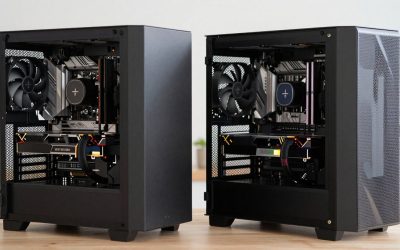
Undervolting tends to help most in compact cases, small-form-factor builds, warm rooms and any case where airflow is limited. It also helps if fan noise bothers you, since the fans can spin slower at the same temperature. Owners of cards with generous cooling and a roomy, well-ventilated case may see smaller gains and may not need to bother.
Expect modest, not magical, results. A drop of several degrees and a noticeable cut in power draw are common reported outcomes, but they are not guaranteed. AMD and NVIDIA tools expose different controls, and some cards or driver versions limit voltage adjustment, so check what your utility and the manufacturer’s documentation allow before assuming a method will work.
What can go wrong, and when to stop
A too-aggressive undervolt usually produces a crash or driver reset, and a restart returns the card to defaults in most utilities. Do not edit the card’s firmware or flash an unofficial BIOS for this purpose, since that risks permanent damage and warranty problems.
Stop tuning and reset to defaults if the system freezes repeatedly, if you see persistent artifacts, or if temperatures stay high even at stock. High temperatures at default settings point to cooling, not voltage. Compare your results with the advice in the complete guide to lowering CPU and GPU temperatures, and see how to lower CPU temperatures if the processor is also running hot. A companion write-up is available at how to undervolt your GPU.
Related guides
- Wireless Gaming Headsets Under 100 For Pc
- Graphics Card For Esports 1080P 240Hz
- Oled Gaming Monitors For Dark Rooms
Frequently asked questions
Does undervolting a GPU reduce performance?
Often only slightly, and sometimes not at all. Graphics cards usually ship with a voltage margin so every chip works reliably, and a well-chosen undervolt can trim heat and power while holding similar clock speeds. Results vary by individual chip, by game and by how aggressive the setting is, so compare frame rates before and after using the same scene and settings.
Is undervolting safe for a graphics card?
Lowering voltage is generally considered less stressful than raising it, and an unstable undervolt typically shows up as a crash or driver reset rather than damage. Still, tuning is done at your own risk, and some manufacturers have warranty terms about modified settings. Read the documentation for your card, change one setting at a time, and revert to defaults if instability continues.
What is the difference between undervolting and underclocking?
Undervolting lowers the voltage the chip receives at a given clock speed. Underclocking lowers the clock speed itself. Lowering clocks also reduces heat, but it costs performance directly, while a good undervolt aims to keep clocks close to stock. Many people combine a slightly lower power limit with a voltage tweak, which is the easier route for beginners.
How do you know if an undervolt is stable?
Run a demanding game or a stress-test utility for at least 30 to 60 minutes and watch for crashes, black screens, visual artifacts or driver resets. Then play your regular games for several days. Some instability only appears in particular titles or after the card warms up, so a short run is not enough to call a setting stable.
Will undervolting fix a GPU that runs too hot?
It can lower temperatures noticeably, but it is not a cure for a cooling problem. Dust, poor case airflow, failed fans or dried thermal material can all push temperatures up. Check those first. An undervolt works best as an extra step on top of a clean, well-ventilated system, not as a replacement for good cooling.