The easiest way to reset BIOS settings is from inside the setup screen: press the setup key at startup, choose the option named Load Optimized Defaults or Load Setup Defaults, save and exit. If the PC will not boot far enough to reach that screen, you clear the CMOS with the motherboard jumper, the dedicated clear button on the rear panel, or by removing the coin cell battery for a few minutes, always with the power fully off and the cord unplugged.
This guide covers the safe order of methods, what a reset changes and does not change, and what to fix afterward so your system boots exactly as before. Gaming rigs often carry memory profiles, fan curves, and boot settings that a reset wipes, so a little preparation saves time. Board layouts and menu names differ between makers, so always match each step to your motherboard manual.
When a BIOS Reset Is Worth Doing
A reset is a reasonable troubleshooting step when the system fails to post after a memory or CPU overclock, shows a black screen after a hardware change, or refuses to enter the setup screen. It also helps after a failed BIOS update, a forgotten setup password, or odd boot loops caused by a bad setting. It will not fix a dead power supply, a failed drive, or damaged parts, so do not expect it to cure problems unrelated to firmware settings.
Symptoms that point to a settings problem
Typical signs include a PC that powers on with fans spinning but no display after changing a memory profile, repeated restarts that never reach Windows, or error codes on the board display that mention memory training. These often clear after returning the BIOS to defaults.
Symptoms that do not
If the machine does not power on at all, smells of burning, or trips the power supply immediately, a reset is not the right step. Inspect cabling and the power supply instead.
What a reset changes
Resetting clears saved BIOS values such as XMP or EXPO memory profiles, CPU tuning, fan curves, boot order, and the clock. It generally does not erase data on your drives and does not remove the installed Windows. Secure Boot and TPM settings may return to their default state, which can matter for Windows 11 and some games with anti-cheat.
Prepare Before You Reset
If you can still reach the BIOS, spend a few minutes noting your current configuration. Photograph each page of the setup screen with a phone, or use the profile save feature that many boards offer. Write down your memory profile, boot drive, and any custom fan or voltage settings.
If you use drive encryption such as BitLocker, make sure you know where your recovery key is stored before you clear settings, since changing firmware or TPM state can trigger a recovery key prompt. Back up important files if the system is behaving unpredictably.
Safety note: Turn off the power supply switch, unplug the power cord, and press the power button once to drain residual charge before reaching into the case. Touch bare metal on the chassis to discharge static, and hold boards by the edges.
Method One: Reset From Inside the BIOS
- Enter setup. Restart and tap the key shown at startup, commonly Delete or F2, but check your manual.
- Find the defaults option. Look under the Exit or Save and Exit tab for a command such as Load Optimized Defaults.
- Confirm the change. Accept the prompt, then choose Save Changes and Exit.
- Let the PC restart. The first boot may take longer while memory is retrained.
- Re-enter setup. Confirm the date, boot drive and any required options.
Rebuilding your settings
After the reset, re-enable your memory profile so your RAM runs at its rated speed, set the boot drive, and restore fan curves. Turn on Secure Boot or TPM if your setup requires it. Change one item at a time and restart, so you can identify which setting caused the original problem if it returns.
Method Two: Clear CMOS Using Hardware
When the BIOS cannot be reached, use a hardware method. Pick the one your board supports, and check the manual to locate the parts.
| Method | How it works | Best for |
|---|---|---|
| Clear CMOS button | Press the labeled button on the rear I/O or on the board with the PC off | Boards with the button, quickest option |
| Jumper | Move the cap from pins 1-2 to 2-3 for several seconds, then return it | Most boards with a CLR_CMOS header |
| Battery removal | Remove the coin cell for a few minutes, then replace it | Boards without a jumper or button |
| BIOS flashback tools | Used for recovery after a bad update, per maker steps | Specific boards with that feature |
Using the jumper
- Power down, switch off the supply and unplug the cord.
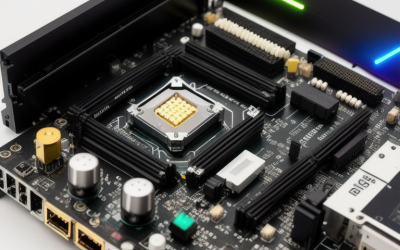
- Locate the clear header, usually labeled CLR_CMOS, CLRTC or JBAT, near the battery or board edge.
- Move the jumper cap to the clear position, or briefly short the two pins with the method the manual describes.
- Wait for the time the manual states, commonly a few seconds up to a minute.
- Return the jumper to its original position and reconnect power.
Using the battery
Locate the round CR2032 coin cell. Release the retaining clip gently with a plastic tool, remove the cell, and wait several minutes, with power unplugged, to let the settings drain. Reinstall it with the positive side facing up, as marked on the holder. If the clock keeps resetting afterward, the cell may be weak and need replacement.
Using the dedicated button
With power off and unplugged, hold the clear CMOS button for the duration the manual states. Reconnect power and start the system. This avoids opening the case in many cases.
After the Reset: First Boot Checklist
Expect the first startup to take longer, and the PC may restart once or twice as memory training runs. Do not interrupt it. If you see an error about a changed configuration, enter setup and save.
- Confirm the correct boot drive is first in the list.
- Enable the memory profile for rated speed.
- Check that the CPU and RAM are detected correctly.
- Restore the fan curves you noted.
- Re-enable Secure Boot, TPM and virtualization if your setup needs them.
- Set the date and time.
Special cases on gaming boards
Some boards pair the clear button with a requirement that the power supply switch is off, while others allow it with standby power present, so follow the manual rather than guessing. Certain boards also store a backup BIOS image or let you save several profiles, which makes it easy to restore a stable configuration after a reset. If your board has a debug display, note the code shown during the first boot, since it tells you which stage is running.
If the Problem Persists
If a reset does not help, try a minimal boot with one memory stick, no extra drives and the graphics card reseated. Check that all power cables are seated, including the CPU power connector. A stuck BIOS or a corrupted image may need a recovery method from the manufacturer, and for that, follow their documentation exactly rather than improvising.
Updating the BIOS can fix compatibility issues, but a power loss during a flash can leave the board unusable, so only update when you have a stable power source and a reason. Read the release notes first.
It also helps to keep a short record of what works. Once the PC is stable again, save a BIOS profile to a USB drive or to an internal slot if your board allows it, and note the exact settings for memory speed and timings. Next time something goes wrong, restoring a known-good profile takes a minute instead of an evening of guesswork, and you avoid retyping values from memory.
Common Mistakes
- Moving the jumper or pulling the battery while the power supply is still switched on.
- Forgetting to put the jumper back, so the board clears settings at every start.
- Installing the coin cell upside down or prying it out with a metal tool that can short the board.
- Skipping a note of the encryption recovery key before changing firmware state.
- Assuming a reset wipes the drive when it only clears firmware settings.
Related guides
- Aio Liquid Coolers For High Performance Gaming
- Wireless Gaming Headsets Under 100 For Pc
- Ssds For Large Video And Raw Photo Files
Frequently Asked Questions
Will clearing CMOS delete my files or Windows?
No, it resets firmware settings only. Your data and operating system stay on the drive, though the boot order may need to be set again.
How long should I leave the battery out?
Several minutes with the PC unplugged is the usual advice, but some boards need longer, so check your manual. Pressing the power button once while unplugged helps drain residual charge.
Will a BIOS reset remove a BIOS password?
For a setup password stored in CMOS, clearing it usually removes the password. Some systems store passwords differently, so confirm with the manufacturer.
Why does my PC take so long to start after a reset?
The board retrains memory and reinitializes devices. That can take a minute or more the first time, and it is normal unless it never completes.