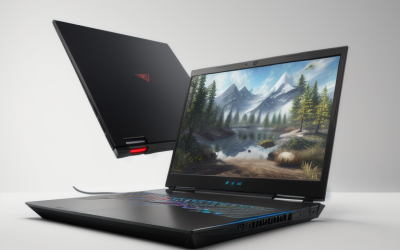
Updated November 2026 – To keep a gaming laptop cool, put it on a hard flat surface or a raised stand, clear the vents, switch to a balanced power profile, cap the frame rate, and clean the dust out every six to twelve months. A cooling pad such as the Cooler Master NotePal series or the Razer Laptop Cooling Pad can add a few degrees of headroom, but airflow and dust matter more than any accessory.
Are Gaming Laptops Supposed to Be Hot?
Yes, to a degree. A gaming laptop packs a high-wattage CPU and GPU into a thin chassis, so surface temperatures of warm to hot under load are normal. Chip temperatures in the 70s and 80s Celsius while gaming are common, and the processor and graphics chip are built to throttle themselves before reaching damaging limits. Intel, AMD and NVIDIA each publish a maximum operating temperature for their parts, and the laptop maker tunes the fans to stay under it. What is not normal is a laptop that shuts down, stutters badly after ten minutes, or has fans that ramp to full speed while the machine sits at the desktop.
Laptop reviewers routinely report that thin gaming laptops run hotter and louder than thicker models with the same chips, because the cooling hardware has less volume to work with. If your machine is within the maker’s stated limits and is not throttling hard, heat alone is not a fault.
Quick Reference: Heat Problems and Fixes
| Symptom | Common cause | First fix |
|---|---|---|
| Fans loud at idle | Background apps, performance mode left on | Close launchers, switch to balanced or silent profile |
| Frame rate drops after a few minutes | Thermal throttling | Raise the rear of the laptop, clear vents, lower graphics settings |
| Hot keyboard and palm rest | Heat spreading in a thin chassis | Use an external keyboard and mouse, add a stand |
| Temperatures climbing over months | Dust blocking heatsink fins | Compressed-air cleaning, or service by the maker |
| Sudden shutdown under load | Overheating protection or failing fan | Stop use, check fan operation, contact the maker |
| Hot while charging and gaming | Charger and battery add heat | Use the original charger, enable a battery care mode if the maker offers one |
How to Stop Laptop Overheating: Start With the Basics
Use a hard, flat surface
Beds, sofas and blankets block the intake vents on the underside. A desk or table is the simplest fix. If you must use your lap, a rigid lap desk with a raised, open underside is better than nothing, though it is still not a substitute for a table.
Keep the vents clear
Intake vents are usually on the bottom and sometimes on the keyboard deck, and exhaust vents are on the rear or the sides. Leave a few centimetres of space behind and beside the laptop. Pushing it against a wall or a monitor stand traps hot exhaust air that the fans then pull back in.
Raise the back edge
Lifting the rear of the laptop by a couple of centimetres lets the bottom intake breathe. A basic folding stand does this, and many reviewers find a simple riser performs close to an active pad on models with bottom-facing intakes.
Mind the room
A warm room raises every temperature in the system. Gaming in a closed bedroom in summer will cost more headroom than almost any other factor, so ventilation and a fan blowing across the desk can help.
Best Gaming Laptop Cooling Stand and Cooling Pad: What Actually Helps
The question behind the search for the best gaming laptop cooling stand or cooling system is whether pads work. Independent reviewer measurements have generally found modest gains, often a few degrees, and the benefit depends on the laptop design. Pads help most when the laptop has large bottom intake vents. They help least when the intakes are on the keyboard side or when the laptop already sits on feet that lift it well clear of the desk.
| Type | Best for | Limits |
|---|---|---|
| Passive riser stand | Quiet desks, thin laptops with bottom intakes | No added airflow |
| Fan pad with several small fans | Laptops with large underside vents | Fan noise, needs a USB port |
| Fan pad with one large fan | Quieter operation at moderate speeds | Fan must line up with the intake |
| Vacuum or turbo-style pad | Laptops with small, hard-to-reach vents | Louder, bulkier |
Check that the pad fan aligns with your laptop’s intake grille and that the stand is stable. Makers of pads list the maximum laptop size, so match it to your screen size. Treat any claimed temperature drop as a best-case figure unless an independent reviewer reports the same.
Power Profiles and Fan Curves in Maker Software
Almost every gaming laptop brand ships a control app that changes power limits and fan behaviour. Examples include Armoury Crate on ASUS ROG models, MSI Center, Lenovo Vantage, Alienware Command Center and Razer Synapse. Menu names differ by maker and model, so check your laptop’s manual for the exact path.
- Silent or quiet mode: lowers power limits and fan speed. Good for browsing, video and lighter games.
- Balanced or standard mode: the sensible default for most games at a stable frame rate.
- Performance or turbo mode: raises power limits and fan speed. Expect more noise and heat for modest extra performance.
- Custom fan curves: some apps let you set fan speed against temperature. Raising the fan curve slightly can hold temperatures down, at the cost of noise.
Windows also has a power mode setting under system power options, and the plugged-in and battery states are separate. Many laptops reduce graphics performance on battery, so game while plugged in with the original charger.
Stay inside the maker’s own profiles. Third-party tools that raise power limits or undervolt the processor can void the warranty and cause crashes, so make changes slowly and only if you accept that risk.
How to Make My Gaming Laptop Faster Without Making It Hotter
Running faster and running cooler often go together, because a chip that does not throttle delivers its full speed. The most useful steps are the ones that reduce wasted work.
- Cap the frame rate slightly above your screen refresh rate with the in-game limiter or the graphics driver control panel.
- Turn on DLSS, FSR or XeSS upscaling where the game offers it. Reviewers report these cut GPU load noticeably at the same visual quality in supported titles.
- Lower the settings that cost the most GPU time, such as ray tracing, shadow quality and volumetric effects, before touching texture quality.
- Close launchers, browser tabs and overlay apps that use the CPU in the background.
- Keep GPU and chipset drivers current and update the laptop’s BIOS and firmware only from the maker’s own support page, following their instructions.
- Check that the laptop is using the discrete GPU for the game rather than the integrated graphics, using the Windows graphics settings page.
- Make sure the SSD has free space and Windows updates are not running in the background mid-session.
Dust Cleaning: The Fix With the Biggest Payoff
Dust collects on the heatsink fins and fan blades, restricting airflow. A machine that was fine when new may run noticeably hotter after a year or two, especially in homes with pets or carpets.
Safe external cleaning
- Shut down, unplug the charger and, if the maker allows it, wait until the laptop is cool.
- Use short bursts of compressed air at the vents. Hold the fan blades still with a soft tool so they do not spin freely, because a fan spun fast by an air blast can be damaged.
- Do not use a household vacuum cleaner on the vents, because it can build up static and spin the fans too quickly.
Opening the laptop
Removing the bottom panel gives better access, but it carries risk. Many makers state that opening the laptop can void the warranty, and some use hidden clips or adhesive. Disconnect the battery connector first, ground yourself, and photograph screw locations. If the laptop is under warranty, ask the maker or an authorised service centre to clean it instead. If you are unsure, a technician is the safer choice.
Repasting and Thermal Pads: Caution First
Replacing the thermal paste on the CPU and GPU can reduce temperatures on older machines where the paste has dried out. Enthusiast guides and reviewers describe good results, but it is a delicate job. Risks include damaging the die, using the wrong thickness of thermal pad on memory and power stages, and voiding the warranty. Some laptops use liquid metal from the factory, and that material can conduct electricity and damage components if it spills, so those models need specialist handling. For a machine still under warranty, contact the maker. For an older machine, a reputable repair shop is a reasonable middle path.
Fan Noise: How to Reduce It
Noise is heat leaving the machine, so the fix for loud fans is usually the same as the fix for hot chips. Beyond that:
- Choose a quieter power profile when you do not need maximum performance.
- Lower the frame rate cap, since a lower cap means lower GPU power.
- Raise the laptop and clear the vents so the fans do not have to spin as fast.
- Use headphones, which mask fan noise during play.
- Update BIOS and the control app, because makers sometimes adjust fan behaviour in updates.
A rattling or grinding sound is different from airflow noise. That points to a failing fan bearing or a loose part, and it is worth contacting the maker rather than ignoring it.
Best Gaming Laptop With Good Cooling: What to Look For
Readers who search for the best gaming laptop with good cooling are usually comparing chassis designs rather than single chips. Look for these features in the maker’s spec sheet and in reviews from outlets that measure thermals:
- Larger chassis: more internal volume often means quieter cooling. Reviewers often note that 16 and 18 inch models cool better than thin 14 inch ones with a similar GPU.
- Vapor chamber or multi-heat-pipe design: makers list these as part of their flagship cooling systems.
- Several fans and generous vents: more intake and exhaust area spreads the load.
- Sensible power targets: a laptop with a lower total graphics power often runs cooler and quieter than a chassis pushed to the limit.
- Service access: a laptop where the bottom panel is easy to remove makes dust cleaning simpler.
Lines that reviewers often discuss for cooling include the Lenovo Legion Pro series, the ASUS ROG Strix and Zephyrus lines, and the MSI Raider and Vector ranges, though the result in any generation depends on the specific model and configuration. Read a thermal and noise section from an outlet that measures both before buying.
Warning Signs and When to Stop
- A burning smell, swollen battery, warped case or sudden shutdowns: stop using the laptop, unplug it and contact the maker or a technician.
- Fans that do not spin at all while the laptop is hot.
- Error messages on startup about fan failure.
- Keyboard or touchpad that bulges or lifts, which can indicate a swelling battery.
Do not open a swollen battery or puncture it, and do not keep charging it.
Frequently Asked Questions
How hot is too hot for a gaming laptop?
Sustained temperatures in the 90s Celsius or repeated thermal throttling are too hot. Each CPU and GPU maker lists a maximum temperature on its product page, so compare against that figure. Many laptops run in the 70s and 80s under normal gaming load.
Do laptop cooling pads really work?
They help modestly, usually by a few degrees, based on reviewers’ measurements. Gains are largest on laptops with large bottom intake vents. A good pad is one aligned with the intake and stable on the desk.
Can I use a gaming laptop on my lap?
It is not ideal. Blocked vents raise temperatures and the underside can become uncomfortably hot. Use a rigid board with an open underside or move the laptop to a desk.
How often should I clean the dust out of a gaming laptop?
Every six to twelve months is a common interval, sooner in homes with pets. Use short bursts of compressed air at the vents with the fans held still. If opening the case would void the warranty, ask the maker to do it.
Is it safe to repaste a gaming laptop?
It can be done, but it carries risk, especially on models that use liquid metal. It may void the warranty and can damage components if done incorrectly. Contact the maker or a repair technician if you are unsure.
Why is my gaming laptop loud even when idle?
Usually a background process, a performance profile left on, or dust. Check the task manager, switch to a balanced profile and clean the vents. If it persists, contact the maker, as the cause may be a fan or sensor fault.