Elgato and Parsec get compared constantly, but they solve opposite problems. Elgato makes capture hardware and software that pulls video out of a console or a second PC so you can record or broadcast it. Parsec is low-latency remote desktop software that lets you play a PC you already own from somewhere else. If you want an audience, you want Elgato. If you want your own games on a different screen, you want Parsec. The overlap is roughly zero, and buying the wrong one is the most common mistake in a first game streaming setup.
- Elgato vs Parsec: Two Different Jobs, One Confused Search
- Elgato vs Parsec Comparison Table
- When You Actually Need a Capture Card
- Internal vs External Cards, Passthrough Limits, and the HDR Gotcha
- Elgato Wave Link and Audio Routing for Streamers
- Parsec Setup, Host Requirements, and Real Latency
- Which One Do You Actually Need?
- Related Guides
- Frequently Asked Questions


Elgato vs Parsec: Two Different Jobs, One Confused Search
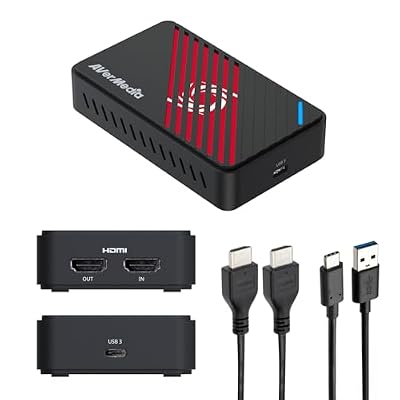
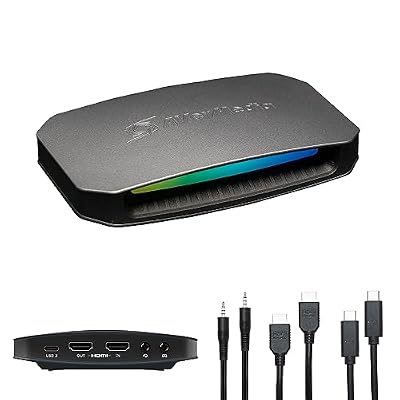
Elgato is a hardware brand (plus the free software that drives it): capture cards, the Stream Deck, Wave microphones, Key Lights, and Wave Link for audio routing. Its capture cards sit between a video source and a display, copy the signal to USB or PCIe, and hand it to OBS Studio or Elgato’s own capture app. Nothing about that makes your game playable somewhere else.
Parsec is the opposite direction. You install a host client on the gaming PC, sign in on a laptop, tablet, phone, or another desktop, and Parsec encodes the host’s screen with the GPU’s hardware encoder and streams it to you while sending your controller and keyboard input back. No capture card is involved; the GPU already has an encoder on it. What Parsec cannot do is broadcast to Twitch or YouTube, record a clean file, or capture a PlayStation.
People conflate them because both phrases contain “streaming.” Broadcast streaming is one-to-many and latency-tolerant. Remote-play streaming is one-to-one and latency-critical. Once you separate those two ideas, the tool choice is obvious.
Elgato vs Parsec Comparison Table
| Factor | Elgato capture card | Parsec |
|---|---|---|
| What it does | Copies an HDMI signal into a PC for recording or broadcast | Streams your PC’s screen and audio to another device you control |
| Cost | One-time hardware purchase; software free | Free tier for personal use; paid tier for higher bitrate, color and team features |
| Extra hardware | Capture card plus HDMI cables; a second PC for dual-PC setups | None beyond the host GPU and a client device |
| Works with consoles | Yes (PS5, Xbox, Switch) with HDCP caveats | No console hosting; a console can only ever be a client |
| Latency that matters | Passthrough is effectively instant; capture lag only affects the recording | Total round-trip latency is exactly what you feel while playing |
| Output | Twitch/YouTube broadcast, MP4 recordings, clips | A playable session; no broadcast or recording built in |
| Best for | Console streamers, dual-PC streamers, console and camera recording | Playing your own PC from a laptop, a TV, or another city |
When You Actually Need a Capture Card
A capture card is not a general streaming requirement. It earns its place in three situations.
Console capture
A PS5, Xbox Series X, or Switch 2 has no way to hand video to OBS. A capture card is the only path. Plug the console into the card’s HDMI in, run HDMI out to your TV or high-refresh gaming monitor, and connect the card to your PC by USB or PCIe. On PlayStation you must disable HDCP in system settings or you will record a black screen while the passthrough image looks perfectly fine.
Dual-PC streaming
If encoding, browser sources, alerts, and chat are stealing frames from your game, moving the broadcast workload to a second machine fixes it. The gaming PC sends HDMI to a card in the streaming PC, and the gaming PC never knows it is being recorded. This is the setup worth assembling if you are already pushing a high-end streaming PC rig to its limit at 1440p high refresh.
When OBS alone is enough
Single PC, PC games only, modern NVIDIA or AMD GPU: you do not need a capture card at all. NVENC or AMF encodes in a corner of the GPU that rendering barely touches, and OBS Game Capture grabs frames with no HDMI loop at all. Most people who buy a card for this configuration end up with an unused box in a drawer. Spend the money on better OBS settings, RAM, or a decent microphone instead.
Internal vs External Cards, Passthrough Limits, and the HDR Gotcha
Internal PCIe cards such as the 4K60 Pro line live inside your streaming PC, add the least latency to the capture path, and never have to negotiate with a USB controller. They require a free x4 slot and a desktop. External USB cards like the HD60 X and 4K X work with laptops and are far easier to move, but they need a genuine USB 3.x port with real bandwidth behind it; a hub shared with a webcam and an external drive is where mysterious dropped frames come from.
Read passthrough specs separately from capture specs, because they are almost never the same number. A card may capture at 4K60 while passing through 4K120 or 1080p240 so your own gameplay stays smooth. The lower number is what your audience sees; the higher number is what you play at. Cheap cards that pass through only 4K60 will silently cap a 120Hz console.
HDR is the trap. Most cards pass HDR to your display but capture SDR, so the file looks washed out and grey unless you apply tone mapping in OBS. Some cards also drop the passthrough refresh rate when HDR is enabled, and VRR often disappears through a capture path entirely. The clean workaround: play in HDR on the passthrough display, capture SDR, and add an HDR-to-SDR LUT or OBS’s tone mapping filter. If you insist on HDR end to end, you need a card that explicitly advertises HDMI 2.1 with HDR10 passthrough at your target refresh rate, and cabling rated to match.
Elgato Wave Link and Audio Routing for Streamers
Wave Link is the part of the Elgato stack people underrate. It is a software mixer that creates multiple virtual inputs — game, chat, music, browser, system, mic — and produces two separate mixes: one for your stream and one for your headphones. That single feature solves copyright-muted VODs, lets you duck music without muting it for yourself, and gives a guest their own fader.
Recent Wave Link releases run on Windows without Wave-branded hardware, so an XLR interface or a plain USB mic can feed the same routing. Pair it with a Stream Deck and every fader gets a physical key. If Wave Link will not install cleanly, VoiceMeeter does the same job with a harsher learning curve. Either way, sort audio out before you chase video quality — viewers forgive a soft picture and leave over bad sound. The same logic applies to your webcam choice: consistency beats headline specs every time.
Parsec Setup, Host Requirements, and Real Latency
Setup is four steps. First, install Parsec on the gaming PC and enable hosting under Settings, then Host; Windows 10 or 11 is the reliable host platform, with macOS and Linux hosting far more limited. Second, sign in with the same account on the client device. Third, in Host settings pick the hardware encoder your GPU actually has — NVENC on NVIDIA, AMF on AMD, Quick Sync on Intel — because the software fallback adds latency and heat. Fourth, wire the host to the router and cap the client bitrate to something your uplink can hold constantly, not its peak speed.
Realistic numbers: on a wired gigabit LAN, expect roughly 8–20 ms of added latency, which feels near-native in most games. Same-city internet over a solid connection lands around 25–45 ms and is fine for single-player and slower multiplayer. Cross-country adds 50–90 ms and makes competitive shooters unpleasant. Wi-Fi is usually the culprit when latency spikes rather than simply sitting high — a 5 GHz or 6 GHz link from a modern Wi-Fi 7 gaming router with the host wired is the practical fix. Disable the host monitor’s power saving, and keep the host at a resolution the client can match to avoid scaling blur.
Remote couch co-op
Parsec’s most fun use case is inviting a friend into your session so their gamepad appears as a second controller on your PC. Local-only co-op games — fighting games, platformers, party games — become playable across cities. The host does all the rendering, so your friend needs only the client app or a browser and a controller. It is also the cheapest way to let someone try a game before they price out a compact gaming mini PC of their own.
Which One Do You Actually Need?
Broadcasting console gameplay to an audience: capture card, no exceptions. Running two machines because encoding costs you frames: capture card, internal if both are desktops. Streaming PC games from one machine: neither — OBS plus NVENC. Playing your desktop’s library from a laptop in another room or another state: Parsec, free tier, wired host. Recording a camera for a face cam or a talking-head video: a camera-oriented capture device, not a game card. Playing couch co-op with a friend who lives elsewhere: Parsec. Want both a broadcast and remote play? They stack fine — Parsec on the gaming PC, capture card feeding the streaming PC — and they never compete for the same hardware.
Related Guides
Frequently Asked Questions
Can Parsec replace a capture card for streaming to Twitch?
No. Parsec produces a playable remote session, not a broadcast feed, and it has no encoder settings or scene system aimed at Twitch or YouTube. You could run OBS on the client and capture the Parsec window, but you would be re-encoding an already-compressed stream, adding latency and visible artifacts. For broadcasting, use OBS on the gaming PC or a capture card into a second machine.
Do I need a capture card if I only play PC games on one computer?
Almost certainly not. OBS Game Capture reads frames directly from the game, and your GPU’s hardware encoder handles compression with very little performance cost on any recent NVIDIA, AMD, or Intel card. A capture card only helps if you are recording a console, a second PC, or a camera. Spend that budget on audio, lighting, or upload bandwidth instead, all of which viewers notice far more.
Why does my capture look washed out when the game looks fine on my TV?
That is the HDR mismatch. The passthrough carries HDR to your display while the card captures an SDR signal, so highlights flatten and colors turn grey. Fix it by applying OBS’s HDR tone mapping filter or a conversion LUT to the capture source, or by turning HDR off on the console while you stream. Some cards also reduce the passthrough refresh rate whenever HDR is active.
Does Elgato Wave Link work without a Wave microphone?
On recent Windows releases, yes — Wave Link runs as a standalone virtual mixer and accepts input from USB microphones and XLR interfaces, not only Wave hardware. You still get separate stream and monitor mixes, per-application channels, and Stream Deck integration. If your version refuses to open without Elgato hardware, update it first; if it still will not cooperate, VoiceMeeter provides equivalent routing for free.
What internet speed do I need for a good Parsec session?
For 1080p60, budget roughly 15–30 Mbps of stable downstream at the client and matching upstream at the host, since the host is the one sending video. Consistency matters far more than headline speed: a steady 25 Mbps beats a spiky 300 Mbps line. Wire the host with Ethernet, cap the bitrate manually rather than leaving it automatic, and test over a wired client connection before blaming Parsec.