PCSX2 is the best PS2 emulator for PC in 2026. It is the only project with active development, near-complete compatibility and hardware renderers that upscale the PlayStation 2’s 480i output to 4K. Play! is a lighter cross-platform alternative, and Android handhelds now have PCSX2 builds of their own. Every option needs a BIOS you dump from your own console.
- The Legal Line: The Emulator Is Legal, The Files Must Be Yours
- Best PS2 Emulators for PC in 2026: Comparison
- PCSX2 Settings That Actually Matter
- Save States vs Memory Cards: Use Both, Trust One
- Per-Game Compatibility Is Still the Deciding Factor
- Hardware Requirements for PS2 Emulation
- Controllers: What to Plug In
- Troubleshooting: The Five Things That Usually Go Wrong
- Frequently Asked Questions
The PS2 is a hard machine to emulate. Its Emotion Engine CPU, two vector units and a graphics synthesizer drawing into a tiny 4 MB framebuffer do not map cleanly onto PC hardware, which is why a desktop that runs Cyberpunk at 100 fps can still stutter in Shadow of the Colossus.
The Legal Line: The Emulator Is Legal, The Files Must Be Yours
Start here, because the rest of this guide assumes it. The emulator is clean-room software and legal to run. Obtaining the game images or the BIOS from someone else is not. PCSX2 cannot boot without a PS2 BIOS image, and that image is copyrighted Sony code — it must come from a console you own. The legitimate path is dumping:
- Games. PS2 discs are ordinary DVDs (a few early titles are CDs), so any PC optical drive can read them. Use a disc-imaging tool to produce an ISO or compressed CHD from your own copy.
- BIOS. Run a BIOS dumper on your own PS2 and copy the files to the PCSX2
biosfolder. The dump is tied to that console and region, and it is the only version you are entitled to use.
We do not name where pre-made ISOs or BIOS files circulate, and you should not go looking — beyond the legal exposure, downloaded BIOS files are a known malware vector. If you no longer own the console, the honest answer is that PS2 emulation is not open to you until you buy one.
Best PS2 Emulators for PC in 2026: Comparison
| Emulator | Platforms | Accuracy | Ease of setup | Best for |
|---|---|---|---|---|
| PCSX2 | Windows, Linux, macOS, Android (WIP) | Very high — the reference implementation | Easy (guided first-run wizard) | Almost everyone; the default choice |
| PCSX2 via EmuDeck / RetroDeck | Steam Deck, Linux handhelds | Same core as PCSX2 | Easy — scripted install, controller pre-mapped | Steam Deck owners who want library integration |
| Play! | Windows, macOS, Linux, Android, iOS | Moderate — many titles still glitch or hang | Very easy, minimal options | Phones and platforms PCSX2 does not reach |
| AetherSX2 | Android (discontinued) | High when it worked — PCSX2-derived | N/A — no longer maintained | Nobody in 2026; use PCSX2 Android instead |
| DobieStation | Windows, Linux | Low-level research project, low compatibility | Difficult, build-it-yourself | Developers studying PS2 hardware |
On desktop that collapses to one recommendation: install PCSX2. The alternatives exist for platforms it does not serve well, not because they beat it.
PCSX2 Settings That Actually Matter
Modern PCSX2 opens with a wizard that asks for your BIOS folder and game directory, then defaults everything sensibly. Four settings are worth your attention afterwards; ignore the rest until a game misbehaves.
1. Pick the Right Renderer
PCSX2 offers Direct3D 11 and 12, OpenGL, Vulkan, Metal on macOS, and a pure software renderer. Vulkan is the best default on AMD and Intel GPUs and usually fastest on NVIDIA too; Direct3D 12 is the fallback when a driver misbehaves. OpenGL is slower but historically the most accurate for tricky blending.
The software renderer ignores your graphics card and rasterizes on the CPU, reproducing the console’s output almost exactly — no upscaling, no artifacts, no missing effects. When a game renders wrong in every hardware renderer, switching to software tells you whether the bug is emulation or your GPU path.
2. Upscaling and the Artifacts It Causes
Internal resolution scaling is the headline feature: 2x is roughly 720p, 3x lands near 1080p, 6x reaches 4K. The jump from native to 3x transforms how these games look, and it is where your GPU performance goes.
It also breaks things. The PS2 composites 2D sprites and post-processing passes at exact pixel offsets, and at six times the size that maths no longer lines up. The symptoms are familiar: thin vertical or horizontal seams, black lines between terrain tiles, misaligned bloom, ghost outlines around sprites, gaps in text and HUD elements, and fog or shadow layers floating away from the geometry they belong to.
The fix lives in Graphics → Upscaling Fixes. Half Pixel Offset, Round Sprite, Align Sprite, Merge Sprite and Texture Offsets each correct a different class of misalignment. Do not guess: check the PCSX2 wiki entry for your game, apply what it recommends per-game, and leave the global defaults alone. If nothing works, drop to 2x or native — a clean native image beats a sparkling 4K one full of seams.
3. Blending Accuracy and Mipmapping
Blending Accuracy controls how faithfully PCSX2 reproduces the PS2’s unusual framebuffer blending. Higher levels fix transparency, shadows and water but cost real performance. Start at the default and raise it only for a game with visibly wrong transparencies; mipmapping likewise fixes shimmering distant textures in a handful of titles.
4. Widescreen Patches
PS2 games are 4:3. PCSX2 ships a widescreen patch database and a per-game “Enable Widescreen Patches” toggle that alters the camera projection for a true 16:9 field of view — genuinely wider, not stretched. Side effects come with it: 2D menus authored for 4:3 may stretch, and because the engine now draws objects never meant to be seen, geometry can pop in at the edges. The matching “No-Interlacing” patch, where available, kills 480i flicker and is usually the bigger upgrade.
Save States vs Memory Cards: Use Both, Trust One
Save states snapshot the emulator’s entire RAM and restore it instantly — excellent for boss attempts and grinding. They are also fragile: a state is tied to the PCSX2 build that created it, so an update can invalidate every state you own, and one captured mid-write can corrupt in-game data.
Virtual memory cards are the real save system. PCSX2 emulates 8 MB PS2 cards as .ps2 files, or as folder memory cards that keep each game’s saves in its own directory — easier to back up selectively. The rule is simple: use states freely during a session, but always save properly in-game before you quit, and back up the memory card folder like any other irreplaceable data on your gaming SSD.
Per-Game Compatibility Is Still the Deciding Factor
PCSX2 plays the overwhelming majority of the PS2’s roughly 4,000-game library, but “plays” covers a range. The project maintains a compatibility list rating each title from Perfect down to Nothing, and the notes on an entry matter more than the rating. Check it before you spend an evening fighting a game.
PCSX2 applies per-game settings automatically from its internal database, so most titles arrive pre-configured. When you change something yourself, use the per-game properties dialog rather than global settings, so one workaround does not degrade everything else.
Hardware Requirements for PS2 Emulation
PS2 emulation is dominated by CPU single-thread performance, not core count; the GPU only becomes the limit once you upscale hard.
| Target | CPU | GPU | RAM | Notes |
|---|---|---|---|---|
| Native (1x), full speed | Any modern 4-core with solid single-thread IPC | Integrated graphics is fine | 8 GB | Works on laptops and mini PCs |
| 3x (≈1080p) | Mid-range current-gen desktop CPU | Entry-level discrete GPU | 8–16 GB | The sweet spot for most people |
| 6x (≈4K) + upscaling fixes | High single-thread CPU | Mid-range or better modern GPU | 16 GB | Upscaling fixes add GPU cost |
| Software renderer | 8+ fast cores | Irrelevant | 16 GB | Highest accuracy, heaviest CPU load |
If you are choosing parts around emulation, spend on clock speed and IPC rather than core count — the same advice that applies to picking a gaming CPU, only more so. A modest budget gaming build handles 3x comfortably, and the Steam Deck runs most of the library at 2x–3x; see our notes on handheld emulation performance.
Controllers: What to Plug In
PCSX2 emulates the DualShock 2, including the analogue pressure-sensitive face buttons a few games (notably Metal Gear Solid 3) actually use. Any XInput controller works out of the box, and SDL covers PlayStation and Switch pads. A wired USB pad with a proper D-pad suits a library heavy on 2D platformers and fighting games.


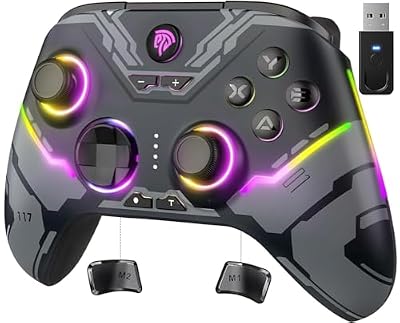
Wired beats wireless because emulator input latency stacks on top of the original game’s. If you already own a good PC gamepad, use it — this is not a purchase you need to make to start.
Troubleshooting: The Five Things That Usually Go Wrong
- “No BIOS found” on launch. The files must sit directly in the
biosfolder, not in a subfolder or an archive. Point PCSX2 at it, then click Refresh. - Flickering horizontal lines in every game. That is interlacing, not a bug. Change the deinterlacing mode, or apply the game’s No-Interlacing patch.
- Seams and misaligned sprites after upscaling. Apply per-game upscaling fixes, or reduce the internal resolution.
- Audio crackling and desync. Usually the emulator not hitting 100% speed. Fix the framerate first, then the audio buffer. EE cycle skipping trades accuracy for speed and can itself cause audio glitches.
- Runs at 100% speed but feels slow. Many PS2 titles targeted 30 fps, and PAL versions ran 17% slower than NTSC. Check your disc’s region and whether a 60 Hz patch exists. If the display is the bottleneck instead, our guide to choosing a monitor covers frame pacing.
Frequently Asked Questions
Is using a PS2 emulator legal?
Yes, the emulator software itself is legal in the United States — courts have repeatedly held that clean-room reimplementation of a console is lawful. What is not legal is downloading game ISOs or BIOS files you did not create. PCSX2 requires a PS2 BIOS image, and that image must be dumped from a console you personally own, as must every game disc you play.
Do I really need a BIOS file to run PCSX2?
Yes. Unlike some emulators that can substitute a high-level replacement, PCSX2 needs a real PS2 BIOS image to boot, because games rely on routines inside it. There is no legitimate workaround and no built-in alternative. You dump the BIOS from your own PlayStation 2 with a dumper utility, which produces files tied to that specific console and region.
Why do my games have thin lines or gaps after I increase the resolution?
Those are upscaling artifacts. PS2 games composite 2D sprites and post-processing passes at exact pixel positions, and multiplying the internal resolution breaks that alignment. Open Graphics, then Upscaling Fixes, and apply the options the PCSX2 wiki lists for your specific game — commonly Half Pixel Offset, Round Sprite or Align Sprite. Lowering to 2x or native also removes them entirely.
Are save states safe to rely on?
Not as your only save. Save states restore the emulator’s exact memory contents, but they are tied to the PCSX2 build that created them, so an update can invalidate them all. A state captured while the game was writing data can also corrupt an in-game save. Use states during a session for convenience, then save normally to the virtual memory card before quitting.
Can I play PS2 games on Android or a handheld in 2026?
Yes, though the desktop experience is better. AetherSX2, which used to be the leading Android option, is no longer maintained, and unofficial rebuilds of it are unsupported. PCSX2 itself now publishes Android builds, and Play! remains a lighter cross-platform choice with lower compatibility. Linux handhelds such as the Steam Deck simply run the full desktop PCSX2.